




Quick Answer
- In-App Mobile Playback: Download your favorite playlists over Wi-Fi within the official mobile app, turn on Offline Mode, and connect your phone to the vehicle using Apple CarPlay, Android Auto, Bluetooth, or an auxiliary cable.
- Direct USB Drive Playback: Export your playlists to universal FLAC or 320 kbps MP3 files using a desktop audio converter, copy them to a FAT32 or exFAT flash drive, and insert it directly into your car’s media port.
- Built-In Vehicle Apps: Use onboard infotainment apps found in select connected vehicles to download tracks directly to vehicle storage.
Streaming master-quality and high-resolution audio during daily commutes consumes significant cellular data and frequently buffers in rural stretches, tunnels, or highway dead zones. Listening to your music library offline in your vehicle eliminates buffering stutters while preserving your monthly mobile data allocation.
While the mobile application provides built-in offline downloads, these files are encrypted cache streams restricted to authorized software. Consequently, standard car dashboard USB ports cannot index or play them directly from your phone’s file storage. In addition, running navigation alongside continuous media decoding can overheat mobile devices during long trips.
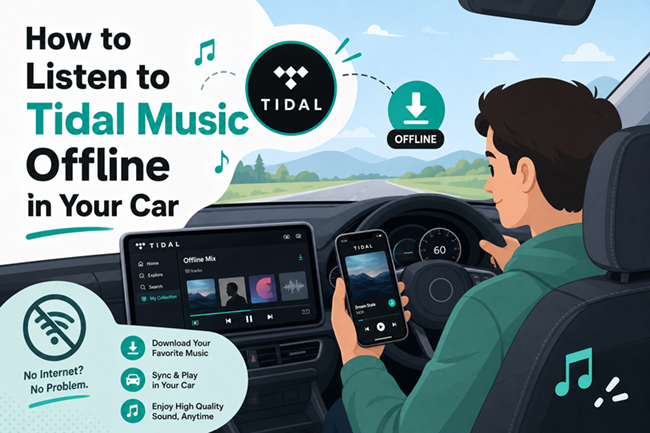
This guide details effective methods to enjoy your favorite music offline in any vehicle, covering smartphone integration setups like Apple CarPlay and Android Auto, as well as exporting universal audio files to a USB flash drive for standalone playback.
- Part 1. How to Play Tidal Offline in Car via Phone Integrations
- Part 2. How to Download and Transfer Tidal Music to a USB Drive with AudKit
- Part 3. How to Format USB Drives and Troubleshoot Car Stereo Media Playback
- Part 4. Comparing In-Car Tidal Offline Methods: Mobile Apps vs. Standalone USB Playback
- FAQs About Listening to Tidal Music Offline in Your Car
Part 1. How to Play Tidal Offline in Car via Phone Integrations
Play Pre-Downloaded Tracks via Apple CarPlay or Android Auto
Connecting your smartphone to Apple CarPlay or Android Auto allows you to manage cached tracks directly through your dashboard display. This configuration lets you navigate albums and use physical steering-wheel controls without consuming cellular data.
- Open the mobile app on your smartphone, navigate to My Collection > Settings (gear icon), and toggle on Offline Mode. This prevents the application from attempting to stream uncached media over mobile networks.
- Connect your phone to your car’s primary infotainment interface using a certified USB data cable, or pair wirelessly if your vehicle supports wireless CarPlay or Android Auto.
- Note: Be sure to use the specific multimedia port—frequently labeled with a smartphone or USB symbol—rather than a charge-only outlet.
- Select the streaming app icon on your center console screen.
- Open the Downloaded tab in My Collection to select and play your saved playlists, albums, or offline mixes.
Stream Offline Tidal Audio via In-Car Bluetooth Connection
If your vehicle does not support modern smartphone mirroring platforms, pairing via standard Bluetooth lets you route cached audio through your car speakers wirelessly. While Bluetooth uses lossy codecs such as SBC or AAC, it remains an accessible option across almost all contemporary vehicles.
- Turn on Bluetooth on your car stereo and set the head unit to pairing mode via the settings menu.
- On your mobile device, open Settings > Bluetooth, select your vehicle’s multimedia receiver, and confirm the matching passkey on both screens.
- Switch your car stereo’s input source to Bluetooth Audio or BT Media.
- Open the mobile app on your phone, go to My Collection > Downloaded, and select any stored track to begin listening.
Manage Mobile Battery and Thermal Load During In-Car Playback
Running audio decoding simultaneously with GPS navigation puts heavy computational demands on your phone, accelerating battery drain and generating significant heat. Use these adjustments to keep your device operating smoothly:
- Enable Offline Mode: Toggling Offline Mode stops the background receiver from constantly scanning for weak cellular towers and refreshing remote artwork metadata.
- Restrict Background Cellular Access: Disable cellular data permissions for the app in your device’s operating system settings to block accidental network usage entirely.
- Position Away from Direct Sunlight: Mount your phone directly in front of an active air conditioning vent rather than on top of the dashboard where solar heat can trigger thermal throttling.
- Utilize a Dedicated 12V Power Delivery Charger: Plug your phone into an active 12V USB-PD car adapter capable of delivering sufficient wattage for concurrent charging and processing.
Part 2. How to Download and Transfer Tidal Music to a USB Drive with AudKit
While mobile mirroring works well for everyday commutes, long-distance road trips reveal distinct drawbacks. Screen mirroring generates excess heat, wireless transmission compresses dynamic range, and mobile apps require periodic online verification checks.
Transferring your playlists to a dedicated physical USB flash drive bypasses these limitations completely. By using AudKit Tidal Music Converter, you can convert your collection into standalone audio files, insert the flash drive into your car dashboard, and enjoy true offline playback independently of any phone.
Why Use AudKit Tidal Music Converter for In-Car Audio
AudKit Tidal Music Converter overcomes automotive hardware and file system restrictions through several dedicated features:
- Universal Audio Formats: Converts streaming tracks into standard FLAC, WAV, MP3, or AAC files compatible with factory and aftermarket car audio systems.
- Lossless Audio Quality: Preserves original bit depth and sample rates, bypassing Bluetooth compression to deliver true high-fidelity sound through high-end car sound systems.
- Complete ID3 Metadata Preservation: Retains critical tag information including track titles, artist names, album titles, genre tags, and track numbers for accurate dashboard sorting.
- Full Device Independence: Eliminates smartphone battery drain, thermal throttling, and recurring DRM license renewals on the road.
Step-by-Step Tutorial: Converting Tidal Tracks to a USB Drive
Follow these steps to convert your collection and transfer the audio files to a USB drive for in-car listening:
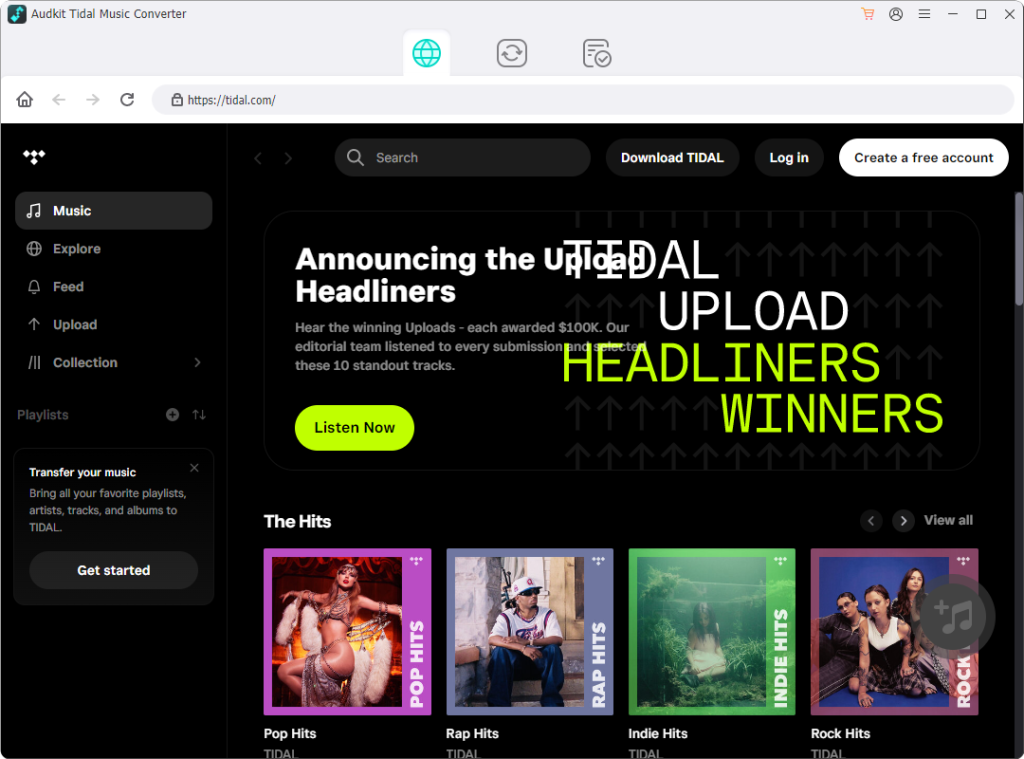
Step 1. Open AudKit and Access Your Library
Launch AudKit Tidal Music Converter on your computer. Log into your account using the built-in web player interface to access your personal collection, playlists, and albums.
Step 2. Set Your Preferred Audio Parameters
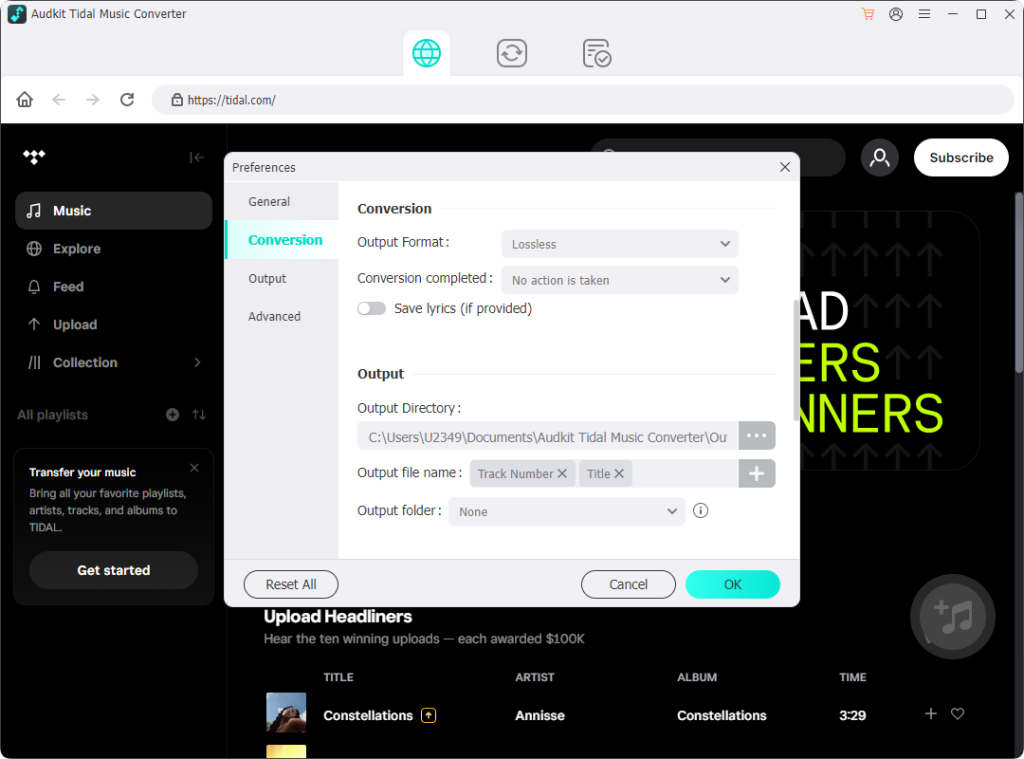
Click the top Menu icon and open Preferences > Convert. Choose FLAC or WAV for uncompressed audio fidelity, or select MP3 (at 320 kbps) for broad compatibility across older stereos. You can also customize output folder structuring by artist or album.
Step 3. Add Playlists to the Conversion Queue
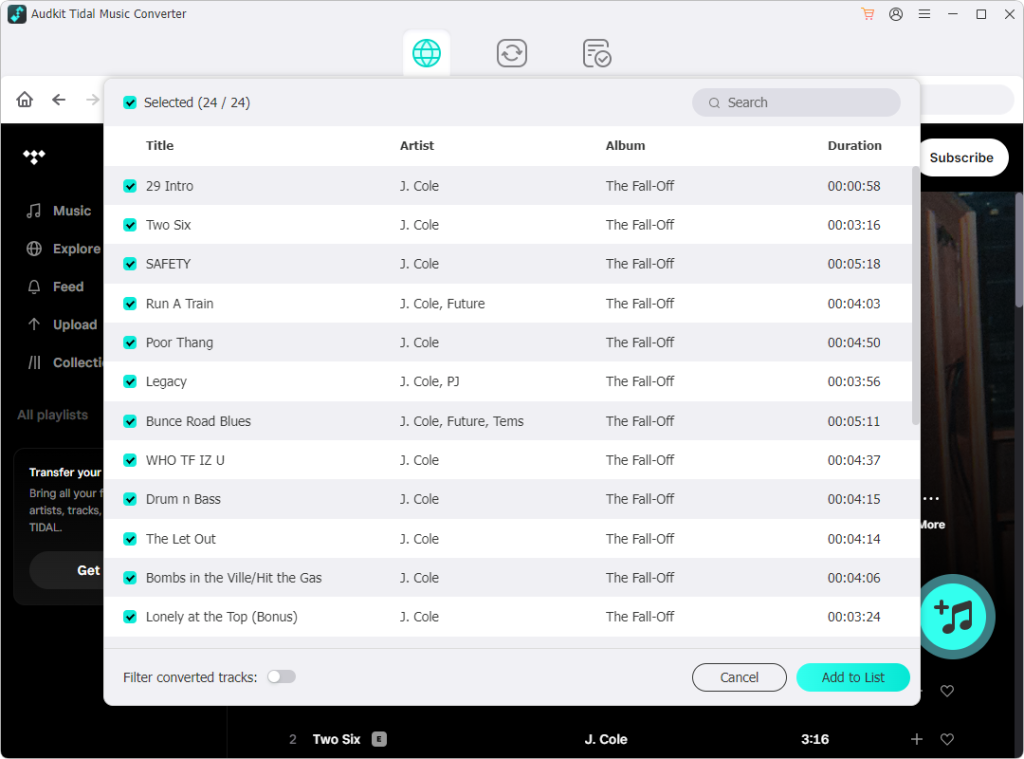
Browse to your desired playlist or album. Click the yellow + icon in the lower-right corner of the interface to import the tracklist into the conversion queue.
Step 4. Download and Copy Files to a USB Drive
Click the Convert button to begin exporting the tracks to your computer. Once finished, open the output destination folder from the Converted tab, copy the exported music folders onto your formatted USB drive, and eject the drive safely.
Part 3. How to Format USB Drives and Troubleshoot Car Stereo Media Playback
When configuring a USB drive for in-car music playback, file system compatibility is critical. Many factory head units cannot read proprietary file systems such as NTFS, APFS, or macOS Extended (HFS+). To ensure smooth playback, format your drive to FAT32 for drives up to 32 GB, or exFAT for larger storage capacities. In addition, configure the partition scheme as MBR (Master Boot Record), since automotive infotainment systems often fail to recognize GPT partition tables.
Physical port selection is equally important. Always insert your USB drive into a dedicated media data port—identified by a USB logo, audio jack symbol, or screen icon—rather than a charge-only port marked solely with a lightning bolt symbol.
To help your car’s media system index files rapidly, organize your music directory cleanly (such as Artist / Album / Track Number - Title.ext) and avoid nesting folders more than two levels deep. Keep embedded album art files below 800×800 pixels and ensure metadata uses standard ID3v2.3 tags so that track details and artwork render reliably on your center display.
For audio encoding, standard 320 kbps MP3 files offer universal reliability across vintage and base-model stereos, while 16-bit/24-bit FLAC files deliver full dynamic range on premium factory sound systems from manufacturers like Harman Kardon, Burmester, or Bose.
Part 4. Comparing In-Car Tidal Offline Methods: Mobile Apps vs. Standalone USB Playback
Choosing between mobile app caching and direct USB drive playback depends on your audio preferences, vehicle capabilities, and travel habits:
- Audio Fidelity: Mobile Bluetooth streaming recompresses audio using lossy SBC or AAC codecs. In contrast, playing local FLAC files directly from a USB drive provides uncompressed audio decoded natively by your car’s digital-to-analog converter.
- Device Battery and Thermal Wear: Mobile caching paired with active GPS navigation drains phone battery life and generates notable heat. USB drive playback runs entirely through the car stereo, keeping your phone cool.
- System Compatibility: In-app dashboard mirroring demands modern head units equipped with Apple CarPlay or Android Auto. A USB flash drive works across nearly all vehicles equipped with standard USB media ports.
- True Offline Autonomy: In-app downloads require periodic online validation to retain access, which can interrupt playback during long trips off the grid. A USB drive provides continuous, unrestricted playback anywhere.
FAQs About Listening to Tidal Music Offline in Your Car
Why won’t my car stereo recognize offline tracks copied directly from my phone?
In-app mobile downloads are saved as encrypted, segmented cache files designed exclusively for the official app. Vehicle infotainment systems lack the decryption software required to read these files, rendering the drive unreadable.
How can I listen to high-fidelity tracks offline in my car without using phone data?
You can convert your playlists into universal audio files like FLAC or MP3 using AudKit Tidal Music Converter, copy them to an MBR-partitioned USB drive, and plug it directly into your car’s media port.
Why does streaming music sound lower in quality over vehicle Bluetooth?
Standard Bluetooth connections compress incoming audio streams via lossy algorithms like SBC or basic AAC. Direct USB playback and wired auxiliary connections preserve original audio resolution without wireless compression.
What is the best file system format for an in-car USB music drive?
Format your USB drive as FAT32 for drives up to 32 GB, or exFAT for larger capacities, using the MBR partition table for maximum compatibility across automotive head units.
Conclusion
Enjoying your favorite music collection while driving should never be disrupted by weak cellular reception, audio buffering, or mobile data caps. While downloading tracks inside the mobile app and using Apple CarPlay or Android Auto provides convenient control on daily commutes, long drives can lead to battery drain and thermal throttling.
For uncompromised audio fidelity and true independence from smartphone connections, exporting your library to a physical USB flash drive is the most dependable solution. By utilizing AudKit Tidal Music Converter to save playlists in car-compatible formats like FLAC or MP3, you can experience pristine audio directly through your vehicle’s sound system on any road trip.
Disclaimer: This guide is intended for personal media backup and offline playback of legally accessed content. Users are responsible for complying with relevant local copyright laws.

Andrew Rowley
 Staff Editor
Andrew Rowley has over 10 years of writing experience and is good at writing in audio technology and audio converter software. He can provide high-quality articles to help streaming music lovers explore music better.