





Quick Answer
- Backend usernames are permanent: Your system username is a fixed account identifier that cannot be modified by users or Spotify support.
- Update your public Display Name instead: If you want to change how your name appears on your profile, edit your Display Name in the account settings on desktop, mobile, or the web player.
- Changing the system ID requires a new account: If you want to get rid of an unwanted backend username completely, you must create a new account with a different email address.
- Back up your music before switching: When starting fresh, manually export your playlists or save your tracks using a dedicated third-party converter so you do not lose your library.
If you want to know how to change your Spotify user name, you have probably run into an immediate issue: an old nickname you no longer like or a long string of random numbers and letters. Spotify relies on fixed account IDs behind the scenes, meaning your underlying database username cannot be edited once your profile exists.
You still have complete control over the name other listeners actually see. This guide walks you through updating your public display name on desktop, mobile, and web in just a few steps. If you prefer a completely clean slate with a brand new account, we also cover how to set up a new profile and move your saved playlists over without losing your music collection.
Part 1. Understanding Spotify Username vs. Display Name
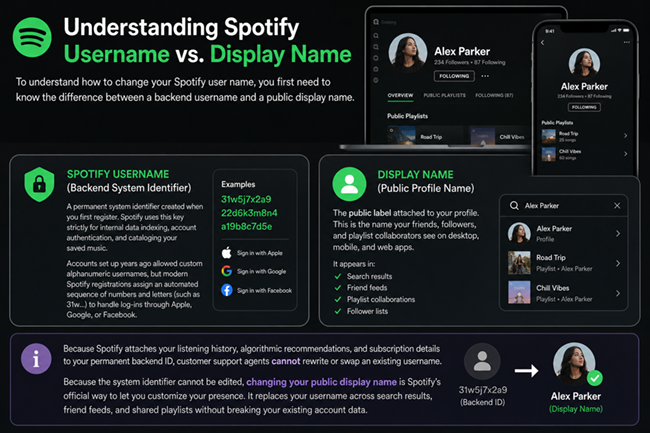
To understand how to change your Spotify user name, you first need to know the difference between a backend username and a public display name. A Spotify username is a permanent system identifier created when you first register. Spotify uses this key strictly for internal data indexing, account authentication, and cataloging your saved music. Accounts set up years ago allowed custom alphanumeric usernames, but modern Spotify registrations assign an automated sequence of numbers and letters (such as 31w...) to handle log-ins through Apple, Google, or Facebook.
Your display name is the public label attached to your profile. This is the name your friends, followers, and playlist collaborators see on desktop, mobile, and web apps. Because Spotify attaches your listening history, algorithmic recommendations, and subscription details to your permanent backend ID, customer support agents cannot rewrite or swap an existing username.
Because the system identifier cannot be edited, changing your public display name is Spotify’s official way to let you customize your presence. It replaces your username across search results, friend feeds, and shared playlists without breaking your existing account data.
Part 2. Steps to Change Your Spotify Display Name on Any Device
Update Display Name on Spotify Desktop App
Changing your display name through the desktop app for Windows or macOS is straightforward. Updating it here immediately changes how your profile looks across your playlists, follower lists, and the Friend Activity feed.
- Open the Spotify desktop application and click your profile picture or current name in the top right corner.
- Select Profile from the dropdown menu to open your profile page.
- Click directly on your display name next to your profile photo.
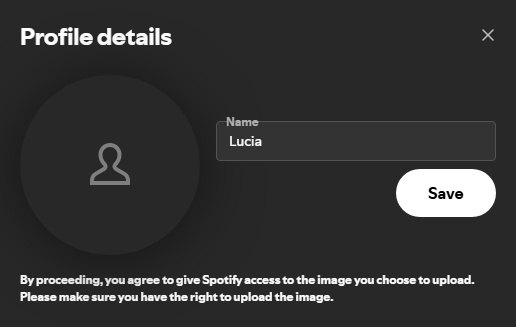
- Enter your new preferred name in the Name field inside the Profile details window.
- Click Save to confirm your update.
Modify Display Name on iOS and Android Mobile Apps
If you use Spotify mainly on your phone or tablet, you can edit your public name directly inside the mobile app. The update syncs across your account on all logged-in devices right away.
- Launch the Spotify app on your iOS or Android device and tap your profile icon in the top left corner of the Home tab.
- Tap View Profile located under your current name.
- Tap the Edit Profile button on your profile screen.
- Tap your current name, type in your new display name, and tap Save in the top right corner.

Change Display Name via Spotify Web Player
If you are using a public computer, a Chromebook, or an internet browser without the desktop application installed, you can update your profile on the web player.
- Open your browser, navigate to the Spotify web player, and log in to your account.
- Click your profile icon in the top right corner and click Profile.
- Click your display name on the profile banner to open the edit prompt.
- Enter your updated name in the text box and click Save to apply the change.
Part 3. Backing Up Playlists and Migrating with AudKit Spotify Music Converter
Updating your display name solves the visual problem, but it does not change your permanent backend username. If you want to get rid of an unwanted backend username completely, the only option is to register a brand-new Spotify account. The main drawback to this approach is that Spotify provides no direct way to transfer your liked songs, saved albums, or custom playlists to another account.
To keep your music collection intact when switching accounts, you can download and back up your tracks to your computer first. AudKit Spotify Music Converter provides an easy way to export your playlists to local storage, allowing you to load them into your new profile without rebuilding your library track by track.
Why Choose AudKit Spotify Music Converter for Library Migration
AudKit Spotify Music Converter helps both Free and Premium listeners save Spotify playlists directly to a PC or Mac for personal offline backups. Key benefits for moving your library include:
- Flexible Audio Formats: It converts Spotify tracks and playlists to standard formats such as MP3, FLAC, WAV, AAC, M4A, and M4B for broad playback compatibility.
- High Quality Sound and Metadata: It preserves audio quality up to 320 kbps while keeping original ID3 tags intact, including song titles, artist names, album covers, and track numbers.
- Fast Batch Processing: The software runs at up to 5X speed on Windows systems, letting you export long playlists in batches quickly.
- Permanent Local Storage: Once downloaded, your tracks remain safely stored on your local drive, ready to import into your new Spotify profile through the Local Files setting.
Step-by-Step Tutorial to Transfer Playlists to a New Profile
Follow these steps to back up your playlists using AudKit Spotify Music Converter and move them to your new profile.
Step 1. Launch the Converter and Add Your Playlists
Install and launch AudKit Spotify Music Converter on your computer. Open your current Spotify account, find the playlists or albums you want to move, and drag them into the converter window. You can also right-click a playlist, select Share > Copy link to playlist, paste the link into the search bar, and click the + button.

Step 2. Choose MP3 Output and Audio Settings
Click the top Menu icon and open Preferences > Convert. Select MP3 as your output format. You can also customize the bit rate up to 320 kbps and sample rate up to 48,000 Hz to retain high audio fidelity, then click OK.

Step 3. Convert and Save Your Tracks Locally
Click the Convert button in the bottom right corner. AudKit Spotify Music Converter will download the selected songs to your local output folder. Once the download finishes, click the folder icon to view your converted audio files.

Step 4. Import the Audio Files into Your New Spotify Account
Log out of your old account and sign in to your new Spotify account on your desktop. Go to Settings, scroll down to Local Files, and turn on Show Local Files. Click Add a source, select the folder containing your downloaded tracks, and add those songs to your new playlists.
Note: This conversion method is intended for personal backups of music you have permission to access. Please adhere to local copyright regulations.
FAQs About Changing Your Spotify Username
Can Spotify Customer Support change my Spotify username upon request?
No. Support agents cannot edit backend usernames because they function as permanent database keys. Support will recommend updating your display name or creating a new account if you want a different system ID.
Why does my Spotify username appear as a string of random characters?
Spotify automatically generates randomized alphanumeric IDs for all modern account sign-ups. These strings handle data routing in the backend, letting you choose any display name without running into taken name errors.
Will changing my display name reset my login credentials or playlist links?
No. Updating your display name only changes what others see. Your login email, password, profile settings, and existing playlist links will remain exactly the same.
Can I merge my listening history and followers into a new account?
No. Spotify cannot transfer follower counts, saved listening history, or algorithm recommendations between accounts. You can, however, use AudKit Spotify Music Converter to back up your playlists and load your favorite songs into the new profile.
Conclusion
When learning how to change your Spotify user name, editing your display name is the fastest and most practical answer. While your permanent backend ID cannot be modified, changing your public display name gives you full control over how you appear to friends and followers across desktop, mobile, and web apps.
If you prefer starting completely fresh with a new account ID, remember to back up your music collection before closing the old profile. Using AudKit Spotify Music Converter allows you to export your playlists to your computer, making it easy to bring your favorite music along to your new account.

Andrew Rowley
 Staff Editor
waitting