




Quick Answer
- Extract standard 640×640 px images via browser tools or oEmbed: Paste any track or playlist link into the public Spotify oEmbed endpoint (
open.spotify.com/oembed?url=[LINK]) or inspect web player network traffic to save clean cover art directly from the CDN without user interface overlays. - Retrieve uncompressed 3000×3000 px master files for print: Because streaming delivery caps at 640×640 px, source ultra-high-resolution artwork from digital retail catalogs like Apple Music or Amazon when creating physical posters.
- Batch-download audio with embedded ID3 artwork: Use a dedicated music converter to save offline tracks with full-resolution album art, artist metadata, and track tags permanently embedded for local media players.
Taking a screenshot is the most common reflex when saving album artwork from Spotify. However, screenshots inevitably capture playback buttons, progress bars, and compressed display pixels rather than clean visual assets. Learning how to download Spotify cover art directly ensures you retrieve crisp, uncropped imagery suitable for personal collections and media archives.
Resolution presents a technical challenge. While distributors upload 3000×3000 px master files, Spotify’s content delivery network downscales standard public stream delivery to 640×640 px. Getting the highest visual quality requires knowing where each image asset resides and how to retrieve it.
The following guide details direct web extraction methods, sources for print-ready retail artwork, and automated workflows to embed full metadata into your offline audio collection.
- Part 1. How Spotify Cover Art Resolution Works: CDN Limits vs Master Files
- Part 2. 3 Free Methods to Extract Spotify Album and Playlist Artwork
- Part 3. How to Download Spotify Songs with Original Cover Art and ID3 Metadata Using AudKit Spotify Music Converter
- Frequently Asked Questions About Downloading Spotify Cover Art
Part 1. How Spotify Cover Art Resolution Works: CDN Limits vs Master Files
When learning how to download Spotify cover art, the primary technical constraint is image resolution. Spotify stores and distributes client-facing album artwork through its dedicated content delivery network (i.scdn.co) across three fixed dimensions: 640×640, 300×300, and 60×60 pixels. Major record labels and independent distributors require artists to upload 24-bit sRGB master files between 2400×2400 and 3000×3000 pixels. However, Spotify downscales these assets during ingestion to optimize mobile data consumption and app performance. Direct CDN extractions from the desktop app or web player cap at 640×640 px.
Mobile listeners frequently encounter Spotify Canvas and mistake it for animated album art. Canvas is actually an independent 9:16 vertical video loop (1080×1920 px MP4) displayed during mobile playback rather than a replacement for the static square sleeve.
Saving direct CDN links via modern web browsers can also produce .jfif files instead of standard .jpg extensions due to Chromium MIME-type handling. While 640px resolution works well for local media players, digital audio players (DAPs), and car head units, it falls short for physical printing. Sourcing artwork beyond 1400px requires retrieving uncompressed assets from upstream digital retail storefronts rather than Spotify’s streaming pipeline.
Part 2. 3 Free Methods to Extract Spotify Album and Playlist Artwork
Method 1: Extract 640×640 Images via the Spotify oEmbed API URL
The Spotify oEmbed endpoint provides the quickest way to extract album art without logging into an account or generating developer API tokens. It parses public metadata from any track, album, or playlist share URL and returns a structured JSON response containing the direct 640×640 px CDN image link.
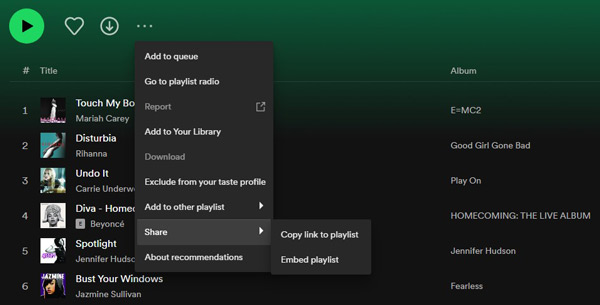
- Open Spotify, click the three dots (…) next to any song, album, or playlist, select Share, and choose Copy Link.
- Open a web browser, enter
https://open.spotify.com/oembed?url=into the address bar, and paste your copied Spotify URL directly after the equal sign. - Press Enter to fetch the metadata response.
- Locate the
"thumbnail_url"field in the resulting text, then copy the rawhttps://i.scdn.co/image/...link inside the quotation marks. - Open the extracted image link in a new browser tab, right-click the cover art, and select Save Image As to download the 640×640 JPG file.
Method 2: Inspect Browser Network Elements to Grab Direct CDN Links
When you browse Spotify via a desktop browser, the web player loads graphic assets directly from the CDN into your local cache. Inspecting active network traffic allows you to extract high-resolution cover art—including user-uploaded custom playlist artwork—without external tools.
- Open the Spotify Web Player in Chrome, Firefox, or Edge, and navigate to the target song, album, or playlist.
- Right-click the cover image and click Inspect, or press F12 (Cmd + Option + I on Mac) to launch Developer Tools.
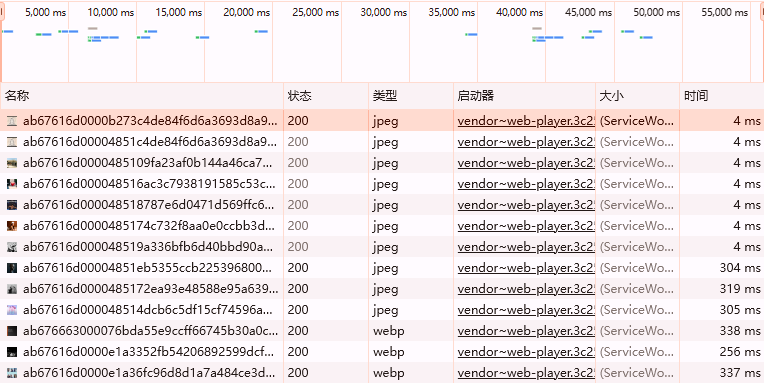
- Click the Network tab in the developer panel and select the Img filter at the top.
- Reload the page (or hover over the track row) to trigger image caching, then look for image assets named with alphanumeric strings (such as
ab67616d0000b273...). - Double-click the highest-resolution file entry to open it in a standalone tab, right-click the image, and choose Save Image As.
Method 3: Sourcing 3000×3000 Master Artwork from Upstream Digital Retailers
Because Spotify’s streaming infrastructure limits standard static art delivery to 640×640 px, obtaining master-grade 2400×2400 or 3000×3000 px square files requires checking upstream digital retail distributors. Record labels deliver identical uncompressed master assets to Apple Music, iTunes, and Amazon Music, where full-resolution promotional files remain reachable via direct URL modification.
- Copy the exact artist name and album title from Spotify to match the correct release edition.
- Search for the album on a public digital music catalog or storefront (such as the Apple Music web player or Amazon Digital Music).
- Right-click the album cover on the retail page and select Copy Image Address.
- Paste the URL into your address bar and modify the dimension parameters before loading:
- For Apple or iTunes links, change
/600x600bb.jpgat the end of the URL to/3000x3000bb.jpgor/9999x9999bb.jpg. - For Amazon image URLs, strip the cropping parameters (for example, remove
._SL1500_or replace lower values with._SL3000_).
- Press Enter to render the full master file, right-click the artwork, and select Save Image As.
Comparison of Spotify Artwork Extraction Methods
Choosing the right extraction method depends on your display hardware, audio player requirements, and the source of the cover art:
- Standard Offline Listening (640×640 px): Use the oEmbed API or browser element inspection for routine ID3 tagging, mobile playback, and lightweight local music libraries where storage space and display clarity are balanced.
- Large Displays and Print Projects (3000×3000 px): Query upstream retail distributor CDNs when creating physical CD inserts, vinyl replacement sleeves, or 4K desktop widgets that reveal scaling artifacts on standard 640px files.
- Custom User Playlists: Stick to browser Developer Tools inspection, as user-curated playlist graphics are hosted exclusively on Spotify servers (
i.scdn.co) and do not exist on external retail catalogs. - Format Handling: Check whether your browser saves cached files with a
.jfifextension, and rename or convert the file to standard.jpgor.pngto ensure compatibility across digital audio players and car stereos.
Part 3. How to Download Spotify Songs with Original Cover Art and ID3 Metadata Using AudKit Spotify Music Converter
Extracting standalone image files via developer tools works well for single posters, but matching individual image files to an offline music library takes substantial manual work. If you plan to play music across USB car stereos, home media servers, or portable digital audio players, you need the visual artwork embedded directly into each audio file’s metadata container.
AudKit Spotify Music Converter automates this workflow by extracting music tracks while writing metadata tags directly into the output files.
Why AudKit Spotify Music Converter Is Ideal for Metadata and Artwork Preservation
AudKit Spotify Music Converter packages audio streams into standard open formats while keeping visual and textual data intact.
- Permanent Artwork Embedding: The software injects full-resolution CDN artwork directly into the ID3v2 APIC frame for MP3s and the visual block for FLAC files, ensuring car dashboards and offline players display album art instantly.
- Comprehensive ID3 Tag Retention: It preserves complete track metadata including title, artist, album name, track sequence number, and release year, preventing fragmented or unknown entries in your library.
- Batch Conversion Capabilities: You can convert entire discographies or custom playlists to MP3, FLAC, WAV, or AAC at up to 5X speed without losing audio fidelity.

Main Features of AudKit Spotify Music Converter
- Easily download any Spotify audio content in 320kbps
- Convert Spotify music to MP3/AAC/FLAC/WAV/M4A/M4B
- Keep full ID3 tags like artist, year, cover, title, etc.
- Batch download at a fast 5X conversion speed
- Help listen to Spotify music offline anywhere
Step-by-Step Tutorial: Download Tracks with Embedded Cover Art
Follow these steps to download tracks with their original album covers embedded into the files.
Step 1. Launch AudKit Spotify Music Converter
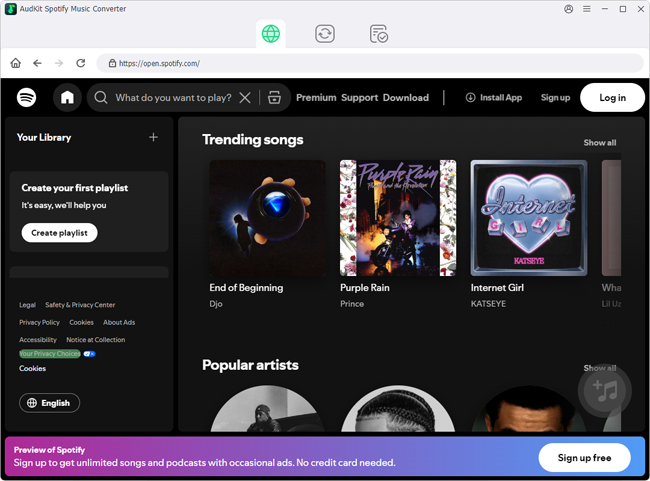
Download and install AudKit Spotify Music Converter on your Windows or Mac desktop. Open the program to load its integrated interface.
Step 2. Add Spotify Tracks, Albums, or Playlists
Find the songs or playlists you want to download. Copy the URL from Spotify, paste it into the top search bar in AudKit Spotify Music Converter, and click the + button. You can also drag and drop items directly into the conversion window.
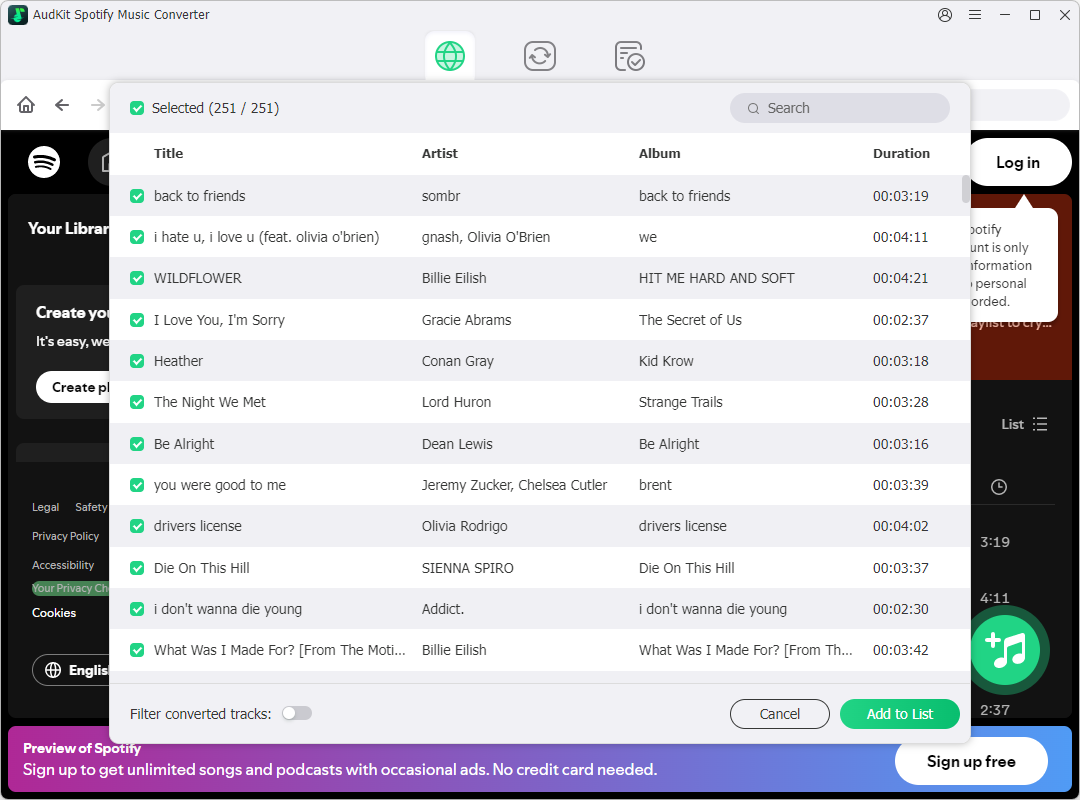
Step 3. Set Format and Audio Parameters
Open Menu > Preferences from the top navigation bar and switch to the Convert tab. Select MP3 or FLAC as your output format. Here, you can adjust the sample rate (up to 48,000 Hz) and bit rate (up to 320 kbps) to ensure sound quality and correct tag handling.

Step 4. Convert and Save Tracks with Full Artwork
Click the Convert button at the bottom-right corner. AudKit Spotify Music Converter will download the audio files, encode the streams, and write the album cover art and ID3 metadata to your local drive. When finished, tap the folder icon to view your fully tagged audio files.

(Note: This tool is intended for personal backup of content you have the right to access. Users must comply with local copyright regulations.)
Frequently Asked Questions About Downloading Spotify Cover Art
Why is Spotify cover art capped at 640×640 resolution when downloaded from the web player?
Spotify’s CDN compresses images into three fixed sizes (640×640, 300×300, and 60×60 pixels) to optimize app loading speeds. Although distributors upload 3000x3000px master artwork, the public streaming client delivers only up to the 640px tier.
How do I convert downloaded Spotify cover art from .jfif format to standard JPG or PNG?
Chromium browsers often save cached images from i.scdn.co as .jfif. You can simply rename the file extension to .jpg in File Explorer, or open the file in standard photo editing software and re-save it as PNG or JPEG.
Can I replace or edit the official cover art of existing Spotify albums inside the app?
No. Custom image uploads are only supported on personal playlists you create. Official track and album artwork is locked to distributor metadata and cannot be edited within the Spotify client.
Where can I find ultra-high-resolution 3000×3000 album covers for physical poster printing?
For print-ready 3000x3000px assets, look up digital retail platforms like Apple Music or Amazon Digital, or search dedicated archives like Album Art Exchange, since streaming CDNs only serve web-optimized images.
How do I download Spotify songs with cover art embedded into ID3 tags?
AudKit Spotify Music Converter saves tracks locally to MP3 or FLAC while automatically embedding full ID3 metadata and original artwork, ensuring your offline library displays proper album covers across any media player.
Conclusion
Learning how to download Spotify cover art comes down to matching your source to your end use. For digital displays and routine library management, grabbing the standard 640×640 JPG directly via oEmbed endpoints or browser inspection tools provides a fast, clean solution. If you need ultra-high-resolution files for physical prints, look to digital retail archives rather than streaming delivery CDNs.
For offline libraries, dedicated software like AudKit Spotify Music Converter automates the process by embedding original cover art alongside complete ID3 metadata directly into your local audio tracks. Keeping your artwork in a standard 1:1 square aspect ratio ensures seamless visual playback across car stereos, digital audio players, and standalone media software.

Andrew Rowley
 Staff Editor
Andrew Rowley has over 10 years of writing experience and is good at writing in audio technology and audio converter software. He can provide high-quality articles to help streaming music lovers explore music better.