





Quick Answer
- Ensure your mobile device and audio streamer share the exact same local Wi-Fi subnet, and disable wireless AP isolation between 2.4 GHz and 5 GHz bands.
- Enable mDNS, UPnP, and IGMP Snooping in your router settings so discovery packets travel freely across access points.
- Verify local network and background permissions are enabled for the music app on your phone.
- Rename the playback hardware inside its native companion app to rebuild the broadcast cache.
- If persistent network interference or outdated hardware firmware interrupts your stream, export lossless tracks with a desktop audio converter for uninterrupted offline listening.
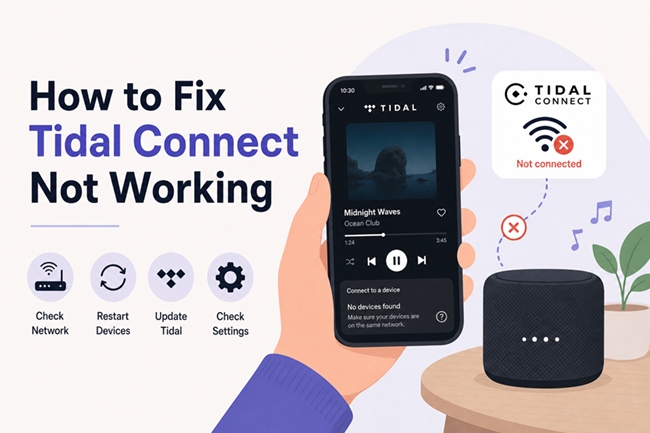
Troubleshooting how to fix Tidal Connect not working usually begins when music cuts out unexpectedly during a listening session. Unlike standard Bluetooth or AirPlay streaming, Tidal Connect instructs your audio hardware to pull high-resolution files directly from remote cloud servers. When a streamer drops off your available device list, the connection handshake has broken down.
These disruptions rarely stem from a complete home broadband outage. Instead, dropped multicast DNS packets, mesh band steering, aggressive mobile battery restrictions, or expired authentication tokens prevent your phone from communicating with your audio hardware.
This guide explains why these connection failures occur and provides proven network configurations, hardware adjustments, and reliable offline alternatives to restore flawless sound to your audio setup.
- Part 1. How Tidal Connect Operates and Why Connection Drops Occur
- Part 2. Step-by-Step Fixes for Tidal Connect Discovery and Desynchronization Issues
- Part 3. Bypass Tidal Connect Network Drops by Playing Lossless Audio Offline via AudKit Tidal Music Converter
- FAQs About Fixing Tidal Connect Issues
Part 1. How Tidal Connect Operates and Why Connection Drops Occur
Unlike Bluetooth or AirPlay, Tidal Connect uses a cloud-pull architecture: your phone functions solely as a remote control, directing the audio streamer to fetch lossless tracks directly from Tidal’s servers.
Connection failures typically occur when local network routing breaks down. The service relies on mDNS and Bonjour protocols for device discovery; router band isolation, mismatched subnets, or blocked multicast (IGMP) packets will prevent your phone from detecting the streamer. Furthermore, exceeding Tidal’s single-stream account limit will instantly sever the active playback session.
Part 2. Step-by-Step Fixes for Tidal Connect Discovery and Desynchronization Issues
Grant Local Network Access and Disable Mobile Battery Restrictions
When playback drops as soon as your mobile screen locks, operating system power management is usually responsible. Tidal Connect requires periodic heartbeat signals between the mobile controller and the streamer to maintain volume synchronization and track state. Restricting background permissions breaks this communication loop.
Step 1. Open your phone settings to verify app permissions:
- On iOS: Go to Settings > TIDAL and ensure the toggle for Local Network is turned on.
- On Android: Navigate to Settings > Apps > TIDAL > Permissions, and grant access for Nearby devices.
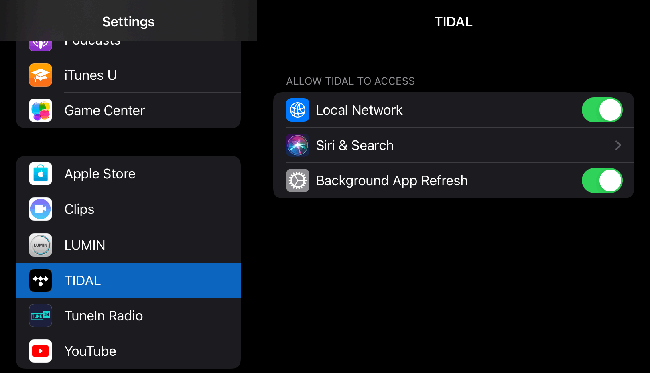
Step 2. Adjust background battery optimization rules so the operating system does not freeze the app:
- On Android: Open Settings > Apps > TIDAL > Battery, and select Unrestricted.
- On iOS: Go to Settings > General > Background App Refresh, and verify that background refresh is active for Tidal.
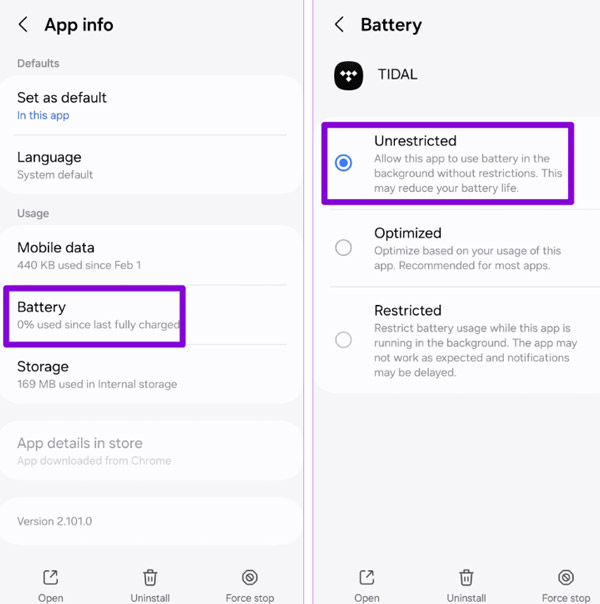
Step 3. Relaunch the Tidal app, start a playlist, and confirm that the streamer stays connected in the device menu after locking your screen.
Refresh Hardware Discovery via Native Companion Apps
If an audio endpoint disappears from your playback menu, its local mDNS advertisement record may have expired or stalled. Rather than power cycling every component in your audio rack, prompt the streamer to re-announce itself using its native management tool.
- Open the companion control app for your specific audio equipment, such as BluOS, KEF Connect, HEOS, or Cambridge Audio StreamMagic.
- Navigate to Player Settings or Device Management and locate the device name field.
- Edit the hardware name slightly (for instance, rename “Living Room Node” to “Living Room”), apply the change, and then switch it back if desired. Changing the device name forces the internal network card to clear its broadcast cache and publish fresh Bonjour and mDNS records across the subnet.
- Check the system maintenance menu within the companion app for pending firmware updates to resolve underlying connection bugs.
Configure Router IGMP Snooping, UPnP, and Multicast Settings
When mobile and hardware settings are correct, router firewall and broadcast filtering rules often block device discovery packets. Modifying several core routing protocols ensures discovery traffic passes unhindered between your controller and playback gear.
- Enable IGMP Snooping: Turn on IGMP Snooping inside your router LAN settings. This protocol directs multicast packets straight to registered media endpoints instead of flooding every connected device.
- Enable Universal Plug and Play (UPnP): Turn on UPnP in advanced router settings to allow audio streamers to automatically negotiate incoming port requirements with Tidal’s cloud servers.
- Disable AP Isolation (Client Isolation): Ensure wireless client isolation is turned off. If active, it stops devices on the 5 GHz Wi-Fi band from detecting hardware connected to the 2.4 GHz band or wired Ethernet ports.
- Enable Multicast Routing / Bonjour Forwarding: Activate mDNS reflection or Bonjour forwarding if your home network uses separate virtual local networks (VLANs) or guest Wi-Fi bands.
Assign Static IP Addresses and Utilize Ethernet Connections
Mesh Wi-Fi networks frequently cause connection drops by shifting streaming hardware between access points during playback. Assigning persistent network parameters maintains a stable communication channel.
- Reserve a Static DHCP IP: Access your router administration interface, find your streamer in the connected client table, and bind its MAC address to a fixed IP address.
- Connect via Hardwired Ethernet: Connect your audio streamer directly to your primary router or an unmanaged switch with an Ethernet cable to eliminate wireless packet jitter and latency.
- Disable Fast Roaming for Audio Hardware: If the streamer must run over Wi-Fi, open your mesh management app (such as eero, ASUS AiMesh, or TP-Link Deco) and disable “Mesh Technology” or “Fast Roaming” specifically for that endpoint to prevent frequent node handoffs.
Resolve Account Stream Conflicts and Session Deadlocks
Tidal enforces a single-stream limit on personal subscription tiers. When another authorized device initiates a stream, the cloud service severs your existing connection without delivering an explicit error code. Stale authentication credentials can also trigger continuous connection loops.
- Review active playback sessions on secondary phones, family tablets, web browsers, and smart speakers linked to your account.
- Open the Tidal app, tap your Profile icon, enter Settings, scroll down to select Log Out, and sign back in to refresh your authentication tokens.
- If connection dropouts persist, log into your account settings via a desktop browser and choose Log out of all devices to reset all active server authorizations.
Part 3. Bypass Tidal Connect Network Drops by Playing Lossless Audio Offline via AudKit Tidal Music Converter
Even with optimized router settings, wireless audio streaming remains vulnerable to network congestion, firmware deprecation, and unexpected protocol changes. When you require completely uninterrupted listening without worrying about network handshakes or mDNS discovery drops, moving your music to direct local storage is the most dependable solution.
Storing your music library locally bypasses router traffic, mesh transitions, and cloud authentication checks, allowing your audio setup to play lossless music directly from physical media or local storage.
Main Features of AudKit Tidal Music Converter
- Maintains 100% lossless HiFi/Master quality
- Support batch conversion of Tidal playlists
- Download all Tidal playlists, regardless of your subscription level
- Convert Tidal playlist to MP3, AAC, WAV, FLAC, etc.
Why AudKit Tidal Music Converter Eliminates Wireless Playback Dropouts
Real-time cloud streaming requires continuous, error-free communication between your phone, local router, and external content delivery networks. AudKit Tidal Music Converter eliminates these failure points by downloading your favorite tracks, full albums, and curated playlists directly to your Windows or Mac computer for offline preservation.
The software converts streaming tracks into high-fidelity local audio formats, retaining up to 24-bit/192kHz Hi-Res FLAC quality without compression artifacts. It preserves complete ID3 metadata tags, including song titles, track numbers, artist names, album titles, and high-resolution cover artwork.
Once your library is converted to local files, you can store your music on an external USB drive, load it onto a network-attached storage (NAS) system running Plex or Roon, or connect a laptop directly to your external digital-to-analog converter (DAC). This setup completely eliminates mDNS broadcast failures, mesh steering disconnects, and mobile background sleep interruptions.
Step-by-Step Tutorial: Download Lossless Tracks for Local Playback
Follow these practical steps to download your Tidal library as lossless local files for playback on any audio component:
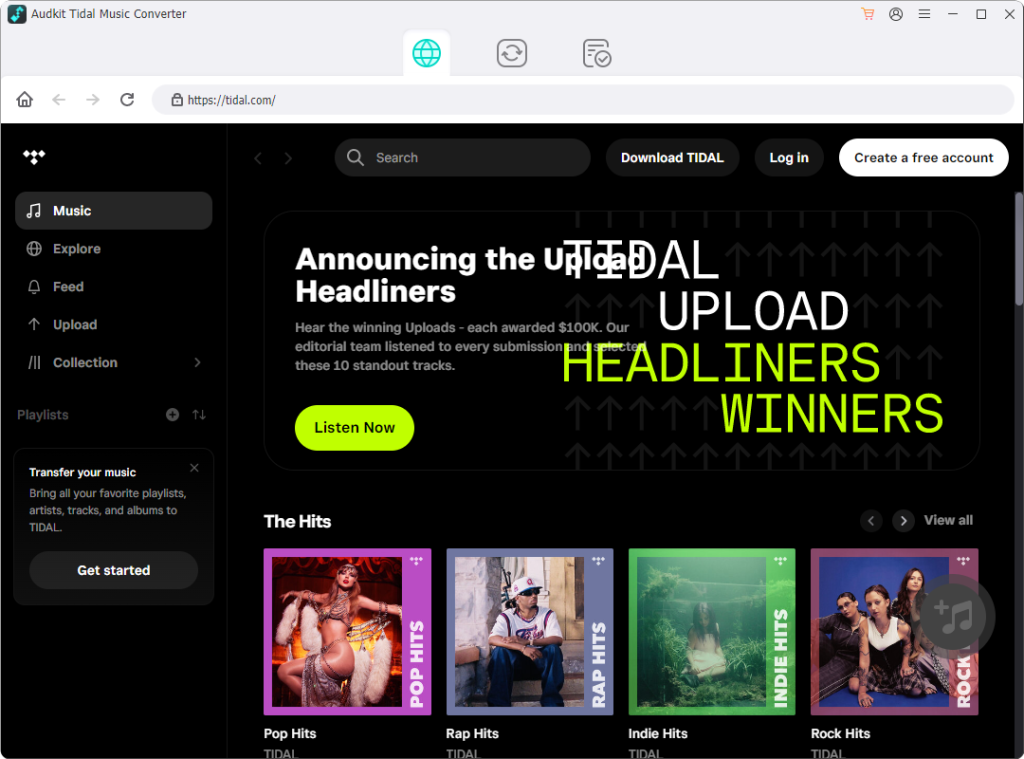
Step 1. Open AudKit Tidal Music Converter and Log In
Launch AudKit Tidal Music Converter on your computer. Use the integrated web player interface to log into your account, allowing the program to display your saved collection, artists, and playlists.
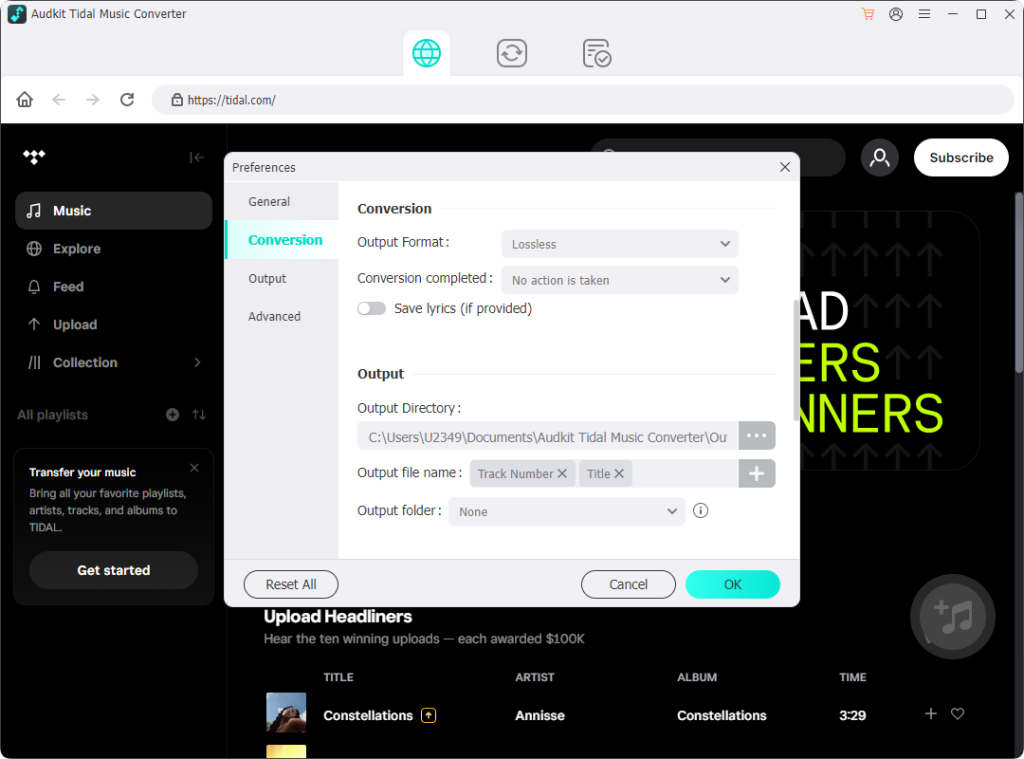
Step 2. Select Lossless FLAC as the Output Format
Click the menu icon located in the upper-right corner of the interface and select Preferences > Convert. Choose FLAC as your target output format. Adjust the sample rate and bit depth up to 24-bit/192kHz to match the decoding capabilities of your DAC or media streamer. Click OK to confirm your changes.
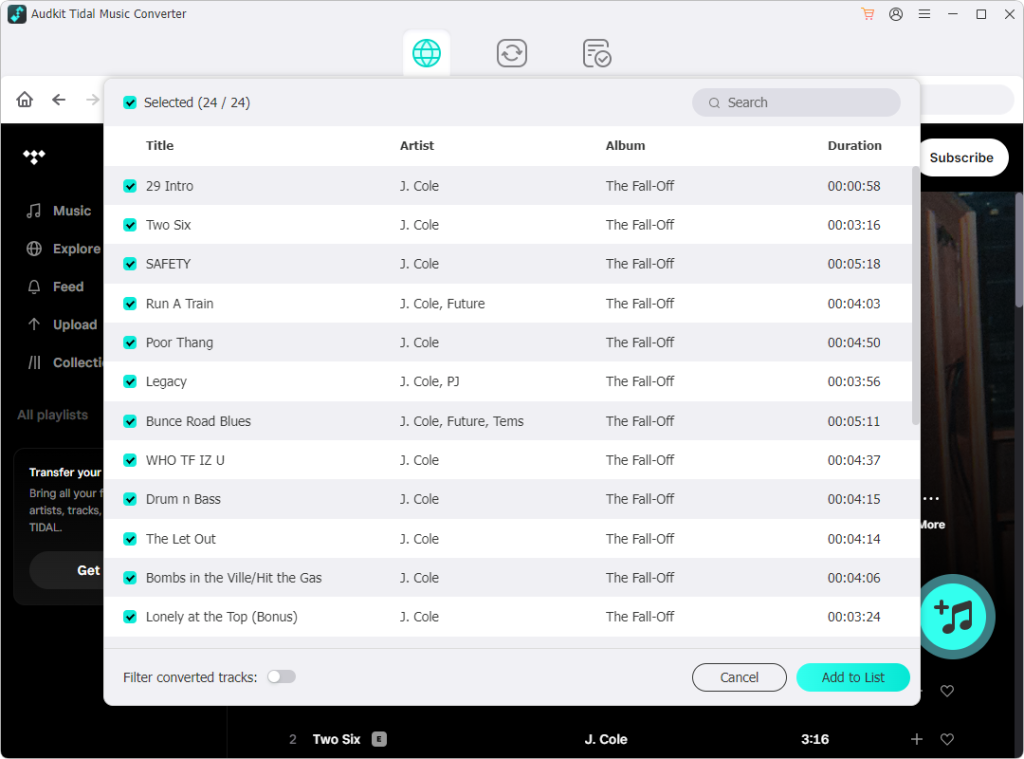
Step 3. Add Albums or Playlists to the Conversion List
Navigate your music library inside the built-in interface. Open any playlist or album you wish to download, then click the orange + button in the lower-right corner to import the tracks into your conversion queue.
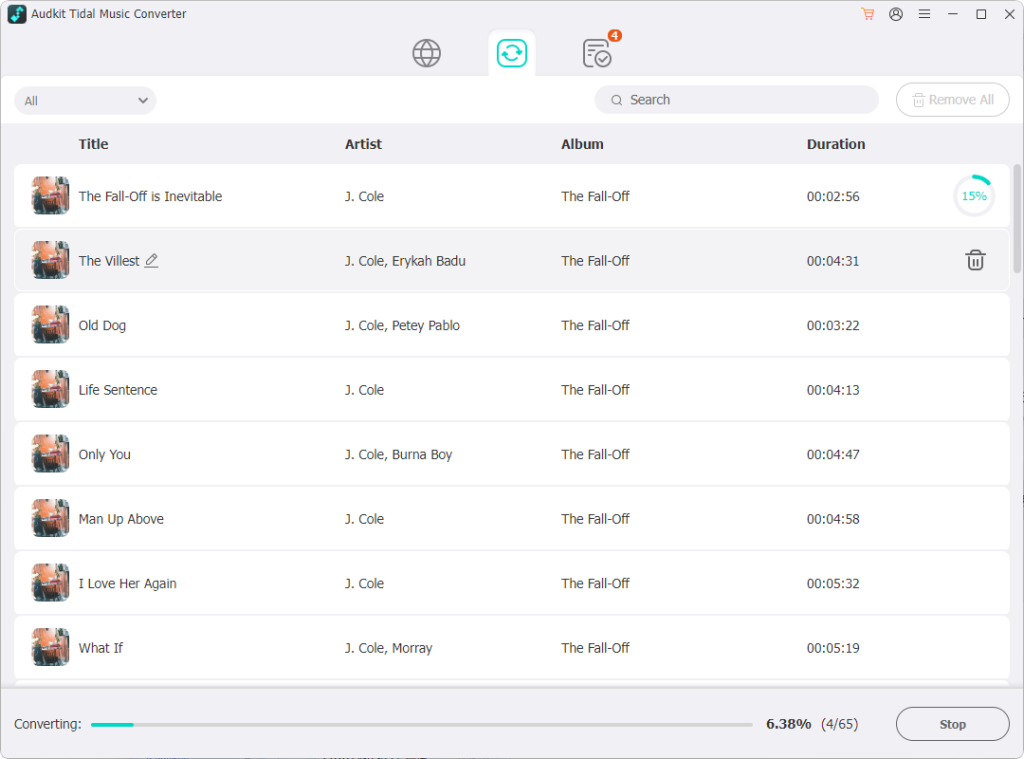
Step 4. Convert and Move Tracks to Local Storage
Click the Convert button to initiate the batch download process. AudKit Tidal Music Converter saves the files directly to your chosen local folder at accelerated conversion speeds. Once the download finishes, click the folder icon to locate your lossless FLAC files, then transfer them to a USB drive, local media server, or portable digital audio player for stable offline listening.
FAQs About Fixing Tidal Connect Issues
Why does my audio streamer show up on AirPlay or Bluetooth but not on Tidal Connect?
AirPlay and Bluetooth establish direct point-to-point connections, whereas Tidal Connect depends on local mDNS multicast discovery and an independent cloud connection from the streamer. If your router blocks multicast traffic, the endpoint cannot display inside the Tidal app.
Why does Tidal Connect drop playback whenever my phone locks or enters sleep mode?
Mobile operating systems frequently throttle background app activity to save power. When background communication stops, the phone loses track synchronization with the streamer. Granting unrestricted battery permissions resolves this issue.
Can Tidal Connect cast across separate 2.4GHz and 5GHz Wi-Fi bands or mesh access points?
Yes, provided your router does not isolate traffic between frequency bands. Ensure AP isolation is turned off so devices across all bands and mesh nodes can share discovery packets seamlessly.
How to fix Tidal Connect not working when hardware lacks firmware support?
When discontinued hardware stops receiving firmware updates, convert your music library using AudKit Tidal Music Converter. Storing lossless FLAC tracks on local storage or a USB drive bypasses network streaming limitations completely.
Conclusion
Restoring a broken Tidal Connect connection usually requires refining your local network configuration rather than replacing your Hi-Fi equipment. Enabling mDNS discovery, turning on IGMP Snooping, and disabling mobile battery limits will eliminate the majority of connection drops and hardware disappearance issues.
Keeping companion apps and hardware firmware up to date also prevents session desynchronization, ensuring your phone and audio gear maintain a reliable connection.
When persistent mesh router handoffs or Wi-Fi interference continue to disrupt your audio, playing tracks directly from local storage is the most dependable alternative. Utilizing AudKit Tidal Music Converter allows you to enjoy studio-grade lossless sound offline across any audio system without connection drops or network latency.

Andrew Rowley
 Staff Editor
Andrew Rowley has over 10 years of writing experience and is good at writing in audio technology and audio converter software. He can provide high-quality articles to help streaming music lovers explore music better.