




Quick Answer
- Tidal’s Web Player lacks offline caching: The official web interface does not support offline saving, restricting browser playback entirely to active streaming sessions.
- Online downloaders and scripts carry notable downsides: Web link scrapers and command-line scripts avoid app installations, but they frequently encounter API rate limits, missing metadata, or re-encoded low-bitrate audio.
- A converter with an embedded web engine provides the cleanest fix: A dedicated utility lets you log into Tidal’s catalog directly, downloading genuine 16-bit FLAC or universal 320kbps MP3 files straight to your drive without needing the official desktop client.
If you work on a Chromebook, a restricted office computer, or a laptop with limited storage, installing another background program is frustrating. You simply want to download Tidal music without app installations consuming local storage or requiring administrative privileges. Unfortunately, Tidal restricts its web player strictly to live browser streaming, offering no offline toggle.
Many online guides provide misleading advice. They promise computer-based offline listening without extra software, only to direct readers to download a mobile app in the first step. That advice does nothing for anyone sitting at a locked desktop.
Practical workarounds do exist for client-free listening. You can run open-source terminal scripts or use a specialized audio utility with an integrated web player. This guide explores these options so you can download and preserve your favorite tracks for offline playback.
- Part 1. Understanding Tidal Web Player Limits and the Proprietary Offline Cache
- Part 2. Free Client-Free Methods to Save Tidal Music
- Part 3. How to Download Lossless Tidal Tracks via AudKit Tidal Music Converter Without the Official Client
- Part 4. Comparing Client-Free Tidal Music Offline Solutions
- FAQs About Downloading Tidal Music Without the App
Part 1. Understanding Tidal Web Player Limits and the Proprietary Offline Cache
When you open Tidal in Chrome, Edge, or Safari, the interface mirrors the desktop client almost completely. Yet the offline toggle is missing. Tidal restricts local saving exclusively to its official mobile and desktop applications, keeping the browser player strictly as an online streaming portal.
Standard web browsers cannot store persistent offline music libraries due to storage sandboxing and digital rights management constraints. Even inside official Tidal apps, clicking “Download” never delivers open audio files. The platform saves encrypted data blocks tied to your active account and specific device profile. You receive no loose MP3 or FLAC files, and the audio remains locked inside the application’s hidden directory.
Exporting standard audio from these restricted containers is essential if you want to enjoy music on non-networked hardware like standalone MP3 players, SD cards, USB car stereos, or DJ equipment. Universal playback requires unencrypted audio files.
Delivering authentic 16-bit/44.1kHz lossless audio or 24-bit studio sound requires dedicated audio processing pipelines. Because standard browser caching cannot generate standalone music files, specialized tools are necessary to capture authentic streams.
Part 2. Free Client-Free Methods to Save Tidal Music
Extract Audio Using Browser-Based URL Converters
Online URL converters provide a zero-installation method when you need individual songs on restricted computers where installing programs is forbidden. These services parse public share links and fetch corresponding audio files through remote servers.
- Open your web browser and go to the official Tidal Web Player.
- Click the three dots (…) next to any track or album, choose Share, and click Copy Track Link.
- Visit an online downloader site and paste the copied link into the input field.
- Click Convert to initiate server-side link analysis.
- Click Download once processing finishes to store the audio file on your drive.
Assess Quality Compromises in Web Scrapers
While online scrapers require no software installation, relying on third-party link parsers involves major trade-offs in sound quality, privacy, and reliability:
- Counterfeit audio sources: Most free online converters do not capture real HiFi streams from Tidal servers. Instead, they search public video platforms for matching titles, delivering re-encoded 128kbps audio disguised as a 320kbps MP3 or container FLAC.
- Intrusive redirects and privacy risks: Free conversion sites often display aggressive pop-up advertisements, deceptive download buttons, and redirect scripts that can expose your browser to trackers.
- Queue and server limits: Web scrapers rarely support full playlists or albums, regularly failing midway through multi-track batches due to server-side rate limits.
Fetch Tracks via Open-Source Command-Line Scripts
Users comfortable working in a terminal can use open-source utilities like Tidal-DL. Built on Python, these community scripts interact directly with Tidal’s web API endpoints, downloading tracks locally without running the desktop client.
- Open Terminal (macOS/Linux) or PowerShell (Windows) and confirm Python is installed.
- Run
pip install tidal-dl --upgradeto install or update the tool. - Type
tidal-dland press Enter to open the configuration menu. - Complete the login prompt using the provided web URL to pair your account session.
- Set your audio format and destination folder in the terminal settings menu.
- Paste your copied Tidal album or track URL into the prompt to start downloading.
Evaluate Technical Barriers of Command-Line Tools
Before relying on a CLI workflow, keep the following technical challenges in mind:
- Check authentication tokens regularly; Tidal frequently invalidates command-line sessions, requiring you to re-authenticate via web prompts.
- Run package updates frequently, as minor changes to Tidal’s streaming API often break scraper scripts until maintainers release updates.
- Match format settings to your actual subscription tier; requesting HiRes FLAC audio on an unsupported plan generates API errors.
- Organize folder structures manually, as terminal utilities lack visual tag editors and drag-and-drop playlist organization.
Part 3. How to Download Lossless Tidal Tracks via AudKit Tidal Music Converter Without the Official Client
Online downloaders compromise fidelity, while command-line scripts require frequent maintenance and technical troubleshooting.
If you want to download Tidal music without app installations consuming system memory, AudKit Tidal Music Converter offers a reliable solution. It features an integrated web player inside the converter interface, allowing you to browse the catalog and download lossless tracks without installing the official Tidal desktop application.
Why Choose AudKit Tidal Music Converter for Client-Free Export
AudKit Tidal Music Converter connects directly to streaming delivery pipelines through its built-in browser window, keeping system overhead minimal while capturing authentic sound.
- No Official App Required: Operates independently via an embedded web player, keeping your operating system free from background streaming services.
- True Lossless Sound: Retains bit-perfect 16-bit/44.1kHz HiFi audio and studio-grade 24-bit HiRes Master quality without lossy re-encoding.
- Unrestricted Audio Formats: Exports songs directly to open formats including FLAC, WAV, MP3, AAC, and M4A instead of locked cache containers.
- Complete ID3 Tag Retention: Automatically preserves metadata including track titles, artists, album artwork, track numbers, and genre tags.
- Fast Batch Conversion: Converts playlists and albums at up to 5x speed on Windows (1x on macOS) without recording system audio or desktop notification sounds.
Step-by-Step Tutorial for Client-Free Downloads
Follow these steps to download lossless music directly to your local computer storage:
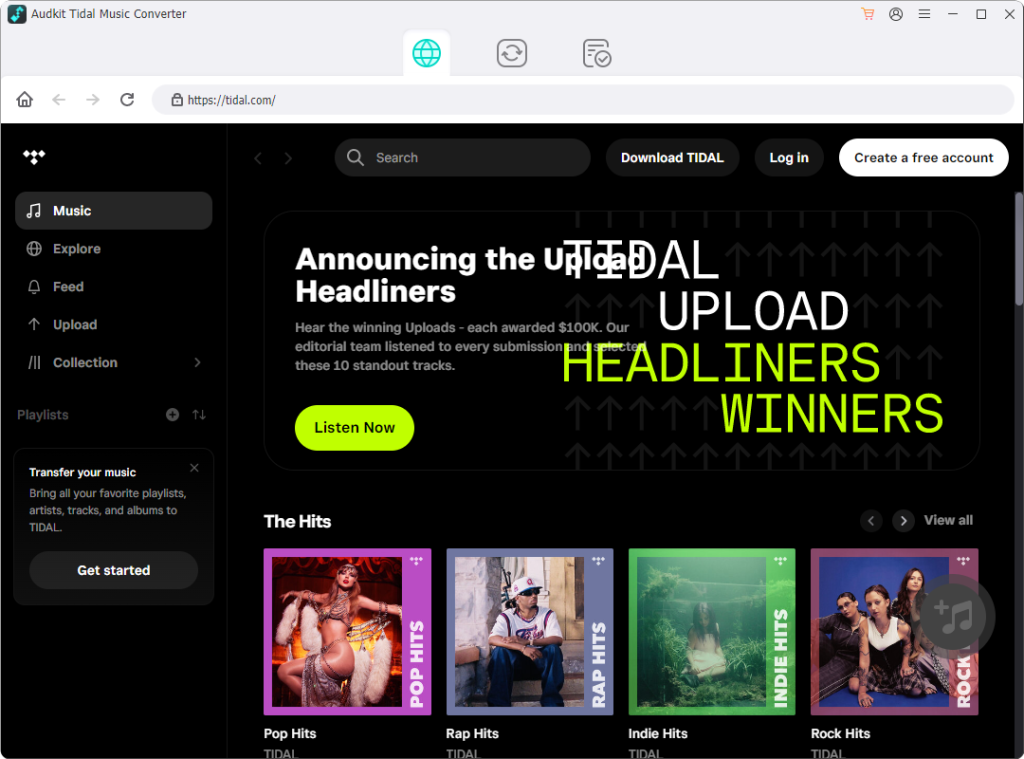
Step 1: Open AudKit Tidal Music Converter and Log In
Launch AudKit Tidal Music Converter on your computer. The software opens an integrated web player interface on the main screen. Click the Log In button in the top-right corner and enter your account credentials. You do not need the official Tidal desktop application installed on your machine.
[Image: Logging into the built-in Tidal web player in AudKit Tidal Music Converter]
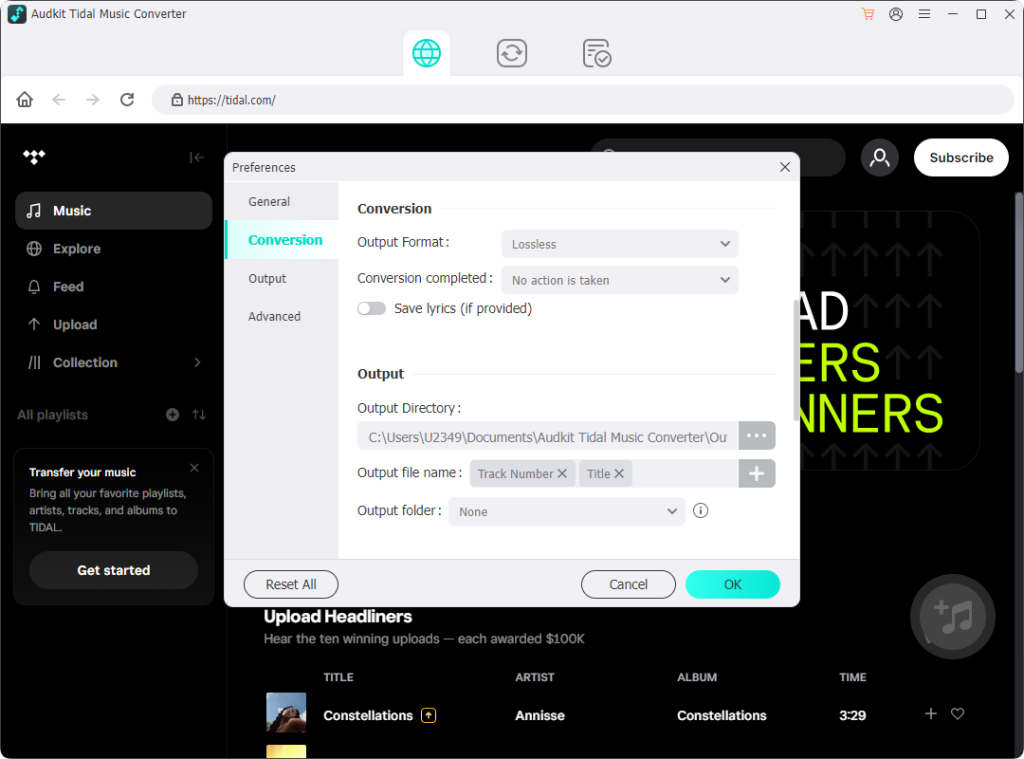
Step 2: Set Output Format and Audio Parameters
Click the Menu icon on the top panel and choose Preferences > Convert. Select your desired output format from the drop-down menu: choose FLAC or WAV for bit-perfect lossless audio, or MP3 for broad hardware compatibility. You can also adjust the sample rate, bit depth, bit rate, and configure how output folders are organized by artist or album. Click OK to save your preferences.
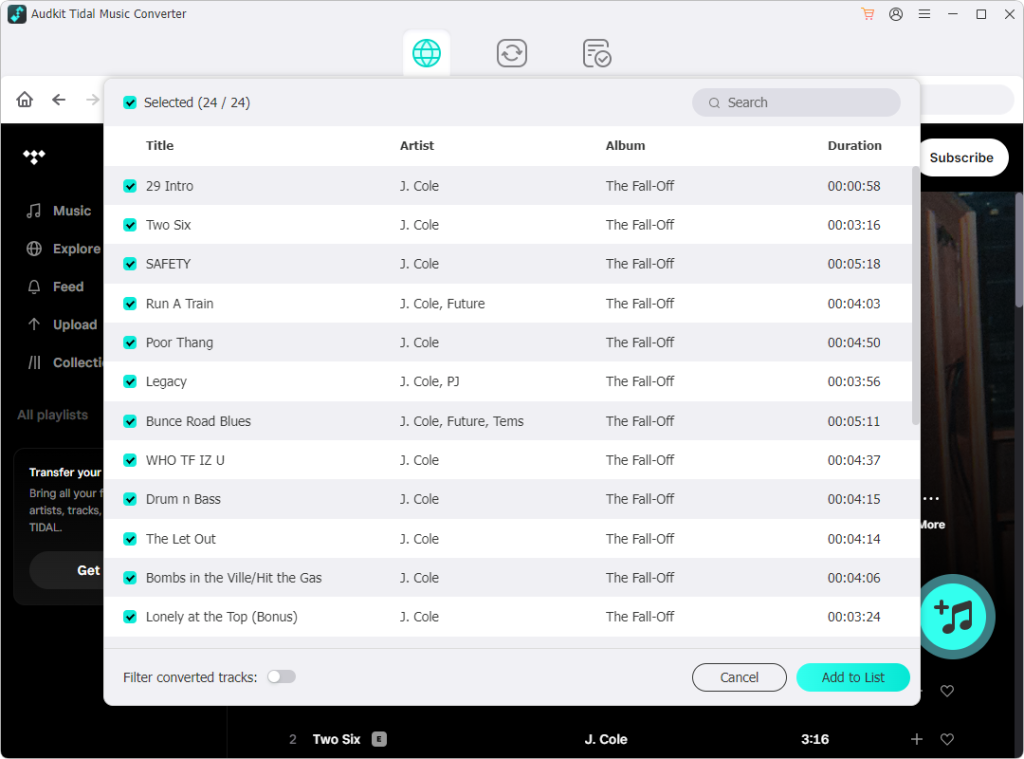
Step 3: Select Tidal Playlists or Albums to Download
Navigate through your library or search for artists within the built-in browser player. Open any playlist or album you wish to download. Click the yellow + (Add) button in the bottom-right corner. The software will parse the tracklist and load all songs into your conversion queue. Uncheck any individual tracks you do not want to save.
Step 4: Convert and Save Tidal Music Locally
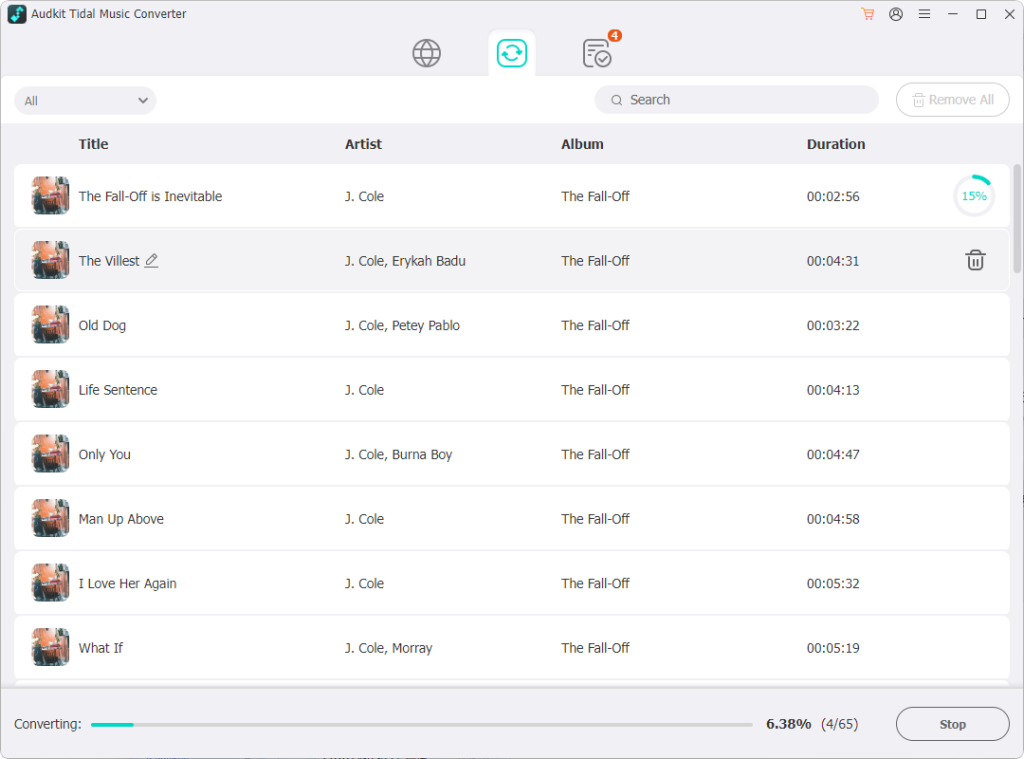
Click the Convert button at the bottom-right corner. The converter processes your queue, saving open audio files directly onto your local drive. Once finished, click the folder icon in the Converted tab to open the destination folder, ready to transfer your tracks to any portable player, USB drive, or external storage device.
Part 4. Comparing Client-Free Tidal Music Offline Solutions
Selecting the best client-free approach depends on your priorities regarding audio fidelity, convenience, and library management.
Audio Fidelity and Stream Handling
Source endpoints determine final sound quality. Terminal scripts and AudKit Tidal Music Converter capture data directly from streaming pipelines, ensuring true 16-bit/44.1kHz CD quality or 24-bit studio sound. In contrast, online URL scrapers rarely access genuine streaming feeds; they typically match track titles against free video hosting platforms, resulting in compressed, low-bitrate audio wrapped inside a FLAC container.
Ease of Use Versus System Demands
Browser converters require no local setup, but downloading full albums one track at a time is tedious and prone to failed connections. Command-line utilities keep resource use low, yet they demand terminal familiarity, manual Python maintenance, and frequent session updates. Dedicated desktop converters with integrated web engines strike the best balance, offering a clean graphic interface, one-click playlist importing, and fast batch processing.
Metadata and File Management
Accurate metadata is essential for keeping offline libraries organized. Desktop converters and maintained terminal utilities preserve complete ID3 tags, including high-resolution cover art, artist details, and track numbers. Free web downloaders often strip metadata entirely, leaving you with unlabeled files like audio_01.mp3 that require time-consuming manual renaming.
FAQs About Downloading Tidal Music Without the App
Can you download tracks directly from the official Tidal Web Player?
No. Tidal restricts offline saving strictly to its official mobile and desktop clients. The web player is designed entirely for real-time browser streaming.
How does Tidal’s offline cache differ from open MP3 or FLAC files?
Tidal’s offline cache consists of proprietary, encrypted data blocks readable only inside the official player. Open MP3 or FLAC files are universal, unencrypted audio formats compatible with any media player or USB drive.
Do free online downloaders preserve genuine HiFi or Master quality?
No. Most web-based link downloaders rip audio from secondary video platforms at low bitrates, even when labeled as lossless. Dedicated tools like AudKit Tidal Music Converter pull directly from original streaming pipelines to keep authentic sound intact.
Can I download Tidal music on ChromeOS or Linux without the official app?
Yes. Because Tidal lacks native Linux and ChromeOS desktop clients, users frequently use command-line scripts or converters with built-in web players to store tracks locally.
Disclaimer: This guide is intended for personal archiving of media you have lawful access to. Please respect copyright laws and service terms in your jurisdiction.
Conclusion
Streaming providers build web players for ongoing online engagement rather than local archiving. Tidal keeps its offline downloads restricted within proprietary apps, leaving browser users without a built-in offline button.
Free web downloaders seem convenient initially, but they compromise audio fidelity and struggle with larger playlists. Command-line scripts deliver authentic audio for technical users, yet they require regular maintenance whenever streaming endpoints update.
For a reliable and user-friendly solution, AudKit Tidal Music Converter lets you browse the catalog through an integrated web player and save true lossless FLAC or MP3 files. Select the approach that fits your setup so your music stays available anywhere, client-free.

Andrew Rowley
 Staff Editor
waitting