




Few things are more frustrating than your favorite song cutting out abruptly. If you find yourself asking, Why does my Spotify keep pausing? you are not alone. Whether you are working out or just commuting, these interruptions are a major buzzkill. Fortunately, the issue is rarely permanent and is often caused by simple, fixable glitches.
Common triggers range from unstable internet connections to aggressive battery-saving settings. This guide covers the most frequent reasons for playback stops and provides easy, step-by-step solutions for iPhone, Android, and Desktop users so you can get your music flowing smoothly again.
- Why Does My Spotify Keep Pausing Every 30 Seconds?
- Phase 1: Quick Solutions to Fix Spotify Keep Pausing
- Phase 2: Fix Spotify Keeps Pausing on Mobile Settings
- Phase 3: Fix Spotify Keeps Pausing on Computer Settings (Windows & Mac)
- Phase 4: Fix Spotify Keep Pausing via Spotify Settings
- The Best Way to Download Spotify Music for Seamless Listening Offline🔥
- FAQs About Why Does My Spotify Keeps Pausing
Why Does My Spotify Keep Pausing Every 30 Seconds?
Before diving into the fixes, it helps to understand why this is happening. Understanding the root cause can save you time in the future.
- The “Single Device” Rule: Spotify Premium generally allows streaming on only one device at a time. If you (or someone else) starts playing music on another logged-in device, your current stream will pause.
- Battery Optimization: Modern smartphones are designed to save battery. Aggressive “Low Power” modes often kill background apps like Spotify to conserve energy.
- Corrupted Cache: Spotify stores temporary files to make streaming faster. If these files get corrupted, playback glitches occur.
- Unstable Network: Even a momentary drop in Wi-Fi or 4G/5G can cause the buffer to run dry, pausing the track.
- Background Data Restrictions: If your phone restricts data usage for background apps, Spotify will stop playing the moment you lock your screen.
Phase 1: Quick Solutions to Fix Spotify Keep Pausing
Before we start changing settings, let’s rule out the obvious culprits.
Fix 1. Check for Unauthorized Access
This is one of the most common reasons for random pauses. If you left your account logged in on a friend’s computer or an old tablet, and someone hits play there, your music stops.
If you suspect someone is using your account without permission, go to the Spotify website, log in, and select “Sign Out Everywhere” from the account overview page. Then, change your password immediately.
Fix 2. Test Your Connection
Sometimes, your phone says it has Wi-Fi, but the connection is “hanging.”
You can toggle Airplane Mode on for 10 seconds, then turn it off. Or try switching from Wi-Fi to Cellular Data (or vice versa) to see if the issue persists.
Fix 3. Restart Your Device
It sounds cliché, but a restart clears the device’s RAM (Random Access Memory) and restarts background processes that might have crashed.
Phase 2: Fix Spotify Keeps Pausing on Mobile Settings
If the quick checks didn’t work, the issue is likely your phone “killing” the Spotify app to save resources. This is especially common if Spotify keeps pausing when the screen locks.
For iPhone (iOS) Users
Apple’s iOS is strict about background processes. Here is how to ensure Spotify has the permission it needs.
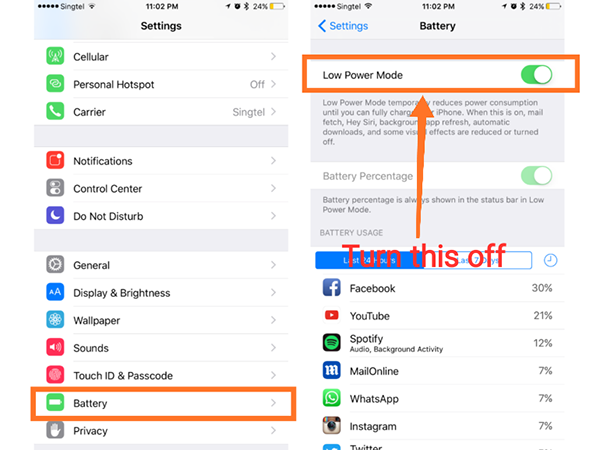
1. Disable Low Power Mode
When your battery is yellow, your iPhone restricts background downloads and streaming.
Step 1. Go to Settings > Battery.
Step 2. Toggle Low Power Mode to OFF.
2. Enable Background App Refresh
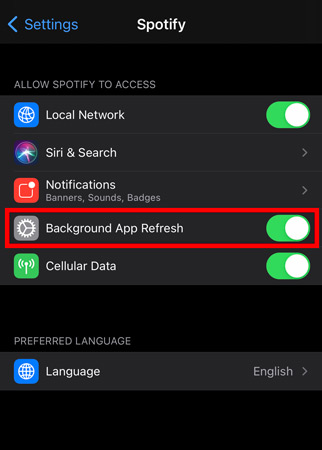
Step 1. Go to Settings and find Spotify.
Step 2. Find Background App Refresh and ensure the toggle is ON.
For Android Users
Android manufacturers (Samsung, Pixel, Xiaomi) often have their own “battery optimization” layers that are notorious for stopping music apps.
1. Allow Background Activity
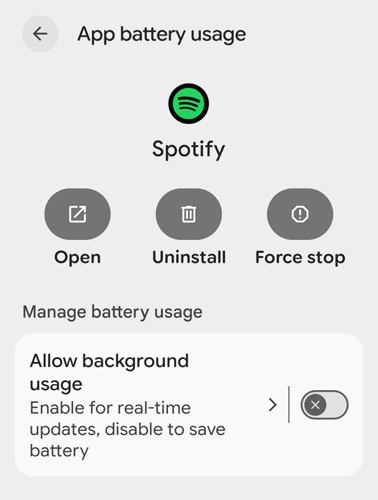
Step 1. Long-press the Spotify app icon and tap the (i) Info button.
Step 2. Go to App Battery Usage.
Step 3. Toggle on Allow background usage. If it is set to OFF, the system will pause your music when the screen goes dark.
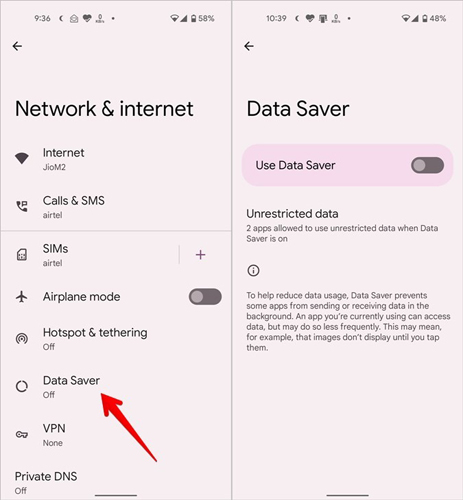
2. Check Data Saver
Step 1. Go to Settings > Network & Internet > Data Saver.
Step 2. Ensure it is OFF, or add Spotify to the “Unrestricted data” exception list.
Phase 3: Fix Spotify Keeps Pausing on Computer Settings (Windows & Mac)
Are you asking, “Why does Spotify keep pausing on my PC?” Desktop apps have a different set of issues, often related to hardware conflicts.
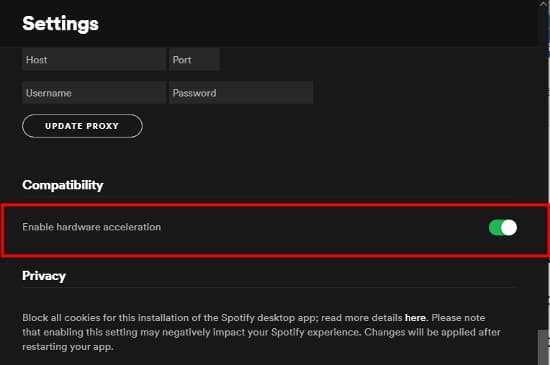
1. Disable Hardware Acceleration
This is a feature that uses your computer’s graphics card (GPU) to help run the app smoothly. However, on older machines or computers with outdated drivers, it can cause stuttering and pausing.
Step 1. Open Spotify on your desktop.
Step 2. Click the three dots (top left) > View > Hardware Acceleration.
Step 3. Click it to uncheck/disable it.
Step 4. Restart the app.
2. The “Clean” Reinstall (Windows)
Simply uninstalling Spotify often leaves behind the corrupted files causing the problem. You need to do a clean reinstall.
Step 1. Close Spotify completely.
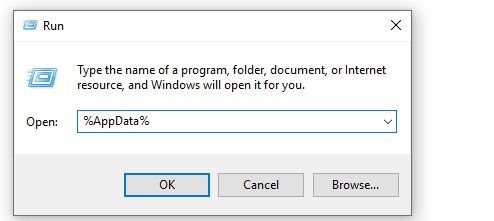
Step 2. Press Windows Key + R on your keyboard.
Step 3. Type %appdata% and hit Enter.
Step 4. Find the Spotify folder and delete it.
Step 5. Go back to the “Run” box, type %localappdata%, and delete the Spotify folder there too.
Step 6. Restart your PC and download a fresh installer from the Spotify website.
Phase 4: Fix Spotify Keep Pausing via Spotify Settings
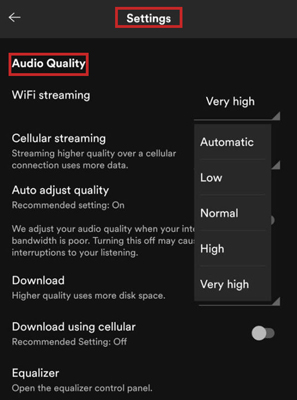
Sometimes the issue isn’t the app, but the demand you’re placing on your internet connection. If you are trying to stream “Very High” quality audio on a weak connection, Spotify will pause to buffer. Just follow the steps below to adjust streaming quality.
Way 1. Adjust Streaming Quality
Step 1. Go to Settings and privacy in the Spotify app.
Step 2. Under Audio Quality, look at Wi-Fi Streaming and Cellular Streaming.
Step 3. Change the setting from Very High to Automatic or Normal.
Step 4. Automatic is best because it adjusts the quality dynamically based on your signal strength.
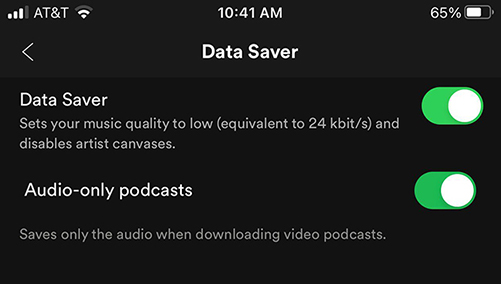
Way 2. Disable “Data Saver” inside Spotify
Spotify has its own built-in data saver mode that can sometimes be too aggressive.
Step 1. In Settings, look for Data Saver.
Step 2. Ensure this is toggled OFF if you are experiencing playback issues.
The Best Way to Download Spotify Music for Seamless Listening Offline
Your Spotify still keep pausing after applying the above solutions? Downloading your favorite songs and playlists to your computer gives you a perfect zoom to enjoy these songs. AudKit Spotify Music Converter is a wonderful choice for Spotify fans to convert and download your liked songs to computer easily.
AudKit Spotify Music Converter allows users to download songs, playlist, albums, audio books to computer without quality loss, supports various audio format including MP3, FALC, M4A, etc. With the straightforward user interface of the program, you can easily convert Spotify to MP3 without any technical skill.

Main Features of AudKit Spotify Converter
- Download Spotify songs for seamless listening
- Convert Spotify music to many common formats
- Keep audio quality and ID3 tags from original songs
- Allow Spotify music to play on other players and devices
FAQs About Why Does My Spotify Keeps Pausing
Q: Why does my Spotify pause after every song?
A: This is often a sign of a corrupted cache or a specific “Crossfade” bug. Try setting the Crossfade feature to 0 seconds in the playback settings, or follow the cache clearing steps above.
Q: Why does Spotify keep pausing when I open other apps?
A: This indicates that your device doesn’t have enough RAM (memory) to run both apps simultaneously. The system “kills” Spotify to open the new app (like the Camera or a heavy game). Closing other background apps can help.
Q: Why does Spotify pause when I connect my Bluetooth headphones?
A: If your headphones have “ear detection” (like AirPods), a dirty sensor might think you took them out of your ears, triggering the auto-pause feature. Clean your headphones and check your Bluetooth connection stability.
Conclusion
To resolve the Spotify keeps pausing error, start by checking your internet connection and ensuring your account isn’t being used elsewhere. The most effective solutions often involve disabling battery optimization or clearing the app’s cache. If the problem persists after trying these steps, contact Spotify Support, though most users find success with these methods. For seamless offline listening, download and try using AudKit Spotify Converter to enjoy music!

Elle Johnson
 Staff Editor
Elle Johnson has been working in the technology and music software field for over 5 years. She is dedicated to providing easy-to-use guides and effective tips to play music anywhere.