




Quick Answer
- To play Spotify for everyone in a Zoom meeting, open the Zoom desktop app, select Share Screen → Advanced → Computer Audio → Share, then start playback in Spotify. Labels may vary by Zoom version.
- You can share music without sharing your screen. Computer audio sharing lets participants hear playback while your desktop stays private.
- To play music without the Spotify app during the meeting, use Spotify’s web player or play a compatible local audio file and share your computer’s audio.
- For clear playback, keep the music volume below speaking voices and test the sound with another participant before the meeting begins.
Spotify brings your favorite songs to one place, while Zoom makes it easy to meet friends and colleagues remotely. Combining the two can add background music to a social call, a break between sessions, or a virtual gathering.
But playing Spotify on your own computer does not automatically mean everyone in a Zoom meeting can hear it. You need to share your computer’s audio through Zoom. This guide explains how to do that, followed by an option for preparing local audio files before the call.

Part 1. How to Play Spotify Audio on Zoom by Sharing Audio
Zoom’s computer audio sharing is the most direct way to play Spotify for meeting participants. It sends audio from your computer into the meeting, so you do not need to play music through speakers and pick it up with your microphone.
The following steps apply to the Zoom desktop app on Windows or Mac. Button names and placement may vary by version. If you are joining someone else’s meeting, the host may need to allow participant sharing first.
Step 1. Start or Join a Zoom Meeting
Open the Zoom desktop app and select New Meeting, or join an existing meeting. Open Spotify in advance and choose the song or playlist you want to share, but leave playback paused until audio sharing is ready.

Step 2. Open Zoom’s Sharing Options
Click Share Screen in the meeting toolbar. In the sharing window, select the Advanced tab.
If you want to show a presentation or another window while playing music, select that content and enable Share sound instead. This shares the selected visual content together with your computer’s audio.

Step 3. Share Computer Audio and Start Spotify
Select Computer Audio, then click Share. Some versions may label this option differently, such as Computer Sound. If Zoom requests an audio permission or additional setup, follow the on-screen instructions.
Open Spotify and start playback. Participants should now hear the music without seeing your desktop.

Start with a low Spotify volume and ask another participant to confirm that the music is audible. Keep the level lower when people are speaking. When you finish, pause Spotify and select Stop Share in Zoom.
Your microphone and shared computer audio are separate. Muting your microphone generally leaves shared music playing, so use Spotify’s playback controls or stop audio sharing when you want the music to end.
Tips for Clear Spotify Audio on Zoom
A few small adjustments can make music easier to hear:
- Use headphones while speaking. This helps prevent shared music from feeding back into your microphone.
- Check the volume in Spotify. Music that sounds comfortable locally may still overpower voices in the meeting.
- Close other apps that produce sound. Computer audio sharing can also transmit notifications and other playback.
- Use stereo sharing if available. It can preserve left and right channels, though participants’ devices and connections also affect playback quality.
- Test with another participant. Your own speakers cannot confirm exactly what the audience hears.
If participants cannot hear the music, first confirm that Spotify is playing locally and Zoom’s audio share is active. If you shared a screen or window, check that Share sound is enabled. Restart the share after changing your audio output device, and check host permissions if sharing is unavailable.
Part 2. How to Share Spotify Music on Zoom Without Spotify App
If you’re looking for an alternative to share music on Zoom calls without utilizing Spotify app, the best way is to download the music first. Apparently, this is possible by utilizing AudKit Spotify Music Converter. This tool can convert and download Spotify music in audio formats like WAC, MP3, FLAC, AAC, and more. Hence, you can save the iconic Spotify music themes for your offline listening modes.
Not only music, but you can also download podcasts, albums, audiobooks, and entire playlists from Spotify. The system is based on batch processing, meaning it can convert and download multiple songs simultaneously with 5X conversion speed on Windows/Mac devices. Ideally, the music items are converted while preserving the raw metadata of the original music files. Hence, you will experience 100% lossless music quality with fantastic sound and audio support.
Meanwhile, there is no display of ads; hence, you can have an ad-free experience while listening to Spotify music offline. Simply open your Zoom meetings and share the Spotify downloaded songs with all your participants. Meanwhile, using AudKit Spotify Music Converter is very easy and convenient, and even a beginner can use it to download original Spotify music.
Main Features of AudKit Spotify Music Converter
- Adjust Spotify songs output with formats, codec, bit rate, and sample rate
- With ID3 tags, manage and organize your Spotify music
- No limit on downloading the number of Spotify songs
- After format conversion, play Spotify on all players and devices
If you’re wondering how to connect Spotify to Zoom for offline music downloads, these steps are great assistance in moving further:
Step 1 Put Spotify tracks into the AudKit converter
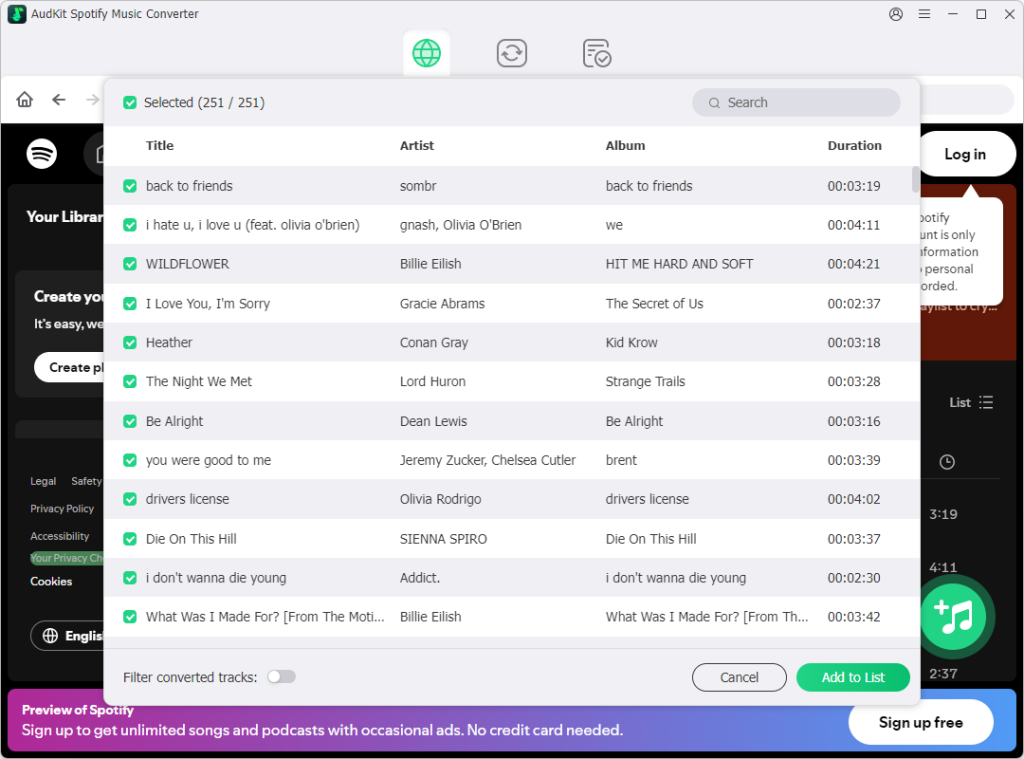
After starting the AudKit converter, go to the Spotify app on your device, and make sure to locate different playlists, songs, music, podcasts, and more. Perform a right-click on your chosen audio track and click “Share” to select the displaying “Copy Song Link” option. When your link is copied, paste it into AudKit’s search box. Continue to click the “+” icon to import the music. You can also drag and drop music from Spotify to AudKit SpotiLab Music Converter.
Step 2 Customize Spotify audio output for Zoom
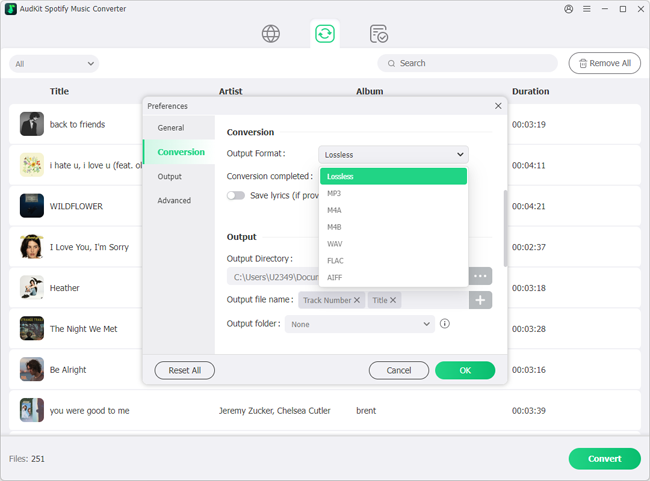
From the menu within the taskbar on top, choose the “Preferences” tab. By navigating into the “Convert” tab, reset the desired output format for Spotify music to AAC, WAV, MP3, M4A, FLAC, and more, and customize audio settings regarding sample rate, bit rate, channels, and codec.
Step 3 Download and share Spotify on Zoom
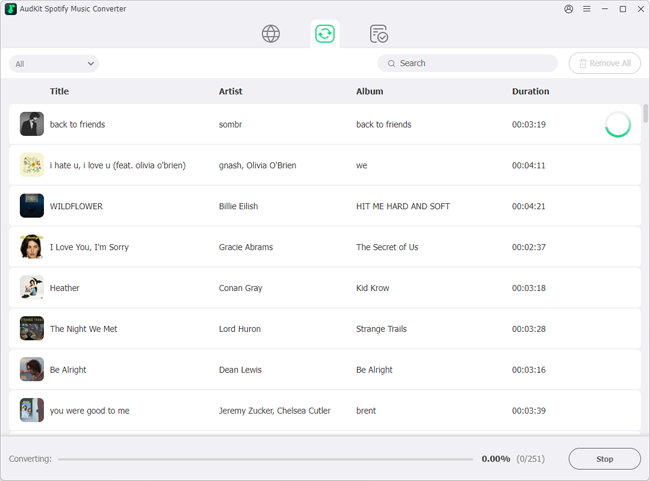
When you’re done customizing the music output settings, hit the “Convert” button at the main interface. Wait patiently until the conversion process is completed. The added Spotify songs will be downloaded to a local folder. You can open the folder directly on your computer by clicking the “Folder” icon. Then follow the steps in Part 1 and you will get the trick on how to use Spotify on Zoom offline without ads interruption.
Frequently Asked Questions
Can I Play Spotify on Zoom Without Sharing My Screen?
Yes. In the Zoom desktop app, select Share Screen → Advanced → Computer Audio. This shares your computer’s audio without displaying your desktop. The option’s wording may vary by version.
Why Can I Hear Spotify but Other Participants Cannot?
Local playback alone does not send music into a Zoom meeting. Start computer audio sharing, or enable Share sound when sharing a screen or window. Also check that Spotify is not paused or muted and that the host allows you to share.
Can I Listen to Spotify Privately During a Zoom Meeting?
Yes. Play Spotify without enabling computer audio sharing or Share sound. Use headphones so the music does not leak into your microphone, and keep the volume low enough to hear the meeting.
Do I Need Spotify Premium to Share Audio Through Zoom?
Zoom’s computer audio sharing does not require Spotify Premium. What you can play depends on your Spotify account and its playback restrictions. If an advertisement or another sound plays on your computer during audio sharing, participants may hear it too.
Can I Use These Steps on a Phone?
These instructions are for the Zoom desktop app. Mobile audio sharing depends on your operating system, Zoom version, and the source app’s playback behavior. For the workflow described here, use a Windows or Mac computer.
Part 3. Final Thoughts
The easiest way to play Spotify on Zoom is to share computer audio through the desktop app, then start your music. Use audio-only sharing to keep your desktop private, or enable Share sound when presenting a screen or window.
Spotify’s web player offers an option without the desktop app, while AudKit Spotify Music Converter provides a preparation workflow for supported local audio files you are authorized to use. Whichever approach you choose, test playback with another participant and keep the music balanced with speaking voices.

Andrew Rowley
 Staff Editor
Andrew Rowley has over 10 years of writing experience and is good at writing in audio technology and audio converter software. He can provide high-quality articles to help streaming music lovers explore music better.