





Quick Answer
- Start with Spotify’s official offline mode: Premium lets you download up to 10,000 songs per device and play offline on up to 5 devices. Just remember that downloads expire after 30 days without a reconnect and playback stays locked inside the app.
- For devices without the Spotify app — older MP3 players, car USB ports, non-Spotify smartwatches — build a personal backup library you actually own.
- Treat converted files strictly as a personal backup of music you already have access to — never share or redistribute them.
Enjoying Spotify anywhere usually comes down to having your music ready when the signal isn’t. Tunnels on the daily commute, a cross-country flight, a weekend campsite — these are exactly the places where streaming falls apart. You’re paying for the songs, and they’re out of reach at the worst moment. It doesn’t have to work that way.
Spotify’s built-in offline mode covers part of the problem. Premium subscribers can download up to 10,000 songs per device and play them on five devices. But those downloads never leave the app: they expire after 30 days without a reconnect and stop working the moment your subscription lapses. If your listening happens on an MP3 player, a car USB port, or an older smartwatch, that’s a real gap.
This guide walks through the official steps first, then a personal-backup route using AudKit Spotify Music Converter to create universal audio files — so your music is there when the signal isn’t.
Part 1. How to Download Music for Offline Listening in Spotify
Download Playlists on Phone or Desktop
Downloading playlists to your phone or computer is the most direct way to stay offline. Premium supports up to 10,000 saved songs per device and offline playback on five devices. One catch: Spotify downloads whole playlists rather than individual tracks, so build playlists that contain only the songs you want offline.
- Open Your Library and create a playlist with New Playlist.
- Add tracks from any song, album, or artist page via Add to playlist.
- Make sure you have at least 1 GB of free storage, or the download can stall partway.
- Open the playlist and flip the Download toggle; green arrows show progress.
- Once every track is saved, turn on Offline Mode under Settings to stop the app from using data.
Download Playlists to Apple Watch
If you run, hike, or hit the gym without your phone, the Apple Watch can carry playlists on its own. After one sync, playback needs neither the iPhone nor a data connection — just free watch storage.
- Open Spotify on the watch with your iPhone nearby for the first sync.
- Play the playlist once so the watch caches the track list.
- Tap the download icon and wait for the progress ring to fill.
- Check free space in watch Settings and trim the playlist if it’s too large.
- Turn on Offline Mode on the watch, then leave the phone behind.
Refresh Downloads Before the 30-Day Expiry
Offline downloads carry a 30-day expiry. Go online at least once inside that window and the app refreshes their licenses automatically; any playlist that shows a cloud icon has already expired.
- Open Spotify while connected to Wi-Fi or cellular data at least once a month.
- Leave the app on the Home screen for a minute so it can refresh your downloads.
- Check the playlist icons: a solid green arrow means active; a cloud means expired.
- Tap Download again on expired playlists to re-save them.
- Switch Offline Mode back on afterwards.
Part 2. Spotify Offline Mode vs. Personal Backup Files
When “anywhere” means inside the Spotify app, offline mode is all you need. When it means any player you own, you need a different approach — personal backup files. Knowing which one fits your routine saves you from downloads that stop working mid-trip.
What each approach covers
| Dimension | Spotify Offline Mode | Personal Backup Files |
|---|---|---|
| Device range | Spotify app and supported wearables | Any player with file support |
| Subscription | Premium required; stops if Premium lapses | Subscription not needed after conversion |
| Expiry rules | 30-day reconnect refresh | Permanent files |
| Format compatibility | Not exportable | Universal formats (MP3, FLAC) |
Where the trade-off shows up
Offline mode is the low-effort option while your Premium subscription is active: up to 10,000 songs per device, and one toggle keeps a playlist on your phone or watch. The catch is that everything is tied to your account — miss the 30-day online check-in and downloads expire; let Premium lapse and they stop playing entirely.
Personal backup files work differently. Convert a playlist to MP3 or FLAC once for personal backup, and the files stay put — playable on any device that accepts standard audio formats: a car’s USB port, an older MP3 player, a non-Spotify smartwatch. No login, no signal, no subscription checks. If your definition of “anywhere” includes gear that can’t run Spotify, that’s the decisive difference.
Part 3. How to Build a Personal Backup Library for Playback on Any Device
Official downloads are convenient, but they never leave the Spotify app, expire after 30 days without a reconnect, and vanish if Premium lapses. A personal backup library removes all three conditions. Once the music you can already access on Spotify exists as ordinary audio files on your drive, playback needs no app, no subscription, and no network connection.
That’s where AudKit Spotify Music Converter fits. It converts the playlists you already have access to into universal audio files you can keep, organize, and play on anything.

Main Features of AudKit Spotify Music Converter
- Easily download any Spotify audio content in 320kbps
- Convert Spotify music to MP3/AAC/FLAC/WAV/M4A/M4B
- Keep full ID3 tags like artist, year, cover, title, etc.
- Batch download at a fast 5X conversion speed
- Help listen to Spotify music offline anywhere
Why AudKit Spotify Music Converter Complements Offline Mode
Spotify Offline Mode remains a decent quick-listening option inside the app, but those downloads are tied to the Spotify player. AudKit Spotify Music Converter addresses that by converting playlists to MP3, FLAC, and other universal formats, with ID3 tags — track title, artist, album, cover art — preserved so files stay organized after transfer. Batch conversion processes entire playlists in one pass, and everything runs locally on your Windows or Mac machine. The converted files are intended for personal backup of content you have the right to access and store, not for redistribution.
Step-by-Step Tutorial: Convert and Transfer with AudKit
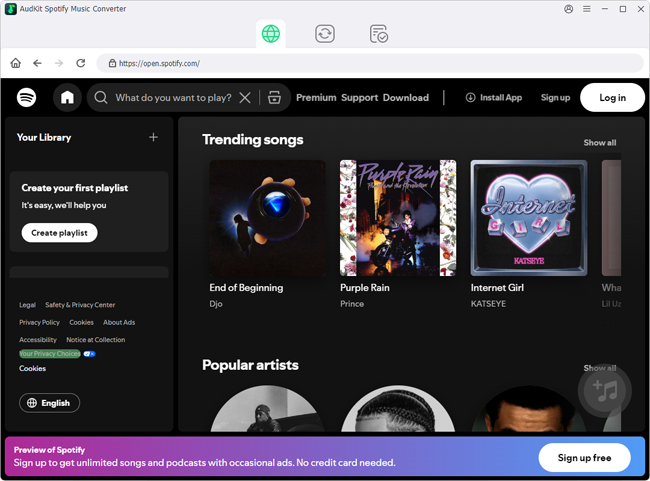
Step 1: Install, launch, and sign in.
Download AudKit Spotify Music Converter, install it, and log in with your Spotify account. Both Free and Premium accounts work.
Step 2: Add the playlists you want to back up.
Drag playlists, albums, or individual tracks into the conversion list. You don’t need to download anything inside Spotify first — the converter reads your library directly.

Step 3: Choose output format and quality.
Pick MP3 when compatibility matters — car USB ports, portable players, smart TVs — or FLAC for lossless playback on hi-fi gear. Sample rate and bitrate settings let you balance fidelity against file size.

Step 4: Convert the playlist.
Click Convert All and let the batch run. Finished files land in the output folder with ID3 tags already written.

Step 5: Transfer and play anywhere.
Copy the output folder to a USB drive, SD card, or phone. Play it in the car, on a smartwatch without Spotify support, or from your laptop on a flight. No app and no stream required.
FAQs About Enjoying Spotify Anywhere
Short answers to the questions that come up most often when you’re trying to listen offline or outside the app.
Can I listen to Spotify offline without Premium?
No — Offline Mode is a Premium feature. Free accounts can download podcasts but not music, so offline songs require an active Premium plan.
How do I keep Spotify downloads from expiring after 30 days?
Open Spotify while online at least once every 30 days to refresh download licenses. Downloads keep playing during a trip, but they expire at the 30-day mark without that check-in.
Can I play downloaded Spotify songs on a device without the Spotify app?
Not directly. Official downloads are tied to the Spotify app and won’t play on other players. For older MP3 players, car USB ports, or non-Spotify smartwatches, convert playlists to MP3 or FLAC with a personal backup tool like AudKit Spotify Music Converter — for content you have the right to access and store.
Does offline listening count toward my Spotify Wrapped?
Yes. Offline plays are stored on your device and sync once you’re back online, so they appear in Wrapped and shape your recommendations.
What happens to my Spotify downloads if my Premium subscription ends?
Downloaded songs stop playing until you resubscribe — they stay in your library but are locked. Any personal backup copies you made remain fully playable.
Conclusion
For most commutes and flights, Spotify Premium’s offline mode is the fastest way to enjoy Spotify anywhere: download playlists while on Wi-Fi and play them without cellular data. Just open the app at least once every 30 days to keep downloads fresh.
Where the official app falls short — older MP3 players, car USB ports, or smartwatches without Spotify — a personal backup library closes the gap. Tools like AudKit Spotify Music Converter save songs as universal audio files that play on any device, with no internet or app required.
The right route depends on your gear and travel habits. Stick with the app for daily listening, add personal backups for the edge cases, and you’ll have music ready wherever you go.

Andrew Rowley
 Staff Editor
Andrew Rowley has over 10 years of writing experience and is good at writing in audio technology and audio converter software. He can provide high-quality articles to help streaming music lovers explore music better.