





Quick Answer
Spotify has no built-in “Export to Excel” button, but you can pull playlist metadata into a spreadsheet using free tools like Exportify (one-click CSV), Soundiiz (extra columns), or Spotify’s privacy data download. All give you track names, artists, albums, and added dates — ideal for sorting and deduping. If you need actual offline audio files that match your playlist, AudKit Spotify Music Converter can batch-convert your tracks to MP3, FLAC, or WAV so you get a playable folder alongside your spreadsheet.
If you’ve ever tried to organize a massive Spotify playlist outside the app, you know the frustration: no “Save as Excel” option exists. Licensing deals restrict how track data is shared, but you can still extract every track name, artist, and album into a clean spreadsheet — and with the right approach, even turn those song titles into actual audio files.
This guide shows you exactly how to pull playlist data out of Spotify, shape it into a useful Excel sheet, and fix common headaches like duplicate entries and messy artist cells. Along the way, you’ll see when a simple CSV is enough and when stepping up to a tool like AudKit Spotify Music Converter makes more sense for offline listening.

- Part 1. Why Spotify Won’t Let You Export Playlists
- Part 2. 4 Ways to Export Spotify Playlist to Excel Spreadsheet
- Part 3. Fixing and Analyzing Your Spotify Data in Excel
- Part 4. From Metadata to Music: Saving Your Playlist as Actual Audio Files with AudKit
- FAQs About How to Export Spotify Playlist to Excel
Part 1. Why Spotify Won’t Let You Export Playlists (And What Spreadsheets Can Actually Do)
Spotify’s catalog is built on licensing agreements with record labels and publishers, which tightly control how track data is shared — that’s why you’ll never find a built-in export button. Any tool that pulls out playlist details does so through the official Spotify Web API, and it can only retrieve metadata: track name, artist, album, added date. The audio streams stay locked inside Spotify’s encrypted delivery.
A spreadsheet is a list of facts about songs, not a playable music library. If your goal is an actual audio backup you can use without the app, you’ll need a different kind of tool — one that works at the audio level, not the metadata level. But as an organizer, an Excel file becomes surprisingly powerful: you can spot duplicate entries, sort by release date, filter out dominant artists, or answer questions like “How many tracks in this playlist are from the 1980s?” — things Spotify’s own interface won’t help you do.
Part 2. 4 Ways to Export Spotify Playlist to Excel Spreadsheet
Since Spotify offers no native export, you need a workaround. Each approach below balances ease of use with the depth of data you get.
Use Exportify for a One-Click CSV Export
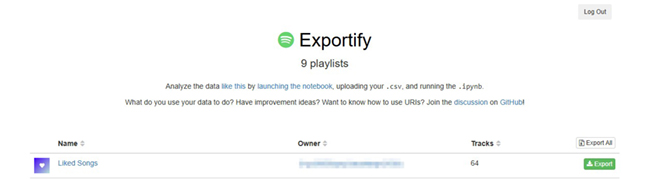
Exportify is the fastest way to grab a clean CSV with just a few clicks — no sign-up beyond your Spotify login, and it gives you track name, artist, album, and added date.
- Go to the Exportify website and click Login with Spotify (read-only access).
- Select your playlist from the dropdown, click Export, and choose CSV.
- Save the file — it contains track name, artist, album, and added date.
- Open the CSV directly in Excel or Google Sheets.
Use Soundiiz for Granular Playlist and Library Export
Soundiiz offers more export options, including ISRC codes and duration, making it ideal if you need richer metadata for filtering or analysis.
- Visit Soundiiz and sign in with Spotify.
- In the left panel, choose Playlists, then tap the Export icon next to your playlist.
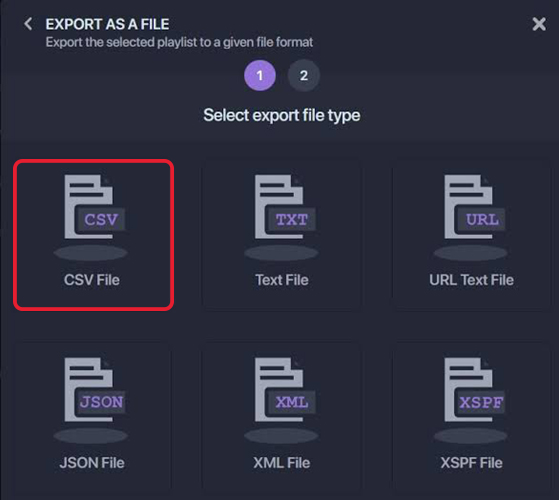
- Set CSV as the output and pick the columns you need (title, artist, album, ISRC, duration, and more).
- Confirm, download, and open in Excel for filtering or pivot tables.
Request Your Full Listening History via Spotify’s Privacy Settings
Spotify’s privacy download captures your complete listening history, but you’ll need to convert the JSON files — a good choice when you want a full archive without third-party services.
- Open Spotify’s Privacy Settings, log in, and submit an account data request under “Download your data.”
- Wait for Spotify’s email (a few days to a few weeks), then download the ZIP file.
- Inside the “MyData” folder, find the JSON files. Convert a playlist’s JSON to CSV using Excel’s Power Query (Data > Get Data > From JSON) or a free JSON‑to‑CSV converter.
- Save the clean CSV and load it into your spreadsheet.
Generate a Custom CSV with the Spotify Web API
For developers or power users, the Spotify Web API provides raw access to playlist data in JSON, which you can convert to CSV with a script or online tool.
- Copy the playlist URL, grab the playlist ID (the string after
/playlist/). - In the Spotify Developer Console, use the Get Playlist Tracks endpoint, authenticate, and send a request with the playlist ID.
- Convert the returned JSON to CSV with a Python script, Google Apps Script, or online converter like ConvertCSV.
- Download the CSV and open in Excel.
Part 3. Fixing and Analyzing Your Spotify Data in Excel
Even a clean CSV needs tidying before you sort, filter, or build charts confidently. Multidisc sets, collaborations, and repeated saves often create duplicate rows and messy cells.
Remove Duplicate Entries Automatically
Often playlists accumulate the same track multiple times; Excel’s built-in duplicate removal cleans this up in seconds.
- Open your CSV in Excel and select the entire data range (Ctrl + A).
- Go to the Data tab, click Remove Duplicates, check only the Track Name column (or add Artist for safety), and click OK.
- Excel reports how many duplicates were removed; keep a raw copy before deduping in case you need to audit.
Split Artist and Album Fields with Text-to-Columns
Collaborations and multi-artist tracks land in one cell — splitting them makes sorting and counting accurate.
- Insert one or two blank columns immediately to the right of the Artist column.
- Highlight the Artist column, go to Data > Text to Columns, choose Delimited, check Comma as the delimiter (and a space if needed), then click Finish.
- Rename the new columns “Artist 1,” “Artist 2,” etc. Rows with a single artist simply leave extra columns blank.
Analyze Top Artists or Genres Using a Pivot Table
Pivot tables let you count appearances and rank artists without formulas, giving you quick insight into your listening habits.
- Click anywhere inside your data, go to Insert > PivotTable, and choose New Worksheet.
- Drag the Artist field into Rows, and drag Track Name into Values (set to Count).
- Right-click any count value, choose Sort > Sort Largest to Smallest to rank your top acts.
- If you have a Genre column (from Soundiiz), drag it into Filters for quick genre-specific views.
This lightweight analysis needs no paid add-ins, and you can refresh the pivot table instantly after adding new exports.
Part 4. From Metadata to Music: Saving Your Playlist as Actual Audio Files with AudKit
You’ve built a clean Excel catalog — but double‑clicking a cell will never play a note. For DJs without reliable Wi‑Fi, long‑haul travelers, or anyone wanting a permanent offline library, you need those rows to become real audio files. That’s where AudKit Spotify Music Converter steps in.
Most playlist‑to‑Excel tools stop at text‑based metadata. AudKit reads the playlist you’ve organized in Spotify and batch‑converts every track to universally playable formats — MP3, FLAC, or WAV — while preserving ID3 tags (title, artist, album, artwork). The result is a genuine offline safety net: a folder of high‑quality music files you can load into a DJ controller, sync to a phone, or archive on a hard drive.
Step-by-Step: How to Export a Playlist from AudKit to Audio Files
Step 1. Launch AudKit Spotify Music Converter; the integrated Spotify web player opens automatically. Search for any playlist or album without leaving the interface.
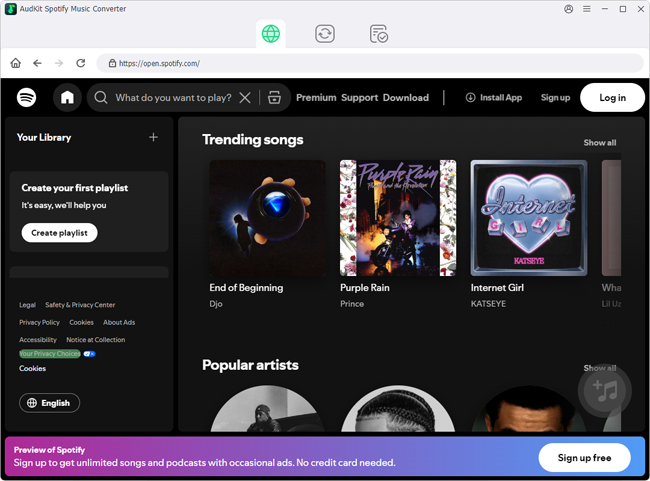
Step 2. Inside the built-in player, open the playlist you want and drag its tracks into the main conversion queue.

Step 3. Choose your output format — MP3 (up to 320 kbps), FLAC, or WAV — and sample rate. ID3 preservation is on by default.

Step 4. Click Convert and let AudKit batch‑process everything at high speed while maintaining the original order.

Step 5. Once done, click the output folder icon to locate your converted files.
You now have a folder of playable files that mirrors your exported playlist. Unlike a spreadsheet, these work in a car stereo, import directly into editing software, and serve as a permanent music library with no Spotify account required.
FAQs About How to Export Spotify Playlist to Excel
Will Exportify work with my private playlists?
Yes — Exportify reads playlists you own, even private ones, as long as you grant read-only access.
How long does Spotify’s data download take?
Most requests arrive within a few days, but during peak periods it can take two weeks or more. Plan ahead.
Can I export a Spotify playlist to Excel without logging into any third-party service?
Yes. Use Spotify’s own privacy data download and convert the JSON files locally with Power Query or a JSON‑to‑CSV converter.
What if my CSV contains special characters that break Excel?
Save with UTF‑8 encoding when you export. If already in Excel, use the “Get Data from Text/CSV” wizard and specify UTF‑8.
Can I turn an Excel playlist export into actual music files?
An Excel file is only a list — it contains no audio. To get playable files, you need a converter that reads your playlist and saves tracks locally. AudKit Spotify Music Converter does exactly that, preserving metadata from your spreadsheet.
Disclaimer: All tools mentioned are for personal backup of content you have the right to access. Users must follow local copyright laws and respect platform terms of service.
Conclusion
Turning a Spotify playlist into an Excel sheet is completely doable. Free services like Exportify or Soundiiz hand you a clean CSV in minutes, and a few Excel tricks — deduping, splitting artist columns, building pivot tables — transform that raw list into a genuinely useful tool for organizing your music.
But spreadsheets stay silent. If your goal goes beyond metadata and you want actual audio files, AudKit Spotify Music Converter picks up exactly where your Excel export leaves off, giving you a folder of offline‑ready songs that complete your backup plan.

Andrew Rowley
 Staff Editor
Andrew Rowley has over 10 years of writing experience and is good at writing in audio technology and audio converter software. He can provide high-quality articles to help streaming music lovers explore music better.