





Quick Answer
When Spotify hits you with “Something went wrong,” follow this sequence:
- Check server status. Look at
@SpotifyStatuson X or Downdetector. A server‑side outage makes local fixes pointless. - Flush corrupt state. Clear the app cache (downloaded songs stay safe), force‑quit, then log out and back in for a fresh token.
- If search alone is broken, use
Ctrl+K(Windows) orCmd+K(Mac) — the quick‑access command palette often sidesteps a glitched search UI. - Remove the dependency entirely. Convert your must‑have playlists to plain local files with AudKit Spotify Music Converter. No server, no token, no error — just MP3s that play whenever you want.
Spotify’s “Something went wrong” is as unhelpful as an error gets: no code, no explanation, just a grey bar that kills your playback. Whether you’re mid‑commute or midway through a workout, you’re left guessing if the fault lies with your device, your network, or Spotify’s servers. This guide walks through the diagnostic sequence that clears the error when it’s local — server checks, cache purges, VPN traps, and post‑update resets. It also shows you how to build a small offline library that bypasses Spotify’s live infrastructure entirely, so the next time that banner appears, you simply ignore it and press play.
- Part 1. Why “Something Went Wrong” Keeps Coming Back
- Part 2. General Fixes for “Something Went Wrong”
- Part 3. How AudKit Spotify Music Converter Ends the Error Loop
- FAQs About How to Fix Spotify Something Went Error
Part 1. Why “Something Went Wrong” Keeps Coming Back
Every time you hit play, Spotify chains together remote handshakes: session authentication, region verification, fetching encrypted audio fragments, and licensing confirmation. One weak link — an expired token, a DNS hiccup, or a failing CDN edge node — collapses the whole experience into that ambiguous three‑word shrug.
Standard troubleshooting (cache clearing, VPN disconnection, logout) can patch the symptom, but it doesn’t change the underlying fragility. You’re gambling on a clean network path and server uptime every session. The only genuine escape is to stop depending on that chain: when your most‑played tracks exist as standalone audio files, there’s no token to expire, no CDN to fail, and no regional check to trip. That’s the approach we’ll take in Part 3.
Part 2. General Fixes for “Something Went Wrong”
Before you reach for permanent solutions, run through these common fixes. They address the most frequent local triggers and require no special tools.
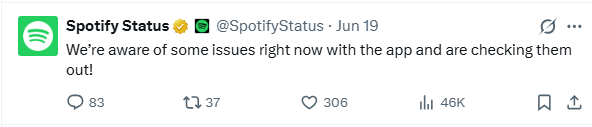
1. Check Spotify’s server status
Open Downdetector or visit @SpotifyStatus on X. If reports are spiking, the problem is on Spotify’s end — wait it out. No local step will help during a server‑side outage.
2. Clear the app cache
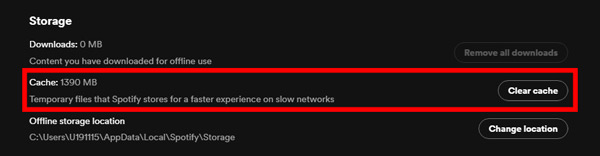
Corrupt temporary data is a top offender.
- Desktop:
Settings > Storage > Clear cache. - Android:
Settings > Apps > Spotify > Storage > Clear cache. - iOS: Offload the app via
Settings > General > iPhone Storage > Spotify > Offload App, then reinstall. (Offloading keeps your data intact.) Clearing the cache never deletes downloaded playlists — those live in a separate, protected folder.
3. Log out and log back in
A stale authentication token can make every request fail. Log out completely (not just close the app), wait a few seconds, and sign in again. This forces Spotify to issue a fresh token and rebuild your local session.
4. Restart your device
A simple reboot clears hung background processes, renews the network stack, and releases locked files — often all it takes to fix a stubborn grey bar.
5. Reinstall Spotify
If cache and token refreshes don’t help, a clean reinstall scrubs every local residue:
- Desktop: Uninstall via system settings, delete leftover folders (see FAQ), then download the latest installer.
- Mobile: Delete the app, restart, and reinstall from the official app store. Redownload any offline content afterwards.
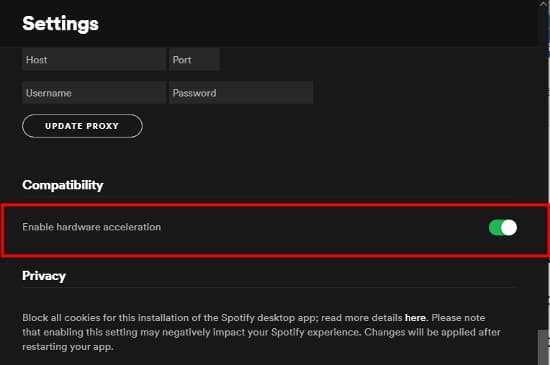
6. Disable hardware acceleration (Desktop)
On Windows and macOS, GPU‑accelerated rendering can clash with Spotify’s UI.
- Go to
Settings > Show Advanced Settings > Hardware Accelerationand toggle it off. Restart the app. If errors vanish, keep it disabled.
7. Check your network and VPN
- VPN/Proxy: Spotify matches your account country to your public IP. A mismatched VPN exit server triggers the error. Disconnect it, wait a minute, then restart the app. If you must use a VPN, configure split‑tunneling to exclude Spotify.
- DNS and firewall: Switch to a public DNS (e.g.,
8.8.8.8) temporarily. Ensure firewall or antivirus isn’t blockingspotify.comor known CDN URLs.
8. Update the app
An outdated client may run into protocol mismatches. Install the latest version from the official app store or download page. Post‑update, log out and back in once to sync tokens.
9. Verify storage permissions (Mobile)
On Android and iOS, missing file‑access permissions can break downloads and offline sync. Go to your device’s app permissions and confirm Spotify has full storage access; re‑grant it if needed.
Try these steps in order — most “Something went wrong” errors clear by the time you reach a reinstall. If the error keeps returning despite clean local conditions, the root cause is likely server‑side fragility, which the next section solves permanently.
Part 3. How AudKit Spotify Music Converter Ends the Error Loop
While typical fixes are a waiting game, AudKit Spotify Music Converter makes Spotify’s live‑service dependencies optional. It reads your playlists and albums, then writes them out as universal audio files — MP3, AAC, FLAC, or WAV — directly to your computer. Batch processing handles hundreds of songs at once, preserving lossless output and original ID3 tags (artist, album art, track numbers). The result is a local copy of your library that never talks to Spotify’s servers. When the next “Something went wrong” banner appears, your essential albums are already sitting safely on your drive.

Main Features of AudKit Spotify Music Converter
- Easily download any Spotify audio content in 320kbps
- Convert Spotify music to MP3/AAC/FLAC/WAV/M4A/M4B
- Keep full ID3 tags like artist, year, cover, title, etc.
- Batch download at a fast 5X conversion speed
- Help listen to Spotify music offline anywhere
Step‑by‑Step: Building a Bulletproof Offline Library
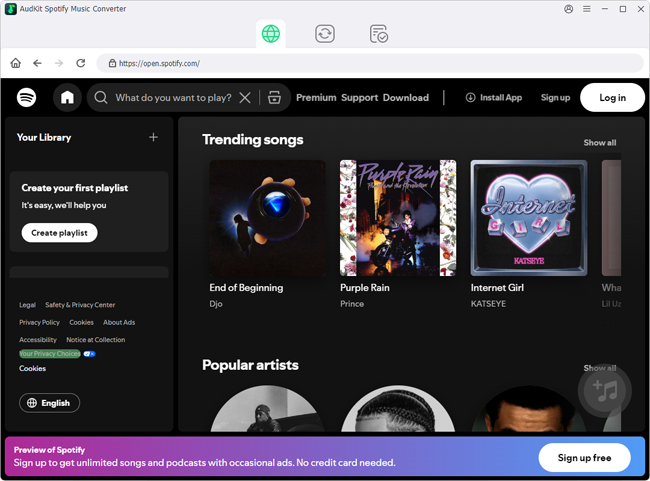
1. Install AudKit and link your Spotify account
Launch AudKit Spotify Music Converter on Windows or macOS. Use the built-in Spotify web browser login to navigate for the next step.
2. Queue your critical playlists
Add entire playlists, albums, or individual songs into the conversion list from the built‑in browser; a Spotify share link also works. In preferences, choose your output format (MP3 is the safest universal choice) and set 320 kbps / 44.1 kHz to match the original stream quality.

3. Convert and let the tool work
Click “Convert.” AudKit processes tracks at up to 5× playback speed, retaining all metadata and album art. Output lands in a folder you designate — no files stay inside the Spotify cache.

4. Play on your own terms
You now have DRM‑free audio files. Copy them to your phone, MP3 player, USB stick, or NAS. VLC, MusicBee, or foobar2000 will handle them without a Spotify login. When the streaming client throws a fit, your commuter playlist is already there.
How Offline Beats Streaming Every Time
The real gain isn’t just dodging one error — it’s reclaiming control over music you already pay to access. The table below contrasts the reactive fix treadmill with a library you build once and own forever.
| Dimension | Temporary Fixes (Streaming) | Offline Library via AudKit |
|---|---|---|
| Root cause | Treats symptoms; error can return with any server hiccup | Eliminates dependency on Spotify servers — local files never phone home |
| Format & quality | Streaming-only, no control over file type or bitrate stability | Choose MP3, AAC, FLAC, or WAV; lock in 320 kbps / 44.1 kHz |
| Metadata | Server‑dependent; artwork can vanish after cache clears | AI‑driven ID3 preservation keeps artist, cover art, track numbers intact |
| Batch handling | Offline downloads per‑device, can expire without warning | Convert hundreds in one session; no re‑downloads, no expiry |
| Error vulnerability | High — any outage, VPN mismatch, or corrupt cache restarts the cycle | Zero — local files don’t know what “Something went wrong” means |
Once your core music is plain files, troubleshooting shifts from panic to peace. You still keep the Spotify app for discovery, but your daily playlists never again go silent because of a server glitch.
FAQs About How to Fix Spotify Something Went Error
Does clearing Spotify’s cache delete my downloaded songs?
No. Cache holds transient data (album art, streamed fragments), while downloads are stored separately. Clearing it through Settings > Storage > Clear cache is safe and often fixes “Something went wrong” by forcing a clean rebuild.
Why does the error appear only when I search?
A search‑only failure usually points to a corrupted in‑app search index or a partial network block. Some firewalls allow streaming but throttle search API calls. Try the Ctrl+K/Cmd+K shortcut — it bypasses the graphical search UI. If that works, the cause is likely network‑level filtering; otherwise, log out and back in to rebuild the local search index.
Can a VPN cause this error even if my internet is fine?
Yes. Spotify matches your account’s country to your public IP. A VPN exit server in a different region creates a mismatch that Spotify flags as suspicious, throwing the generic error. Disconnect the VPN, wait a minute, restart Spotify. If you must use a VPN, look for dedicated residential IPs or split‑tunneling that excludes Spotify traffic.
Is there a way to permanently avoid this error?
No single switch guarantees it never appears, because triggers can originate on Spotify’s servers, your network, or your local app. But you can slash its frequency by keeping the app updated, clearing the cache monthly, and refreshing tokens periodically. The strongest safety net is a local music library. With AudKit Spotify Music Converter, essential playlists become universal files you can play through any media player, completely bypassing Spotify’s live‑service pipeline.
What if the error pops up right after a Spotify update?
A post‑update error often signals a corrupted preference file or broken local‑files link. On Windows, go to %AppData%\Spotify\Users and rename your user folder (you can restore it later). On macOS, the path is ~/Library/Application Support/Spotify/Users. This forces a clean profile. Also verify that custom local‑files sources are still correctly linked, as updates sometimes break those paths. If the problem persists, temporarily roll back to the previous version via a trusted archive like Uptodown and wait for a patch.
Conclusion
Fixing “Something went wrong” starts with level‑headed triage — check server status, clear cache, drop the VPN — but real freedom comes from stepping off the live‑service treadmill.
By converting your most‑played playlists into universal local files with AudKit Spotify Music Converter, you cut the cord to Spotify’s instability. Those MP3s, FLACs, or AACs sit on your device, immune to expired tokens, CDN outages, and bad updates. The next time a cryptic grey bar tries to silence your soundtrack, your music is already waiting — offline, uncompromised, and always ready.

Andrew Rowley
 Staff Editor
Andrew Rowley has over 10 years of writing experience and is good at writing in audio technology and audio converter software. He can provide high-quality articles to help streaming music lovers explore music better.