





Quick Answer
Spotify’s algorithm resets when you override old listening habits with stronger, intentional signals:
- Exclude all polluting playlists (kids’ music, white noise, study loops) from your taste profile.
- Use “Don’t play this artist” on any name you never want to hear again.
- Follow at least 10 artists you genuinely love and like their key tracks.
- Run a 48‑hour “core music” listening sprint without skipping.
- For a stress‑free reset, back up your library first with AudKit Spotify Music Converter so you can safely experiment offline.
Spotify’s algorithm learns from everything you play — one afternoon of kids’ music or a night of white noise can turn Discover Weekly into a nursery‑rhyme wasteland. Shared accounts make it worse, silently poisoning recommendations until the app no longer feels like yours. There’s no “reset” button, but you can deliberately retrain Spotify by feeding it strong signals that override the noisy history.
The most effective levers are follows, skips, and explicit exclusions. Listeners who actively exclude genres see their recommendations realign within days — Spotify’s own data notes meaningful gains in listening time once suggestions get back on track. This guide walks you through those steps, plus a backup strategy using AudKit Spotify Music Converter to keep your library safe offline while you experiment. You’ll also learn long‑term habits to stop study mixes or children’s content from ever contaminating your taste profile again.
Part 1. 5 Effective Ways to Reset Spotify Algprothm
Way 1: Exclude Polluting Genres from Your Taste Profile
Excluding a playlist instantly removes the listening patterns and genres attached to it from Spotify’s recommendation model, so those unwanted sounds stop influencing your Daily Mixes and Discover Weekly.
- Open a playlist that reflects your unwanted recommendations — Discover Weekly or Release Radar are good starting points.
- Tap the three‑dot menu at the top of the playlist.
- Select Exclude from your Taste Profile. Spotify instantly strips out the genres and listening patterns tied to that playlist from your recommendation model.
- Repeat for every playlist dominated by children’s music, white noise, or study loops.

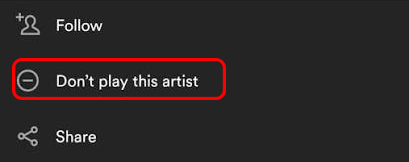
Way 2: Deploy the “Don’t Play This Artist” Negative Weapon
Blocking an artist tells Spotify to remove that artist from all radio stations, autoplay queues, and algorithmic mixes, purging unwanted sounds quickly and reducing the influence of entire genres.
- Go to the artist page of any act polluting your recommendations.
- Tap the three‑dot menu below the artist name.
- Choose Don’t play this. Spotify immediately blocks that artist from all radio stations, autoplay queues, and algorithmic mixes.
- Confirm when prompted.
- Apply this to several artists from the same polluting genre to speed up the reset.
Way 3: Follow Core Artists and Like Tracks to Reweight Your Profile
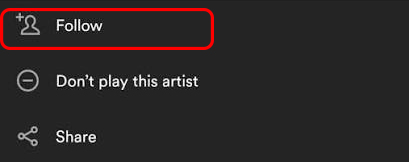
Follows and likes are strong positive signals — a follow carries more weight than a passive stream, and liked tracks teach the algorithm precisely which sounds you want to hear more often.
- Search for an artist you genuinely love and hit the Follow button on their profile. Follows carry far more weight than passive streams — they’re treated as a strong intent signal.
- Open a few of their key albums and tap the heart icon to like at least 10–15 tracks.
- Add those liked tracks to a new playlist named “Reset Core.”
- Follow at least 10 different favorite artists to quickly tilt your taste model toward your real preferences.
Way 4: Execute a 48‑Hour Focus Listening Sprint
A concentrated, high‑engagement burst floods Spotify with clean signals. Listening past 30 seconds without skipping tells the algorithm that this music truly matters, helping overwrite old noise faster than scattered listening can.
- Clear your queue and stop playing any background or functional audio.
- Queue only the “Reset Core” playlist.
- Play continuously for 48 hours — listening past the first 30 seconds of each track sends a strong positive signal.
- Avoid skipping any track within the first 30 seconds, since early skips register as negative feedback.
- Keep Spotify open in a normal session (not Private Session) so the algorithm logs every interaction.
Way 5: Stack Multiple Negative Signals on a Single Polluting Source
Layering exclusions and blocks reinforces the message, de‑emphasizing not just one artist but the whole cluster of related sounds, which can accelerate recommendation realignment.
If one artist or genre dominates your profile, stack playlist exclusion and artist blocks. Exclude the offending playlist from your taste profile, then visit key artists and hit “Don’t play this.” The layered signal forces Spotify’s model to downweight the entire related sound cluster — not just that artist. Listeners who used taste exclusions saw nearly a 10% jump in listening time once recommendations realigned.
Part 2. Backup Your Library Before Any Reset (Offline Isolation Strategy)
Why backing up with a converter protects your music while you reset
When you skip, hide, or exclude content, Spotify adjusts its models but leaves your library untouched — until a slip of the finger or a corrupted cache wipes years of saved tracks. Every stream during a reset also feeds fresh data back into recommendations, risking undo. The safest pre‑reset move is to export essential playlists and albums as local audio files, locking your library into a format Spotify can’t touch.
AudKit Spotify Music Converter captures your music as universal MP3 or AAC files, so accidental deletions or recommendation shifts never cost you a favorite track. Playing those files through a standard music player completely isolates your listening from Spotify’s tracking — no skip, repeat, or full play gets logged, preventing polluting data from seeping into the taste profile you’re rebuilding. That offline safety zone stays vital for the days or weeks needed to fully retrain the algorithm.

Main Features of AudKit Spotify Music Converter
- Easily download any Spotify audio content in 320kbps
- Convert Spotify music to MP3/AAC/FLAC/WAV/M4A/M4B
- Keep full ID3 tags like artist, year, cover, title, etc.
- Batch download at a fast 5X conversion speed
- Help listen to Spotify music offline anywhere
Step‑by‑step: How to convert and safeguard your Spotify library
Step 1. Download AudKit Spotify Music Converter and log in
Download and install AudKit Spotify Music Converter (or another reliable converter). Launch the software and sign in with your Spotify credentials so it can access your saved content.
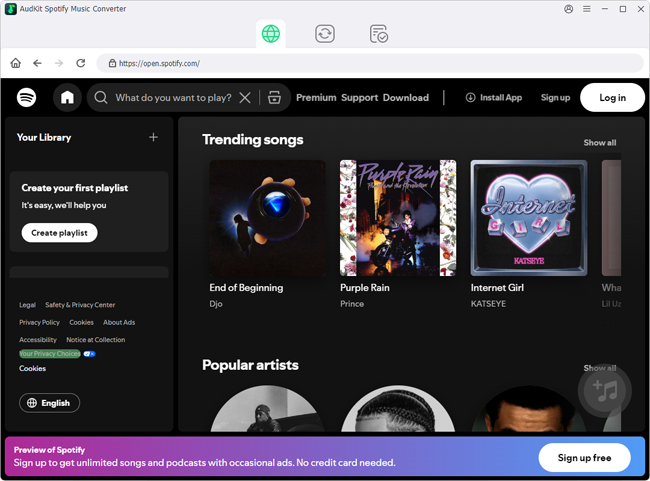
Step 2. Add your must‑keep music
Add your essential playlists, liked songs, or albums into the converter’s main window. Most converters preserve playlist order and song structure automatically.

Step 3. Set the output format
Pick a universal format — MP3 is the most flexible for any device, while AAC or WAV can preserve higher detail. Choose 320kbps for near‑original quality, or adjust the bitrate to balance file size and fidelity.

Step 4. Start the conversion
Click “Convert” and let the tool process your library. Once finished, you’ll have a folder of audio files that work independently of Spotify. Move them to your preferred music player, disconnect from Spotify’s tracking, and begin resetting your recommendations without ever worrying about losing the music you love.

Part 3. Audit Your Listening History and Prevent Future Pollution
Download Your Full Streaming History
Request your account data from Spotify’s Privacy Settings. You’ll receive an endsong.json log of every stream. Scan it for polluting patterns — white-noise podcasts, a co-worker’s playlist, kids’ music. Knowing when these appeared turns a hunch into a fixable problem.
Identify and Disable Polluting Tracks
Once you’ve isolated culprits, reduce their influence. Unfollow artists you don’t want; follow carries more weight than likes. Block unwanted artists with “Don’t play this artist” to purge them from mixes. If a single track persists, remember that streams over 30 seconds count as positive; skips, replays, and playlist adds also shape Discover Weekly. Apply “Exclude from Taste Profile” on individual playlists to further clean your recommendations.
Use Private Sessions and Exclude Playlists
Private Session auto‑disables after six hours, making it unreliable for daily ambient listening. Instead, dedicate a playlist to all functional audio (rain sounds, white noise) and enable “Exclude from your Taste Profile” in its settings. This guarantees those streams won’t influence recommendations.
Separate Functional Audio from Music Consumption
Habitual separation is key. Keep all functional audio (study lo‑fi, white noise) in that excluded playlist. If a family member uses your account, enforce the same boundary or switch them to a separate Spotify Family account. Only genuine musical preferences should train the algorithm — otherwise, Discover Weekly will mix nursery rhymes with indie rock.
FAQs About How to Reset Spotify Algorithm
Can I reset the Spotify algorithm without losing my saved music?
No, resetting recommendations doesn’t delete your library. However, if you’re worried about accidental deletions or want complete offline control, use a tool like AudKit Spotify Music Converter to back up your playlists as local files before you start.
How long does it take for the algorithm to reflect new habits?
Significant shifts can appear in 2–3 days if you aggressively feed strong signals — follows, likes, and exclusion of unwanted genres. Discover Weekly and Release Radar typically update within a week, but deep recommender changes may take two weeks of consistent new listening.
Does Private Session prevent Spotify from learning?
It temporarily stops tracking, but it turns off automatically after 6 hours or when the app restarts, so it’s not reliable for long‑term use. For functional audio, it’s safer to use a playlist with “Exclude from your Taste Profile” enabled.
What’s the fastest way to fix a broken Discover Weekly?
Exclude the offending playlists from your taste profile, block unwanted artists with “Don’t play this,” and follow 10+ artists you love while actively listening to their music for a couple of days. Combining these strong signals usually resets the mix in under a week.
Conclusion
Fixing a Spotify algorithm that’s gone off the rails isn’t about waiting for a hidden reset button. It’s about sending deliberate, high‑confidence signals — excluding playlists, blocking artists, following favorites, and running focused listening sprints. These manual levers reliably steer the model back to your actual taste.
Backing up your library with AudKit Spotify Music Converter before you start makes the whole process risk‑free. You can reset as aggressively as needed, knowing your beloved playlists sit safely offline, untouched by whatever changes the algorithm goes through. With that safety net in place and the preventive habits from this guide, you’ll keep your recommendations fresh and on track for good.

Andrew Rowley
 Staff Editor
Andrew Rowley has over 10 years of writing experience and is good at writing in audio technology and audio converter software. He can provide high-quality articles to help streaming music lovers explore music better.