





Quick Answer
- Restart Spotify and your device first, update the app, then confirm your Wi‑Fi or mobile data is stable.
- Play another widely streamed song: if lyrics appear there, the original track likely has missing or remapped lyrics; if nothing loads, the problem is app, account, or network-related.
- Turn Offline Mode off, sign out and back in, and avoid podcasts, audiobooks, and local files because they don’t support synced in-app lyrics.
- For lyrics that appear stuck or mistimed, close the Now Playing screen, switch to another track, then return after a few seconds.
Spotify lyrics can fail for several reasons at once: a Musixmatch catalog gap, unstable network, outdated app, or Offline Mode. Because Musixmatch covers only a fraction of Spotify’s 100+ million tracks, a missing lyric is often normal rather than a bug. The fixes below are independent, so you can test a popular track, turn Offline Mode off, or compare the same song on mobile and desktop before changing settings. This guide also explains when “Lyrics couldn’t load for this song” is expected, such as for podcasts, local files, or unmatched tracks.
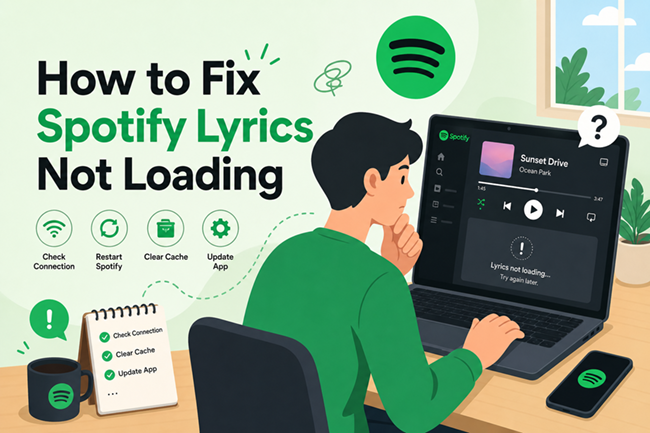
Quick Fixes for Spotify Lyrics Not Loading
Switch Off Offline Mode and Reconnect
Offline Mode blocks fresh lyric fetches, so the Lyrics panel may spin or stay blank even while playback works. Reconnect the network and force a re-fetch.
- Open Spotify and tap your profile icon, then the Settings gear.
- Open Playback and switch Offline Mode off.
- Toggle Wi‑Fi off and on, or cycle mobile data.
- Return to Now Playing, tap the Lyrics icon, and if it still spins, skip back and forward once to reload the track.
Test with Another Popular Song
This A/B check separates a catalog gap from a real app or account issue. Musixmatch supplies roughly 12 million lyrics out of Spotify’s 100+ million tracks, so regional cuts, deluxe versions, and remixes are often missing by design.
- Play a current, heavily streamed chart track and open its Lyrics panel.
- If lyrics appear there, return to the original song and check the message: “We don’t have the lyrics for this song” means the track lacks coverage.
- Check whether you’re playing a deluxe, remastered, or live version—those are frequently mapped to a different lyric entry.
- Try one more popular song to rule out a one-off fetch error.
- If popular tracks fail too, the issue is network, app, or account-side—not catalog coverage.
Update and Restart the Spotify App
An outdated build can carry a broken lyric endpoint, especially after Spotify changes the Now Playing interface. A pending update may be the only thing blocking the feature.
- Open the App Store (iPhone) or Google Play (Android) and search for Spotify.
- If an Update button appears, tap it and wait for the install to finish.
- Force-close Spotify: on iPhone, swipe up and flick the card away; on Android, go to Settings → Apps → Spotify → Force stop.
- On desktop, click Spotify → About Spotify (macOS) or Help → About Spotify (Windows) to trigger any pending update, then reopen the app and check the Lyrics panel.
Log Out, Clear Cache, or Reinstall
If previous fixes fail, stale cached data or a corrupted session file may be blocking lyric requests. Logging out renews your account token, and a clean reinstall resets everything.
- Open Settings and tap Log out at the bottom.
- Sign back in and test lyrics on a confirmed popular track.
- If that fails, clear the cache: on Android, go to Settings → Storage → Clear cache; on iPhone, use Settings → General → iPhone Storage → Spotify → Offload App.
- Restart the device, reopen Spotify, and check the Lyrics panel once more.
- As a last resort, uninstall Spotify, download the latest version, and sign in fresh.
Why Spotify Lyrics Are Missing or Inconsistent
Spotify does not maintain its own lyric team. Nearly all in-app lyrics come from Musixmatch, the same third-party service that powers lyric panels in Apple Music and Instagram. Spotify simply connects your now-playing track to Musixmatch’s database; when no matching record exists, you see a spinner, an error, or an empty panel.
The biggest cause is catalog coverage. Musixmatch hosts roughly 12 million lyrics, while Spotify’s catalog exceeds 100 million tracks, leaving many b-sides, indie releases, older regional albums, and demos without lyric data. A useful diagnostic is to play a major chart hit next to the problem track; if the hit shows lyrics instantly, the original song likely sits outside Musixmatch’s coverage.
Even when a song has lyrics, availability can shift daily. Labels release remasters and deluxe editions that create separate track IDs, and Musixmatch may sync lyrics for the original version only. The same account can show synced lyrics on an iPhone while the desktop app renders static text or nothing. Podcasts, audiobooks, and local files never draw from Musixmatch, so they will always skip the lyric panel regardless of app version or account type.
How to Still Read Lyrics and Play Spotify Offline with AudKit Spotify Music Converter
When a song lacks Musixmatch coverage, retrying or logging out won’t create missing lyrics. If you want offline playback or your own timed lyric files, AudKit Spotify Music Converter offers a local-audio fallback that removes dependence on Spotify’s in-app lyric service.
Why AudKit Spotify Music Converter helps as a lyric fallback
AudKit Spotify Music Converter saves Spotify tracks, playlists, or albums as MP3, M4A, WAV, and other common formats while preserving ID3 tags such as title, artist, album, and cover art. You can then pair the local audio with an .lrc or .txt lyric file in any player that supports local lyrics, including Musicolet, Poweramp, or foobar2000. This helps when network access is blocked, when Spotify’s live lyric fetching fails, or when Spotify’s timing is wrong but a local file is correct. However, it does not create lyrics for tracks that have none. Use it only for personal offline listening of content you already have the right to access.

Main Features of AudKit Spotify Music Converter
- Easily download any Spotify audio content in 320kbps
- Convert Spotify music to MP3/AAC/FLAC/WAV/M4A/M4B
- Keep full ID3 tags like artist, year, cover, title, etc.
- Batch download at a fast 5X conversion speed
- Help listen to Spotify music offline anywhere
Step-by-step tutorial
Step 1. Install AudKit Spotify Music Converter and sign in
Download and install the desktop app, open it, then log in to the built‑in Spotify web player with your Spotify account.
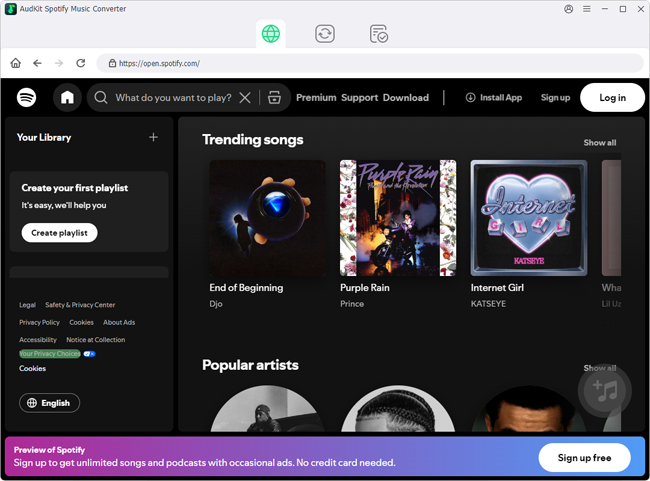
Step 2. Add the Spotify track or playlist to AudKit Spotify Music Converter.
Browse for the song, right‑click it, and choose Share → Copy Song Link, then paste the link into the search box. You can also click the “+” button while a song is playing to add it.

Step 3. Choose a local output format.
Open Menu → Preferences → Convert and select MP3, M4A, or WAV. MP3 at 256–320 kbps is usually a good balance for portable players.

Step 4. Convert the track to a local file.
Click Convert and wait for the batch to finish, then click the folder icon to open the output directory.

Step 5. Add a local lyric file if Spotify lyrics are missing.
Create or copy an .lrc or .txt file with the same base filename as the converted audio file and place it in the same folder. In players that support local lyrics, the timed text will load from that file instead of Spotify’s lyric service.
FAQs About Spotify Lyrics Not Loading
Why do I see lyrics for some songs but not others in Spotify?
Spotify lyrics are mainly supplied by Musixmatch, which covers far fewer tracks than Spotify’s 100+ million catalog. If a popular test song loads lyrics but another doesn’t, the cause is usually catalog coverage, not your setup.
Why do Spotify lyrics work on my phone but not on desktop?
Availability changes day to day when labels or Musixmatch remap versions or regions. Check that both devices use the same account, updated app, and consistent network or Offline Mode settings.
Can free Spotify users view synced lyrics?
Free-tier access has shifted over time and sources conflict, so verify Spotify’s official policy for your region. If every song fails to load lyrics, rule out network or app version issues first.
How do artists add lyrics to songs on Spotify?
Artists or labels submit text through Musixmatch, or PetitLyrics in Japan. Spotify displays lyrics after Musixmatch approves and syncs them, which can take time.
What should I do if a song has no lyrics available at all?
Confirm it’s a streaming song, not a podcast, audiobook, or local file. If it’s still missing, the track likely lacks Musixmatch coverage. For offline listening, you could save the song as a local audio file and pair it with an LRC or TXT lyric file in a local player.
Conclusion
Separate catalog coverage from app setup before changing settings. Play a popular track first: if synced lyrics appear but another song shows “Lyrics couldn’t load for this song,” the cause is usually Musixmatch coverage rather than your device. Coverage also changes as labels remap versions, so the same track may show lyrics on mobile but not desktop.
If availability remains unclear, check Spotify’s official support pages or Musixmatch directly instead of relying on outdated free‑vs‑Premium claims. For all-song failures, keep Wi‑Fi, Offline Mode, and app version consistent across devices, then restart Spotify. No reinstall will add lyrics that Spotify hasn’t licensed.
Once playback is normal, tools like AudKit Spotify Music Converter can preserve the audio you already have, but in-app lyric visibility will still follow Spotify’s live provider data.

Andrew Rowley
 Staff Editor
waitting