





Quick Answer
- Offline songs on iPhone require Spotify Premium. Premium can download playlists and albums; free accounts can download only podcasts.
- Connect to Wi-Fi, download the playlists or albums you want, then turn on Offline Mode in Spotify so the app plays saved files instead of streaming.
- To prevent background data use, disable Cellular Data for Spotify in iPhone Settings, switch on Low Data Mode, and use Airplane Mode only after downloads are complete.
The safest way to stream Spotify on an iPhone without using mobile data is to set up offline content before you leave Wi-Fi. One hour of Very High quality streaming can use roughly 0.144 GB, so a few commutes or flights can drain a limited plan quickly. Download playlists, albums, or podcasts while you still have a solid connection.
Keep one limitation in mind: official Spotify downloads stay inside the app. They do not become standard MP3 files on your iPhone, and they can stop working if your subscription lapses or the app needs to re-check your account.
This guide covers Wi-Fi downloads, iOS data controls such as Low Data Mode and per-app cellular settings, fixes for downloads that won’t play offline, and a local backup path for listening outside Spotify.
Part 1. Prepare Spotify Offline Downloads on iPhone
Confirm Premium and Free Space
Before you tap download, run through a short checklist so Spotify doesn’t stop mid-playlist or fail when you’re already offline.
- Use Spotify Premium for songs, albums, and playlists. Free accounts can only download podcasts.
- In the US, current Spotify plans are Individual $11.99/month, Family $16.99/month, and Student $5.99/month.
- Leave at least 1 GB of free iPhone storage. Large high-quality playlists often need more.
- Sign in with the same account you plan to use on that iPhone.
Download Playlists or Albums Over Wi-Fi
Downloading ahead of time is the main way to listen with no cellular data. Spotify only downloads whole playlists or albums, so there is no direct single-track download button.
- Connect to a stable Wi-Fi network.
- Open Spotify and go to Your Library.
- Open the playlist or album you want available offline.
- Tap the downward arrow next to the title.
- Wait until the arrow changes to a green down arrow, which means the download completed.
- Repeat for any other playlists or albums. Premium supports up to 10,000 songs per device on up to 5 devices.
If you only want one song, add it to a playlist first, then download that playlist.
Maintain 30-Day Account Login
Spotify can remove offline downloads if you do not go online at least once every 30 days. Before a long trip or a stretch without service, do a quick check-in while you still have a connection.
- Open Spotify briefly while Wi-Fi or cellular service is available.
- Confirm downloaded playlists still show the green downloaded icon.
- Do not rely on Airplane Mode alone; it blocks network access but does not refresh your account or restore expired offline files.
Part 2. Stop Spotify from Using Cellular Data on iPhone
Turn Off Cellular Data for Spotify
The most direct way to keep Spotify off mobile data is to block cellular access in iOS. This makes the app Wi-Fi-only, so it cannot silently stream songs, load cover art, or refresh playlists over your data plan. Offline playback still works once downloads are saved.
- Open Settings on your iPhone.
- Tap Cellular, then scroll down to the app list.
- Select Spotify.
- Toggle the switch to Off.
- Keep Wi-Fi enabled for downloads, playlist sync, and offline playback.
Enable iPhone Low Data Mode
Low Data Mode is the lighter-touch option when you want Spotify available on cellular but less aggressive with background activity. It pauses automatic updates, limits background tasks, and tells apps to reduce data use across the system.
- Go to Settings → Cellular → Cellular Data Options → Data Mode and select Low Data Mode.
- For metered Wi-Fi, tap the info (i) button next to the network name and turn on Low Data Mode there as well.
- Expect slower background refreshes and delayed podcast preloads while the mode is active.
Use Airplane Mode After Downloading
Airplane Mode guarantees zero data, but only if your songs and podcasts are already saved on the device. It does not create offline content.
- Download everything over Wi-Fi before turning it on.
- Turn on Airplane Mode before opening Spotify to guarantee no data is used.
- Tracks that were not downloaded will appear grayed out or get skipped instead of streaming.
Compare Spotify Data Usage by Quality
Spotify’s streaming quality settings determine how much data the app uses whenever it briefly connects. At Normal (96 kbps), streaming uses about 0.043 GB per hour. High (160 kbps) runs around 0.072 GB per hour, and Very High (320 kbps) uses roughly 0.144 GB per hour. Choose a lower quality setting if you plan to stream occasionally or let the app update in the background. Downloads made over Wi-Fi won’t use any of your cellular data regardless of audio quality.
Part 3. Fix Downloaded Spotify Songs That Won’t Play Offline
Reinstall Spotify and Re-Download
When a download appears saved but stops playing after cellular data is off, corrupted cached files are usually the cause. Reinstalling clears those files and forces a fresh offline download over Wi‑Fi.
- Press and hold the Spotify icon, then tap Remove App > Delete App.
- Restart the iPhone.
- Reinstall Spotify from the App Store and sign in.
- Open the playlist or album and tap Download while Wi‑Fi is on.
- Turn on Airplane Mode and test one saved song.
Sign Out and Sign Back In
A stale login can make saved items disappear or fail account checks when you open the app without data. Run through this checklist before deleting downloads.
- Open Spotify, then go to Home > Settings.
- Tap Sign out under your account, then close the app.
- Reopen Spotify and sign in with the same Premium account.
- Check Your Library and confirm Premium in Settings > Account, because free accounts cannot download music.
Update iOS and Spotify App
Old software can interfere with offline checks and leave downloads silent with cellular data switched off. Check these updates and storage basics.
- Install any pending Spotify update from the App Store.
- Install available iOS updates in Settings > General > Software Update.
- Make sure at least 1 GB free remains in Settings > General > iPhone Storage.
- Restart the iPhone, then re-download one small playlist over Wi‑Fi to verify.
Part 4. How to Use AudKit Spotify Music Converter for Offline iPhone Playback Outside Spotify
If a reinstall and sign-out still leave downloaded Spotify tracks grayed out, converting the playlist may be more dependable. Official Spotify downloads are app-locked: they live inside the Spotify app and are not standard MP3 or M4A files. AudKit Spotify Music Converter turns a Spotify playlist or album into open local audio files you can keep as a personal backup. This helps when official downloads fail, when the 30-day login rule removes content, or when you want to listen outside Spotify in Files, Apple Music, or another offline iPhone app.
Why use it for iPhone offline listening: Official downloads stay tied to Spotify, so they cannot be moved and played elsewhere. AudKit Spotify Music Converter saves MP3 or M4A copies on your computer and removes that lock. You can then sync the files to an iPhone and play them with Wi-Fi and cellular data off. It isn’t a workaround for downloading Spotify Free music; it’s a backup route for tracks you can already play.

Main Features of AudKit Spotify Music Converter
- Easily download any Spotify audio content in 320kbps
- Convert Spotify music to MP3/AAC/FLAC/WAV/M4A/M4B
- Keep full ID3 tags like artist, year, cover, title, etc.
- Batch download at a fast 5X conversion speed
- Help listen to Spotify music offline anywhere
Here’s how to use it:
Step 1. Install AudKit Spotify Music Converter on a Mac or Windows computer and sign in to Spotify.
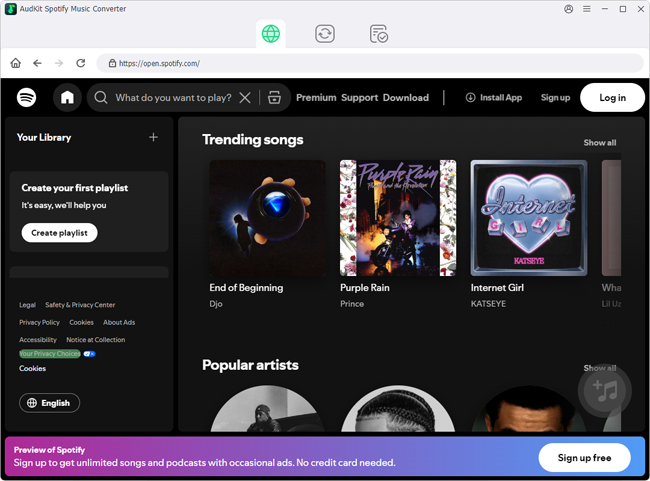
Step 2. Drag a playlist or album link into the import box.

Step 3. Pick MP3 or M4A under Output Format. M4A saves space on iPhone; MP3 has the broadest compatibility. Set bitrate up to 320 kbps for high quality.
Step 4. Click Convert and wait for the files to finish saving.

Step 5. Connect your iPhone with USB. Copy the files into an app that stores local music, such as Finder-synced Apple Music, VLC, or Documents. Turn on Airplane Mode and play; the files no longer depend on Spotify’s download state or any data connection.
FAQs About Streaming Spotify on iPhone Without Data
These FAQs cover common ways to stream Spotify on iPhone without data and offline playback limits.
Can I listen to Spotify offline on iPhone without Premium?
No for music. Spotify Premium is required to download songs, albums, or playlists; free accounts can download only podcasts.
Why won’t my downloaded Spotify songs play in Airplane Mode or without Wi-Fi?
Content must download while online first, and the app must be logged in at least once every 30 days. Airplane Mode alone does not enable offline playback if files were never stored locally.
Can I download a single track on Spotify for offline listening?
On iPhone, no. You must download the playlist or album that contains the track; Spotify does not expose a single-song download button in its mobile app.
How long do Spotify downloads last without an internet connection?
Downloads remain playable as long as you open Spotify online and sign in at least once every 30 days. After that, saved files are removed.
Can I convert Spotify playlists to MP3s for offline iPhone playback outside Spotify?
Official downloads are locked to the Spotify app. Tools like AudKit Spotify Music Converter can convert playlists to open MP3 or M4A files for playback outside Spotify after an initial online session.
Conclusion
Streaming Spotify on iPhone without data depends on preparation, not on Airplane Mode alone. Download playlists or albums over Wi-Fi first; offline listening requires Spotify Premium and a login at least once every 30 days. Before a flight or long commute, turn off Cellular Data for Spotify, enable Low Data Mode, then enable Airplane Mode after downloads finish.
After saving your library, test a few tracks with both Wi-Fi and cellular off. If you want playback outside the Spotify app, create personal local backup files in an open format before you travel. AudKit Spotify Music Converter can produce those files for offline use.

Andrew Rowley
 Staff Editor
Andrew Rowley has over 10 years of writing experience and is good at writing in audio technology and audio converter software. He can provide high-quality articles to help streaming music lovers explore music better.