




Quick Answer
- Automated cloud transfer tools and Yandex’s native web importer transfer Spotify playlists by matching metadata and ISRC identifiers across catalog databases.
- Direct cloud-to-cloud matching frequently skips 10% to 30% of tracks due to regional licensing restrictions, obscure releases, and free-tier track quotas.
- For complete library retention without missing or greyed-out songs, convert your playlists to standard MP3 or FLAC files with preserved ID3 tags using a dedicated desktop converter, then upload them directly to your Yandex Music personal collection.
Switching streaming services sounds straightforward until digital licensing boundaries and proprietary storage systems get in the way. Spotify stores offline music in an encrypted cache, preventing listeners from moving downloaded files into other media players. When you attempt to transfer curated playlists between services, regional licensing agreements frequently leave gaps where specific master recordings are unavailable.
Automated sync platforms attempt to bridge this gap by scanning track metadata and matching International Standard Recording Codes. Even so, catalog differences cause noticeable loss rates, especially for international releases, acoustic sessions, and independent singles that lack licensing in the destination market.
This guide details both methods for transferring your library from Spotify to Yandex Music. You will discover how to use cloud sync tools for rapid migration, and how local file conversion allows you to upload missing songs directly into your personal Yandex collection.
- Part 1 · How Cloud Sync Platforms and Native Tools Transfer Spotify Playlists
- Part 2 · Moving Spotify Tracks to Yandex Music with AudKit Spotify Music Converter
- Part 3 · Comparing Cloud Metadata Sync Versus Local Audio Upload
- Frequently Asked Questions About Spotify to Yandex Music Transfer
Part 1 · How Cloud Sync Platforms and Native Tools Transfer Spotify Playlists
Import Playlists via Yandex Music Native Web Tool
Yandex Music provides an integrated browser-based import utility designed to parse web links and text tracklists without third-party software. This utility is ideal for transferring compact, public playlists because it queries the Yandex database directly without requiring access to your private Spotify account credentials.
- Open your desktop web browser, visit music.yandex.ru/import, and sign in using your Yandex ID.
- Launch Spotify, open the playlist you wish to transfer, click the three dots icon, navigate to Share, and select Copy link to playlist. Make sure the playlist visibility is set to Public.
- Paste the copied link into the input field on the Yandex import page and click Find tracks.
- The system parses the URL and displays matched songs alongside any titles missing from the regional catalog.
- Click Add to collection to save the discovered tracks as a dedicated playlist in your Yandex Music account.
Migrate Playlists Using Third-Party Cloud Sync Platforms
For listeners managing extensive libraries with multiple playlists, saved albums, and favorited artists, third-party migration services like Soundiiz and TuneMyMusic offer automated cloud syncing. These platforms utilize authorized API connections to analyze your Spotify library and reconstruct corresponding playlists inside your Yandex Music profile.
- Navigate to your selected cloud sync platform in a desktop browser and register a user account.
- Designate Spotify as your source platform and authorize the connection to grant read access to your library data.
- Select Yandex Music as your target destination and authenticate using your Yandex login details.
- Choose the specific playlists, favorite tracks, or saved albums you want to migrate.
- Review the matching overview, resolve any track ambiguities if prompted, and initiate the migration. Standard free tiers typically enforce a transfer cap of 200 tracks per playlist and process lists sequentially.
Catalog Matching Realities and Regional Dropouts
Cloud migration tools operate by matching catalog metadata rather than transferring actual audio files between streaming servers. When migrating a playlist, the sync engine queries the target catalog for an exact match using International Standard Recording Codes (ISRC) or Universal Product Codes (UPC). If an exact code is absent, the engine falls back on text matching, checking the artist name, track title, and song duration.
This mechanism highlights the licensing discrepancies between global and regional catalogs. Digital distribution rights vary significantly across territories. When Spotify holds distribution rights for an international master, a live session, or an uncompressed dance edit that Yandex has not licensed, the cloud sync engine cannot produce a playable track. Consequently, unlinked songs either vanish completely from the newly generated playlist or appear greyed out and unplayable. Relying solely on cloud metadata matching inevitably results in dropped tracks whenever licensing gaps exist.
Part 2 · Moving Spotify Tracks to Yandex Music with AudKit Spotify Music Converter
Because cloud sync aggregators rely entirely on existing catalog availability, missing licenses make it impossible to transfer certain tracks via cloud matching. Furthermore, Spotify stores offline playback files in an encrypted cache format protected by digital rights management, preventing direct file transfers into third-party players or cloud lockers.
The most reliable strategy for preserving every song in your library is to convert your Spotify playlists into standard audio files on your local drive and upload them into your Yandex cloud storage. AudKit Spotify Music Converter streamlines this workflow by exporting your Spotify playlists into open audio formats ready for Yandex Music personal uploads.
Why AudKit Spotify Music Converter Solves Regional Catalog Voids
When a cloud sync platform encounters an unlisted ISRC code or an unlicensed international track, it skips that entry. AudKit Spotify Music Converter solves this limitation by downloading your curated playlists directly to your computer as open audio files, including MP3, FLAC, and WAV at up to 320 kbps.
Because Yandex Music allows subscribers to upload personal audio files directly into their web account, having local files bypasses regional catalog omissions entirely. AudKit Spotify Music Converter preserves essential ID3 tags throughout conversion, maintaining accurate song titles, contributing artists, album names, genre tags, and embedded cover art. Your uploaded files integrate seamlessly alongside native streaming releases in your library, ensuring full playback availability across devices.
Note: This tool is intended for personal backup of content you have the right to access . Users must comply with local copyright laws.
Step-by-Step Tutorial: Convert and Upload Tracks to Yandex Music
Follow this step-by-step walkthrough to download your Spotify playlists locally and upload them to your personal Yandex Music collection.
Step 1. Launch AudKit Spotify Music Converter
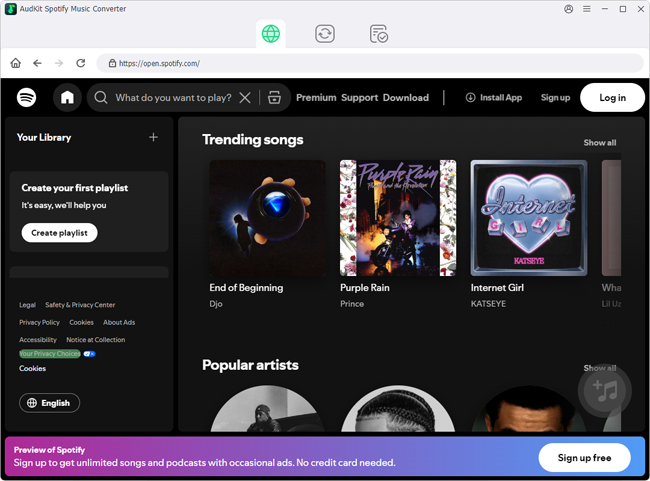
Install and launch AudKit Spotify Music Converter on your Windows or Mac computer. The application opens with an integrated Spotify interface. Sign in to your Spotify account so your custom playlists, saved albums, and curated tracks are accessible.
Step 2. Add Spotify Playlists to the Conversion Queue
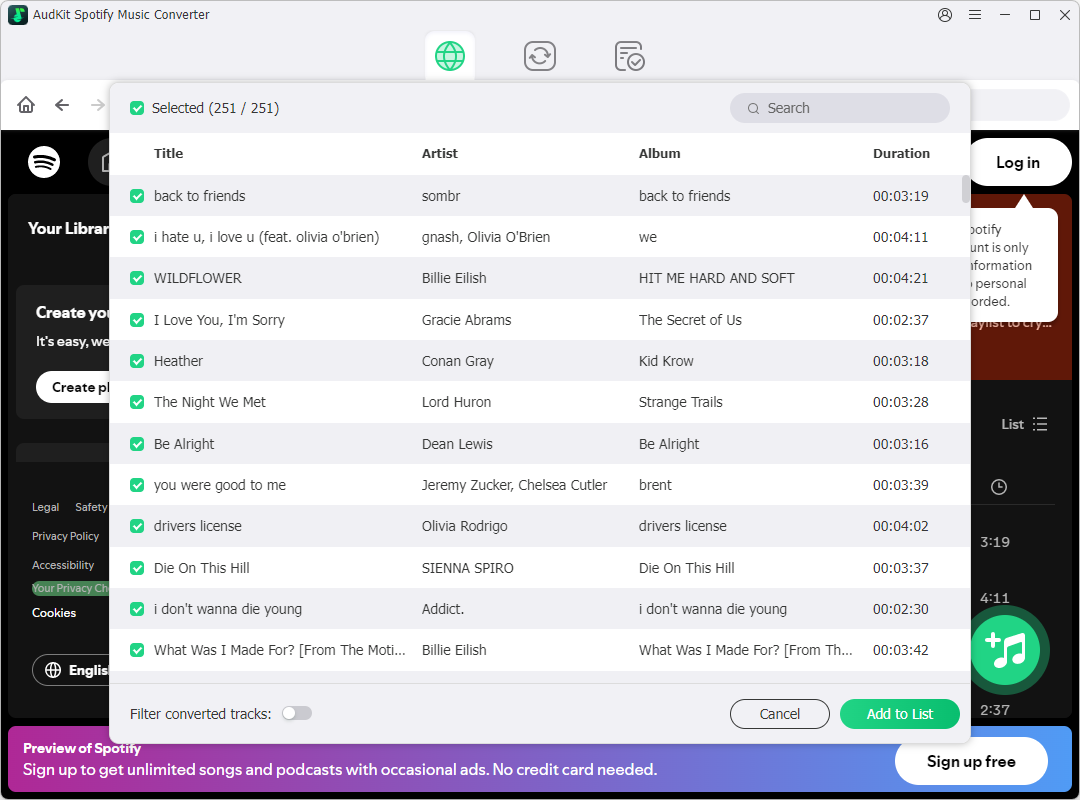
Browse your library to find the playlist you wish to transfer. Right-click the playlist title, select Share, and click Copy Link. Paste this URL into the search bar at the top of AudKit Spotify Music Converter, then click the + button to import all contained tracks into the conversion queue.
Step 3. Adjust Output Settings to MP3 or FLAC
Open the application menu in the upper corner, select Preferences, and navigate to the Convert tab. Choose MP3 for broad compatibility or FLAC for lossless sound quality. For optimal fidelity on Yandex Music, set the bit rate to 320 kbps and the sample rate to 48,000 Hz, then click OK.

Step 4. Batch Download and Export Tracks Locally
Click the Convert button situated at the bottom right corner of the interface. AudKit Spotify Music Converter will batch-convert the queued songs to your chosen format while retaining original ID3 tags and album cover art. Once the conversion finishes, click the folder icon to open your local destination folder.

Step 5. Upload Converted Audio to Yandex Music
Open your web browser, navigate to music.yandex.ru, and log in to your Yandex account. Click on My Collection, navigate to the Tracks tab, and click the Upload tracks button located in the upper-right corner. Select your converted MP3 or FLAC files to initiate the upload. Once indexed, your uploaded tracks will become available for streaming across the Yandex Music web client, desktop software, and mobile applications.
Part 3 · Comparing Cloud Metadata Sync Versus Local Audio Upload
When deciding how to transfer Spotify to Yandex Music, listeners must weigh convenience against library completeness. Cloud metadata synchronization offers fast setup but remains constrained by licensing boundaries, whereas local audio file conversion ensures absolute library retention regardless of streaming contracts.
Cloud-based aggregators match song identifiers between platforms. When an overseas music distributor lacks a licensing pact with Yandex Music, or when a track represents a rare live session, cloud transfer tools either omit the entry or link an incorrect master recording. By contrast, converting your Spotify library into standalone MP3 files and uploading them to your personal Yandex locker guarantees that every track remains fully playable without region-locked dropouts.
| Feature / Metric | Cloud Metadata Sync | Native Web Import | Local File Conversion & Upload |
|---|---|---|---|
| Catalog Retention Rate | 70% to 90% (Regional licensing gaps) | 60% to 80% (String mismatches) | 100% (No missing or greyed-out songs) |
| Cost & Free Quotas | Free tiers capped at ~200 tracks | Completely free; text/URL-based | Software license; no library caps |
| Tag & Artwork Quality | Tied to Yandex catalog availability | Basic text-based; variable accuracy | Full original ID3 tags and art retained |
| Processing Speed | Minutes (API-driven matching) | Instant paste; manual verification | Dependent on local batch download speed |
For mainstream commercial releases cataloged identically across both streaming ecosystems, free cloud synchronization platforms and Yandex’s native web import tool offer a swift solution. However, if your Spotify library contains rare live recordings, remixes, regional indie artists, or foreign releases missing from the destination catalog, converting tracks locally with a dedicated utility and uploading them directly into your personal Yandex account provides the only way to retain 100% of your music collection.
Frequently Asked Questions About Spotify to Yandex Music Transfer
How to transfer Spotify to Yandex Music without missing greyed-out tracks?
Cloud sync platforms depend on catalog metadata matching. When Yandex Music lacks the streaming license for a track, it appears greyed out. To keep every song accessible, download the missing tracks locally using an audio converter and upload them directly into your personal Yandex Music cloud locker via the desktop web browser.
Can I manually import Spotify offline cache files into Yandex Music?
No. Spotify offline downloads are encrypted data packages rather than standard media files. Yandex Music cannot parse or play these proprietary cache files. You must convert tracks to open formats such as MP3 or FLAC before uploading them to Yandex Music.
What audio formats does Yandex Music accept for personal collection uploads?
Yandex Music supports MP3 files up to 320 kbps along with FLAC and AAC formats through its web browser interface. The platform reads standard ID3 metadata automatically, preserving song names, contributing artists, and embedded album artwork in your personal collection.
How can I migrate playlists over 200 tracks without paying for premium cloud tiers?
Free cloud sync tools typically impose a 200-track limit per playlist. You can manually divide large Spotify playlists into smaller segments before transferring, or batch-download your full library using AudKit Spotify Music Converter and upload the entire set directly to Yandex Music without playlist size limitations.
Conclusion
Choosing how to transfer Spotify to Yandex Music depends on your collection’s composition. For popular commercial releases available in both databases, cloud transfer platforms and Yandex’s built-in import tool offer a swift, automated migration path. However, regional licensing restrictions mean that rare tracks, international albums, and indie singles will frequently be omitted during cloud matching.
For complete library preservation, combining cloud sync with local file conversion provides the best outcome. Converting unlisted tracks into universal audio files with AudKit Spotify Music Converter allows you to fill every catalog void through Yandex’s personal upload locker. This hybrid approach ensures your entire music library remains intact, organized, and ready to stream across all your devices.

Andrew Rowley
 Staff Editor
Andrew Rowley has over 10 years of writing experience and is good at writing in audio technology and audio converter software. He can provide high-quality articles to help streaming music lovers explore music better.