




Quick Answer
- Open
icebergify.comin your web browser, sign in with your Spotify credentials, and authorize read-only access to your listening profile. - The web application analyzes up to 50 top artists across short-, medium-, and long-term listening windows, sorting them by platform-wide popularity metrics rather than personal play counts.
- Mainstream acts appear at the bright tip, while obscure indie projects sink into the lower underwater tiers; blank horizontal rows simply indicate an absence of artists in that specific popularity band.
- Save your visual using standard browser controls, and consider backing up rare bottom-tier music locally with a reliable third-party utility to preserve offline access.
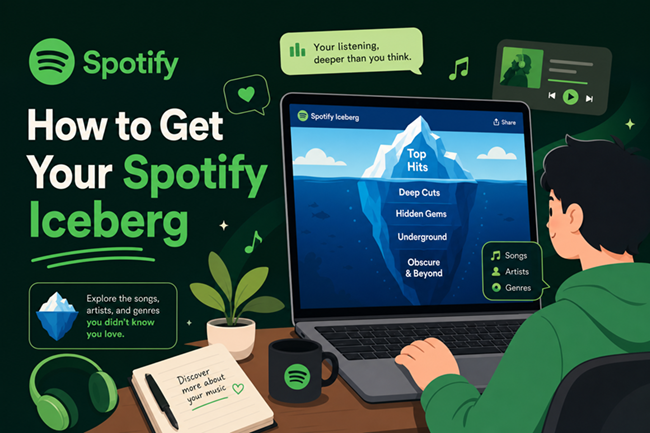
Most streaming recaps focus purely on play counts, but Spotify Icebergify organizes your library through a different lens. If you want to know how to get your Spotify iceberg, the web application converts your listening history into a multi-tiered graphic. It places mainstream chart-toppers at the bright tip above the waterline while pushing obscure indie projects into deep underwater trenches.
Generating the chart is simple, yet questions often arise. Heavy traffic triggers 504 server timeouts, blank horizontal layers confuse first-time visitors, and Spotify’s global popularity calculations can produce unexpected tier placements.
This guide explains how Icebergify ranks artists, how to create and save your chart, how to troubleshoot server errors, and how to protect rare, deep-cut discoveries from disappearing if streaming licenses change.
- Part 1. How Icebergify Ranks Your Listening Habits and What the Tiers Mean
- Part 2. Step-by-Step Guide to Generating, Saving, and Troubleshooting Your Iceberg
- Part 3. How Icebergify Compares with Other Popular Spotify Visualizers
- Part 4. Preserving Rare Bottom-Tier Music Discoveries with AudKit Spotify Music Converter
- FAQs About Icebergify and Spotify Charts
Part 1. How Icebergify Ranks Your Listening Habits and What the Tiers Mean
Icebergify pulls up to 50 of your top artists across short-, medium-, and long-term listening windows via the Spotify Web API. Rather than ranking them by your personal play count, the tool plots artists according to Spotify’s platform-wide popularity index (scored from 0 to 100), which measures global streams, saves, and recent momentum.
Because tier depth reflects worldwide obscurity rather than personal preference, mainstream superstars stay pinned near the surface while niche indie creators sink to the bottom—even if you listen to them daily. Furthermore, each tier represents a fixed popularity bracket; if your listening habits skip between chart-toppers and underground gems without mid-tier artists in between, those middle rows will simply appear blank.
Part 2. Step-by-Step Guide to Generating, Saving, and Troubleshooting Your Iceberg
Authorize and Generate Your Iceberg Chart
Connecting your account requires basic read-only access to your listening history. The tool scans your top artists without collecting passwords or billing details.
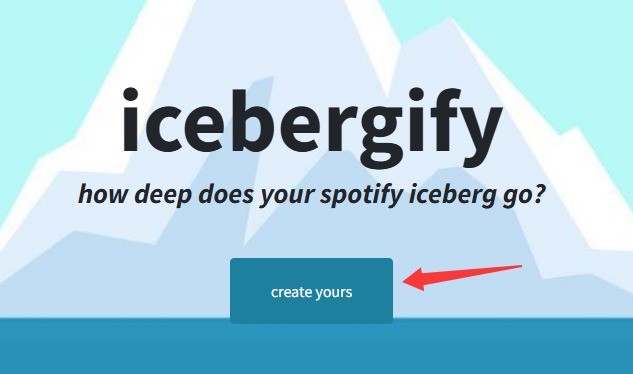
- Open your browser and navigate to icebergify.com.
- Click the create yours button on the homepage.
- Log in through the official Spotify authentication prompt.
- Review the requested permissions and click Agree to render your chart.
Save the Rendered Visual on Mobile and Desktop
Because the site lacks an integrated export button, you must save the visual using standard browser controls once it finishes rendering.
- Wait for the iceberg illustration and artist labels to load completely.
- On a mobile device, press and hold the graphic until the context menu appears, then select Save to Photos (iOS) or Download image (Android).
- On a desktop browser, right-click the image and select Save Image As… to store it locally.
Resolve 504 Gateway Timeouts and Generation Errors
Traffic surges frequently overload Icebergify’s servers, causing 504 Gateway Timeout errors, blank screens, or incomplete tiers. Use these steps to bypass common connection issues:
- Refresh the page two or three times to initiate a clean API handshake.
- Open the site in an Incognito or private browsing window to avoid cached script conflicts.
- Clear your browser cache and cookies for
icebergify.com. - Revisit the platform during non-peak hours, such as early morning or late night.
Revoke Third-Party API Access Post-Generation
Once your image is saved, unlinking Icebergify preserves account privacy without affecting your downloaded chart.
- Go to spotify.com/account and log in.
- Select Manage apps from the account overview menu.
- Find Icebergify in your active third-party list.
- Click Remove Access to revoke the application’s connection.
Part 3. How Icebergify Compares with Other Popular Spotify Visualizers
Third-party visualizers interpret streaming statistics through distinct lenses. While tools like Receiptify focus on short-term frequency and Spotify Wrapped packages year-end totals, Icebergify assesses relative mainstream obscurity.
Instead of compiling raw play tallies, Icebergify evaluates public awareness. This shift in perspective highlights niche listening habits rather than repetitive streaming of top-charting singles.
The table below compares Icebergify with other popular streaming analysis tools:
| Platform | Primary Metric Focus | Visual Format | Timeframe Customization | Key Appeal |
|---|---|---|---|---|
| Icebergify | Global obscurity vs. personal frequency | Tiered iceberg graphic | Hybrid (recent and all-time) | Niche catalog validation and depth |
| Spotify Wrapped | Annual streaming aggregates | Story-style interactive cards | Preceding calendar year | Year-end cultural trends and social sharing |
| Receiptify | Raw personal play counts | Printed paper receipt format | 1 month, 6 months, all-time | Minimalist track summaries and top hits |
| Spotify Pie | Genre distribution and diversity | Interactive multi-slice pie chart | Monthly snapshots | Visualizing genre balance and catalog range |
| Instafest | Artist ranking for live lineups | Music festival poster | 4 weeks, 6 months, all-time | Hypothetical festival curation |
Receiptify excels at quick snapshots of recent repeat listening, whereas Spotify Wrapped celebrates your yearly volume. Icebergify uniquely serves listeners who value independent labels and subgenres by quantifying exactly how far outside the mainstream their tastes extend.
Part 4. Preserving Rare Bottom-Tier Music Discoveries with AudKit Spotify Music Converter
An Icebergify chart often highlights self-released projects, regional bands, and deep-cut gems occupying the bottom levels. However, niche catalog items on major streaming services face licensing instability. Independent artists and smaller labels frequently modify distributor terms, pull tracks, or close accounts, causing songs to turn gray and unplayable in your playlists.
Creating local audio backups is the most dependable method to preserve rare finds. AudKit Spotify Music Converter offers an effective solution for archiving bottom-tier tracks, ensuring permanent access regardless of future streaming license removals.

Main Features of AudKit Spotify Music Converter
- Easily download any Spotify audio content in 320kbps
- Convert Spotify music to MP3/AAC/FLAC/WAV/M4A/M4B
- Keep full ID3 tags like artist, year, cover, title, etc.
- Batch download at a fast 5X conversion speed
- Help listen to Spotify music offline anywhere
Why Use AudKit Spotify Music Converter for Deep-Cut Tracks
Streaming libraries depend on active catalog licensing. When boutique distributors lapse, deep cuts can vanish without notice. AudKit Spotify Music Converter solves format compatibility by converting protected streams into permanent offline files stored on your local drive.
The software preserves pristine audio quality up to 320 kbps while retaining essential ID3 tags, including song titles, artists, track numbers, and original artwork. This guarantees that your rare music collection stays organized across standard formats like MP3 and FLAC for seamless playback on any media device.
Step-by-Step Guide to Saving Your Iceberg Discoveries
Step 1. Launch AudKit Spotify Music Converter
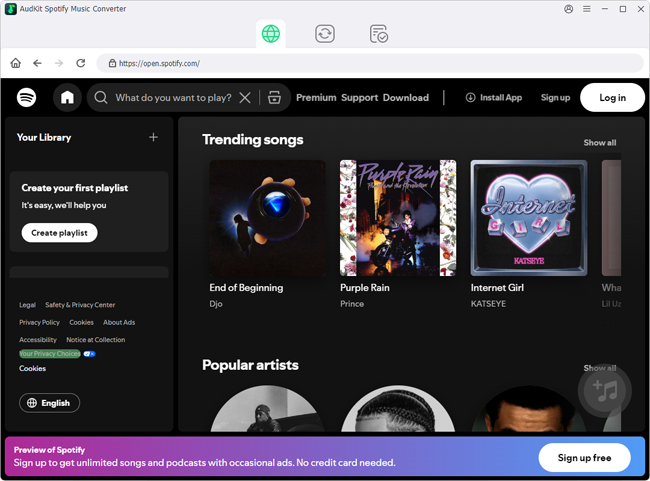
Download and launch AudKit Spotify Music Converter on your computer. The desktop Spotify application will automatically open alongside the converter.
Step 2. Add Bottom-Tier Tracks or Playlists
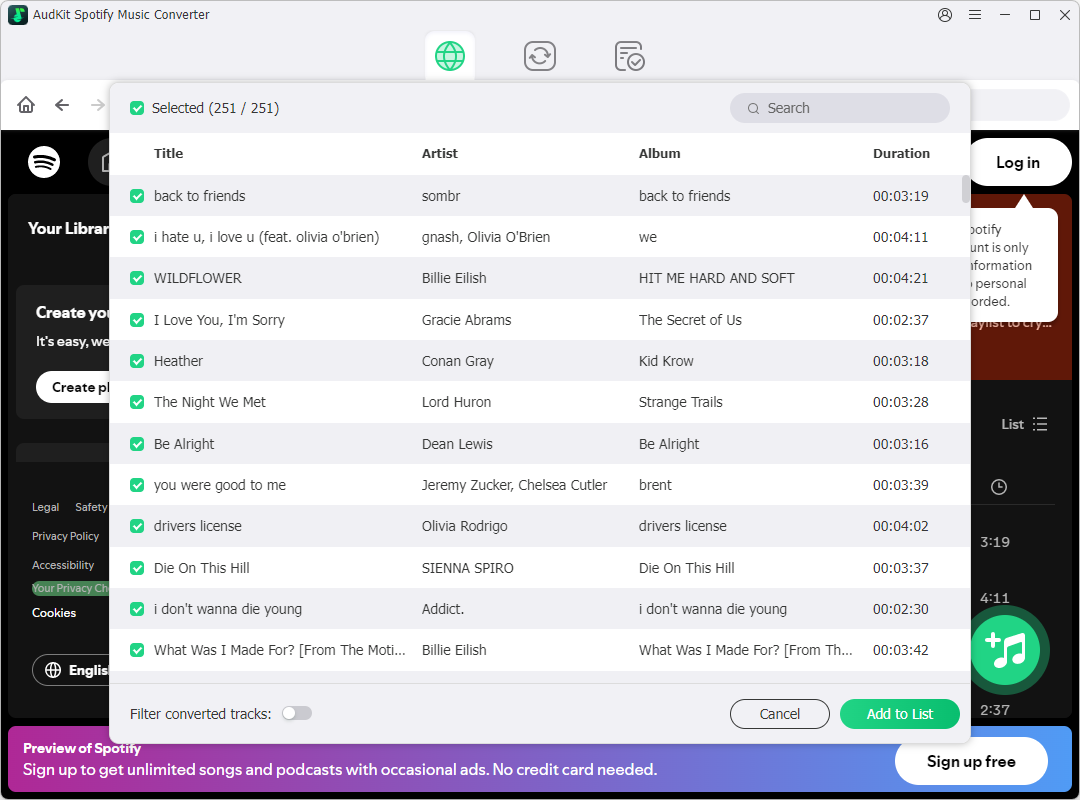
Locate the obscure artists identified on your iceberg chart. Click Share > Copy Link, paste the link into the converter’s search bar, and click + to add them to your download queue.
Step 3. Adjust Output Settings to 320 kbps MP3
Open Preferences from the top menu and click Convert. Select MP3 as the output format, set the bit rate to 320 kbps, and choose 48,000 Hz sample rate before clicking OK.

Step 4. Download and Store Songs Locally
Click Convert in the bottom-right corner. When processing completes, open the output folder to access your permanent, locally stored music files.

FAQs About Icebergify and Spotify Charts
Why does my Spotify Iceberg have blank or missing levels?
Icebergify uses fixed brackets based on Spotify’s global popularity index. An empty tier simply indicates that none of your top 50 artists fall within that specific streaming popularity range.
Is Icebergify safe to connect, and how do I revoke access?
Yes. The service requests read-only API access and never views your account password. To disconnect it afterward, visit your Spotify account page and click Remove Access under Manage apps.
How do I fix the Icebergify 504 Gateway Time-out error?
High server traffic typically causes this error. You can resolve it by refreshing the page, using an incognito window, clearing cookies, or accessing the tool during off-peak hours.
Why are some of my most-played artists sitting at the bottom?
Tier placement reflects global popularity across all Spotify users, not your personal play count. Obscure or local musicians remain in the lower tiers even if you stream them daily.
Can I download and permanently keep songs from my bottom-tier Iceberg artists?
Yes. You can preserve vulnerable indie tracks by converting and saving them to your local hard drive with AudKit Spotify Music Converter for offline listening.
Conclusion
Icebergify offers a distinct visual perspective on your listening habits by balancing top artist preferences against platform-wide streaming figures. Instead of simply summarizing play volume, it contrasts commercial hits above the waterline with underground discoveries in the depths.
Generating your graphic takes only moments, but unlinking third-party permissions afterward ensures ongoing account security. If your chart showcases delicate indie releases, archiving those tracks locally with AudKit Spotify Music Converter safeguards your discoveries against unexpected catalog removals.

Andrew Rowley
 Staff Editor
Andrew Rowley has over 10 years of writing experience and is good at writing in audio technology and audio converter software. He can provide high-quality articles to help streaming music lovers explore music better.