





Quick Answer / Key Takeaways
- NoteBurner Spotify Music Converter is a popular desktop software designed to extract Spotify tracks, playlists, and podcasts, converting them into standard audio formats like MP3, FLAC, and WAV while retaining ID3 tags and original audio quality.
- While NoteBurner offers solid performance and useful built-in tools (like a CD burner), users occasionally report high CPU usage and conversion glitches when the Spotify app updates.
- If you are looking for a more stable, highly optimized, and cost-effective solution, AudKit Spotify Music Converter stands out as the best alternative. It excels in lightning-fast batch conversion and flawless metadata preservation, making it a top choice for audiophiles building an offline local library.
If you are a music lover, you already know the frustration. You curate the perfect Spotify playlist, but you are trapped inside the Spotify ecosystem. Even if you pay for Spotify Premium, your “offline downloads” are just encrypted cache files. You cannot transfer them to your trusty MP3 player, burn them to a CD for an old car stereo, or load them into DJ software.
To break free from these playback restrictions, you need a specialized audio conversion tool. For years, NoteBurner has been one of the most talked-about names in this space. But does it actually live up to the hype?
In this comprehensive review, we will dive deep into the NoteBurner Spotify Music Converter, evaluate its features, pros, and cons, and introduce you to a highly efficient alternative—AudKit Spotify Music Converter—that might just be the better fit for your audio needs.
What is NoteBurner Spotify Music Converter?
NoteBurner is a dedicated desktop application (available for both Windows and macOS) engineered to record and convert Spotify audio. By utilizing a virtual soundcard and advanced recording technology, it bypasses Spotify’s format restrictions, allowing you to save your favorite tracks as plain audio files.
Whether you are on a Spotify Free or Premium account, NoteBurner claims to capture the audio stream and wrap it into universal formats.
Key Features of NoteBurner
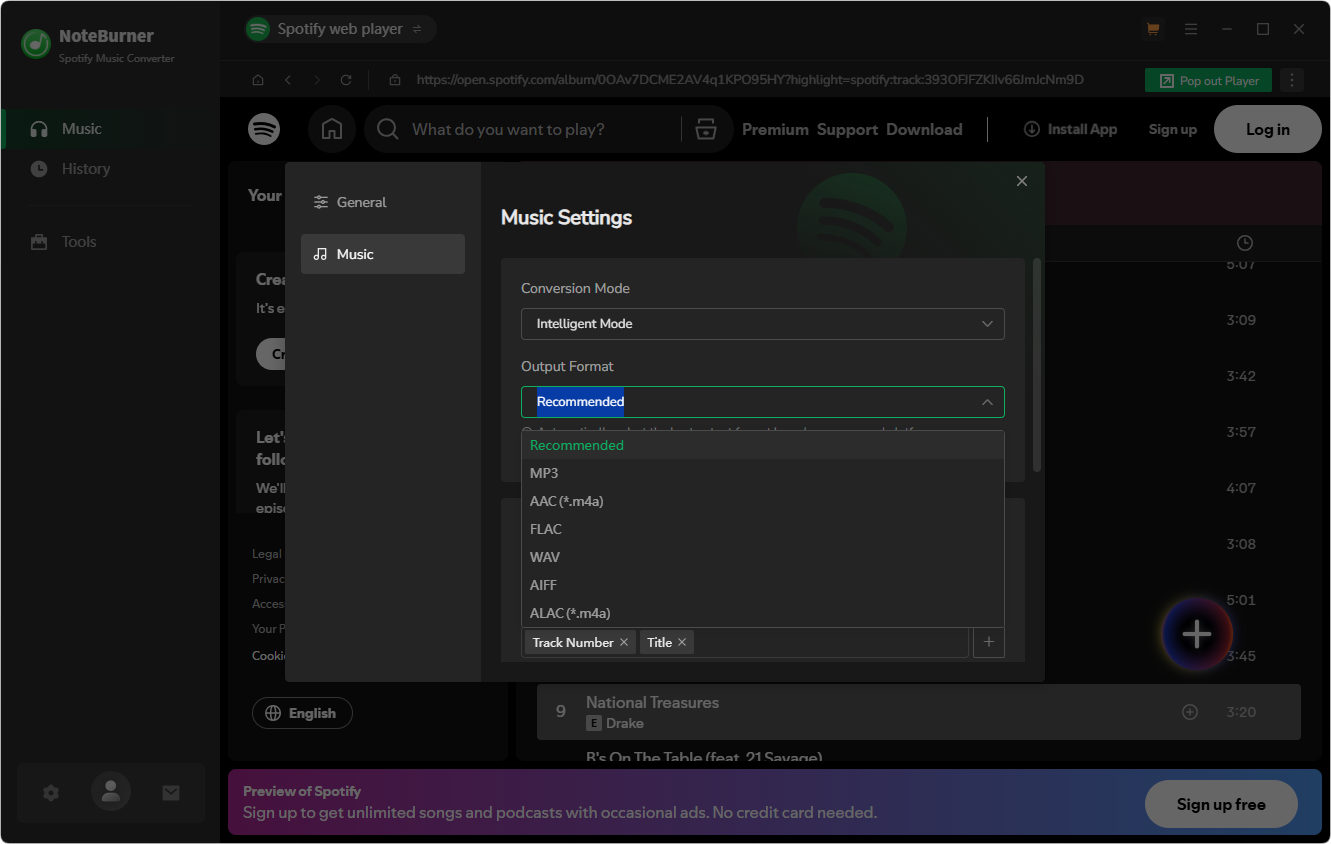
- Multiple Output Formats: It supports converting Spotify music to MP3, AAC, FLAC, WAV, AIFF, and ALAC. This covers everything from space-saving lossy formats to pure lossless quality files.
- High-Quality Audio: The software allows you to tweak the output settings, ensuring you can extract audio at up to 320kbps—the highest bitrate Spotify currently offers.
- ID3 Tags Preservation: A massive headache with basic audio recorders is losing track data. NoteBurner successfully retains essential metadata, including the track title, artist, album, artwork, track number, and year.
- Built-in Toolbox: NoteBurner includes a few extra utilities, such as a basic ID3 tag editor, a CD burner, and an option to upload directly to OneDrive.
The Pros and Cons
Like any software, NoteBurner has its highs and lows.
The Good:
- Intuitive and user-friendly interface.
- Reliable retention of original audio quality.
- Handy extra tools for physical media lovers (CD burning).
The Bad:
- Pricey Subscription: Compared to market averages, NoteBurner’s pricing tiers can feel a bit steep.
- Stability Issues: Because it relies heavily on the official Spotify app running in the background, any minor update to the Spotify client can temporarily break NoteBurner’s recording mechanism until a patch is released.
- Resource Heavy: It can consume a significant amount of CPU and RAM during high-speed batch conversion, which might slow down older computers.
How to Use NoteBurner Spotify Music Converter
If you decide to give NoteBurner a spin, the workflow is relatively straightforward:
Step 1. Launch the Software: Open NoteBurner. It will automatically launch the Spotify app alongside it. Or you can select the web player mode to download Spotify songs in the NoteBurner app directly.
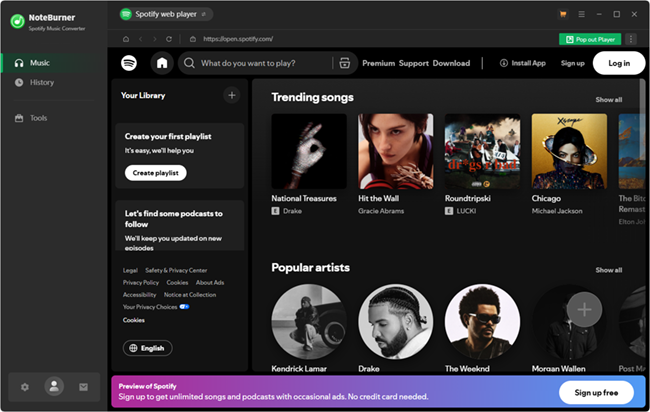
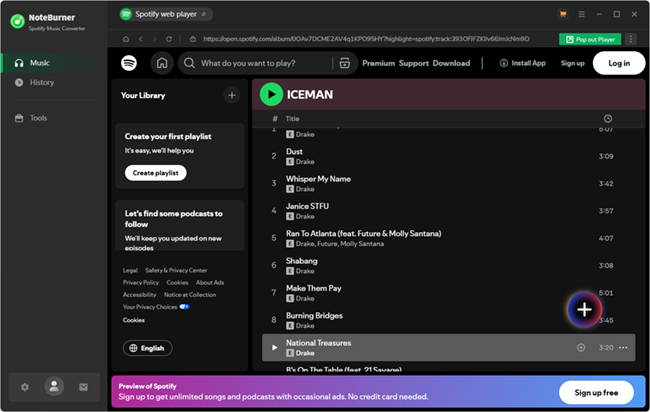
Step 2. Add Music: Search a track, album, or playlist directly from the Spotify web player in the NoteBurner interface. Alternatively, copy the Spotify link and paste it into the search bar.
Step 3. Configure Settings: Click the gear icon to access settings. Here, select your desired output format (e.g., MP3) and set the audio quality to 320kbps for the best listening experience.
Start Converting: Hit the “Convert” button. The software will process the tracks. Once finished, you can find the decrypted files in your designated output folder.
The Best Alternative: AudKit Spotify Music Converter
While NoteBurner is a veteran in the field, technology moves fast. If you are frustrated by NoteBurner’s occasional bugs, high resource consumption, or premium price tag, you need a modern alternative. Enter AudKit Spotify Music Converter.
AudKit is built from the ground up for speed, stability, and pristine audio extraction. It is designed for users who want a frictionless, “set it and forget it” experience when archiving their music libraries.

Main Features of AudKit Spotify Music Converter
- Easily download any Spotify audio content in 320kbps
- Convert Spotify music to MP3/AAC/FLAC/WAV/M4A/M4B
- Keep full ID3 tags like artist, year, cover, title, etc.
- Batch download at a fast 5X conversion speed
- Help listen to Spotify music offline anywhere
Why AudKit Stands Out
AudKit doesn’t just match NoteBurner’s capabilities; in several critical areas, it outperforms them.
1. Lightning-Fast 5X Conversion Speed
Time is money. AudKit utilizes a highly optimized extraction algorithm that allows for up to 5X speed during batch conversion on Windows (and 1X on Mac for strict quality control). You can queue up a massive 500-track playlist before bed, and AudKit will chew through it flawlessly.
2. 100% Lossless Quality & Flawless Metadata
AudKit is meticulous about audio fidelity. It perfectly captures the 320kbps Ogg Vorbis stream and repackages it into your format of choice without any sonic degradation. Furthermore, its ID3 tag detection is incredibly accurate. Your downloaded files will look perfectly organized in your local music player, complete with high-resolution album art, genre, and track numbers.
3. Lightweight and Stable
Unlike NoteBurner, which can sometimes bog down your system, AudKit is incredibly lightweight. It operates smoothly in the background, allowing you to continue working on your PC without experiencing lag or stuttering.
How to Convert Spotify Music with AudKit
The user experience in AudKit is incredibly streamlined:
Step 1. Download and Install AudKit: Launch the AudKit Spotify Music Converter. You will see the Spotify main interface in the AudKit program.
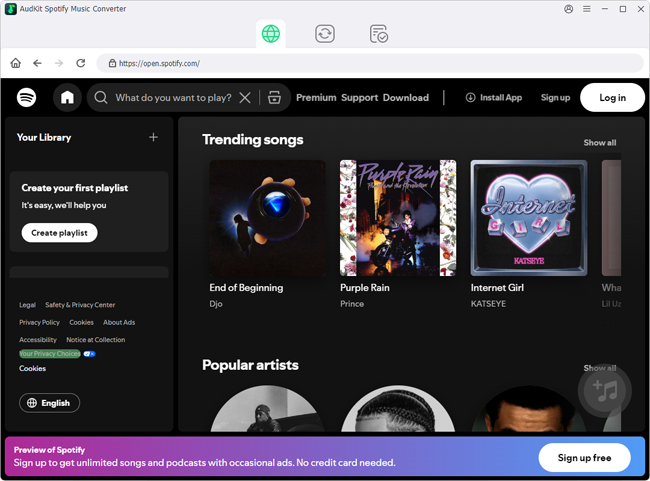
Step 2. Import Your Playlists: Browse Spotify for the music you want. Right-click the track or playlist, select “Share,” and copy the link. Paste this URL into AudKit’s search bar and click the “+” icon to import the batch.

Step 3. Customize Output Parameters: Navigate to “Preferences” > “Convert” from the top menu. Choose your format (MP3, AAC, M4A, M4B, WAV, FLAC). Set the sample rate to 48000Hz and the bit rate to 320kbps for studio-like quality. You can also choose how to archive output tracks (by Artist or Album).

Step 4. Download and Enjoy: Click the “Convert” button at the bottom right. AudKit will rapidly process your queue, saving universal audio files to your local drive.

NoteBurner vs. AudKit: Which Should You Choose?
If you frequently burn CDs and want an all-in-one suite that includes a burning tool, NoteBurner is a solid choice, provided you don’t mind the premium price and occasional software updates.
However, if your primary goal is to build a massive, perfectly organized local music library with the highest success rate and fastest speed, AudKit Spotify Music Converter is the undisputed winner. Its lightweight footprint, pristine lossless quality handling, and robust batch conversion make it the ultimate tool for tech-savvy music lovers.
FAQs About NoteBurner Spotify Music Converter
1. Is it legal to convert Spotify music using these tools?
Using software like NoteBurner or AudKit is strictly for personal, non-commercial use. It falls under the umbrella of format shifting for personal convenience. You should never distribute, sell, or share the converted files. Always respect the artists’ copyrights.
2. Do I need a Spotify Premium account to use AudKit or NoteBurner?
No, you do not. Both NoteBurner and AudKit work perfectly with a Spotify Free account. The software will extract the audio and automatically filter out the intrusive ads that usually interrupt free listeners, giving you a seamless, ad-free offline file.
3. Will converting Spotify to MP3 reduce the audio quality?
Spotify streams at a maximum of 320kbps. If you set your converter’s output settings to MP3 at 320kbps, the difference in audio quality is virtually indistinguishable to the human ear. For absolute bit-perfect archiving, you can choose to output to a lossless format like FLAC or WAV.
Conclusion
Breaking your music out of restricted ecosystems shouldn’t be a headache. While NoteBurner Spotify Music Converter remains a viable and feature-rich option for extracting your favorite playlists, its higher price point and occasional performance hiccups leave room for improvement. AudKit Spotify Music Converter steps into that gap beautifully, offering exceptional stability, rapid conversion speeds, and perfect metadata retention. By choosing the right tool, you can finally take true ownership of your offline listening experience—whether you are playing tracks on a vintage iPod, a USB drive in your car, or your professional DJ setup.

Andrew Rowley
 Staff Editor
Andrew Rowley has over 10 years of writing experience and is good at writing in audio technology and audio converter software. He can provide high-quality articles to help streaming music lovers explore music better.