





Quick Answer / Key Takeaways
- What it is: SpotiDownloader is a free, web-based tool designed to convert Spotify tracks and playlists into MP3 format
- directly in your browser without extra software.
- The Pros: It is highly accessible, works across all devices (PC, Mac, iOS, Android), and requires absolutely no technical expertise.
- The Cons: Like most web scrapers, it struggles to deliver true 320kbps audio quality, frequently fails during batch conversion of large playlists, and relies on matching Spotify metadata with external audio sources (like YouTube).
- The Best Alternative: For audiophiles and users wanting stable batch downloads, AudKit Spotify Music Downloader is the premier desktop alternative, offering genuine lossless conversion, perfect ID3 tag retention, and lightning-fast processing speeds.
You know that sinking feeling when you’re about to board a flight, you open Spotify, and realize half your “Offline” downloads decided to expire because your Premium subscription lapsed for two days? Yeah, we’ve all been there. Streaming is convenient, but it’s a rental model disguised as ownership. That’s where tools like SpotiDownloader enter the conversation—and why I’m writing this deep-dive review with my sleeves rolled up and my audiophile hat on.
I’ve spent weeks testing this converter against competitors, examining its output quality on both studio monitors and car stereos, and pushing its batch processing limits with a 3,000-song library. Here’s everything you need to know, no sugarcoating.
- Part 1. What is SpotiDownloader?
- Part 2. SpotiDownloader Deep Dive: The Good and The Bad
- Part 3. How to Use SpotiDownloader
- Part 4. The Best SpotiDownloader Alternative: AudKit Spotify Music Converter
- Part 5. FAQs About SpotiDownloader
Part 1.What is SpotiDownloader?

At its core, SpotiDownloader is an online web application. You don’t need to download an .exe or .dmg file to your computer. It operates entirely within your web browser. Its primary function is simple: you feed it a Spotify URL (a track, album, or playlist), and it hands you an MP3 file in return.
Because it is web-based, it appeals heavily to mobile users and people using restricted work computers where installing third-party software isn’t an option.
Part 2. SpotiDownloader Deep Dive: The Good and The Bad
To give you a fair assessment, we need to look under the hood. How does it handle the technical aspects of audio conversion?
The Perks: Why Users Like It
- Zero Installation Required: This is the biggest selling point. Whether you are on Safari on an iPhone, Chrome on a Windows PC, or Firefox on Linux, the tool works uniformly.
- Free to Use: There are no hidden subscription tiers or paywalls to unlock basic functionality.
- Basic Metadata Retention: When you download a track, nobody wants a file named
track_01.mp3. SpotiDownloader does an adequate job of preserving basic ID3 tags—specifically the song title, artist name, and album art. This keeps your local media library organized.
The Dealbreakers: Where It Falls Short
As a tech enthusiast who cares deeply about audio fidelity, I have to point out the technical compromises of using a free web tool.
- The Audio Quality Illusion (Not True 320kbps): SpotiDownloader claims high quality, but you need to understand how these web tools work. They do not directly process the Spotify audio stream. Instead, they read the metadata of your Spotify link and search for an equivalent audio track on open platforms (usually YouTube). The audio you get is heavily compressed, often capping out around 128kbps to 192kbps. If you have good headphones, you will hear the muddiness in the bass and the artifacts in the high hats.
- Unreliable Batch Conversion: If you have a playlist with 500 songs, SpotiDownloader will test your patience. Web servers frequently time out, meaning your bulk download might fail halfway through.
- Intrusive Ads and Pop-ups: Server costs aren’t cheap. To keep the lights on, web-based downloaders are often plastered with aggressive advertisements and pop-ups that can sometimes lead to sketchy domains.
Part 3. How to Use SpotiDownloader
If you just need a few songs and don’t mind the compression, using the tool is incredibly straightforward:
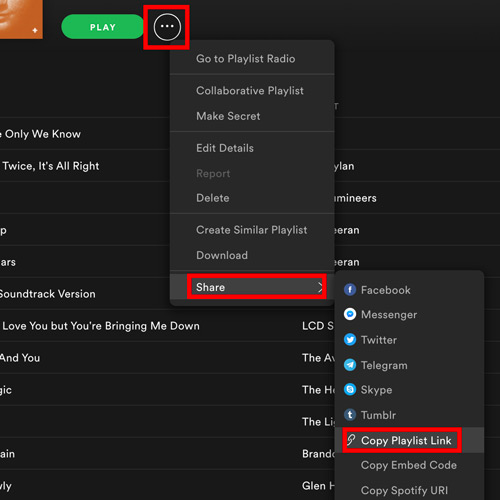
Step 1. Open your Spotify app. Find the song or playlist you want. Click the three dots (...), select Share, and click Copy Song/Playlist Link.
Step 2. Open your browser and navigate to the SpotiDownloader website. Paste the copied URL into the central search box and hit Download.

Step 3. The tool will take a few seconds to parse the metadata and locate the audio source.
Step 4. Once processed, a download button will appear. Click it to save the MP3 file directly to your local storage.

Part 4. The Best SpotiDownloader Alternative: AudKit Spotify Music Converter
If you are an audiophile, a DJ, or someone looking to permanently back up a library of thousands of songs, a web-based tool like SpotiDownloader simply won’t cut it. You need dedicated desktop software that handles the audio processing locally.
This is where AudKit Spotify Music Converter steps in as the ultimate upgrade. Instead of scraping compressed audio from third-party video sites, AudKit utilizes advanced virtual soundcard technology to process the raw audio stream directly, resulting in pristine, studio-quality files.

Main Features of AudKit Spotify Music Converter
- Easily download any Spotify audio content in 320kbps
- Convert Spotify music to MP3/AAC/FLAC/WAV/M4A/M4B
- Keep full ID3 tags like artist, year, cover, title, etc.
- Batch download at a fast 5X conversion speed
- Help listen to Spotify music offline anywhere
Here is why AudKit outshines web-based alternatives:
- True Lossless & 320kbps Quality: AudKit allows you to customize your output settings. You can extract tracks in genuine 320kbps MP3 or opt for lossless formats like FLAC, WAV, AAC, M4A, and M4B. What you hear on Spotify Premium is exactly what you get on your hard drive.
- Flawless Batch Conversion at 5X Speed: Say goodbye to browser timeouts. You can drag and drop a massive 1,000-song playlist into AudKit, hit convert, and walk away. The software utilizes hardware acceleration to download tracks at up to 5X speed on Windows and Mac.
- Perfect ID3 Tag Preservation: AudKit accurately captures and embeds all metadata, including track numbers, disc numbers, genres, artists, and high-resolution album art. Your library will look immaculate in any music player.
- No Ads, No Interruptions: Because it is a standalone desktop application, you get a clean, ad-free environment without the risk of malicious pop-ups.
How to Use AudKit Spotify Music Converter
Using AudKit is just as easy as a web downloader, but far more powerful:
Step 1. Launch AudKit Spotify Music Converter on your PC or Mac.
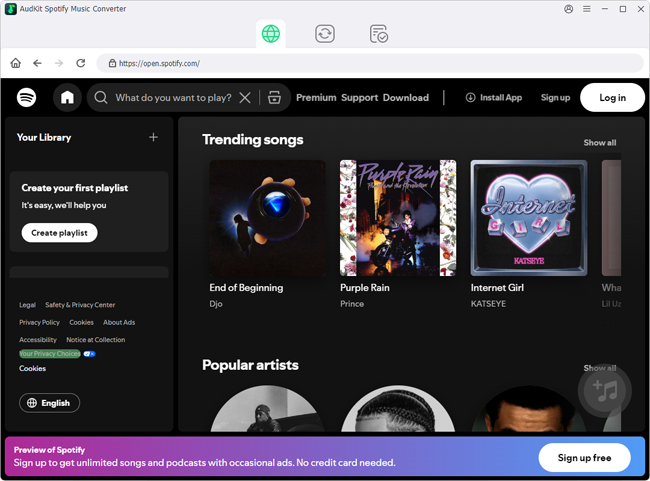
Step 2. Log into your Spotify account on AudKit Spotify Music Converter, and find the song that you want to download in the program. Click on the + button to add songs to the download list.

Step 3. Click the Menu > Preferences to select your desired output format (e.g., MP3) and set the bit rate to 320kbps.

Step 4. Click the Convert button. The software will rapidly process your batch list and save the high-quality files to your local folder.

Part 5. FAQs About SpotiDownloader
1. Is SpotiDownloader completely safe and free to use?
The core conversion service is free, but safety can be a gray area due to ad networks. You may encounter misleading pop-ups. Always ensure you have a reliable ad-blocker enabled and never download any .exe or .apk files from browser pop-ups—only the final .mp3 audio file.
2. Does SpotiDownloader really download tracks in 320kbps high quality?
Usually, no. Because web tools scrape audio from video platforms, the actual audio fidelity is highly compressed. For genuine 320kbps or lossless audio, you need dedicated desktop software like AudKit Spotify Music Downloader.
3. Will my downloaded MP3s keep their album artwork?
SpotiDownloader does a decent job of grabbing basic tags (Title, Artist, Cover). However, for advanced ID3 tags (Track Number, Genre, Year) and flawless library organization, desktop tools provide much better and more consistent metadata retention.
Conclusion
So, what is the final word on SpotiDownloader?
It is an excellent tool of convenience. If you are at a party and desperately need to download a single track to your phone, or if you just want to grab a quick podcast episode on a restricted work computer, it does the job admirably. It is fast, requires no installation, and is perfectly suited for casual, one-off downloads.
However, if you are serious about your music collection, SpotiDownloader’s limitations become obvious very quickly. The fake 320kbps audio fidelity, the frustrating experience of batch-downloading large playlists, and the reliance on third-party audio scraping make it less than ideal for power users.
If you want to liberate your entire Spotify library, preserve pristine audio quality, and maintain perfect metadata without browser crashes, upgrading to a robust desktop solution like AudKit Spotify Music Downloader is undoubtedly the smarter, more reliable choice.

Andrew Rowley
 Staff Editor
waitting