




Quick Answer
- Sidify is a popular tool for overcoming Spotify playback restrictions, offering high-quality offline downloads.
- It boasts a clean interface and retains ID3 tags but comes with a premium price tag.
- Occasional conversion failures and slow customer support are common user complaints.
- If you want a faster, more stable alternative, AudKit Spotify Music Converter is the top choice.
Listening to your favorite Spotify playlists offline shouldn’t feel like a chore. Yet, format limitations and device restrictions often get in the way. You want to transfer your tracks to an MP3 player, burn a CD for your car, or just keep a local backup. That is where tools like Sidify step in.
In this review, I will break down everything you need to know about Sidify Spotify Music Converter. We will look at its core features, pricing, and real-world performance.
I will also show you how it stacks up against a powerful alternative, AudKit Spotify Music Converter. Let’s dive in and see which tool truly unlocks full access to your music library.
Part 1. Sidify Spotify Music Converter Overview
Sidify Spotify Music Converter is a dedicated desktop application designed for music enthusiasts. It helps users bypass format limitations on Spotify tracks, playlists, and podcasts. The software converts these locked files into universal formats like MP3, AAC, FLAC, and WAV.
This tool is built for users who want complete control over their offline listening experience. Whether you are a DJ needing local tracks or someone traveling without cell service, Sidify aims to help. It targets both free and premium Spotify users.
Unlike basic web-based downloaders, Sidify focuses on preserving audio fidelity. It acts as a bridge between your streaming library and your personal local storage.
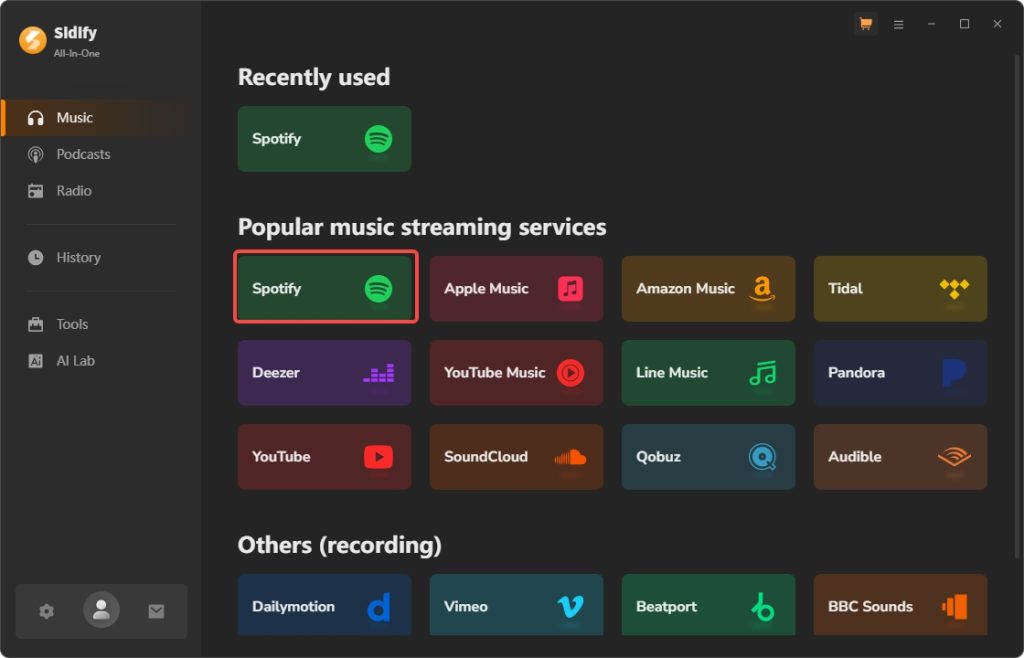
Part 2. Pros & Cons of Sidify
Every software has its strengths and weaknesses. Here is what stands out after testing Sidify.
The Pros
- High-Quality Output: Retains up to 320kbps audio quality for a premium listening experience.
- Format Variety: Supports multiple output formats, including MP3, FLAC, WAV, and ALAC.
- ID3 Tag Preservation: Automatically keeps metadata like artist names, album art, and track numbers.
- User-Friendly Interface: The drag-and-drop design is intuitive, even for beginners.
The Cons
- Pricey Subscriptions: The monthly and lifetime plans are more expensive than many competitors.
- Occasional Crashes: Users frequently report software freezes during large batch conversions.
- Slow Support: Getting a response from the customer service team can take several days.
Part 3. Standout Features of Sidify Spotify Music Converter
Sidify offers several features that make it a strong contender in the audio conversion space.
Lossless Audio Quality
Audio purists will appreciate Sidify’s ability to maintain the original stream’s quality. You can set the output to 320kbps, ensuring your offline tracks sound just as crisp as the live stream. This is perfect for listening on high-end headphones or home theater systems.
Batch Conversion
Downloading a massive 500-track playlist one by one is a nightmare. Sidify allows you to drag and drop entire playlists for batch processing. You just set it, walk away, and return to a folder full of converted MP3s.
Built-in Tools
Beyond basic conversion, Sidify includes a few handy extras. It features a built-in format converter for local files and an ID3 tag editor. You can even burn your converted tracks directly to a CD from within the app.
Part 4. Value & User Experience
Sidify offers a subscription model and a lifetime license. The monthly plan starts around $14.95, which can add up quickly. The lifetime license is a hefty upfront investment, making it less ideal for casual users.
In real-world testing, the interface is incredibly smooth. Navigating the menus and tweaking output settings takes only seconds. However, the performance can be inconsistent when handling massive playlists.
If you only need to convert a few albums a month, Sidify works well. But if you are archiving thousands of songs, the occasional crashes can be frustrating. You might find yourself paying a premium for a slightly unstable experience.
Part 5. The Best Alternative: AudKit Spotify Music Converter
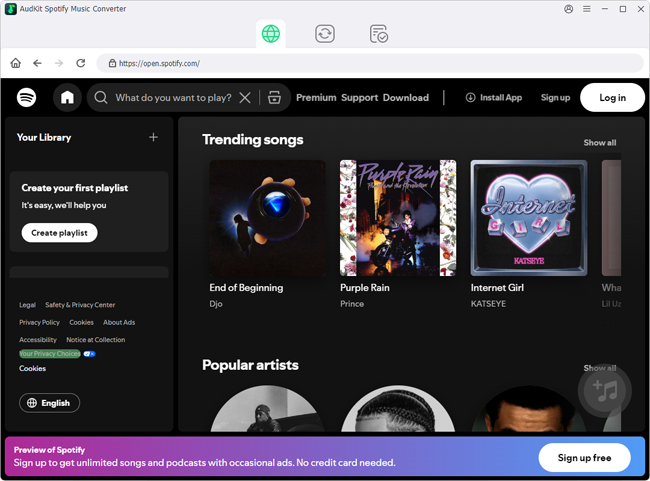
If Sidify’s price or stability issues are a dealbreaker, AudKit Spotify Music Converter is the ultimate alternative. AudKit is engineered for speed, stability, and flawless audio quality.
It offers lightning-fast 5X conversion speeds while maintaining 100% lossless quality. AudKit also handles massive batch downloads without the crashing issues commonly seen in other tools. It is the smartest way to unlock full access to your Spotify library.
Comparison Table: Sidify vs. AudKit
| Feature | Sidify | AudKit Spotify Music Converter |
|---|---|---|
| Conversion Speed | Up to 10X (often slower in reality) | Solid 5X with zero crashes |
| Output Quality | 320kbps | Full 320kbps |
| Batch Processing | Yes (occasional freezing) | Highly stable for large lists |
| Ease of Use | Good | Excellent & intuitive |
| Price-Value | Expensive | Highly cost-effective |

Main Features of AudKit Spotify Music Converter
- Easily download any Spotify audio content in 320kbps
- Convert Spotify music to MP3/AAC/FLAC/WAV/M4A/M4B
- Keep full ID3 tags like artist, year, cover, title, etc.
- Batch download at a fast 5X conversion speed
- Help listen to Spotify music offline anywhere
How to Use AudKit Spotify Music Converter
AudKit makes the conversion process incredibly simple. Here is a quick step-by-step guide to get your music offline.
Step 1. Add Spotify Tracks
Launch AudKit Spotify Music Converter. Drag and drop your favorite songs, albums, or playlists directly from the Spotify app into the AudKit interface.

Step 2. Customize Output Settings
Click the menu icon and select “Preferences.” Here, you can choose your desired output format (like MP3 or FLAC) and adjust the bit rate to 320kbps for maximum quality.

Step 3. Start the Conversion
Hit the “Convert” button in the bottom right corner. AudKit will begin downloading and converting your tracks at 5X speed while preserving all ID3 tags.

Step 4. Locate Your Offline Files
Once finished, click the “Converted” folder icon. You can now transfer these unrestricted files to your MP3 player, smartwatch, or USB drive for offline listening.
FAQs About Sidify Spotify Music Converter
Is it legal to use a Spotify music converter?
Using a converter is generally legal for personal, offline listening. However, distributing or selling the converted tracks violates copyright laws and streaming terms of service. Always keep your downloaded files for private use only.
Does Sidify keep the original audio quality?
Yes, Sidify can preserve up to 320kbps audio quality, which matches the highest streaming tier. Just make sure you select the correct bit rate in the settings menu before converting.
Why should I choose AudKit over Sidify?
AudKit Spotify Music Converter offers better stability during large batch downloads and is more cost-effective. It delivers reliable 5X conversion speeds without the freezing issues that some Sidify users experience.
Conclusion
Sidify is undeniably a feature-rich tool for overcoming Spotify playback restrictions. Its clean interface and high-quality output make it a solid choice for many users. However, its premium price tag and occasional stability issues leave room for improvement.
If you want a more reliable and budget-friendly solution, AudKit Spotify Music Converter is the clear winner. It provides lightning-fast speeds, flawless lossless audio, and unmatched stability for large playlists.

Andrew Rowley
 Staff Editor
Andrew Rowley has over 10 years of writing experience and is good at writing in audio technology and audio converter software. He can provide high-quality articles to help streaming music lovers explore music better.