




Among the many music streaming services, Tidal has a unique catch and high-res quality. Other than harboring a variety of music videos, podcasts, and live concert recordings, it’s also accessible on a vast array of devices like smart speakers, smartphones, and computers. However, these come with a concern of consuming too much space on your device. Nonetheless, you can clear Tidal cache to ease such congestion.
The relief is that the Tidal app cache bears temporary files that are stored on your device by the Tidal streaming app. When this space is freed up, you get rid of files that you no longer need and the storage it takes on your phone or other device is reduced.
Quick Answer
- On Android: Go to Settings > Apps > Tidal > Storage & cache, then tap Clear Cache to instantly wipe temporary streaming data without affecting offline downloads.
- On iPhone / iPad: iOS does not offer a native one-tap cache button for Tidal. To free up bloated “Documents & Data,” you must uninstall and reinstall the Tidal app from Settings > General > iPhone Storage.
- On Windows & Mac: Open the Tidal desktop application, navigate to Settings / Menu > Help > Troubleshooting, and select Clear Cache to wipe accumulated desktop files.
- Permanent Solution: To prevent Tidal from generating gigabytes of local app cache altogether, you can export your favorite tracks as standard local audio files using a dedicated desktop converter, allowing smooth playback via any media player without background caching.
Part 1. FAQs on Clearing Cache on Tidal
Here are answers to some commonly sought-after questions during the Tidal troubleshooting process.
Q1: Why You Need to Clear the Cache on Tidal
Every time you stream a song, album artwork, or video on Tidal, the app temporarily downloads chunks of data into a local cache directory. This caching mechanism ensures smooth, buffer-free playback when you replay tracks. However, as the cache grows:
- It occupies valuable gigabytes needed by your operating system and other apps.
- Outdated or corrupted cache files can cause playback freezes, failed track loading, and unexpected app crashes.
- Clearing the cache refreshes the application directory, resolves sudden playback bugs, and instantly reclaims device memory.
Q2: Why Does Tidal Take Up so Much Storage Space
Standard music platforms stream compressed audio at 128 kbps to 320 kbps. In contrast, Tidal delivers lossless CD-quality (16-bit, 44.1 kHz FLAC) and HiRes FLAC / Dolby Atmos audio reaching bitrates up to 9216 kbps (24-bit, 192 kHz). Because high-resolution tracks carry vastly more audio data, caching or downloading a single album on Tidal consumes five to ten times more storage space than standard MP3 streams.

 Note:
Note:

It has an easy way to avoid get too much cache on Tidal while streaming music and downloading songs. It’s to download Tidal songs as local files and then explore them via other music players with AudKit Tidal Music Converter. This way won’t generate Tidal cache on your devices.
Part 2. How to Clear Tidal Cache on iPhone and Android
Mobile devices feel the impact of heavy cache accumulation most acutely. Here is how to handle cache cleanup on both major mobile platforms.
On iPhone
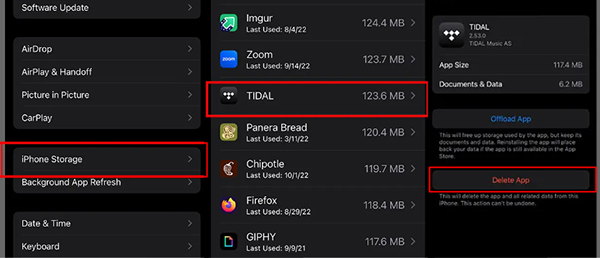
Unlike Android, iOS handles application data strictly through system-level containers. Tidal does not currently feature a dedicated in-app “Clear Cache” toggle on iOS, meaning temporary stream fragments get bundled into Documents & Data. Deleting and reinstalling the app is the cleanest way to wipe this accumulated bloat:
- Open the Settings app on your iPhone.
- Navigate to General > iPhone Storage.
- Scroll down the list of apps and tap Tidal.
- Review the space listed under Documents & Data. Tap Delete App and confirm. (Choosing Offload App keeps temporary documents and data intact, which will not solve the cache issue).
- Head to the App Store, search for Tidal, and reinstall it. Log back into your account to enjoy a clean, compact app.
On Android
Android gives users granular control over temporary cache storage without removing downloaded offline tracks or app credentials:
- Locate the Tidal icon on your home screen or app drawer.
- Tap and hold the icon, then select the App info (or ⓘ) icon. Alternatively, go to Settings > Apps > See all apps > Tidal.
- Tap on Storage & cache.
- Tap Clear Cache.
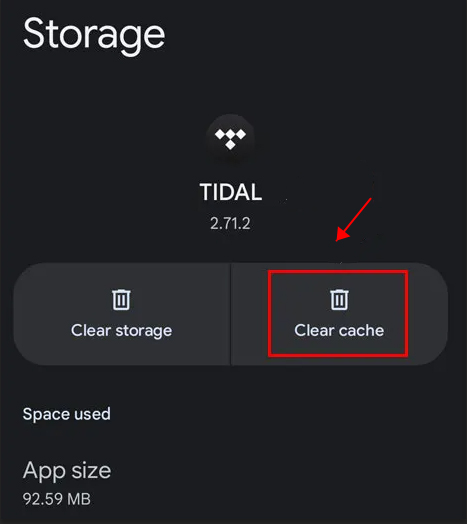
Tip: Do not tap “Clear Storage” or “Clear Data” unless you want to reset the app completely, as doing so removes your login session and offline tracks.
Part 3. How to Clear Cache on Tidal Mac and PC
The Tidal desktop client provides built-in troubleshooting utilities that make cache clearing straightforward on both macOS and Windows.
On Mac OS
On macOS, you can wipe temporary cached media files directly through the desktop interface:
- Launch the Tidal app on your Mac.
- Click Tidal in the top menu bar (or click the three-dot menu icon within the app header).
- Navigate to Preferences (or Settings).
- Go to the Troubleshooting section, locate the Cache setting, and click Clear Cache. Confirm the prompt to let the client flush out cached files and refresh its library indexes.
On a Windows PC
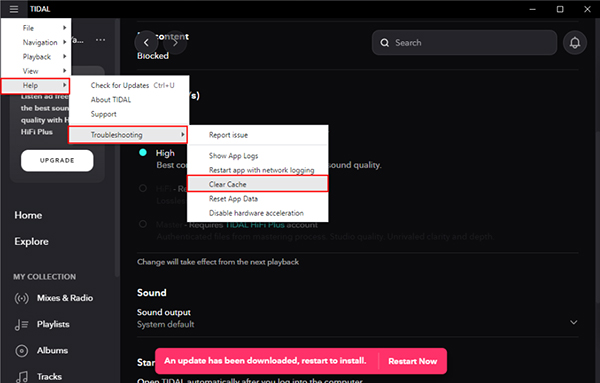
On Windows 10 and 11, the desktop app features a streamlined troubleshooting command:
- Open the Tidal application on your Windows PC.
- Click the Menu icon (three horizontal dots) situated in the top-left corner of the window.
- Hover over Help and choose Troubleshooting > Clear Cache.
- The client will automatically clear cached temporary documents, artwork, and audio fragments, restarting the playback engine smoothly.
Part 4. Additional Tips for Clearing Tidal Cache
You can employ other tips to clear Tidal cache if the above options still don’t grant you the space you require. Also, in this part, you can learn more about Tidal clear cache.
Delete Tidal Downloaded Content
Deleting content will stop Tidal from taking up your device’s storage space. Follow these steps to manually delete such files.
Step 1. Tap the “Profile” icon on your Tidal mobile app.
Step 2. Then, choose the target music content that you want to delete.
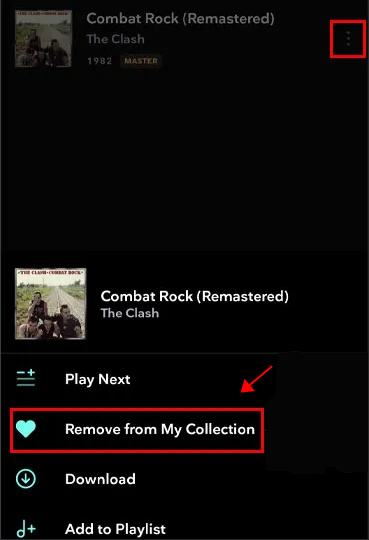
Step 3. Tap the “Three-dot” icon that’s next to the song, there are more available options.
Step 4. Once you found the “Remove from My Collection” section, please hit on it.
Step 5. Then, hit on the “Remove” option to remove your downloaded files.
Adjust Tidal Stream Quality
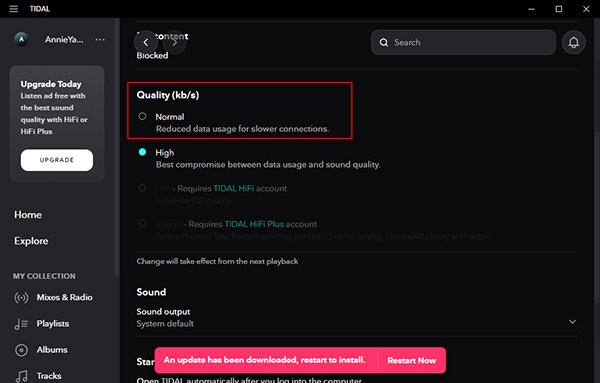
Streaming quality could be taking up too much space as Tidal streams are the quality of HiFi, MQA, 360 Reality Audio, and more. Here is how to adjust the quality for reduced storage usage.
Step 1. Launch the “Tidal” app on your phone, and then tap on the “Settings” icon.
Step 2. You’ll be redirected to the next view, tap on the “Streaming” option.
Step 3. Now, go on to adjust the quality under the “Quality” section as per your preferences.
Step 4. It’s recommended to choose the “Normal” mode section to adjust the streaming quality.
Other Things You Should Know about Clearing Tidal Cache
- Note that clearing the cache may log you out of the Tidal app. Make sure you have your login details at hand to avoid any inconvenience.
- You can act smart by occasionally clearing the cache to enable the app to keep running without any issues.
- Your downloaded files and playlists will remain intact even if you clear the cache. They don’t get deleted.
Part 5. How to Download Tidal Music as Local Files Forever
Without worrying about the Tidal album cache size, you can download and keep your files locally forever. AudKit Tidal Music Converter is a professional tool to look up to. It will losslessly convert your Tidal playlist to common output formats like FLAC, WAV, MP3, AAC, and M4B, among others.
You can also customize your Tidal music output quality including bit rate, channel, and sample rate. AudKit Tidal Music Converter will as well keep lossless Tidal quality such as artists, titles, album art, and tracks. Get the freedom to listen to Tidal hits on numerous devices offline.
Speed is another plus as it comes with a high-speed processor for conversion at 5X speed. Among the devices you can enjoy Tidal offline include DJ software, game console, MP3 player, etc. Additionally, this top-notch app will help you to import and play Tidal on other platforms like Google Home and iMovie.
Main Features of AudKit Tidal Music Converter
- Maintains 100% lossless HiFi/Master quality
- Support batch conversion of Tidal playlists
- Download all Tidal playlists, regardless of your subscription level
- Convert Tidal playlist to MP3, AAC, WAV, FLAC, etc.
How to use AudKit Tidal Music Converter to download Tidal music as local files
The AudKit Tidal Music Converter app supports both Windows and Mac. To use it, visit the website and download the app to your computer. Now, please launch it and wait for the Tidal app to open. Then go on to register for AudKit from the “Menu” > “Register” option from the top-right taskbar. You can copy and paste the licensed email and registration code to activate the app to the full version. This will enable you to convert to a full track rather than 1 minute of each song when you use the free version.
Step 1 Reset the Tidal output profile
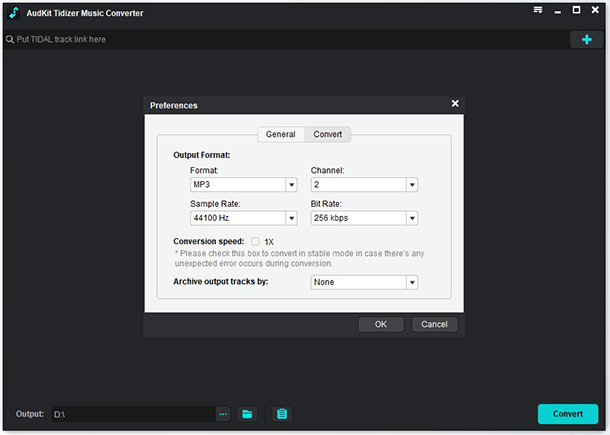
Click on the “Menu” > “Preferences” > “Convert” tab option. Then, customize the parameters of exporting Tidal files like sample rate, bit rate, and channel. You can also choose to archive your files by album or artist.
Step 2 Add Tidal Tracks to Download
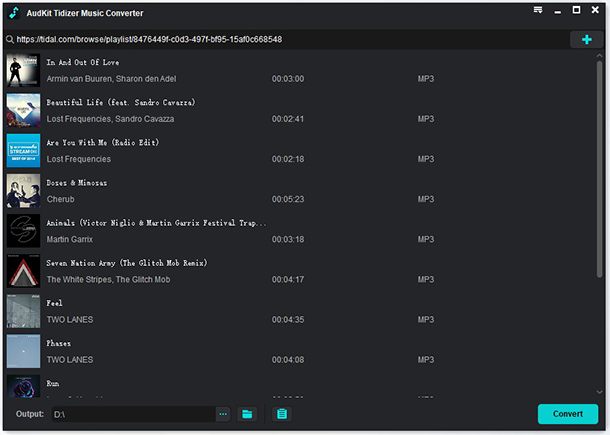
Choose the Tidal tracks you wish to convert from your playlist. Right-click on the Tidal song and select the “Share” > “Copy Track Link” option then, paste the link into AudKit’s search bar. Next, tap on the “+” icon to import your tracks.
Step 3 Download and Convert Tidal Songs Locally
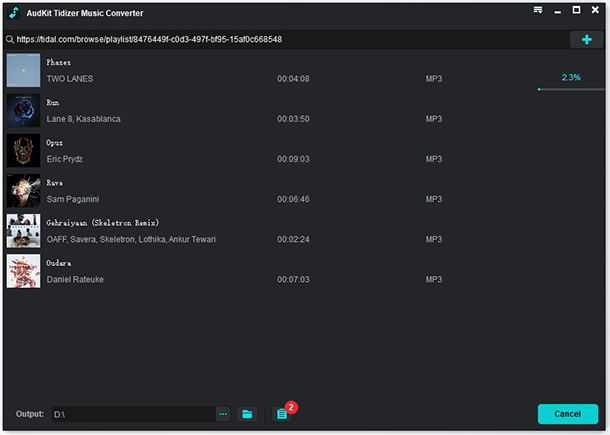
Finally, tap on the “Convert” tab to commence the conversion process. Once completed, locate the “Converted” icon that shows a red tip. Open it to access your converted Tidal songs. You can hence play and keep them forever.
Part 6. In Conclusion
Managing local storage is essential when enjoying high-resolution music streaming. Knowing how to clear the Tidal cache on iPhone, Android, Mac, and Windows allows you to free up gigabytes of occupied space and resolve stubborn playback errors in minutes. For an even more flexible listening experience, using AudKit Tidal Music Converter enables you to keep your favorite music in pristine local formats forever, giving you full control over your storage without ongoing app caching.

Elle Johnson
 Staff Editor
Elle Johnson has been working in the technology and music software field for over 5 years. She is dedicated to providing easy-to-use guides and effective tips to play music anywhere.