





Quick Answer
- Alexa (Wi‑Fi): Link Spotify in the Omars DOGO app, connect to Wi‑Fi, and control playback hands‑free with the built‑in assistant — no phone required.
- Bluetooth: Pair any phone or tablet instantly for wireless streaming; you trade some audio quality and phone battery for speed.
- USB: Convert Spotify tracks to MP3 or FLAC with AudKit Spotify Music Converter, load them onto a USB drive, and play fully offline without any device.
- Pick the path that balances convenience, fidelity, and independence according to your listening habits.
Spotify on an Omars DOGO speaker should be simple, but the platform’s encrypted offline files aren’t readable by the USB port. The speaker offers three workable paths: Alexa voice streaming over Wi‑Fi, standard Bluetooth pairing, and direct USB playback for plain audio files. Each method redefines the experience — audio quality, phone dependency, and where you can listen. Here’s how to stream Spotify music through all three, and how to choose what actually fits your real‑world routine.
- Part 1. Stream Spotify Through the Built‑in Alexa on Omars DOGO
- Part 2. Bluetooth Streaming — the Fast Fallback
- Part 3. Convert Spotify for USB Playback — Offline & Phone‑Free
- Part 4. Practical Scenarios: Multi‑Room and Off‑Grid
- Part 5. Comparing the Three Paths
- FAQs About How to Stream Spotify Music to Omars DOGO Speakers
Part 1. Stream Spotify Through the Built‑in Alexa on Omars DOGO
The Omars DOGO functions as a full Alexa smart speaker, pulling Spotify streams directly from the cloud so your phone becomes optional after setup.
Step1. Get the DOGO online. Install the Omars DOGO app, power on the speaker, and follow the prompts to connect it to your Wi‑Fi network. Sign into your Amazon account when asked — Alexa depends on it.
Step 2. Link Spotify as the default. Open the Alexa app, go to More → Skills & Games, search for Spotify, enable the skill, and log in. Then navigate to Settings → Music & Podcasts → Default Services and set Spotify as the primary source so voice commands pull from your library.
Step 3. Just talk. Say “Alexa, play my Discover Weekly” or “Alexa, shuffle my Liked Songs on Spotify.” The DOGO streams over Wi‑Fi immediately.
Note that a stable Wi‑Fi connection is essential — a router hiccup kills playback — but when the network holds, you get a genuinely hands‑free experience with zero phone battery drain.
Part 2. Bluetooth Streaming — the Fast Fallback
Bluetooth is the quickest way to get wireless audio from any smartphone or tablet without touching a Wi‑Fi password.
Step 1. Turn on the DOGO and press the Bluetooth button until the LED flashes blue.
Step 2. In your phone’s Bluetooth settings, tap “Omars DOGO” and wait for the confirmation tone.
Step 3. Launch Spotify and play — audio routes to the speaker.
Bluetooth compresses Spotify’s stream through the SBC or AAC codec, softening transients and flattening detail. Range hovers around 10 meters with occasional dropouts, and your phone battery drains faster. Still, it’s an instant, reliable backup when Wi‑Fi is down or a guest wants to DJ from their own device.
Part 3. Convert Spotify for USB Playback — Offline & Phone‑Free
The Omars DOGO’s USB port supports MP3, FLAC, WAV, and more, but Spotify’s tracks are locked inside an app‑only container. To play them offline, you must convert your playlists into a standard audio format.
AudKit Spotify Music Converter handles this cleanly. It repackages Spotify songs at up to 5× speed into MP3, FLAC, or WAV while preserving metadata. Before converting, format a USB drive as FAT32 or exFAT; the DOGO doesn’t read NTFS.
Step‑by‑Step: From Spotify to DOGO USB
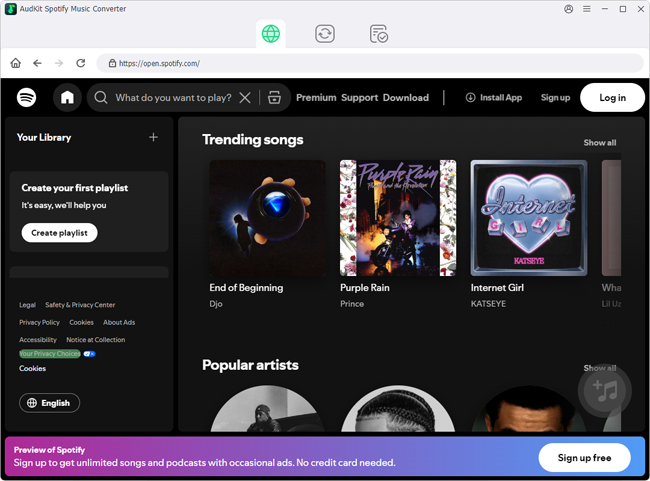
Step 1. Launch AudKit and log in
Open the application on your computer; sign into your Spotify account when prompted.
Step 2. Load your tracks
Add a playlist, album, or selection into the conversion queue. Just serach the songs in the built-in Spotify player and click on the + btton.

Step 3. Choose output format and quality
In Preferences, select MP3 320 kbps for universal compatibility, FLAC (16‑bit/44.1 kHz) for lossless quality, or WAV for an uncompressed master.

Step 4. Run the conversion
Click Convert. At 5× speed, a full album finishes in minutes.

Step 5. Copy to USB
Open the output folder, transfer all converted files to your FAT32/exFAT USB drive, and organize them into named folders (e.g., “01_Morning,” “02_Dinner”) for predictable playback order.
Step 6. Plug in and play
Insert the drive into the DOGO’s USB port. The speaker auto‑detects the storage and starts playback — no phone, no Wi‑Fi, no streaming interruptions.
Part 4. Practical Scenarios: Multi‑Room and Off‑Grid
Omars DOGO’s hybrid connectivity covers both party‑across‑rooms and off‑the‑grid setups.
Whole‑Home Alexa Streaming
In the DOGO app, group multiple speakers under “Multi‑Room Music.” A voice command like “Alexa, play my Daily Mix on Spotify everywhere” syncs them over Wi‑Fi with individual volume control from the app.
Reliable Offline Playback
When Wi‑Fi isn’t available, the USB port becomes the most dependable option. Load a flash drive with converted Spotify tracks using AudKit Spotify Music Converter, and you get hours of uninterrupted music for camping, long drives, or any phone‑free scenario.
Part 5. Comparing the Three Paths
| Dimension | Wi‑Fi / Alexa | Bluetooth | USB Drive |
|---|---|---|---|
| Convenience | Voice‑controlled; phone optional after setup | Instant pairing; control stays on phone | Fully phone‑free; plug‑and‑play once files are ready |
| Audio Quality | Full digital stream (Spotify tier dependent) | Compressed wireless transmission — detail loss possible | Lossless potential; plays MP3, FLAC, WAV directly |
| Phone Dependency | Only for initial setup | Phone must stay connected and active | None — speaker reads files from storage |
| Offline Capability | Requires active Wi‑Fi | Works offline, but phone battery drains continuously | True offline playback; zero signal dependency |
| Setup Complexity | One‑time app + Amazon account link | Instant Bluetooth pairing | Requires formatted USB drive (FAT32/exFAT) and pre‑converted music files |
| Best For | Hands‑free smart home; multi‑room sync | Quick casual listening anywhere | Travel, outdoors, or hi‑fi sessions without phone or internet |
Alexa excels at home for voice‑driven convenience and multi‑room sync. Bluetooth is the fallback for fast, no‑frills wireless audio. USB stands alone as the completely independent method — convert your Spotify library with AudKit Spotify Music Converter first, and the DOGO becomes a portable player that goes anywhere.
FAQs About How to Stream Spotify Music to Omars DOGO Speakers
Will converting Spotify to MP3 or FLAC reduce audio quality?
No, if configured correctly. FLAC (16‑bit/44.1 kHz) preserves lossless transparency. 320 kbps MP3 retains near‑transparent fidelity for most listeners and systems. Audible degradation only appears at very low bitrates or after multiple re‑encodes.
Can I stream Spotify to Omars DOGO without a phone or Wi‑Fi?
Yes — only through USB playback. Without Wi‑Fi, Alexa won’t work, and Bluetooth requires a phone within range. Convert your tracks to MP3 or FLAC, load them on a flash drive, and insert it into the DOGO for fully independent playback.
What audio formats does the Omars DOGO USB player support?
It supports MP3, WMA, WAV, FLAC, and APE (up to 48 kHz/16‑bit). Use a FAT32 or exFAT drive (NTFS is not compatible). Play order follows alphanumeric filenames, so name tracks with sequential prefixes like “01_Song.mp3” for predictable queues.
How do I link Spotify to Alexa on the Omars DOGO speaker?
Ensure the DOGO is on Wi‑Fi and registered to your Amazon account via its app. In the Alexa app, go to Settings → Music & Podcasts → Link New Service, choose Spotify, sign in, and set it as the default. Then voice commands like “Alexa, play my Discover Weekly” work instantly.
Conclusion
Choose Alexa voice streaming for hands‑free home listening, Bluetooth for quick pairing, and USB for a permanent offline collection that doesn’t need a phone. Building that phone‑free library requires converting your Spotify tracks into standard formats — AudKit Spotify Music Converter handles that step efficiently. Match the workflow to the moment, and your music follows the Omars DOGO wherever you take it.

Andrew Rowley
 Staff Editor
Andrew Rowley has over 10 years of writing experience and is good at writing in audio technology and audio converter software. He can provide high-quality articles to help streaming music lovers explore music better.