





Music is a language best spoken together. You have spent months, perhaps years, curating your “Liked Songs” collection on Spotify. It represents your unique musical DNA. Naturally, you want to share this masterpiece with friends, family, or social media followers.
However, you have likely hit a roadblock: Spotify’s “Liked Songs” playlist is private by default, and there is no simple “Make Public” switch.
Unlike standard playlists, your Liked Songs are tied strictly to your account data. But don’t worry—this doesn’t mean your music has to stay locked away. In this guide, we will explore the most effective workarounds to share your Liked Songs on Spotify via Desktop and Mobile, use the modern “Blend” feature, and finally, we will detail how to download your Liked Songs via AudKit Spotify Music Converter so you can share the actual files freely.

Why Can’t I Directly Share My Liked Songs?
Before diving into the solutions, it helps to understand the platform’s logic. On Spotify, the “Liked Songs” section (formerly your Library) is designed as a system folder, not a standard playlist. It is an aggregation of every track you have ever “hearted.”
Because it is treated as a personal collection rather than a curated playlist, Spotify does not generate a shareable link for it. To share these tracks, you must bridge the gap between your private library and a public playlist.
Method 1: How to Share Liked Songs on Spotify (Desktop App)
The easiest way to share your entire collection is by using the Spotify desktop application (Windows or Mac). The desktop version allows for bulk selection, which is crucial if you have hundreds or thousands of liked songs.
Step-by-Step Guide
- Open Spotify on Desktop: Launch the application and log in.
- Create a New Playlist: Click the “Plus” (+) icon or “Create Playlist” in the sidebar. Name it something recognizable, like “My Liked Songs Public.”
- Navigate to Liked Songs: Click on “Liked Songs” in the left-hand sidebar.
- Select All Songs:
- Windows: Press
Ctrl + Aon your keyboard. - Mac: Press
Cmd + Aon your keyboard. - You should see all tracks highlighted.
- Windows: Press
- Drag and Drop: Click and drag the highlighted songs into your newly created playlist in the sidebar. Alternatively, right-click, select “Add to playlist,” and choose your new playlist.
- Share the Playlist: Once the transfer is complete, right-click your new playlist, select “Share,” and copy the link. You can now send this link to anyone.

Method 2: How to Share Liked Songs on Spotify (Mobile)
Sharing from the mobile app (iOS or Android) is slightly more tedious because mobile devices do not support the “Select All” keyboard shortcut. However, if you only want to share a few recent favorites, this method works well.
The “Add to Playlist” Workaround
- Create a New Playlist: Go to “Your Library,” tap the “+” icon, and create a playlist.
- Open Liked Songs: Navigate to your Liked Songs collection.
- Add Songs Manually:
- Tap the three dots (…) next to a song you want to share.
- Select “Add to playlist.”
- Choose the playlist you just created.
- Make the Playlist Public: Go to your new playlist, tap the three dots, and ensure the privacy settings allow sharing (usually public by default).
- Share: Tap the “Share” button to send it via WhatsApp, Instagram, or SMS.
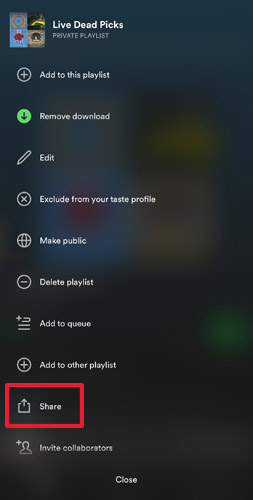
Note: If you have thousands of songs, we strongly recommend logging into a computer to use Method 1.
Method 3: Use Spotify “Blend” to Share Tastes
If your goal is to compare music tastes with a specific friend rather than sending them a static list, Spotify Blend is the best feature to use. Blend automatically creates a shared playlist that combines your Liked Songs with your friend’s favorites.
- Open the “Search” tab on mobile.
- Tap on the “Made For You” hub.
- Select “Create a Blend.”
- Tap “Invite” and send the link to a friend.
- Once they join, Spotify generates a daily updating playlist containing songs you both like, effectively sharing your “Liked Songs” dynamically.
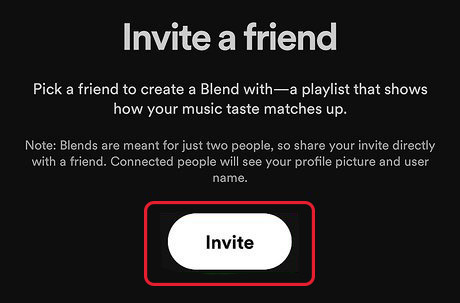
Method 4: How to Download Your Liked Songs on Spotify via AudKit Spotify Music Converter
The methods above have limitations: the recipient must have a Spotify account, and you cannot share the actual files via USB, email, or burn them to a CD.
To truly “own” and share your Liked Songs without restrictions, the best solution is to download them as local files (MP3, FLAC, etc.). Since Spotify’s offline mode creates encrypted cache files that cannot be shared, you need a specialized tool like AudKit Spotify Music Converter.
Why Choose AudKit?
AudKit is a professional downloader that converts Spotify tracks into plain audio formats. It preserves 100% lossless quality and retains all ID3 tags (Artist, Title, Album Art), making it perfect for sharing or archiving your library.

Main Features of AudKit Spotify Link Downloader
- Download Spotify song/playlist/album/podcast link to MP3
- Get Spotify link download in bulk at up to 5X speed
- Keep the original sound quality and all the metadata
- Support multiple output formats like MP3, FLAC, AAC, etc.
Step-by-Step Tutorial
Follow these steps to download your Liked Songs and make them shareable anywhere.
Step 1: Launch AudKit and Import Songs
Open AudKit Spotify Music Converter on your computer. In the main interface, you should login to your Spotify account first. You account data will be safe.
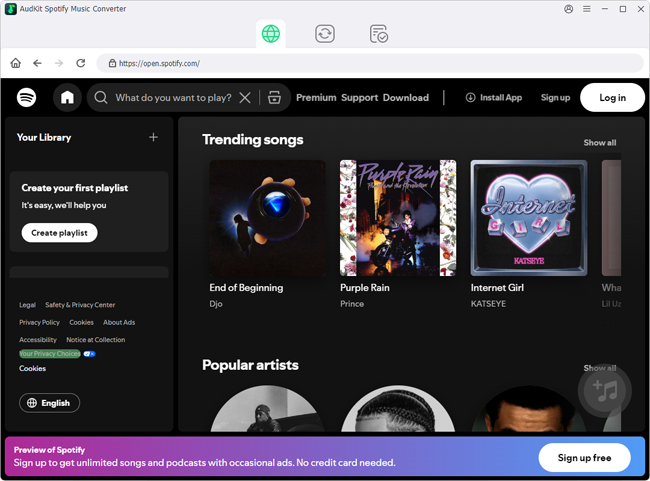
Step 2: Customize Output Format for Sharing
To ensure your friends can play the songs on any device, you should convert them to a universal format like MP3. Just click on the three-line button at the top-right corner, select Preference and go to the Conversion section.

Step 3: Download Your Liked Songs
Here, you can add Spoty songs to the download list. Just go to the song’s page that you want to download in AudKit Spotify Music Downloader, and click the + button at the bottom-right corner and Hit the Add to List button. Then, navigate to the Convert section and click the “Convert” button at the bottom-right corner. AudKit will begin downloading your Liked Songs at up to 5X speed.

Step 4: Locate and Share
Once the conversion reaches 100%, click the “History” (folder icon) at the bottom to open the destination folder. You now have physical files of your Liked Songs.
- Share via Email/Cloud: Upload the MP3s to Google Drive or Dropbox and send the link to friends.
- Share via USB: Copy the folder to a flash drive for use in cars or media players.
- Share via Mobile: Transfer the files to any phone (Android or iOS) for offline playback without the Spotify app.

Comparison of Sharing Methods
| Feature | AudKit Converter | Copy to Playlist | Spotify Blend |
|---|---|---|---|
| Difficulty | Easy | Easy | Very Easy |
| Recipient Needs Spotify? | No | Yes | Yes |
| Offline Sharing | Yes | No | No |
| Share via USB/Email | Yes | No | No |
| Batch Processing | Yes | Desktop Only | Automatic |
Frequently Asked Questions (FAQ)
Q1: Can I make my “Liked Songs” public directly?
No. Spotify currently does not allow users to change the privacy settings of the default “Liked Songs” folder. You must copy the contents to a new public playlist.
Q2: Will my shared playlist update automatically if I like new songs?
If you use Method 1 (Copy to Playlist), it will not update automatically. You will need to manually add new liked songs to the public playlist periodically. However, if you use Spotify Blend, it updates daily based on your listening habits.
Q3: Is it legal to download Spotify songs with AudKit?
AudKit is intended for personal use and archiving. Downloading copyrighted music for commercial redistribution is strictly prohibited. However, creating a backup for personal offline listening or sharing with a friend privately falls under fair use in many regions.
Conclusion
While Spotify keeps the “Liked Songs” folder private by design, sharing your musical identity is far from impossible. For a quick share with other Spotify users, creating a duplicate public playlist on the desktop app is the standard method. For a fun, dynamic experience with close friends, Spotify Blend is an excellent choice.
However, if you want true freedom—the ability to share your favorite tracks with anyone, anywhere, regardless of what app they use—AudKit Spotify Music Converter is the ultimate tool. By converting your library to MP3, you break down the digital walls and ensure your music collection is truly yours to share.

Elle Johnson
 Staff Editor
Elle Johnson has been working in the technology and music software field for over 5 years. She is dedicated to providing easy-to-use guides and effective tips to play music anywhere.