





Tidal is renowned among audiophiles for its lossless, high-fidelity audio quality. However, maintaining a monthly subscription can become costly over time. If you are planning to cancel your premium plan, you might be wondering how to keep Tidal music after your subscription ends.
Officially, once your billing cycle concludes, all your offline downloads vanish. But don’t worry—there are practical workarounds to save your favorite tracks locally. In this comprehensive guide, we will explore the most effective methods to download and keep Tidal music forever, ensuring you never lose your carefully curated playlists.

- Part 1. Can You Use Tidal Without Subscription?
- Part 2. Top Ways to Keep Tidal Music Forever
- Part 3. FAQs About How to Keep Tidal Music After Subscription
- Part 4. Conclusion
Part 1. Can You Use Tidal Without Subscription?
The short answer is: Yes, but with severe limitations.
Tidal recently restructured its subscription tiers. While there used to be a “Tidal Free” tier in certain regions, the platform has largely shifted to paid-only models (like the unified Tidal Individual plan). If you cancel your subscription, your account reverts to an inactive state.
More importantly, any music you downloaded for offline listening during your active subscription is protected. These downloaded files are stored as encrypted cache files on your device, not as standard audio files.
Once the Tidal app connects to the internet and detects that your subscription has expired, it automatically revokes your access to these cached files. Therefore, you cannot simply copy and paste the official download folders to a USB drive. To truly use Tidal without a subscription and keep your music, you must convert the tracks into formats like MP3, FLAC, or WAV before your billing cycle ends.
Part 2. Top Ways to Keep Tidal Music Forever After Subscription
To retain your high-quality audio files, you need the right tools. Below are the three most reliable methods to download and keep Tidal music permanently, ranging from professional software to free open-source tools.
2.1 Keep Tidal Music via AudKit Tidal Music Converter
For users who want a hassle-free, high-quality solution, dedicated desktop software is the best route. AudKit Tidal Music Converter is a highly rated tool designed specifically to convert Tidal tracks, albums, and playlists into common audio formats.
The biggest advantage of AudKit is that it helps users download the original HiFi lossless quality songs and retains all ID3 tags (such as artist name, album art, and track number), making it incredibly easy to organize your local library.
Main Features of AudKit Tidal Music Converter
- Download Tidal HiFi quality music with original ID3 tags
- 5X speedly convert Tidal HiFi music into common audio formats
- Download HiFi music from Tidal without premium subscription
- Offer a simple interface that newbie can easy-to-use
How to use AudKit to keep Tidal music forever:
Step 1. Install AudKit and Log In
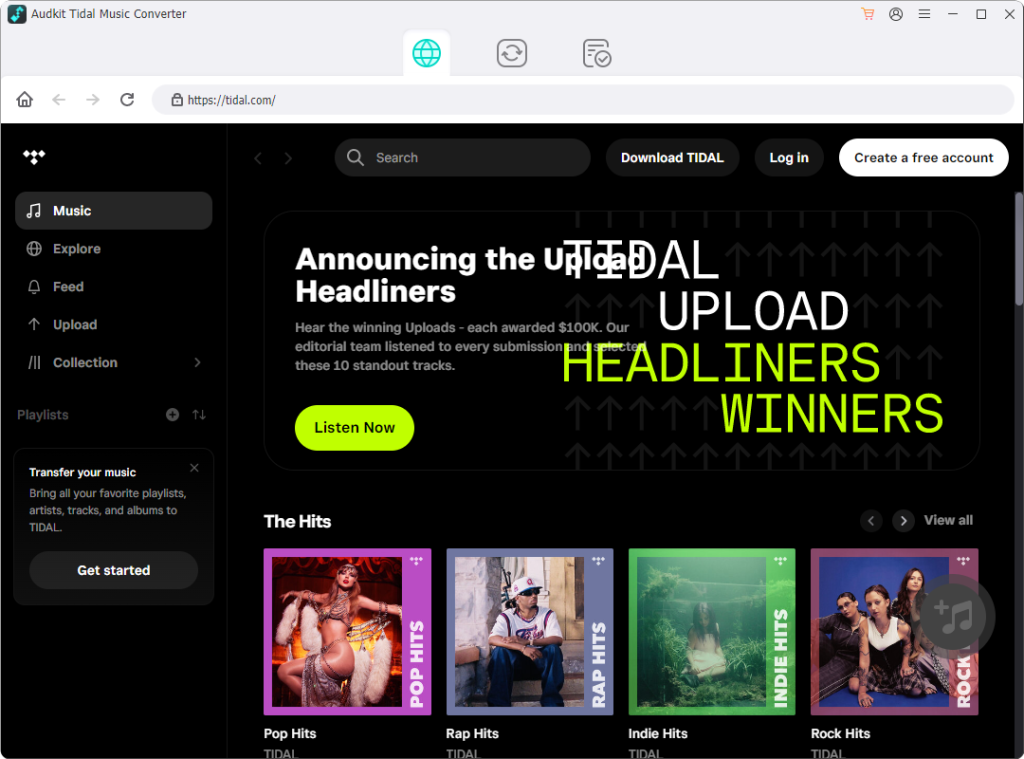
Download and install the AudKit Tidal Music Converter on your Mac or Windows PC. When you launch the program, the built-in Tidal web player will open. Log in using your active Tidal account credentials.
Step 2. Customize Output Settings
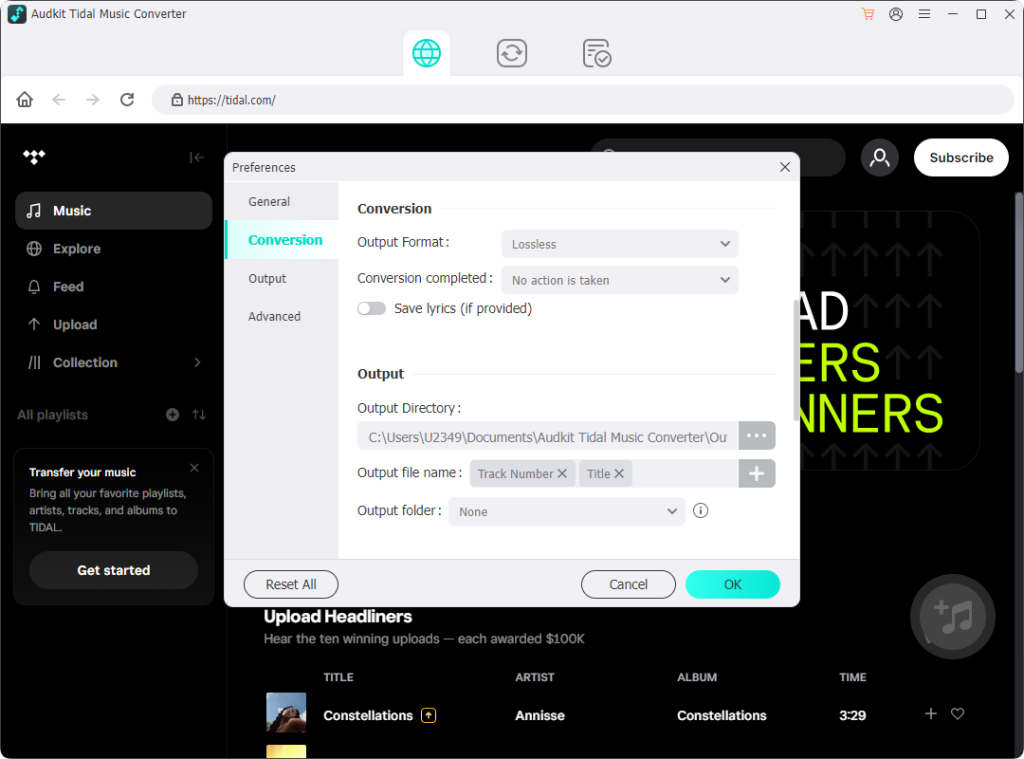
Click on the menu icon (usually three lines) in the top right corner and select “Preferences.” Navigate to the “Advanced” tab. Here, you can select your desired output format. To maintain Tidal’s signature quality, select FLAC or WAV. If you want to save storage space, MP3 (at 320kbps) is a great choice.
Step 3. Add Tidal Playlists to AudKit
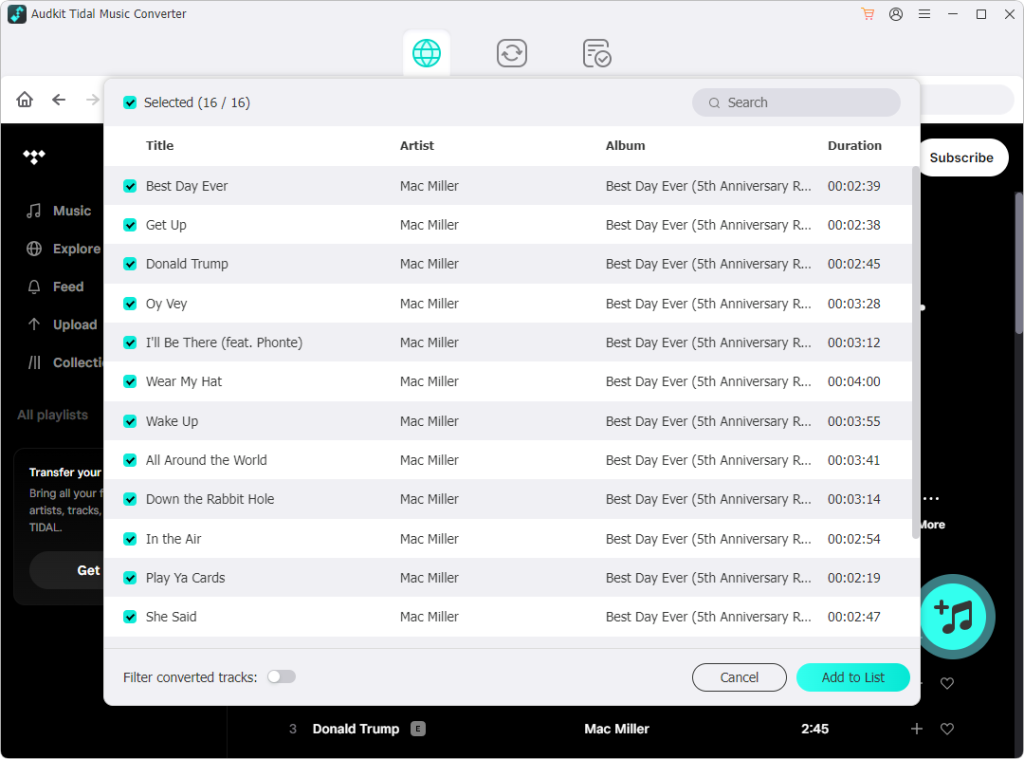
Browse the Tidal web player to find the playlist or album you want to keep. Open the playlist, and you will see a floating “+” (Add) button on the right side of the screen. Click it to load the songs into the conversion queue.
Step 4. Convert and Save Locally
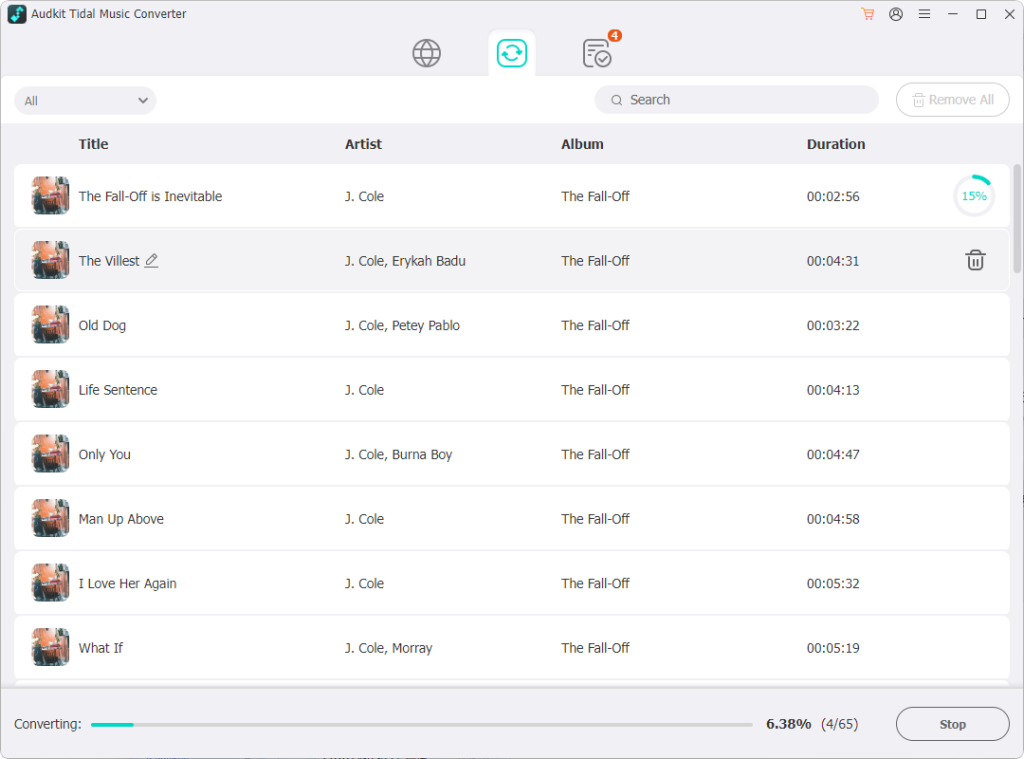
Click the “Convert” button at the bottom right. AudKit will begin downloading and converting the tracks at up to 5X speed. Once finished, you can find the files in your designated local folder. You can now transfer them to any MP3 player, smartphone, or USB drive.
2.2 Keep Tidal Music via Tidal GUI
If you are somewhat tech-savvy and prefer a completely free method, Tidal-Media-Downloader (often referred to as Tidal GUI) is an excellent open-source alternative. Hosted on GitHub, this tool allows users to download tracks directly from Tidal’s servers.
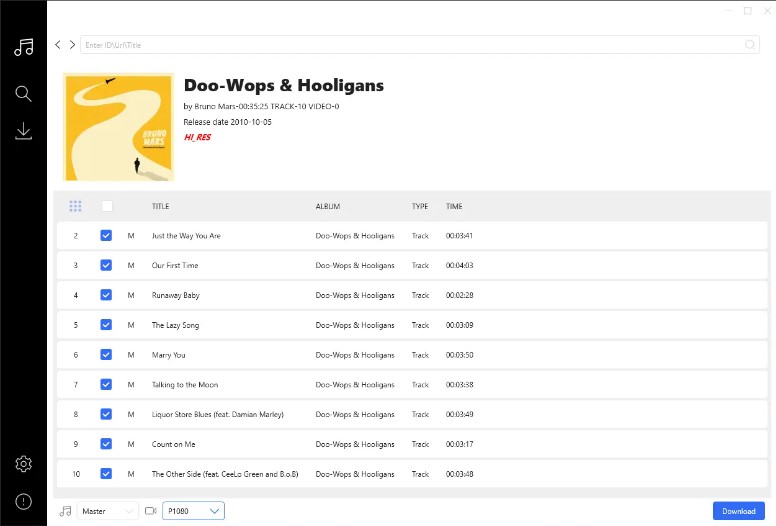
Note: You must have an active Tidal subscription to use this tool, so be sure to do this before your plan expires.
How to download Tidal music via Tidal GUI:
Step 1. Download the Application Visit the official GitHub repository for Tidal-Media-Downloader. Navigate to the “Releases” section and download the latest version of tidal-gui.exe for Windows.
Step 2. Configure Settings Launch the application. You will be prompted to log in. The app usually provides a device code that you must enter on the official Tidal website to authorize the application. Once logged in, go to the “Settings” menu to choose your video/audio quality (e.g., Master or HiFi) and set your download directory.
Step 3. Search and Download Go to the official Tidal app or web player, find the album or track you want, and copy its URL link. Paste this URL into the search bar of Tidal GUI and hit Enter.
Step 4. Execute the Download The tool will fetch the metadata. Simply click the “Download” button, and the software will extract the raw audio files directly to your computer.
2.3 Keep Tidal Music via Online Tool
If you only want to save a handful of songs and do not want to install any third-party software, using a free online audio recorder is a viable option. Tools like Apowersoft Free Online Audio Recorder capture the sound playing directly from your computer’s soundcard.
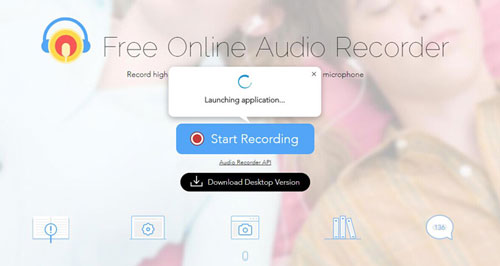
How to record Tidal music online:
Step 1. Access the Online Recorder
Go to the Apowersoft Free Online Audio Recorder website. Click “Start Recording.” (If it’s your first time, you may need to install a tiny launcher plugin).
Step 2. Select Audio Source
When prompted, select “System Sound” as your audio source. This ensures the recorder only captures the music playing from Tidal and not background noise from your microphone.
Step 3. Play and Record
Open the Tidal web player or desktop app. Click the “Record” button on the online tool, and immediately play the Tidal track you want to save.
Step 4. Stop and Save
Once the song finishes, click the “Stop” button. The tool will process the recording and allow you to save it to your local drive, usually as an MP3 file.
Part 3. FAQs About How to Keep Tidal Music After Subscription
Q1: Where are Tidal offline downloads stored on my phone?
On Android devices, Tidal caches offline music in a hidden folder, typically located at Data/com.aspiro.tidal/cache. However, these files are heavily encrypted and fragmented. They cannot be played on any other media player, and they will disappear once your subscription ends.
Q2: Is it legal to download Tidal music using third-party tools?
According to copyright laws in most regions, downloading streaming music is strictly for personal, non-commercial use under the Fair Use doctrine. You can legally record or convert music to listen to offline in your car or on your personal devices, but you cannot distribute, share, or sell these files.
Q3: Can I transfer my Tidal playlists to Spotify or Apple Music before canceling?
Yes! If you don’t want to download the MP3 files but simply want to keep your playlist data (song titles and artists), you can use free online services like TuneMyMusic or Soundiiz. These platforms can sync your Tidal playlists directly to Spotify, Apple Music, or YouTube Music in just a few clicks.
Part 4. Conclusion
Losing access to your carefully built music library can be frustrating when you decide to cancel a premium streaming service. Fortunately, figuring out how to keep Tidal music after your subscription ends is entirely possible with a little preparation.
If you value high-fidelity audio and want a seamless experience, AudKit Tidal Music Converter is undoubtedly the most efficient method. For tech enthusiasts on a budget, Tidal GUI offers a fantastic open-source alternative, while Online Recorders work well in a pinch for single tracks.
Whichever method you choose, be sure to back up your favorite Tidal tracks before your billing cycle officially ends. By converting your music to local MP3 or FLAC files, you can enjoy your favorite tunes forever, anytime, and anywhere—without paying another monthly fee.

Andrew Rowley
 Staff Editor
Andrew Rowley has over 10 years of writing experience and is good at writing in audio technology and audio converter software. He can provide high-quality articles to help streaming music lovers explore music better.