




Quick Answer: How to Set a Sleep Timer on Spotify
- Mobile (iOS & Android): Open the Now Playing screen, tap the three dots in the top-right corner (or the moon/clock icon on podcasts), select Sleep Timer, and pick a duration between 5 minutes and “End of Track”.
- Desktop (Windows & Mac): Spotify has no native music sleep timer on desktop. You can set system-level sleep schedules, run command-line timers, or download tracks via a reliable third-party audio converter to play them through local players that support sleep timers.
- Availability: The native sleep timer is entirely free and accessible to both Spotify Free and Spotify Premium users across mobile devices.
Are you the type that loves listening to soothing sounds before bed? Well, Spotify just got you sorted. With the Spotify Sleep Timer, you won’t need to wake up in the night to a continuous playlist. Rather, you can set it to automatically stop at any time. You decide how long your tunes will take, which could be for 5, 10, 15, 30, 45 minutes, or until your track ends.
More so, you can check how much time is left before your sleep timer goes off as well as turn off your screen when the timer ends. By this, you’ll preserve your phone’s battery life and prevent further data use. Let’s now dive into how to set up this feature on several operating system devices.
Part 1. How to Set a Sleep Timer on Spotify for iPhone
There are two ways to set a Spotify sleep timer on iPhone. This is via the built-in Clock app or using the Shortcuts app.
With the Shortcuts App
When you set the sleep timer with the help of Shortcuts, you can make the music stop playing automatically at a fixed time. Here is how to set an automation routine.
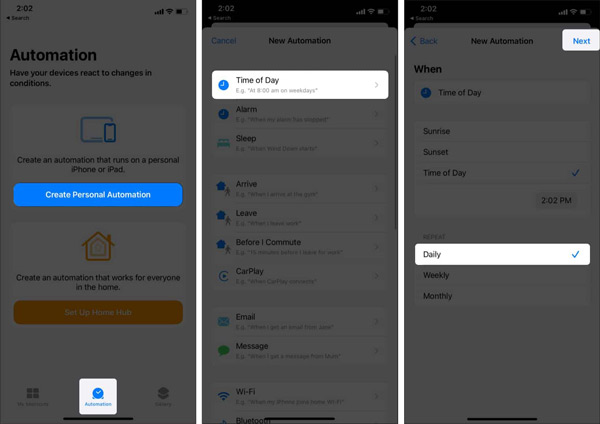
Step 1. Go to the Shortcuts app on your iPhone and select the “Automation” tab.
Step 2. Tap on the “Create Personal Automation” tab if you haven’t created automation on your iPhone before. Otherwise, if you have one, just tap on the “+” tab at the top-right corner. Next, click on the “Create Personal Automation” tab.
Step 3. Press on the “Time of Day” option and choose when you wish to pause Spotify, then tap on the “Next” tab.
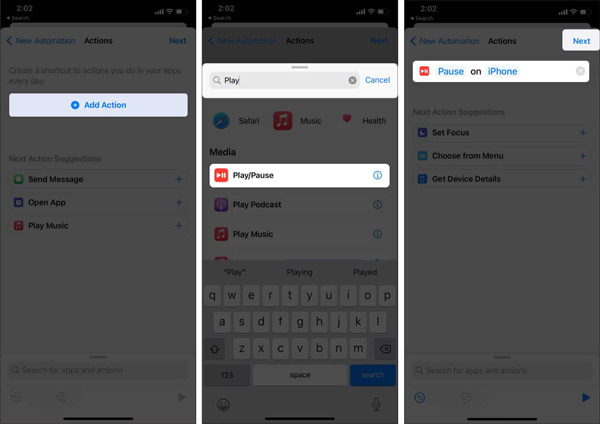
Step 4. Click on “Add Action” and type “Pause” in the search bar at the top screen. Next, tap on the “Play/Pause” option. Tap on the Play/Pause option again and select the “Pause” option from the menu.
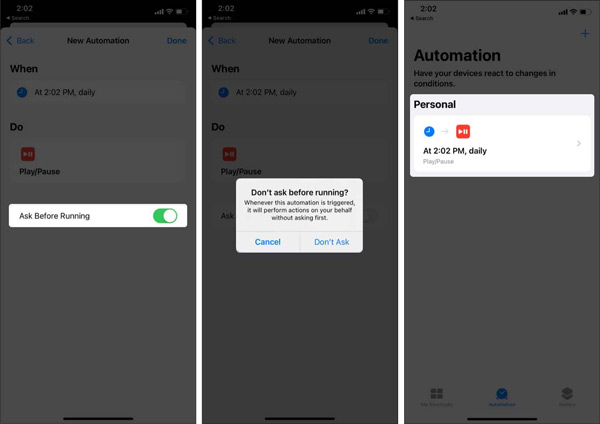
Step 5. Finally, tap on the “Next” tab and disable the “Ask Before Running” option to enable your phone to automatically pause at the time you selected.
Use the Clock App
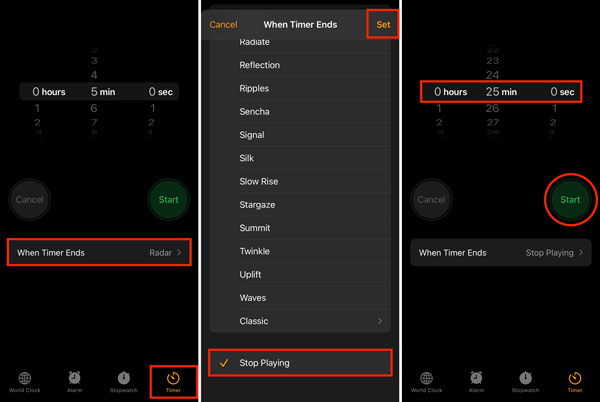
The Clock app lets you set a sleep time for Spotify to stop your music from playing at the end. Follow these steps.
Step 1. Launch the Clock app on your iPhone, then tap on the “Timer” option.
Step 2. Next, choose the duration you wish your Sleep Timer to take, then tap “When Timer Ends“.
Step 3. Then scroll to the bottom and tap on the “Stop Playing” option and tap the “Set” option.
Step 4. Lastly, tap the “Start” option on the timer screen. Your music will stop automatically when the timer ends while playing Spotify.
Part 2. How to Use Spotify Sleep Timer on Android
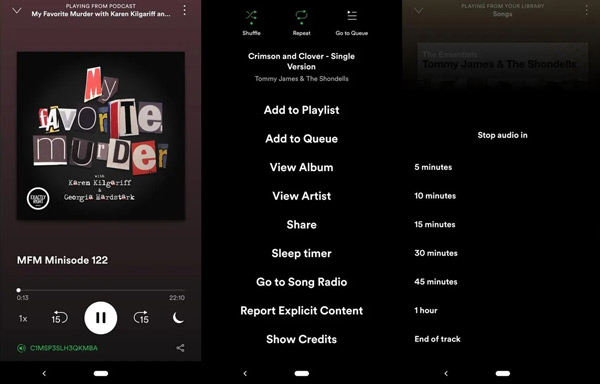
Since the Spotify app itself has a built-in sleep timer feature, iPhone and Android users can both follow the steps here to learn how to set a sleep timer on Spotify app. Here’s an example on an Android phone.
Step 1. Launch the Spotify app on your Android phone.
Step 2. Select the music that you wish to listen to while falling asleep.
Step 3. Enter the Now Playing page, and click on the three dots icon at the top-right.
Step 4. Choose the “Sleep Timer” option from the screen. Finally, choose the “End of the track” or other options to denote the Spotify sleep timer Android.
Part 3. How to Put a Spotify Sleep Timer on a Mac
Unlike the mobile apps, Spotify’s macOS desktop client does not feature an official in-app sleep timer for standard music tracks (though select podcast episodes may feature a native timer icon). To stop Spotify music playback automatically at bedtime, you can use macOS built-in system settings to schedule sleep.
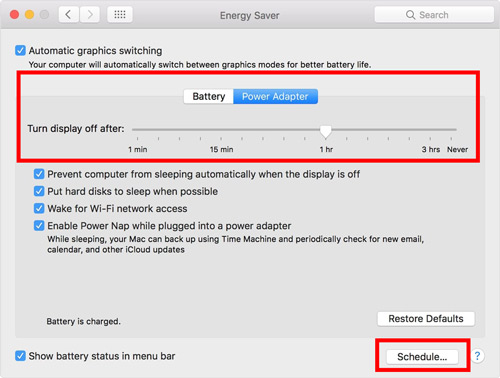
Check out how to set up an automated sleep schedule on Mac with these steps:
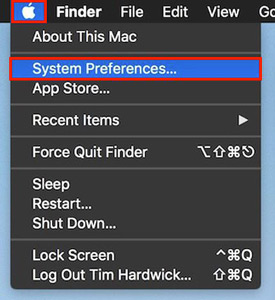
Step 1. Tap the Apple menu on your Mac and go to the “System Preferences” option.
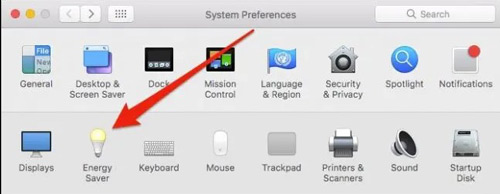
Step 2. Then, click on the “Energy Saver” option.
Step 3. Click on the “Schedule” tab found at the bottom of the sidebar.
Step 4. Once a page opens, hit the box next to the “Sleep” option.
Step 5. Now, set the time when you want to put your Mac to stop playing your music and hit on the “OK” tab.
Alternative: Use Terminal for a Non-Destructive Sleep Timer
If your Mac runs modern macOS (Ventura, Sonoma, or Sequoia) where the legacy Energy Saver Schedule has been retired, you can trigger a countdown sleep timer using Terminal without forcing an abrupt, destructive shutdown:
- Press
Command + Spaceto open Spotlight, type Terminal, and pressEnter. - Enter the following command to put your Mac to sleep after your target minutes (e.g., 45 minutes):
sudo shutdown -s +45 - Press
Enterand type your Mac password when prompted. Once the timer elapses, your Mac safely sleeps and suspends Spotify audio. To cancel it at any time, runsudo killall shutdown.
Alternatively, you can install third-party menu bar utilities such as Sleep Timer or Amphetamine to automate Spotify playback pauses smoothly.
Part 4. How to Make a Spotify Sleep Timer on a PC
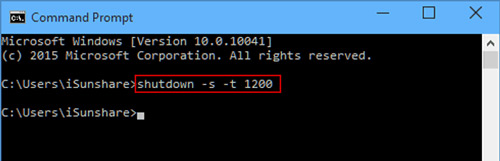
Unlike its mobile counterpart, the Spotify desktop client on Windows still lacks a native sleep timer for regular music playback. To stop music automatically at bedtime, you can use built-in Windows automation commands to either schedule a system shutdown or terminate the Spotify app directly.
Step 1. First, press the Windows + R keys.
Step 2. Type “cmd” and click “Enter“.
Step 3. Then, type “Shutdown -s -t, followed by the number of seconds for the timer“. Set that to any number you want the timer to take. Next, click on the Enter key to finally set the timer.
Tips: How to Turn Off Sleep Timer on Spotify
After turning ON the Sleep Timer on Spotify, you may wish to change your timing or turn it OFF for other reasons.
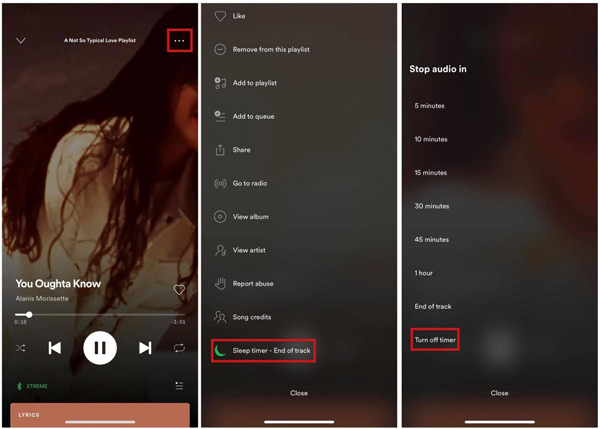
Step 1. Go to the upper-right corner of the Spotify screen and tap on three dots.
Step 2. Tap on the “Sleep Timer” tab. It will show you a green moon and the amount of time left.
Step 3. Scroll down and tap on the “Turn Off Timer” option.
How to Check, Reset, or Extend an Active Timer
If you want to check your remaining time or prolong playback before the audio cuts out, you do not need to cancel the timer first:
- Check Remaining Time: Open the Now Playing screen and tap the three dots (or moon icon). The Sleep timer line displays an active green indicator alongside the exact countdown remaining.
- Reset or Extend Duration: Tap Sleep timer and choose a new interval (such as 30 minutes or End of Track). Selecting any option immediately overwrites the existing countdown without interrupting audio playback.
Extra: How to Play Spotify Without Network for Free
Other than setting a Spotify sleep timer, you can also enjoy your fav-hits on any device, anywhere without a network. This is possible with AudKit Spotify Music Converter. The app works at a faster speed of 5X on your computer. That equates to converting a 5-minute song in just one minute.
AudKit Spotify Music Converter also supports the conversion of Spotify music into common output formats. Users can change Spotify audio formats to MP3, WAV, AAC, M4A, etc. More so, you get 100% lossless sound quality from Spotify while preserving the ID3 tags such as genre, artist, title, and album.
The AudKit application gives you the ability to download playlists from Spotify offline with a free Spotify account. You also have the option to customize the output parameters such as channel, sample rate, and codec, among others. Likewise, you can listen to ad-free Spotify music offline and use the music files for any personal purpose.

Main Features of AudKit Spotify Music Downloader
- Enjoy Spotify music offline on multiple devices simultaneously
- Convert the soundtracks from Spotify into AAC, M4A, MP3, and more
- Maintain the lossless audio quality and metadata of Spotify
- Have the pleasure to listen to Spotify without ads and premium
AudKit SpotiLab Music Converter supports both Windows and Mac OS computers. To use it, visit the official website and click on the “Download” tab. Then, get ready for the whole downloading process with the following guide.
Step 1 Import tracks from Spotify to AudKit SpotiLab

Choose the Spotify music that you wish to convert from your Spotify library. Just right-click on the song and go to the “Share” > “Copy Song Link” option then paste the link into AudKit’s interface. Next, hit on the “+” tab to add your songs.
Step 2 Personalize the audio preferences for Spotify

You can choose the output from the “Menu” > “Preferences” option and settle on WAV, FLAC, MP3, AAC, etc. Likewise, you can customize other parameters like sample rate, channel, and codec to your preference.
Step 3 Export Spotify playlists for sleep timer

Finally, press on the “Convert” tab located at the bottom right to allow the conversion to commence. The Spotify files will be saved on your computer, and you can locate them by clicking the “Converted” icon to open the folder, and then listen to Spotify offline without premium.
FAQs About Spotify Sleep Timer
Does the Spotify sleep timer work for free accounts?
Yes. The built-in sleep timer is fully available to both Spotify Free and Spotify Premium users across iOS and Android. You do not need an active subscription to access the feature or configure playback cutoffs for music, podcasts, or audiobooks.
Will the Spotify sleep timer turn off my screen or lock my phone?
No. Spotify’s sleep timer only pauses audio playback; it does not lock your device, turn off the screen, or initiate system sleep. Your screen state remains governed by your phone’s native Auto-Lock (iOS) or Screen Timeout (Android) settings. To prevent your battery from draining overnight, verify that your display is set to turn off automatically after inactivity.
Can I set a custom sleep timer duration inside the Spotify app?
No. The native mobile interface restricts you to fixed preset intervals: 5, 10, 15, 30, 45, and 60 minutes, alongside “End of Track” or “End of Episode.” If you need a flexible timeframe—such as 25 minutes, 90 minutes, or a recurring overnight schedule—you must rely on external operating system workarounds like the iOS Clock app or the Shortcuts automation workflow. Alternatively, if you convert and save your tracks locally using AudKit Spotify Music Converter, you can play them through desktop or mobile media players that natively support fully customizable sleep timers.
Why did my music keep playing after the timer ended?
If Spotify continues playing after your countdown finishes, the issue typically stems from one of three common causes:
- Active Spotify Connect session: When broadcasting audio to smart speakers (such as Amazon Echo, Sonos, or Google Nest), the mobile app often fails to relay the stop command across network protocols. Always run the timer locally or set the timer directly within the smart speaker’s ecosystem.
- Background execution restrictions: Aggressive Android battery savers or iOS background app refresh limits can freeze the internal countdown before it executes the pause trigger.
- Temporary cache conflicts: Corrupted playback data can cause the timer to hang. Restarting the Spotify app, clearing the local cache via Settings > Storage > Clear Cache, or falling back to your device’s built-in system clock timer reliably circumvents the glitch.
Final Thoughts
Falling asleep to your favorite audio shouldn’t end with unexpected loud tracks waking you up hours later. You can just set a Spotify sleep timer. While mobile listeners can use Spotify’s built-in sleep timer or native Clock tools, desktop users can rely on system sleep commands to manage playback. For complete control without network hiccups or battery drain, AudKit Spotify Music Converter allows you to download sleep playlists locally for seamless playback on any device. It will preserve up to 100% of Spotify music and let you use Spotify as an alarm without hassle.

Andrew Rowley
 Staff Editor
Andrew Rowley has over 10 years of writing experience and is good at writing in audio technology and audio converter software. He can provide high-quality articles to help streaming music lovers explore music better.