




Did you ever think about the mini Spotify player? When Spotify looks tiny and handy, it brings massive comforts to the users. You can move the screen anywhere you wish. This ease structure of Spotify persuades the users. Occupying less space on the screen eases the whole operation. This mini format consists of only essential features to engage the users. Explicit icons assist you to play the music tracks. You do not have to wait anymore.
In this article, you will learn about the tips and tricks associated with the Spotify mini player. Here, you will study to play Spotify mini player Windows, Mac, and Phone. You can enlighten with the necessary ideas and install them when required.
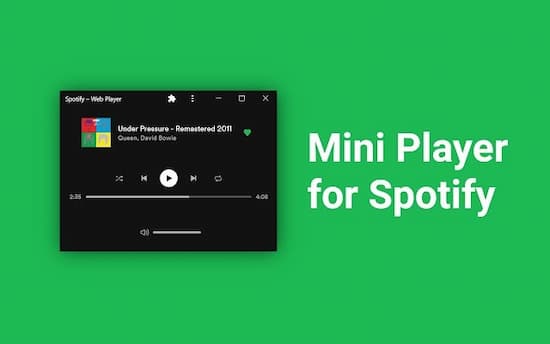
Quick Answer
- On Windows: Open the Spotify Web Player in Google Chrome or Microsoft Edge, start playing a song, and click the Picture-in-Picture / Mini Player icon next to the album art to launch a floating widget.
- On Mac: Use the browser-based Picture-in-Picture mode, third-party menu bar utilities, or convert your tracks to play them inside the native Apple Music / iTunes MiniPlayer.
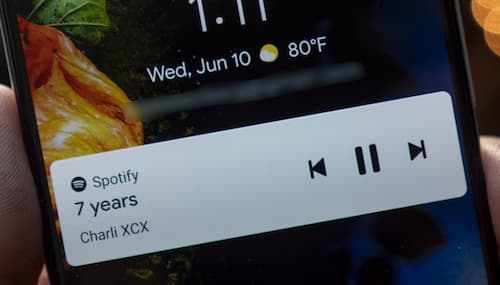
- On Mobile (Android/iOS): Add the official Spotify widget to your home screen or control playback directly from your lock screen media controller.
- For Standalone Desktop Players: If you prefer lightweight media players with always-on-top mini modes (such as VLC, MusicBee, or iTunes), use a dedicated audio converter to download Spotify tracks as local MP3 files first.
- Part 1. How to Make Spotify Mini Player on Windows 10
- Part 2. How to Make Spotify Mini Player on Mac
- Part 3. How to Make Spotify Mini Player on Phone
- Part 4. Best Alternative to Spotify Mini Player
- Frequently Asked Questions About Spotify Mini Player
- Part 5. Conclusion
Part 1. How to Make Spotify Mini Player on Windows 10 & 11
The simplest way to get a functional Spotify mini player on Windows without installing experimental software is through Google Chrome or Microsoft Edge. Both browsers support Picture-in-Picture (PiP) mode, which acts as a floating media controller.
Follow these steps to activate it:
Step 1: Launch Google Chrome or Microsoft Edge on your PC, then navigate to open.spotify.com to open the Spotify Web Player.
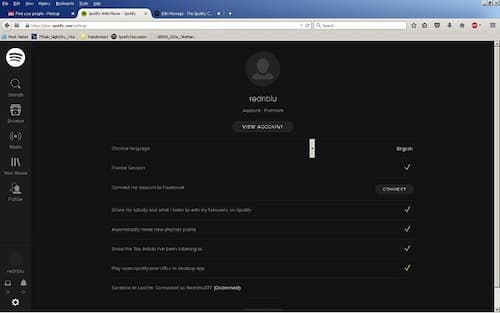
Step 2: Log in to your Spotify account and start streaming any playlist or track. Look at the “Now Playing” bar at the bottom. Next to the track title and album art, click the Miniplayer / Picture-in-Picture icon.
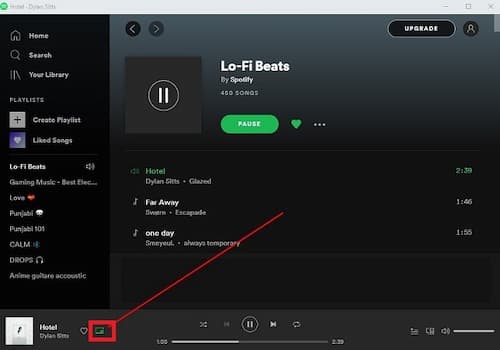
Step 3: A compact, floating playback window will appear on your desktop. You can drag it to any corner of your screen, resize it, and control playback (play, pause, skip) while working in other programs.
Part 2. How to Make Spotify Mini Player on Mac
Mac users have several ways to achieve a compact listening setup. While you can use the Chrome Web Player method described above, many macOS users prefer the sleek, native MiniPlayer built into the Apple Music (or iTunes) app.
Because Spotify streaming tracks cannot be dragged directly into iTunes due to format protection, you can first convert your tracks into local audio files and import them into your iTunes or Music library. Once imported, you can use Apple’s built-in MiniPlayer seamlessly.
Step 1: Open iTunes (or the Apple Music app on macOS Catalina and later) and add your converted Spotify playlists to your local library.
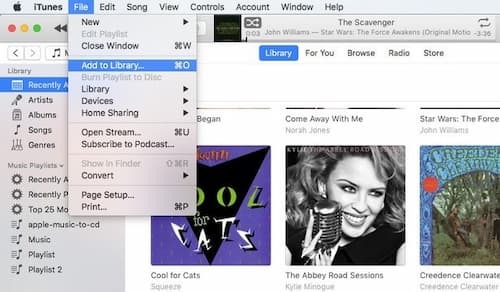
Step 2: Play the added track, then hover over the album art in the top status bar and click the small window icon—or press Cmd + Option + M—to switch into the compact MiniPlayer mode.
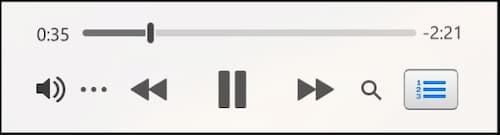
The MiniPlayer will stay on top of other macOS windows, allowing you to view album art, switch tracks, and adjust the volume without cluttering your workspace.
Part 3. How to Make Spotify Mini Player on Phone?
Does Spotify have a mini player for phones? To use the tiny model of Spotify, you must download the older version of the Spotify app on your Android phone. The older version helps to resize the widget as per your needs. Make a long press on the home screen of your Android phone and launch the Spotify widget. You must tap on the screen to control its size.
On Android:
- Long-press on an empty spot on your Android home screen.
- Tap Widgets from the pop-up menu.
- Scroll down and locate Spotify.
- Touch and hold the Spotify widget, drag it onto your home screen, and adjust its boundary box to your preferred size. This mini widget lets you play, pause, and skip tracks with a single tap.
On iOS (iPhone):
- Press and hold an empty area on your home screen until the apps jiggle.
- Tap the + (Add) button in the upper-left corner.
- Search for Spotify, select the widget size you prefer (small or medium), and tap Add Widget.
- Tap Done to finish. The widget displays recently played artists and tracks for quick one-tap access.
Part 4. Best Alternative to Spotify Mini Player
The best option for to Spotify Mini player is the AudKit Spotify Music Converter app. The audio format compatibility is the only issue you will face when playing Spotify songs on other media players.
The AudKit Spotify Music Converter assists you to overcome this problem. You can convert the Spotify playlist to any file format. For example, to convert Spotify music to MP3, M4A, and so forth. The 5X conversion speed helps you convert up to 100 Spotify tracks without quality loss. Then you don’t have to hesitate to play the songs from Spotify to any media players. Use the AudKit Spotify Music Converter app if you want to make the best of Spotify music streaming source.
Main Features of AudKit Spotify Music Converter
- Convert Spotify music tracks at a 5X faster rate
- Lossless file conversion with 100% sound quality
- Keep 100% metadata during the conversion process
- Quick access to the converted Spotify soundtracks
Follow the below steps to convert the Spotify soundtracks to desired file format. You can store them in any storage space for easy access.
Step 1 Download the app
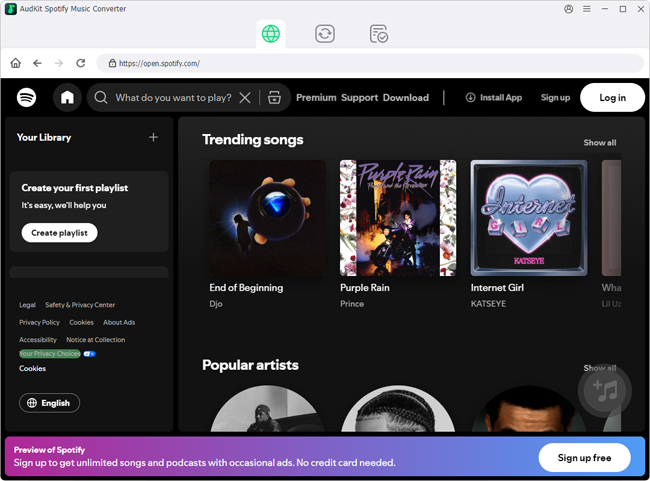
Download the correct version based on your system OS. Then, install them and launch them by double-tapping the tool icon. The Spotify app opens as soon as the AudKit Spotify Music Converter app appears on the screen.
Step 2 Add Spotify music tracks
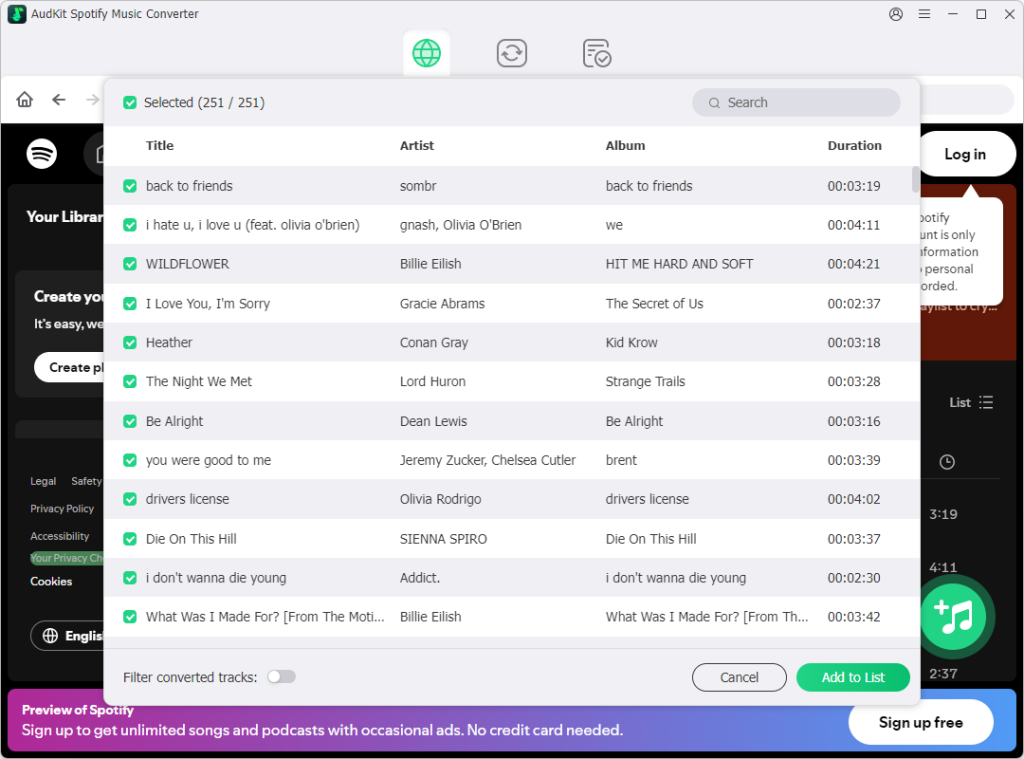
Copy the desired soundtracks links from the Spotify app. Then, paste them nearby the ‘+’ icon on the AudKit Spotify Music Converter tool.
Step 3 Reset the output profiles of Spotify tracks
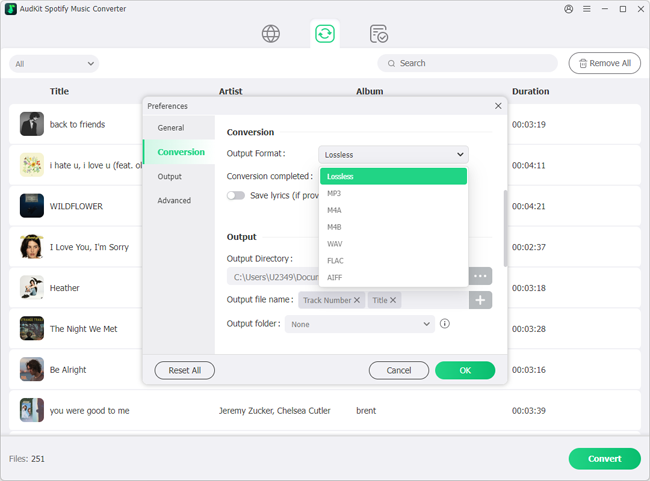
Next, customize the output file like file format, channel, bit rate, sample rate. You can save the changes by pressing the ‘Ok’ button.
Step 4 Trigger the conversion
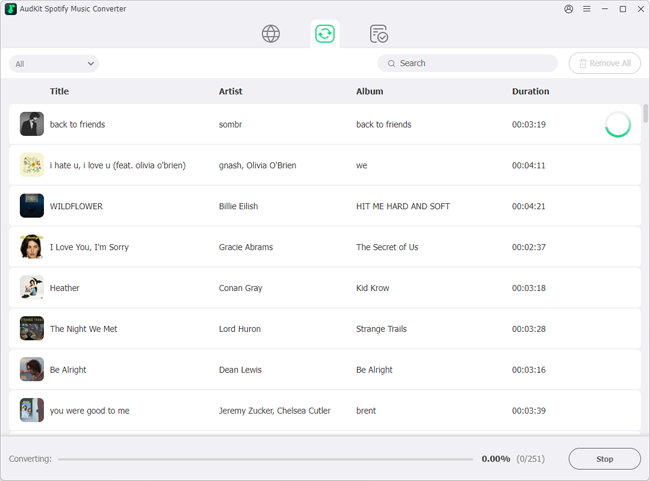
Now, you must hit the Convert button to start the conversion process. The added music files convert as per the personalized output settings. Then, it downloads at the desired storage space.
You must wait until the procedure completes. Then you can access the downloaded Spotify soundtracks in the ‘History’ menu. You can also reach out for the downloaded soundtracks at the output storage space.
Follow the above instructions to convert the Spotify music tracks to any file format. You can play them on any media player.
Frequently Asked Questions About Spotify Mini Player
Does Spotify desktop have an official built-in mini player?
Spotify has introduced a native miniplayer feature for Premium desktop subscribers in select regions. However, if your desktop client does not yet show this feature, using the Chrome Picture-in-Picture web player or a local media player remains the most dependable option.
Can I keep the Spotify mini player always on top of other windows?
Yes. The Chrome Web Player Picture-in-Picture window is pinned “always on top” by default. If you use a dedicated desktop media player like iTunes, MusicBee, or VLC with converted Spotify tracks, each offers an explicit “Always on Top” toggle in its view settings.
Can Free Spotify users use external mini players?
Yes. While Spotify Free restricts offline downloading within the official app, you can use AudKit Spotify Music Converter to download your playlists as local MP3 files without a Premium subscription, allowing you to play them inside any third-party mini player.
Part 5. Conclusion
Thus, in this article, you had glimpses about the Spotify mini player. The miniature appearance of this streaming application impresses the users in no time. You can use this mini player to play your favorite music tracks from Spotify.
The AudKit Spotify Music Converter app is the perfect tool to work on the Spotify platform. Use this application to connect with Spotify songs. Overcome compatibility issues and play them on any media player. Connect with this article to discover insightful ideas on the Spotify platform.

Elle Johnson
 Staff Editor
Elle Johnson has been working in the technology and music software field for over 5 years. She is dedicated to providing easy-to-use guides and effective tips to play music anywhere.