





Quick Answer / Key Takeaways:
- For Spotify Premium Users: You can easily download Super Bowl playlists directly within the app by toggling the Download icon, ensuring ad-free offline listening during your party.
- For Free Users & Universal Playback: To bypass Spotify’s encrypted format limitations and play halftime tracks on DJ software or standard MP3 players, use a Spotify Music Converter.
- The Tech Advantage: A reliable converter allows you to extract playlists as standard MP3 or FLAC files, retaining 320kbps high-quality audio and crucial ID3 tags (artist, album, track number) via seamless batch conversion.
- Always download your party playlists in advance to avoid buffering issues caused by overloaded Wi-Fi networks on game day.
Nothing sets the hype for game day quite like the Super Bowl halftime show. Whether you are reliving the iconic 2022 hip-hop explosion with Dr. Dre and Snoop Dogg, channeling Rihanna’s soaring vocals, or throwing it back to Prince’s legendary rain-soaked performance, the right playlist is the heartbeat of any Super Bowl party.
However, as any seasoned party host or local DJ knows, relying on a live internet connection when your house is packed with guests is a rookie mistake. Network congestion means buffering, and if you are using a free Spotify account, those unskippable ads will instantly kill the party vibe.
To keep the energy high and the music flowing, you need to have your tracks saved locally. In this guide, I’ll walk you through exactly how to download Super Bowl music playlists from Spotify, whether you want to use the official Premium method or need a more permanent, format-friendly solution to play those high-energy anthems on any device.
- Method 1: Download Super Bowl Playlist via Official Way
- Method 2: Download Super Bowl Music Playlists via AudKit Spotify Music Converter (Recommended)
- Top Super Bowl Halftime Show Playlists to Search For
- FAQs about Downloading Spotify Playlists
Method 1: Download Super Bowl Playlist via Official Way
If you are already paying for Spotify Premium, downloading playlists for offline listening is built right into the app. This method is incredibly straightforward and perfectly suited for streaming directly from your phone or tablet to a Bluetooth speaker.
How to Download on Mobile (iOS & Android)
Step 1. Open the Spotify app and use the search bar to find terms like “Super Bowl Halftime Show” or “Game Day Party.”
Step 2. Tap on the playlist that fits your vibe.
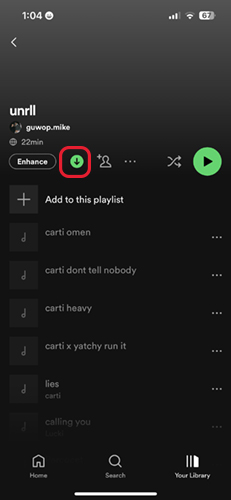
Step 3. Near the top of the playlist, just below the title, look for the Download icon (a downward-pointing arrow within a circle).
Step 4. Tap the icon. It will turn green once the download is complete.
How to Download on Desktop (Mac & PC)
Step 1. Open the Spotify desktop application.
Step 2. Navigate to your desired Super Bowl playlist.
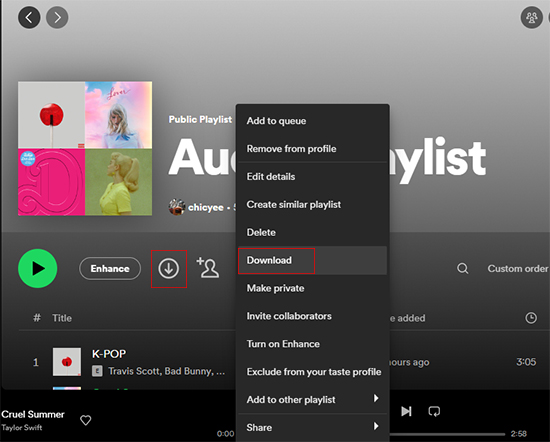
Step 3. Click the Download toggle or icon next to the play button.
Step 4. Wait for the sync to finish. You can now toggle Spotify into “Offline Mode” via the settings menu to ensure no data is used during the playing.
The Technical Catch with Premium Downloads
While convenient, it is important to understand the technical limitations of this official method. Spotify doesn’t download standard audio files to your device. Instead, it saves cached, encrypted files in the Ogg Vorbis format.
What does this mean for you?
- You can only play these files inside the Spotify app.
- You cannot transfer these tracks to a USB drive, import them into DJ software (like Serato or Rekordbox), or play them on older stereos.
- If your Premium subscription expires, your downloads instantly disappear.
If you need the actual music files to mix tracks or keep your playlist permanently, you will need to look at Method 2.
Method 2: Download Super Bowl Music Playlists via AudKit Spotify Music Converter (Recommended)
For users who want total control over their audio files—or for Spotify Free users who want to avoid ads and offline restrictions—using a dedicated, high-performance tool is the best approach.
As someone who works with audio formats daily, my go-to recommendation for this exact scenario is the AudKit Spotify Music Converter. It is specifically engineered to parse Spotify’s encrypted formats and perform high-speed batch conversion (up to 5X speed). Most importantly, it preserves the original WAV lossless quality and all essential ID3 tags (like album artwork, artist names, and track numbers).

Main Features of AudKit Spotify Music Converter
- Easily download any Spotify audio content in 320kbps
- Convert Spotify music to MP3/AAC/FLAC/WAV/M4A/M4B
- Keep full ID3 tags like artist, year, cover, title, etc.
- Batch download at a fast 5X conversion speed
- Help listen to Spotify music offline anywhere
Here is the step-by-step breakdown of how to use AudKit to convert those Super Bowl bangers into universal MP3s for your game day party.
Step 1: Import Your Super Bowl Playlist into AudKit
First, download and launch the AudKit Spotify Music Converter on your Mac or PC. The Spotify desktop app will automatically open alongside it.
- Find your favorite halftime show playlist in the Spotify app.
- You can either drag and drop the playlist directly from Spotify into the AudKit interface, or right-click the playlist, copy the link, paste it into AudKit’s search bar, and hit the “+” (Add) button.
- AudKit will instantly parse the playlist and display all the tracks.

Step 2: Configure Output Settings for Maximum Quality
Before you start downloading, you need to ensure the audio will sound crisp and punchy on your party speakers.
- Click the Menu icon (usually three lines in the top right corner) and select Preferences.
- Navigate to the Convert tab.
- Format: Select MP3 for the best universal compatibility across all DJ software and media players.
- Bit Rate: Set this to 320kbps. This ensures the heavy bass in hip-hop tracks and the soaring vocals in pop anthems don’t sound muddy or compressed.
- Click OK to save your parameters.

Step 3: Initiate the Batch Conversion
With your tracks loaded and audio settings dialed in, simply click the Convert button at the bottom right corner.
Because AudKit utilizes advanced hardware acceleration, the batch conversion process is incredibly fast. The software will swiftly download the entire 50+ track playlist directly to your local drive.
Once the conversion is complete, click the Converted icon (a folder symbol) to locate your local files. Thanks to the retained metadata, you will have a neatly organized folder of high-quality MP3s complete with original album art. You can now drag these files onto a USB stick, load them into your DJ deck, or sync them to any device—ad-free and yours to keep forever.

Top Super Bowl Halftime Show Playlists to Search For
Not sure what to search for? Here are three thematic playlist ideas you can easily find on Spotify to run through your converter:
- “Super Bowl Halftime Legends”: Look for user-generated playlists featuring the biggest pop and rock anthems from Michael Jackson, Lady Gaga, U2, and Coldplay.
- “Hip-Hop Halftime 2022”: Search specifically for the 2022 setlist to get that pure West Coast rap energy featuring Eminem, Mary J. Blige, and Kendrick Lamar.
- “Game Day Tailgate Anthems”: These are official Spotify editorial playlists packed with high-BPM stadium rock, modern pop, and classic pump-up jams.
FAQs about Downloading Spotify Playlists
1. Does converting Spotify playlists to MP3 ruin the audio quality?
Not if you use the right settings. As long as you set your converter’s output bit rate to 320kbps, the resulting MP3 files will sound virtually indistinguishable from Spotify’s “Very High” streaming quality. For absolute zero-loss audio, you can opt to export the playlist in FLAC or WAV formats, though these files will take up significantly more storage space.
2. Will I lose all the track names and album covers if I download them outside of Spotify?
No. Modern Spotify Music Converters are specifically designed to read and preserve ID3 tags. This means all your metadata—including the track name, artist, album title, track number, and even the high-resolution album artwork—will be embedded directly into the converted MP3 file. When you load it into iTunes, VLC, or DJ software, it will look perfectly organized.
3. Can I convert these playlists using a free Spotify account?
Yes. Most premium music conversion tools are capable of extracting tracks from both Spotify Premium and Free accounts. The software bypasses the ad-breaks typically heard on free accounts, ensuring that your final downloaded MP3s are completely ad-free and ready for uninterrupted playback at your party.
Conclusion
Hosting an epic Super Bowl party is stressful enough without having to play DJ and IT support simultaneously. By downloading your Super Bowl music playlists ahead of time, you guarantee a seamless, high-energy soundtrack for the entire game.
If you want to bypass format restrictions, avoid ads on a free account, and truly own your game day soundtrack in crisp 320kbps MP3 format, investing a few minutes into the reliable AudKit Spotify Music Converter is the ultimate power play. Set up your speakers, hit play, and enjoy the music!

Andrew Rowley
 Staff Editor
Andrew Rowley has over 10 years of writing experience and is good at writing in audio technology and audio converter software. He can provide high-quality articles to help streaming music lovers explore music better.