





Quick Answer / Key Takeaways:
- Direct Support: The TomTom Spark 3 does not feature a native Spotify app, and Spotify’s downloaded offline files cannot be directly transferred due to DRM protection.
- The Workaround: To play Spotify on your TomTom Spark 3, you must use a Spotify Music Converter (like AudKit) to download and convert your playlists into DRM-free MP3 or AAC files.
- The Sync Process: Once converted, you can transfer the local audio files to your watch using the official TomTom Sports Connect desktop application by syncing them via Windows Media Player or iTunes playlists.
- No Phone Needed: After syncing, you can connect your Bluetooth headphones directly to the watch and run completely phone-free.
If you bought a TomTom Spark 3, chances are you did it for one specific reason: the freedom to go for a run, ride, or gym session without a heavy, distracting smartphone bouncing around in your pocket. The built-in 3GB of music storage (capable of holding roughly 500 songs) is a fantastic feature.
However, when you try to load your favorite high-energy Spotify workout playlists onto the watch, you quickly hit a frustrating brick wall.
Don’t worry—you aren’t doing anything wrong. In this guide, we will break down exactly why this happens and walk you through a permanent, easy-to-follow solution to get your Spotify tracks playing seamlessly on your TomTom Spark 3.
- Part 1. Why Won’t Spotify Sync to the TomTom Spark 3?
- Part 2. How to Convert Spotify Playlists to Standard MP3
- Part 3. How to Transfer the Converted Music to Your TomTom Spark 3
- Part 4. FAQs About How to Play Spotify on Tomtom Spark 3
Part 1. Why Won’t Spotify Sync to the TomTom Spark 3?
To understand the solution, it helps to understand the tech hurdle in your way. There are two main reasons why direct syncing doesn’t work:
- No Native Integration: Unlike some newer, ultra-expensive smartwatches, the TomTom Spark 3 does not have a dedicated Spotify application in its ecosystem.
- Digital Rights Management: Even if you pay for Spotify Premium and download songs for offline listening, you don’t actually “own” those files. Spotify saves them as encrypted Ogg Vorbis files hidden deep in your phone or computer’s cache.
The TomTom Spark 3 only recognizes standard, playable audio formats—specifically MP3 (16KHz to 48KHz, 8kbps to 320kbps) and AAC. Therefore, dragging and dropping a Spotify cache folder to your watch via USB simply won’t work.
Part 2. How to Convert Spotify Playlists to Standard MP3
To bridge the gap between Spotify’s encrypted ecosystem and your standalone tracker, you need a dedicated Spotify Music Converter. It analyzes your Spotify tracks and essentially “re-records” or downloads them in real-time into a universally accepted format like MP3, all while stripping away the restriction.
How to Convert Music from Spotify via AudKit Spotify Music Converter
For this workflow, we recommend using the AudKit Spotify Music Converter. It is a highly efficient tool for this specific job because it handles batch conversions at 5X speed, retains 100% lossless audio quality, and most importantly, preserves all the original ID3 tags (Title, Artist, Album). Without those tags, your TomTom watch will just display a messy list of “Unknown Tracks.”

Main Features of AudKit Spotify Music Converter
- Easily download any Spotify audio content in 320kbps
- Convert Spotify music to MP3/AAC/FLAC/WAV/M4A/M4B
- Keep full ID3 tags like artist, year, cover, title, etc.
- Batch download at a fast 5X conversion speed
- Help listen to Spotify music offline anywhere
Here is how to use AudKit to prep your music:
Step 1. Download and Launch AudKit
Install AudKit Spotify Music Converter on your Mac or Windows PC. When you launch AudKit, the Spotify desktop application will automatically open in the background. (Make sure you are logged into your Spotify account).
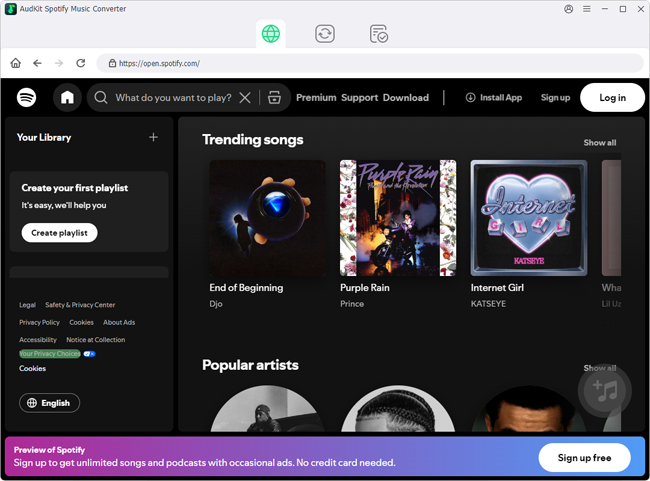
Step 2. Import Your Workout Playlists to AudKit
Find the running or gym playlist you want to sync within the Spotify app. You have two easy ways to add it to the converter:
- Drag and Drop: Click and drag the playlist directly from Spotify into the main interface of AudKit.
- Copy & Paste: Right-click the playlist, select Share > Copy link to playlist, paste it into AudKit’s top search bar, and click the “+” (Add) button.

Step 3. Customize Output Settings for TomTom Spark 3
Your TomTom needs specific formats to work. Go to the top-right menu in AudKit (the three horizontal lines) and select Preferences, then click the Convert tab.
- Change the Format to MP3.
- Set the Bit Rate to 320 kbps (this ensures your music sounds crisp and punchy over Bluetooth headphones).
- Set the Sample Rate to 48000 Hz.
- Click OK to save your settings.

Step 4: Start the Batch Conversion
Once your settings are dialed in, simply click the Convert button at the bottom right corner of the screen. AudKit will rapidly process your entire playlist, strip the restrictions, and save the standalone MP3 files to your local computer drive. You can find them by clicking the Converted (folder) icon.

Part 3. How to Transfer the Converted Music to Your TomTom Spark 3
Now that you have your MP3s via AudKit, the final phase is getting them onto your wrist. TomTom uses its proprietary desktop software to manage file transfers.
Step 1. Prep Your Playlists on Your Computer
The TomTom software doesn’t just read loose audio files; it scans your computer for actual playlists.
- On Windows: Open Windows Media Player, drag your new converted MP3s into it, and save them as a new playlist (e.g., “5K Run Playlist”).
- On Mac: Open the Apple Music/iTunes app, import your converted MP3s, and create a new playlist.
Step 2. Connect Your Watch
Plug your TomTom Spark 3 into your computer using its proprietary USB charging cable.
Step 3. Open TomTom Sports Connect
Launch the TomTom Sports Connect application on your computer. If you don’t have it, you can download it from TomTom’s official support site.
Step 4. Sync the Music
- Click the MUSIC icon at the top of the TomTom Sports Connect dashboard.
- The software will automatically scan your computer for iTunes or Windows Media Player playlists.
- You will see your newly created “5K Run Playlist” appear in the list.
- Simply click the “+” (Plus) icon next to the playlist. The sync will begin immediately.
Once the progress bar finishes, safely eject your watch. Put on your Bluetooth running headphones, navigate to the Music icon on your watch using the D-pad, and hit play. You have successfully freed your Spotify music!
Part 4. FAQs About How to Play Spotify on Tomtom Spark 3
1. Can I use AudKit with a free Spotify account?
Yes. While Spotify Free limits offline downloads within its own app, AudKit Spotify Music Converter can still parse and record audio from a free account. It bypasses the premium restrictions, though the source audio is capped at 160kbps for free users.
2. Will my TomTom Spark 3 display the album artwork from Spotify?
Unfortunately, no. While AudKit perfectly preserves ID3 tags (Artist, Track Title, Album Name) so you can accurately navigate your library, the TomTom Spark 3’s basic monochrome display interface does not support visual album artwork.
3. Why is TomTom Sports Connect not finding my converted playlists?
If TomTom Sports Connect isn’t detecting your playlists, ensure that you actually created a playlist file (.m3u, .wpl, or iTunes playlist format) using your media player. The TomTom software searches for these specific playlist files, not just raw folders of MP3s. Additionally, check the settings in TomTom Sports Connect to ensure it is pointing to the correct media player directory.
Conclusion
Carrying a heavy smartphone on a long run defeats the purpose of owning a dedicated GPS sports watch. While the lack of native Spotify support on the TomTom Spark 3 is a minor hurdle due to restrictions, it is easily overcome.
By taking a few minutes to utilize a tool like AudKit Spotify Music Converter to secure standard, 320kbps MP3s, and syncing them via TomTom Sports Connect, you can breathe new life into your watch. Set up your perfect cadence playlist, leave your phone on the kitchen counter, and enjoy your workout.

Andrew Rowley
 Staff Editor
Andrew Rowley has over 10 years of writing experience and is good at writing in audio technology and audio converter software. He can provide high-quality articles to help streaming music lovers explore music better.