





If you are a DJ using Denon DJ or Numark hardware, you already know the power of Engine DJ. It is one of the most advanced standalone DJ operating systems in the world. However, if you rely on Spotify for music discovery and playlist curation, you have likely hit a frustrating roadblock when trying to mix those tracks.
You are probably wondering: How to import Spotify to Engine DJ?
Because of licensing restrictions, you cannot simply log into your Spotify account directly on your DJ hardware. But don’t worry—there is a reliable workaround. In this comprehensive guide, we will explain exactly why direct integration is missing, how you can successfully transfer your Spotify playlists to Engine DJ using a dedicated converter, and explore the best native streaming alternatives available today.
- Part 1. Can You Connect Spotify Directly to Engine DJ?
- Part 2. What You Need to Transfer Spotify Music to Engine DJ
- Part 3. Step-by-Step Guide: How to Import Spotify to Engine DJ
- Part 4. Best Native Streaming Alternatives to Spotify for Engine DJ
Part 1. Can You Connect Spotify Directly to Engine DJ?
The short answer is no. You cannot directly connect or sync Spotify with Engine DJ Desktop or Engine OS hardware.
Prior to July 2020, Spotify allowed integration with several third-party DJ applications. However, Spotify abruptly changed its terms of service, revoking API access for all DJ software platforms. This affected the entire industry, meaning you cannot natively use Spotify with Engine DJ, Serato, Rekordbox, or Traktor.
To use Spotify music with Engine DJ today, you must transition your workflow from “cloud streaming” to “local file management.” This means you will need to download your Spotify tracks as DRM-free audio files and manually import them into your Engine DJ library.
Part 2. What You Need to Transfer Spotify Music to Engine DJ
Before we dive into the steps, you need to prepare a few tools to make the transition seamless.
- A Reliable Spotify Music Converter: Because Spotify encrypts its streaming audio with DRM (Digital Rights Management), you cannot just drag and drop cached files. You will need a dedicated tool like the AudKit Spotify Music Converter to download your playlists into standard audio formats. (Note: This should be done for personal, offline DJing use only).
- Engine DJ Desktop Software: You need the free Engine DJ Desktop application installed on your Mac or PC to analyze the tracks and build your crates/playlists.
- A Compatible USB Drive or SD Card: Engine OS hardware requires drives to be formatted in exFAT or FAT32. exFAT is highly recommended for larger drives.
Engine DJ Supported Audio Formats
When setting up your converter, you must choose an audio format that Engine DJ can read. Fortunately, Engine DJ supports a wide variety of high-quality formats:
- MP3 (320 kbps highly recommended for DJing)
- WAV (Uncompressed, high quality, but large file sizes)
- FLAC (Lossless quality, smaller than WAV)
- AAC / M4A
- ALAC
- OGG Vorbis
Part 3. Step-by-Step Guide: How to Import Spotify to Engine DJ
Now that you understand the requirements, let’s walk through the exact process of getting your curated Spotify playlists onto your standalone DJ gear.
How to Convert Spotify Songs to MP3 via AudKit Spotify Music Converter
The most crucial step is extracting your music from the Spotify ecosystem with high audio quality and intact metadata (like Artist, Title, and Album artwork). For this, we recommend using the AudKit Spotify Music Converter. It is highly favored by DJs because it preserves 100% lossless audio quality and keeps all ID3 tags, which are essential for organizing your library in Engine DJ.

Main Features of AudKit Spotify Music Converter
- Convert Spotify songs to MP3, AAC, and other Traktor supported formats
- Download Spotify songs, playlists, and podcasts to Engine DJ
- Save original sound quality and ID3 tags in output files
- Run at 5X or faster speed to batch convert Spotify songs
Here is how to use it:
Step 1: Download and Launch AudKit
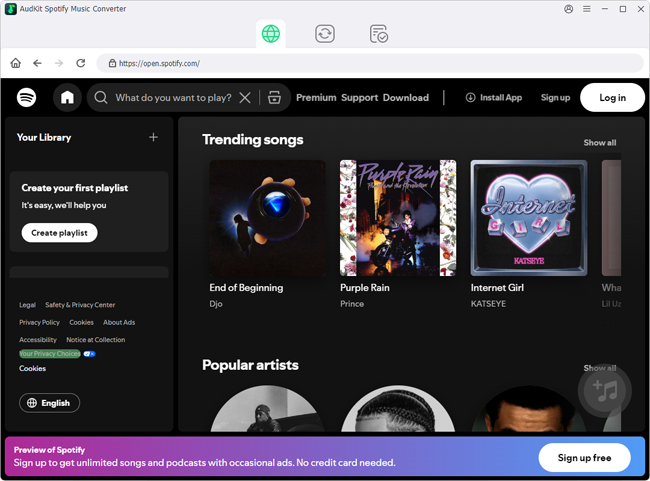
First, download and install the AudKit Spotify Music Converter on your Mac or Windows computer. When you launch AudKit, the Spotify desktop app will automatically open alongside it.
Step 2: Add Spotify Playlists to AudKit
Find the playlist, album, or track you want to DJ with inside the Spotify app. You can simply drag and drop the playlist directly from Spotify into the main interface of the AudKit software. Alternatively, you can right-click the Spotify playlist, copy the URL link, paste it into AudKit’s search bar at the top, and click the “+” icon to load the songs.

Step 3: Customize Output Settings for Engine DJ
Before converting, you need to ensure the files are optimized for DJing. Click the menu icon (usually three lines) in the top right corner of AudKit and select Preferences, then go to the Convert tab.
- Format: Select MP3 (or FLAC if you prefer lossless).
- Bit Rate: Set this to 320 kbps to ensure club-standard audio quality.
- Sample Rate: Set this to 44100 Hz or 48000 Hz. Click “OK” to save your settings.

Step 4: Start the Conversion Process
Click the Convert button at the bottom right corner. AudKit Spotify Music Converter will now download your Spotify tracks as local MP3 files at up to 5X speed. Once finished, click the “Converted” icon (a folder symbol) to locate your audio files on your computer.

Step 2: Import Converted Spotify Songs into Engine DJ Desktop
Once you have your local MP3 files from AudKit, it is time to bring them into the Engine DJ ecosystem. Engine DJ Desktop is where you will analyze the BPM, keys, and beatgrids of your new tracks.
- Open Engine DJ Desktop on your computer.
- Locate your converted files. Open your computer’s file explorer and find the output folder where AudKit saved your MP3s.
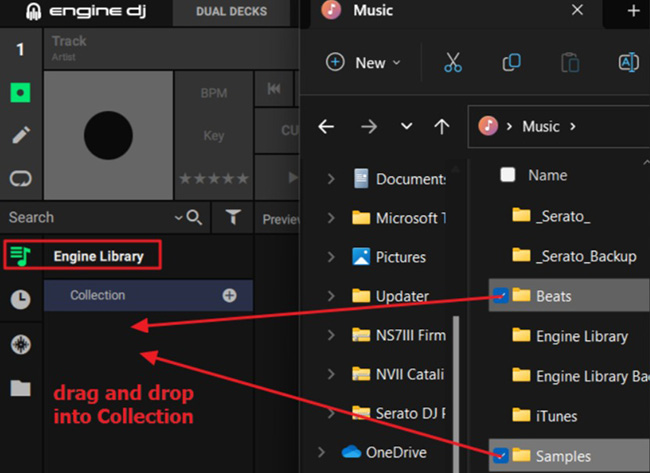
- Drag and drop. Simply drag the entire folder or selected tracks directly into the Collection area of the Engine DJ software. You can also drag them into the “Playlists” section to automatically create a new playlist with the same name.
- Analyze the tracks. Select all the newly imported tracks, right-click, and choose Analyze. Engine DJ will now scan the audio to determine the exact BPM, musical key, and generate the visual waveform.
- Set your Cue Points. Now is the perfect time to set your hot cues and loops before transferring the music to your hardware.
Step 3: Export Your Music to Engine OS Hardware (USB/SD)
The final step is to transfer your newly imported Spotify tracks to a USB drive or SD card so you can plug it into your Denon DJ or Numark standalone gear.
- Insert your USB drive or SD card into your computer. Ensure it is formatted to exFAT or FAT32.
- In Engine DJ Desktop, click on the Sync Manager button located in the bottom left corner of the screen.
- In the Sync Manager window, you will see your Engine DJ Collection on the left and your connected USB drive on the right.
- Select the playlists containing your converted Spotify tracks by checking the boxes next to them.
- Click Export to Drive. Engine DJ will now copy the audio files, along with all the BPM data, beatgrids, and hot cues, directly to your USB drive.
- Once the export is complete, safely eject the drive, plug it into your Engine OS hardware, and you are ready to mix!
Part 4. Best Native Streaming Alternatives to Spotify for Engine DJ
While the AudKit conversion method works perfectly and allows you to keep your files forever, it does require some preparation time before your gig. If you prefer the convenience of streaming music directly on your DJ hardware without downloading files, Engine OS offers incredible native integrations with other premium streaming platforms.
If you are willing to switch your subscription from Spotify, consider these built-in alternatives:
- Amazon Music Unlimited: Engine DJ is the first standalone DJ system to integrate Amazon Music. It offers over 100 million tracks in CD-quality (lossless), making it the closest mainstream alternative to Spotify for open-format DJs.
- TIDAL: Highly popular among DJs, TIDAL offers high-fidelity audio and excellent curated playlists. You can log into TIDAL directly on your Engine DJ hardware and stream tracks instantly.
- Beatport Streaming: If you are an electronic dance music (EDM) DJ, Beatport is the industry standard. It gives you access to the newest underground tracks, top 100 charts, and curated DJ playlists.
- Beatsource Streaming: Built specifically for open-format and mobile DJs, Beatsource offers a massive catalog of hip-hop, pop, R&B, and Latin music, complete with DJ-friendly intro/outro edits.
- SoundCloud GO+: Excellent for finding remixes, bootlegs, and underground tracks that are not available on mainstream platforms like Spotify or Apple Music.
To use these, simply connect your Engine DJ hardware to Wi-Fi, go to the source menu, select the streaming service, and log in with your subscription credentials.
Conclusion
Since Spotify no longer natively supports DJ software, importing your playlists to Engine DJ requires a reliable workaround. By using a tool like AudKit Spotify Music Converter, you can download your favorite tracks as high-quality MP3s. From there, simply use Engine DJ Desktop and Sync Manager to analyze and export the files, creating a rock-solid offline library for live gigs.
Alternatively, you can skip downloading entirely by switching to natively supported streaming platforms like Amazon Music Unlimited or TIDAL. Whichever route you choose, your Denon DJ or Numark hardware will continue to deliver an incredible mixing experience. Happy DJing!

Elle Johnson
 Staff Editor
Elle Johnson has been working in the technology and music software field for over 5 years. She is dedicated to providing easy-to-use guides and effective tips to play music anywhere.