





Quick Answer
DJUCED does not work with Spotify directly. Spotify streams are protected and don’t appear in DJUCED’s library. You can still use your Spotify tracks in DJUCED by converting them to plain MP3, WAV, or FLAC files first. AudKit Spotify Music Converter lets you download Spotify songs, playlists, or albums as DJ-ready audio files while keeping full ID3 tags and lossless quality. Once converted, simply load the files into DJUCED—browse from the local folder, drag onto a deck, and start mixing.
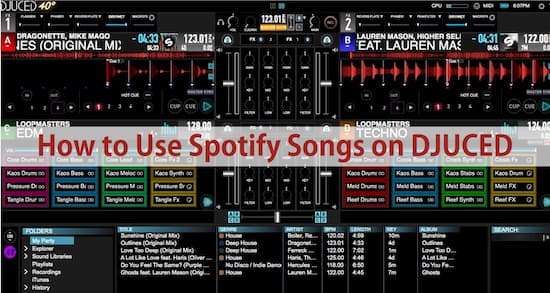
DJUCED is a powerful, user‑friendly DJ application that helps you practice and refine your mixing skills — yet it cannot stream tracks directly from Spotify. Spotify’s library is delivered in encrypted OGG Vorbis files, a format that DJUCED and most DJ software cannot open, which means there is no official Spotify DJUCED integration available.
The proven workaround is to convert your Spotify music into universal, DJ‑ready formats like MP3 or WAV using AudKit Spotify Music Converter. In the steps that follow, you’ll learn exactly how to download Spotify tracks for DJUCED, set the right output parameters, and load your converted files into the DJUCED browser — all in a quick, 4‑step process.
- Part 1. Download Spotify Music for DJUCED
- Part 2. How to Add and Use Spotify on DJUCED
- Part 3. Which Streaming Services are Compatible with DJUCED
- Part 4. How to Import Music to DJUCED from Streaming Services
- Part 5. Conclusion
Part 1. How to Download Spotify Songs for DJUCED
Although DJUCED is a great Djing software with a wide variety of music, it still doesn’t allow you to add Spotify to DJUCED due to the audio format difference and Spotify’s music protection system. Encrypted in OGG format, Spotify’s music is inaccessible unless it is converted to DJUCED compatible formats like MP3. That is why you need the help of a third-party app, like AudKit Spotify Music Converter, to convert music from Spotify to DJUCED.
AudKit Spotify Music Converter is a highly intuitive and easy-to-use AudKit Spotify Music Converter is a highly intuitive and easy-to-use application to help you use Spotify on DJUCED without any hassle or limitation. AudKit SpotiLab supports converting Spotify to MP3, M4A, WAV, and a variety of output formats. On top of that, AudKit is armed with a 5x faster speed of conversion. There is no limit to the number of songs you can load to the AudKit converter to later mix on DJUCED 40 Spotify. Moreover, you can even upload playlists for batch conversion. What’s more, even with such a quick conversion time, audio quality is not compromised, and even the metadata is fully retained for easy organizing.

Main Features of AudKit Spotify Music Converter
- Convert Spotify music to MP3 and more DJUCED-supported formats
- Download songs, playlists, podcasts, etc. from Spotify to DJUCED
- Save lossless sound quality and ID3 tags in output Spotify songs
- Batch convert 100 Spotify songs at 5X or faster speed
And that’s not all. AudKit Spotify Converter allows easy customization of the output settings like bit rate, sample rate, or format. Even if you don’t have a Spotify Premium account, you can easily download unlimited tracks to your PC and stream offline or even transfer to your smartphones. Whether you want to use DJUCED 40 Spotify or DJUCED 18 Spotify playlist mixing, AudKit will take care of it with one click. AudKit SpotiLab enables users to easily link Spotify to DJUCED on Windows as well as Mac systems.
Part 2. How to Use Spotify on DJUCED
For DJUCED Spotify integration, you will first need to convert the Spotify music into a DJUCED‑compatible audio format using the powerful AudKit Spotify Music Converter. Using AudKit is as easy as selecting your files and clicking convert. Then, you’ll be able to link Spotify to DJUCED and kick‑start your DJing passion. Below are the four easy steps to use Spotify on DJUCED.
Step 1 Install Audkit and add Spotify audios

AudKit offers an easy drag and drop interface. You can simply drag your music from Spotify to AudKit’s main window or enter the song or the playlist’s link in the search bar. You can add as many as 100 songs and go for batch conversion. You can also tap the plus sign + to add music files locally from your computer.
Step 2 Specify output settings for DJUCED

Click on Menu and then tap on Preferences. In the Convert tab, choose custom audio settings according to your convenience. You can choose MP3, WAV, and AAC for Hercules DJUCED. Select an output format, bit rate, and even conversion speed. You can also specify how you want your converted audio files to be organized e.g. by Artist/Album.
Step 3 Convert & Locate Files on Local Computer

Once you customize all the audio settings according to your needs, click on Convert. All the songs will immediately start converting to the specified format and will be saved to the output destination folder selected by you without any quality loss.
Add & Use Spotify On DJUCED
Now you’re all set to use your converted Spotify tracks in DJUCED. DJUCED 40 and DJUCED 18 give you two flexible ways to load your tracks.
Method 1: Direct local file loading (recommended)
- Open the Libraries tab in the left corner and tap Finder (or Files, depending on your version).
- Navigate to the output folder you defined in AudKit Spotify Music Converter.
- Select your converted Spotify tracks or the whole folder and drag them straight onto a deck timeline — you can start mixing instantly.
Because AudKit Spotify Music Converter preserves complete ID3 tags (Artist, Album, Artwork, Title), DJUCED’s browser will automatically sort your music by artist and album, complete with cover art. This makes searching for the right track during a live performance lightning‑fast.
Method 2: Add via iTunes
If you prefer working through the iTunes library, first transfer the converted Spotify songs into your iTunes media folder. Then, in the Libraries tab, click iTunes to pull up the tracks and drag them to the timeline — ready to use Spotify on DJUCED.
Part 3. Which Streaming Services are Integrated with DJUCED
Music streaming giant Spotify has not integrated with DJUCED, but you can use AudKit Spotify Music Converter to download and convert Spotify songs for use in DJUCED. Meanwhile, several other streaming services are directly authorized to work with DJUCED, giving you access to millions of tracks without extra conversion. Here’s the current lineup of DJUCED-integrated services and what you need to stream them:
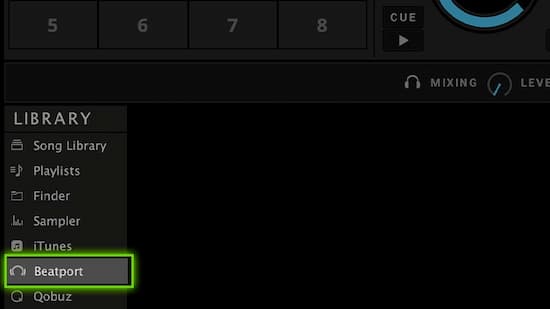
Beatport – Stream over 9 million tracks straight from Beatport’s catalog inside DJUCED’s browser. Requires a Beatport LINK Advanced plan ($15.99/month) or Professional plan ($29.99/month).
Beatsource – Open-format crates with hundreds of themed playlists ready for any gig or party. Needs an active Beatsource LINK subscription (pricing mirrors Beatport).
SoundCloud Go+ – Unlock millions of underground and premium tracks in DJUCED. Subscription starts at $9.99/month.
Qobuz – CD‑quality and hi‑res studio‑quality streaming. Requires a Qobuz Studio Premier subscription.
Tidal – More than 60 million lossless, CD‑quality tracks and albums for DJUCED mixing. Needs a Tidal HiFi or HiFi Plus subscription.
If your must‑have tracks only live on Spotify, you’re not stuck — just run them through AudKit Spotify Music Converter first to get DJUCED‑ready MP3 or WAV files, then drop them into your library alongside your Beatport or SoundCloud crates.
Part 4. How to Get Music on DJUCED from Streaming Services
It is easy to directly link DJUCED to other streaming music services. Here we’ll take Tidal as an example to show you how to connect Tidal to DJUCED.
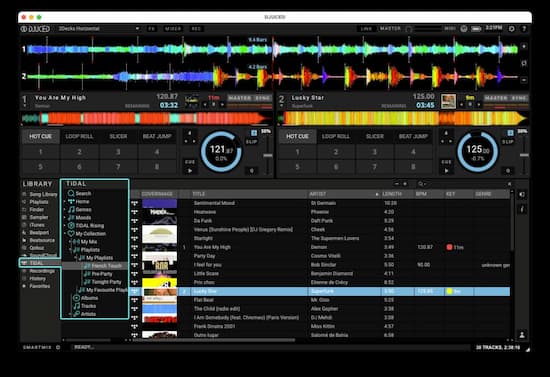
Step 1. Download and launch DJUCED on your computer.
Step 2. In the left panel, click Library and select Tidal from the streaming source list.
Step 3. Log into your Tidal account when prompted.
Step 4. Inside the Tidal directory, use Search to find a track, or head to My Collections to pull tracks from your custom playlists.
You can now start DJing Tidal tracks in DJUCED. The same workflow applies to Qobuz, SoundCloud, Beatsource, and Beatport.
FAQs About How to Get Spotify DJUCED Streaming
Is it safe to convert Spotify songs for DJUCED using AudKit?
Yes. The converter is a legitimate desktop tool for personal use — it runs locally, handles your login securely, and outputs clean, DRM‑free audio with no malware or hidden processes. Just download from the official website to avoid repackaged versions.
Does this conversion work with both DJUCED 18 and DJUCED 40?
Absolutely. The converted files are standard MP3, WAV, FLAC, or AAC — all formats that both DJUCED editions open natively. After conversion, your tracks behave exactly like any locally stored music, and the import workflow stays the same on either version.
Can I stream converted Spotify tracks directly from the Spotify app inside DJUCED?
No, that’s not possible. DJUCED cannot stream from the Spotify app, and Spotify’s encrypted OGG Vorbis files are locked to its own player. Once converted, your tracks become independent local files — load them through DJUCED’s Finder/Files browser like any other MP3 or WAV. Think of it as building your own DJ‑ready offline library: after conversion, Spotify is no longer required for playback.
ARE YOU READY?
Now, your resource horizon has widened, and you have an amazing tool at hand to finally use Spotify on DJUCED without any limitations. Just download as many Spotify songs and stream on any device anytime and as many times. It’s time to use DJUCED Spotify integration and introduce a personal touch to your favorite songs. Link Spotify to DJUCED and take your Djing game to the next level.
The bottom line is that you don’t need a Spotify premium account as long as you have the amazing AudKit Spotify Music Converter on hand. Bring your best tracks to DJUCED and create masterpieces.

Elle Johnson
 Staff Editor
Elle Johnson has been working in the technology and music software field for over 5 years. She is dedicated to providing easy-to-use guides and effective tips to play music anywhere.