




Quick Answer
- Instant Mobile Generation: In Spotify’s mobile app, tap the three dots (…) beside any song, album, or playlist, then tap the soundwave artwork to view and save the full code card.
- High-Resolution Vector Export: For physical crafts, copy the item’s Spotify URI (hold Alt on Windows or Option on Mac under Share) and paste it into spotifycodes.com to download SVG or high-res PNG files.
- In-App Scanning: Recipients must scan codes using the camera icon inside Spotify’s search tab. Standard camera apps cannot read Spotify soundwave bars.
- Universal Playback: For friends without Spotify, pair printed codes with standard audio files converted via third-party tools for universal offline listening.
Introduction
Sharing Spotify Codes transforms standard music links into scannable soundwave graphics you can share digitally or print onto physical items. Instead of texting long URLs cluttered with tracking parameters, you can turn any song, album, or playlist into a clean visual barcode that looks great on greeting cards, photo plaques, and social media posts.
Scanning errors frequently happen when codes are printed poorly or captured at low resolution. Blurry screenshots, low color contrast, surface reflections, and camera focus issues can prevent the scanner from reading the bars. Platform restrictions can also stop non-subscribers from playing shared tracks.
This guide explains how to generate crisp Spotify Codes on mobile and desktop devices, scan them from physical crafts or screenshots, follow key print standards, and share music without playback limits.
On this page
- Introduction
- Part 1 · How to Generate Spotify Codes on Mobile and Desktop for Sharing
- Part 2 · How to Scan Spotify Codes and Fix Common Scanning Errors
- Part 3 · How to Share Spotify Music Unrestricted Offline Using AudKit Spotify Music Converter
- Part 4 · Spotify Codes vs. Direct URLs vs. Universal Audio Files: Choosing the Best Sharing Method
- FAQs About Generating and Scanning Spotify Codes
- Conclusion
Part 1 · How to Generate Spotify Codes on Mobile and Desktop for Sharing
Create Instant Spotify Codes on iOS and Android
Generating a code directly on your mobile device is the fastest method for sharing music in person or through messaging platforms. Spotify automatically attaches a unique soundwave barcode beneath the cover artwork of every track, album, playlist, and artist profile. You do not need any external app to generate one.
- Open the Spotify mobile app on iOS or Android and navigate to the item you want to share.
- Tap the Three Dots (…) icon beside the title or below the playlist banner.
- The soundwave graphic appears beneath the cover art. Tap the artwork to enlarge the full code card.
- Tap Save to Photos to download the card to your camera roll, or capture a screenshot to forward in chat apps.
If your friend is nearby, they can scan the enlarged code directly from your smartphone screen without saving the image.
Export High-Resolution Vector Codes via Spotify Web Generator
Mobile screenshots work well on screens, but physical merchandise—such as acrylic plaques, keychains, and 3D prints—requires sharp vector lines that do not blur when scaled up. Spotify provides an official web generator that outputs SVG vector files and high-resolution PNGs. Using a desktop Spotify URI provides a clean link without tracking tags.
- Open the Spotify desktop app on Windows or Mac and locate your item.
- Click the Three Dots icon, hover over Share, and hold down the Alt key on Windows or the Option key on Mac.
- Click Copy Spotify URI once the option replaces the standard link.
- Visit spotifycodes.com, paste the URI into the box, and click Get Spotify Code.
- Choose a background color, select black or white bars, and download the SVG format for crafts or PNG for digital printing.
Part 2 · How to Scan Spotify Codes and Fix Common Scanning Errors
Scan Physical Media or Digital Screenshots Using the Spotify App
Scanning a code lets listeners open tracks, albums, or playlists immediately without typing titles into search. Spotify’s visual scanner reads codes from printed merchandise and saved screenshots.
- Open the Spotify app and tap the Search tab at the bottom.
- Tap the Camera icon in the upper-right corner of the search bar.
- Grant camera permissions if prompted, then point your camera at the soundwave code for instant playback.
- To scan an image received via chat, tap Select from photos beneath the viewfinder and pick the screenshot from your library.
Implement Physical Printing Standards for Crafts and Merchandise
When printing Spotify Codes on custom crafts, small layout mistakes can make the soundwaves unreadable:
- Minimum Size: Keep the graphic at least 3 cm (1.2 inches) wide for keychains, or 15 to 20 cm (6 to 8 inches) for wall displays.
- Quiet Zone Margins: Leave blank margins around the soundwave block so nearby text or decorative borders do not interfere with detection.
- High Contrast: Use solid black soundwaves on white backgrounds, or white soundwaves on dark acrylic. Avoid gradients, busy photo backgrounds, or pastel combinations.
- Vector Formats: Always use SVG files for vinyl cutting, laser engraving, or printing to keep individual bar edges sharp.
Troubleshoot Common Scanning Failures and Edge Recognition Errors
Spotify’s scanner reads precise bar heights and spacing. If your code fails to scan, check these factors:
- Surface Reflections: Glossy acrylic, glass frames, and laminated finishes create glare that obscures the bars. Tilt the item slightly away from direct light.
- Wrong Scanner App: Standard camera apps and generic QR scanners cannot read Spotify soundwave bars. You must use the camera inside Spotify’s search tab.
- Camera Angle: Angled scanning distorts bar proportions. Hold your phone flat and parallel to the code from 4 to 8 inches away.
Part 3 · How to Share Spotify Music Unrestricted Offline Using AudKit Spotify Music Converter
Spotify Codes offer a visual shortcut to music, but they require the recipient to have the Spotify app installed and an active internet connection. Free-tier users face shuffle-only mode and ads on mobile, while non-Spotify listeners cannot use the codes at all.
To share music without platform barriers, you can pair printed codes with standard audio files. AudKit Spotify Music Converter lets you export tracks, albums, and playlists to your computer for personal offline listening.
This tool is intended for personal backup of content you have the right to access. Users must comply with local copyright laws.
Why AudKit Spotify Music Converter Simplifies Offline Music Sharing
AudKit Spotify Music Converter converts Spotify music into universal formats like MP3, FLAC, WAV, AAC, M4A, and M4B. This allows you to load songs onto USB drives, MP3 players, or car stereos.
The software preserves lossless audio quality and original ID3 tags—including titles, artists, album artwork, track numbers, and genres. It also supports batch conversions at up to 5x speed on Windows, saving time when exporting entire playlists.
Step-by-Step Tutorial: Convert Spotify Tracks with AudKit Spotify Music Converter
Follow these steps to convert your Spotify tracks into standard audio files.
Step 1: Launch AudKit Spotify Music Converter and Log In
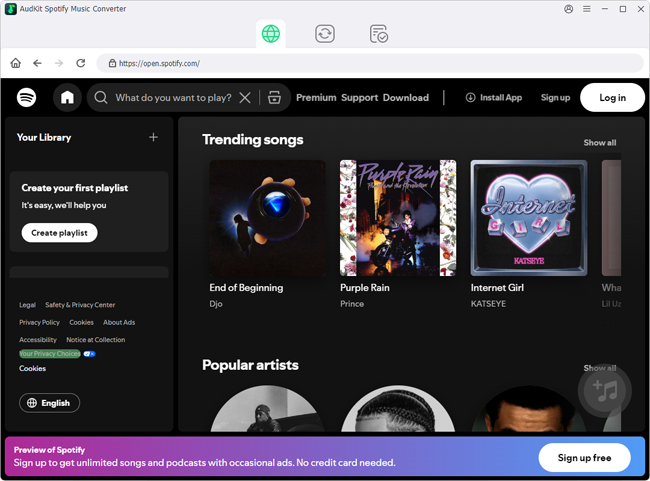
Install and open AudKit Spotify Music Converter on Windows or Mac. When the built-in web player loads, log in to your Spotify Free or Premium account.
Step 2: Add Songs, Albums, or Playlists to the Conversion Queue
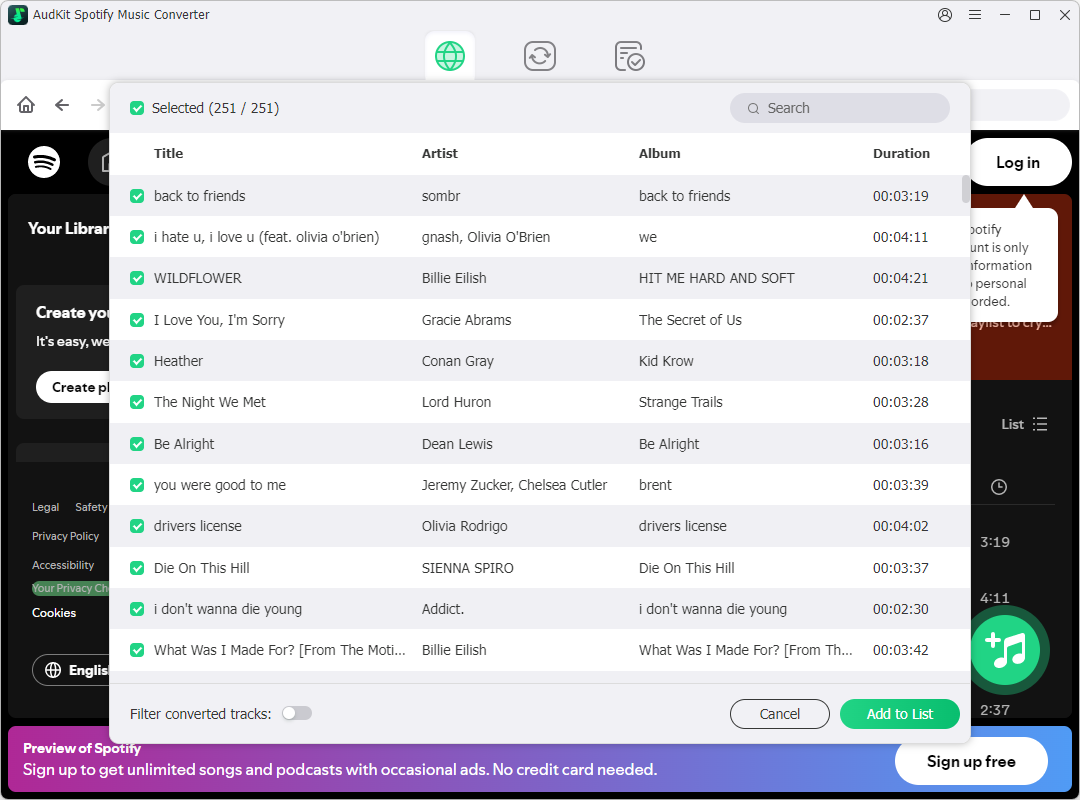
Browse to the playlist or album you want to share. Click the orange Add button (+) in the lower-right corner to import the tracks into the conversion queue.
Step 3: Configure Output Format, Bitrate, and Sample Rate
Go to Preferences > Convert. Choose MP3 for broad compatibility. Set the bitrate to 320 kbps and sample rate to 48,000 Hz for clear audio. Click OK to save.

Step 4: Batch Convert and Save Local Audio Files
Click Convert in the bottom-right corner. Once the batch download completes, click the folder icon to find your MP3 files, ready to load onto a USB drive alongside your printed Spotify Codes.
Part 4 · Spotify Codes vs. Direct URLs vs. Universal Audio Files: Choosing the Best Sharing Method
Choosing the right sharing method depends on how your recipient listens:
- Direct URLs: Best for quick digital messaging. Tapping a link opens tracks immediately, though links look messy and require an internet connection.
- Spotify Codes: Best for physical gifts, greeting cards, and social media. They look clean and artistic, but recipients need the Spotify app and camera tool.
- Universal Audio Files: Best for non-Spotify users, car stereos, and offline MP3 players. Files converted with AudKit Spotify Music Converter play anywhere without ads, account requirements, or internet access.
For handmade gifts like custom plaques, combining a printed code with local audio files on a USB drive provides both visual novelty and universal playback.
FAQs About Generating and Scanning Spotify Codes
Can you scan a Spotify Code with a regular phone camera or QR app?
No. Spotify Codes use proprietary soundwave patterns instead of QR matrices. Standard phone cameras and generic QR readers cannot decode them. You must use the camera inside Spotify’s search tab.
How do you scan a Spotify Code saved on your phone without another screen?
Save the image to your photo gallery. Open Spotify, tap Search, tap the Camera icon, and select Select from photos to scan the screenshot directly from your device.
Why is my printed Spotify Code failing to scan?
Scanning failures typically stem from poor contrast, glossy glare, missing margins, or printing smaller than 3 cm (1.2 inches) wide. Using SVG files helps maintain clean bar edges.
How can you share tracks with someone who does not use Spotify?
Spotify Codes only work inside the Spotify app. To share music with non-users, export your playlists as universal MP3 files using AudKit Spotify Music Converter so they can listen on any media player.
Conclusion
Spotify Codes turn music recommendations into stylish, interactive graphics for physical gifts, cards, and social posts. They offer a creative way to point listeners toward your favorite tracks and playlists.
Reliable scanning requires clean prints, high contrast, and adequate quiet zones. Always instruct recipients to scan the code using the camera inside Spotify rather than a standard QR reader.
For friends who do not use Spotify or need offline playback, pairing your printed codes with standard audio files saved through AudKit Spotify Music Converter ensures your music stays playable on any device.

Andrew Rowley
 Staff Editor
Andrew Rowley has over 10 years of writing experience and is good at writing in audio technology and audio converter software. He can provide high-quality articles to help streaming music lovers explore music better.