





The PlayStation 5 is more than just a next-gen gaming console; it is a complete entertainment hub. With its amazing 3D AudioTech and support for 4K streaming, it’s the perfect device for media consumption. However, for audiophiles who subscribe to Tidal for its high-fidelity (HiFi) and Master Quality Authenticated (MQA) tracks, there is a significant hurdle. Unlike Spotify or Apple Music, Tidal integration on the PS5 is not straightforward.
If you are wondering how to play Tidal on PS5 while grinding through your favorite RPG or battling in a competitive shooter, you’ve come to the right place. This guide will explore the current state of the Tidal app on PS5 and provide you with two effective methods to stream your favorite playlists—one using a professional tool for the best offline experience, and another using a clever web workaround.
- Part 1. Does PS5 Have a Tidal App?
- Part 2. Download Tidal Music via AudKit Tidal Music Converter and Transfer to PS5🔥
- Part 3. Play Tidal Music on PS5 via Web Player
- Part 4. FAQs About How to Play Tidal on PS5
Part 1. Does PS5 Have a Tidal App?
The short answer is NO. As of 2026, there is no official Tidal app for PS5 available on the PlayStation Store.
While Sony has integrated popular streaming services like Spotify and Apple Music directly into the PS5’s Control Center, allowing for seamless background music playback, Tidal remains absent from this lineup. This is frustrating for users who pay for Tidal’s premium audio quality and want to experience it through their gaming headset or home theater system connected to the PS5.
However, this doesn’t mean it’s impossible. You simply need to bypass the lack of a native app. You can either use the PS5’s hidden web browser or, for a much better experience, download the tracks to a USB drive using a specialized converter. Let’s dive into the best solution first.
Part 2. How to Play Tidal on PS5 via Tidizer Music Converter
Since the PS5 supports playing music files from a USB drive, the most reliable way to listen to Tidal is by downloading your songs as local files. However, Tidal tracks are protected and cannot be simply copied to a USB stick. This is where the AudKit Tidizer Music Converter comes in.
AudKit is a powerful tool designed to download and convert Tidal songs, playlists, and albums into PS5-compatible formats like MP3 or FLAC (for those wanting to retain lossless quality). This method is superior because it allows for offline playback, uses zero bandwidth while gaming, and guarantees the music won’t stop if your internet fluctuates.
Main Features of AudKit Tidizer Music Converter
- Batch download songs from Tidal onto computer
- Download music on Tidal to MP3, FLAC, WAV, etc.
- High download and convert speed at up to 5X
- Keep original sound quality and all ID3 tags of Tidal
Phase 1: Convert Tidal Music to PS5 Supported Formats
Step 1. Launch AudKit and Log In
Download and install the AudKit Tidizer Music Converter on your PC or Mac. Upon launching, the built-in Tidal web player or the Tidal desktop app will open. Log in to your Tidal account to access your library.
Step 2. Customize Output Settings for PS5
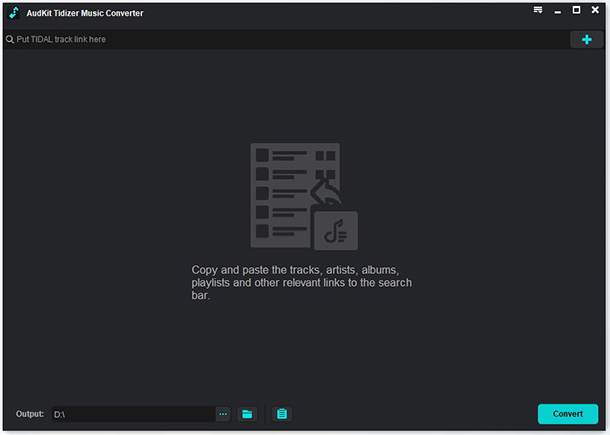
Click on the Menu icon (three lines) in the top right corner and select Preferences > Convert. Here, you can adjust the audio parameters.
- Format: Choose MP3 (for compatibility) or FLAC (for HiFi quality). PS5 supports both.
- Sample Rate & Bit Rate: You can keep these at the original source values to ensure the best listening experience.
Step 3. Import Tidal Tracks to AudKit
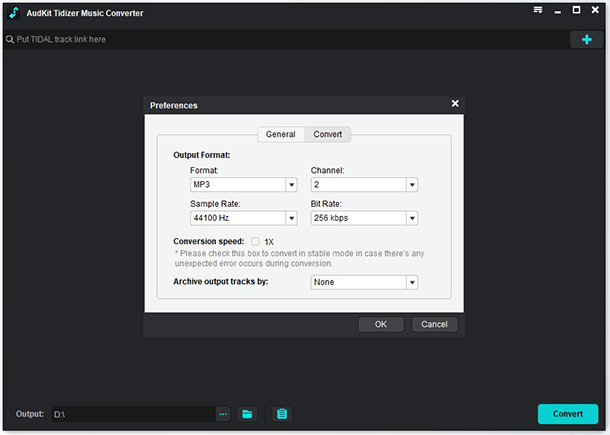
Browse your Tidal library for the playlists or albums you want to play on your PS5.
- If using the desktop app, drag and drop the playlist into AudKit.
- If using the web player mode, open the playlist and click the blue “+” (Add) button suspended in the bottom right corner. Select the specific songs you want to download.
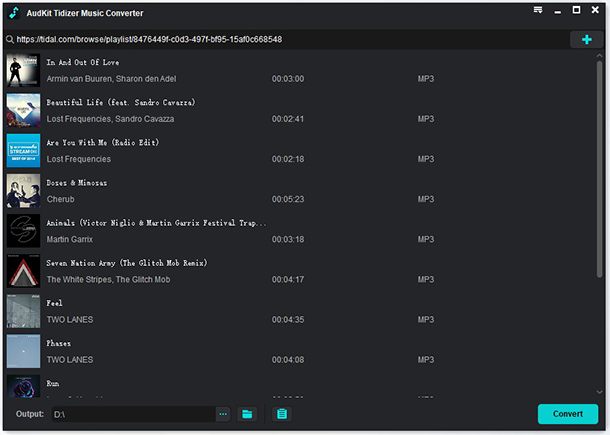
Step 4. Download and Convert
Click the “Convert” button. AudKit will now download the selected Tidal tracks at up to 5X speed, removing the protection and saving them as local files on your computer.
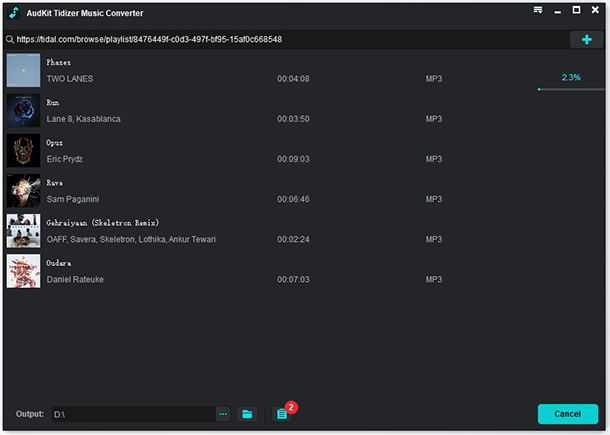
Phase 2: Transfer Tidal Music to PS5 via USB
Once you have your converted files, you need to move them to your console.
Step 1: Plug a USB drive into your computer. Ensure it is formatted as exFAT or FAT32 (PS5 does not read NTFS).
Step 2: This is crucial. Inside the root directory of the USB drive, create a new folder named “Music”. The PS5 system specifically looks for this folder name.
Step 3: Copy the converted Tidal MP3/FLAC files from your computer into the “Music” folder on your USB drive.
Step 4: Eject the USB safely and plug it into one of the USB ports on your PlayStation 5.
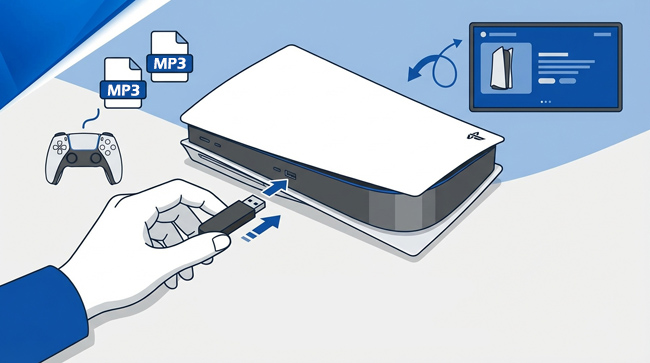
Phase 3: Play Tidal Music on PS5
Step 1. Press the PS button on your controller to open the Control Center.
Step 2. Select the Music icon.
Step 3. You should see your USB drive listed as a music source. Select it.
Step 4: Browse your converted Tidal playlists and hit play. You can now enjoy your high-quality Tidal tracks as background music while playing any game!
Part 3. Play Tidal Music on PS5 via Web Player
If you don’t want to use a computer or transfer files, you can try accessing Tidal through the PS5’s hidden web browser. This method is a bit “hacky” because Sony does not provide an easily accessible browser app, but it works for streaming.
Note: This method may not support background play as reliably as the USB method. If you close the browser window to start a game, the music might stop depending on the system’s memory allocation.
Step 1. Access the Hidden Browser
There are two ways to do this:
- Method A (Friend Message): Send a message to a friend (or a secondary account) on PSN containing the text:
www.google.com. Click the link in the chat to open the browser. - Method B (User Guide): Go to Settings > Users and Accounts > Link with Other Services > Twitter. When the login window appears, click the small Twitter logo in the corner to navigate away, eventually searching for Google.
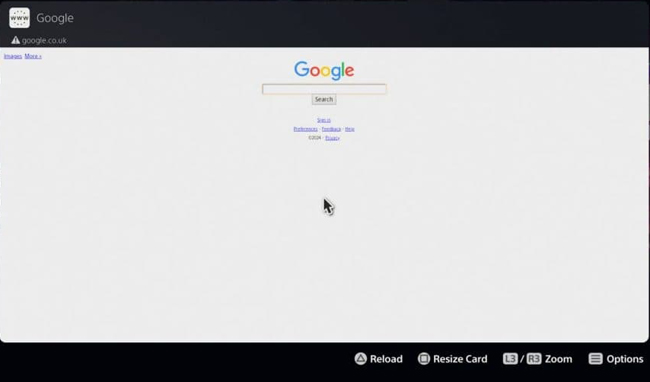
Step 2. Navigate to Tidal
Once you are on the Google homepage within the PS5 browser:
- Type “Tidal Web Player” in the search bar.
- Click on the first result (
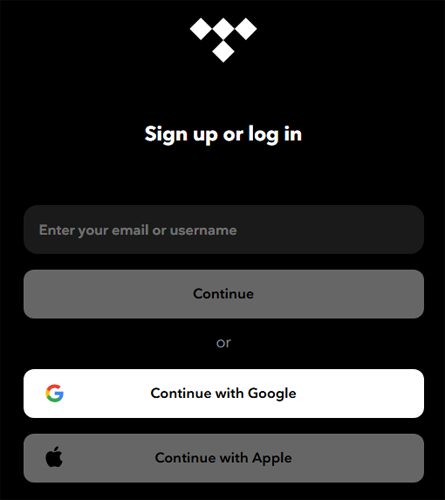
listen.tidal.com). - Log in with your Tidal credentials.
Step 3. Play Tidal Music on PS5
Select a playlist and press play. You can attempt to minimize the browser (pin it to the side if the option allows, or simply press the PS button) to see if the audio continues.
Limitations:
- No HiFi/Master Quality: Web browsers often limit audio bitrate compared to native apps.
- Control Issues: You cannot control the music via the PS5 Quick Menu (Control Center) like you can with the USB method or Spotify. You have to go back into the browser to skip tracks.
- Interrupts Gaming: Heavy games may kill the browser process to free up RAM, stopping your music.
Part 4. FAQs About How to Play Tidal on PS5
Q1: Will playing Tidal via USB affect my gaming performance?
No. Playing music from a USB drive is a native function of the PS5. It uses minimal system resources and does not consume your internet bandwidth, which is actually better for online gaming (lower ping) compared to streaming.
Q2: Does the PS5 support Tidal Master Quality (MQA)?
The PS5 hardware supports FLAC files, but it does not have a built-in MQA decoder. If you use AudKit to convert Tidal Master tracks to FLAC (16-bit or 24-bit), the PS5 will play them as standard high-resolution audio, which still sounds significantly better than standard MP3s.
Q3: Can I control the USB music while in a game?
Yes! When playing music from a USB, you can double-tap the PS button to bring up the Music card in the Control Center. From there, you can pause, skip tracks, and adjust the volume balance between the game audio and the music without leaving your game.
Q4: Is there any news on an official Tidal PS5 app?
Currently, there is no official announcement from Tidal or Sony regarding a native app. The partnership between Sony and Spotify seems to be the priority. Therefore, the USB method remains the most stable long-term solution.
Conclusion
Although the PS5 lacks a native Tidal app, you can still enjoy your favorite music while gaming. The Web Player offers a quick workaround, but it often comes with functional limitations and potential playback interruptions.
For the best experience, we recommend using the AudKit Tidizer Music Converter. This method allows you to download high-quality playlists to a USB drive for seamless background playback on your console. By bypassing streaming restrictions, you ensure lag-free audio that integrates perfectly with your game, letting you fully immerse yourself in the action.

Elle Johnson
 Staff Editor
Elle Johnson has been working in the technology and music software field for over 5 years. She is dedicated to providing easy-to-use guides and effective tips to play music anywhere.