





“My BMW connected drive Spotify not working for a long time. The BMW Spotify Connected App even doesn’t show up on my car. I tried everything I can do but it didn’t work… Anything wrong? Any suggestion is appreciated.” – From BMW
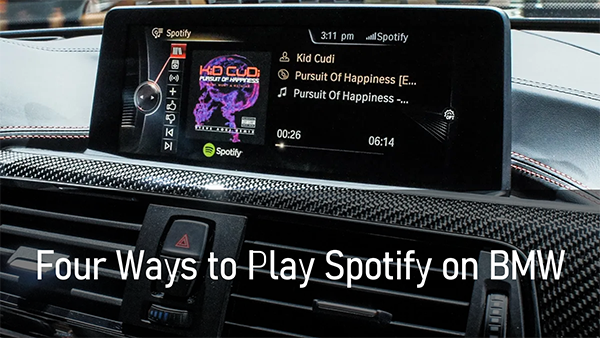
Thanks to the cooperation of BMW and Spotify, users can easily enjoy Spotify content on BMW. However, many users complain that they may the meet Spotify not working in BMW issue. And there are still some users who are unfamiliar with BMW Spotify. Hence, today we will introduce four easy ways to play Spotify on BMW. And the last one can 100% avoid the BMW Spotify not working issue.
Quick Answer: How Can You Play Spotify in a BMW?
- BMW ConnectedDrive (Built-in App): Open the Media menu on iDrive, select Spotify, and scan the QR code to log into your Spotify Premium account directly through the car’s embedded SIM.
- Apple CarPlay / Android Auto: Pair your smartphone wirelessly or via cable to mirror the Spotify mobile interface on your BMW dashboard display.
- Bluetooth & USB Audio: Stream audio from your phone over standard Bluetooth or connect through a USB cable using the classic iDrive interface.
- Offline USB Playback (No Premium / No Mobile Data): Download playlists as standard audio files to a USB flash drive using a reliable third-party converter, then plug the drive directly into your BMW console to enjoy uninterrupted offline music.
Way 1. How to Get Spotify on BMW ConnectedDrive
For vehicles equipped with BMW Operating System 7 or 8 and an active ConnectedDrive package, BMW includes a native standalone Spotify app. This allows you to stream music directly using the car’s built-in cellular connection, without tethering your smartphone.
Requirements:
- An active BMW ConnectedDrive account.
- BMW iDrive 7.0 or newer with Connected Package Professional.
- An active Spotify Premium subscription.
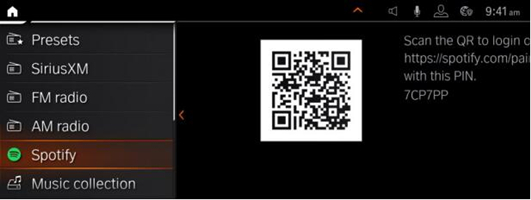
Step 1. On your BMW, select Media and then tap on Spotify.
Step 2. Scan the QR Code with your mobile phone.
Step 3. On your phone, log in to your Spotify Premium account.
Step 4. Follow the prompts to connect Spotify to BMW. Once finished, you can enjoy Spotify on your vehicle directly.
Way 2. How to Connect Spotify to BMW via Android Auto/Apple CarPlay
Android Auto and Apple CarPlay are to play Spotify in the car if your car supports them. Because there is BMW Spotify integration and BMW supports Spotify using Apple CarPlay and Android Auto. You can easily mirror your mobile phones on your BMW with them. Here are how to do it:
Enable BMW Spotify Android via Android Auto:
Step 1. Open Bluetooth on your Android device to connect your phone to BMW.
Step 2. On your BMW display, go to the COM menu and then choose Mobile Devices.
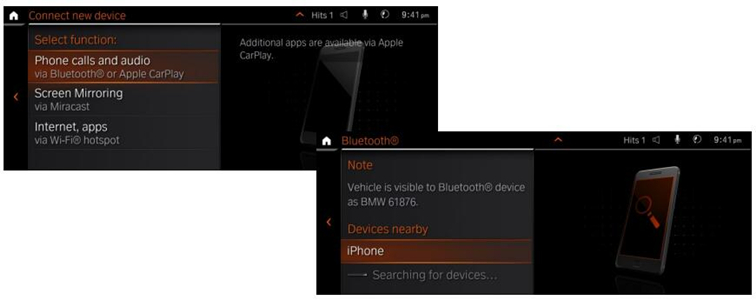
Step 3. Tap on + New Device and then choose Phone calls and audio to select your Android device.
Step 4. Go back to your Android to enter your pairing code and then tap Pair to confirm.
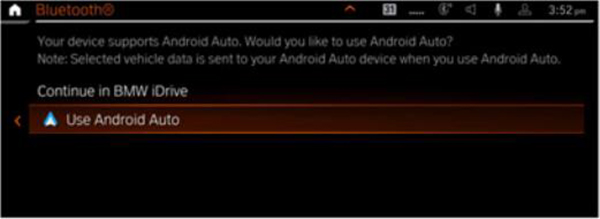
Step 5. Tap on Use Android Auto and then you can play Spotify on BMW via your smartphone.
Connect Spotify and BMW from iOS via Apple CarPlay:
Step 1. On your iOS device, navigate to Settings and then select General to tap on CarPlay.
Step 2. On your BMW display, select Com and then choose Mobile Devices.
Step 3. Tap on + New Device and then select Phone calls and audio to select your iOS device.
Step 4. On your device, enter the pairing code and tap on Pair to pair your device to BMW.
Step 5. On your BMW display, select Confirm note and then you can play Spotify on BMW.
Way 3. How to Get Spotify on BMW via Bluetooth and USB Cable
BMW also enables you to play Spotify via your smartphone by Bluetooth or a USB cable. To use this feature, your BMW needs to be in BMW iDrive 6 systems. And you are also supposed to use your cell phone data. The most important thing is that there should be a Spotify app with a Spotify Premium account on your phone. To utilize BMW Spotify, you can do as follow:
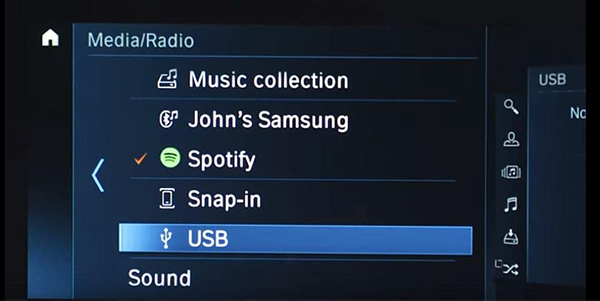
Step 1. Open Bluetooth on your smartphone.
Step 2. Use a USB cable to connect your phone to BMW. Once connected, BMW will automatically recognize your phone.
Step 3. On your BMW display, navigate to ConnectedDrive and scroll down to find Spotify.
Step 4. Tap on Spotify and now you can use Spotify on BMW.
Way 4. How to Play Spotify in BMW Offline without Premium
With the given 3 ways, you can easily listen to Spotify music on your BMW. However, they all need a Spotify Premium account. Besides, you need to be in a stable network connection. What to do when you are driving to a no-network area? Can you use Spotify on BMW without a network connection? Can you listen to Spotify music on BMW without Premium?
Yes! In this part, you will be introduced to the best way to play Spotify on BMW offline without Premium. All you need is AudKit SpotiLab Music Converter. It helps you to download Spotify music as local files without Premium. Then you are able to enjoy these downloaded songs on BMW offline without Premium via Bluetooth or a USB cable.
AudKit Spotify Converter is not only a good downloader but also a professional converter. You can use it to convert Spotify music to MP3, FLAC, and other common-used audio files. After that, you can easily play Spotify on multiple devices that are not compatible with Spotify.

AudKit Spotify Music Converter Main Feature
- Play Spotify on BMW offline without Premium
- Convert Spotify music to MP3 and other common-used files
- Get no ads on Spotify without a Premium account
- High download and conversion speed of 5X
Above are just some of the features of AudKit Spotify Converter. If you want to enjoy all its powerful features, download it by the above Download button. Then you can follow the next tutorial on how to use Spotify in BMW.
Step 1 Add Spotify music for playing on BMW

Open AudKit Spotify Converter and the Spotify app will be launched. Simply drag and drop the music you want from Spotify to AudKit. Alternatively, you can copy and paste the link of your desired music into AudKit’s search bar and then click on + to add them.
Step 2 Choose the output format for BMW Spotify

Click on the menu icon at the top left to load the drop-down options. Then select the Preferences option and click the Convert tab. To play Spotify on BMW, you can reset the output format as MP3. You can also do other changes like the channel, bit rate, etc.
Step 3 Download Spotify music for offline playing on BMW

Click the Convert button at the bottom-right corner. All your added music will be downloaded as you set before. When it is over, you can click on History to find the downloaded songs. They are also kept in your computer’s local folder. You are ready to play Spotify on BMW.
Step 4 Play Spotify on BMW offline without Premium
Move the downloaded Spotify music to your smartphone. Then use Bluetooth or a USB cable to connect your phone to BMW. You can freely play your downloaded Spotify music on BMW offline without Premium.
Frequently Asked Questions About BMW Spotify
Why is the Spotify app not showing up on my BMW ConnectedDrive screen?
This typically occurs after a software update or due to temporary server desynchronization. To fix it, highlight Apps or ConnectedDrive on your iDrive display, press the physical Option button near the central controller knob, and choose Update BMW Services. A system reboot (holding down the audio volume knob for 30 seconds) will also force the car to re-index all onboard applications.
Can I play Spotify on BMW without an active Spotify Premium subscription?
The native ConnectedDrive Spotify app strictly requires Spotify Premium. However, you can still listen for free by connecting your smartphone via Bluetooth, Apple CarPlay, or Android Auto. Alternatively, you can use AudKit Spotify Music Converter to download your playlists as local MP3 files and play them directly from a USB stick without any monthly fees.
Does playing Spotify through Apple CarPlay sound better than Bluetooth in a BMW?
Yes. Apple CarPlay communicates over a dual-band Wi-Fi connection alongside Bluetooth, providing significantly higher audio bandwidth than standard Bluetooth audio codecs. If your BMW features an upgraded audio package, CarPlay or a direct USB connection delivers cleaner highs and punchier bass compared to standard wireless streaming.
Conclusion
Listening to your favorite audio tracks in a BMW is flexible. If you want seamless integration and already pay for a subscription, the built-in ConnectedDrive app and wireless Apple CarPlay/Android Auto offer convenient, responsive options right on the dashboard.
However, if you frequently encounter poor cellular coverage, want to preserve mobile data, or prefer listening without an active subscription, converting your library with AudKit Spotify Music Converter provides a rock-solid offline solution. Transferring your high-quality tracks to a USB drive guarantees that your music remains ready to play whenever you start the engine.

Elle Johnson
 Staff Editor
Elle Johnson has been working in the technology and music software field for over 5 years. She is dedicated to providing easy-to-use guides and effective tips to play music anywhere.