





Quick Answer
- No direct cloud streaming: You cannot play Spotify on HomePod directly from the cloud. Spotify has not adopted Apple’s MediaKit API, which leaves the speaker unable to pull streams independently.
- Tethered AirPlay 2 playback: Standard listening relies on AirPlay 2 casting from Control Center or Siri voice relays on iOS 17 and later. Playback stays tethered to your iPhone, introducing a two-second buffer latency and pausing whenever calls or system sounds interrupt.
- Untethered offline alternative: To achieve true standalone playback without battery drain or interruptions, convert Spotify to flac tracks into local audio files with a dedicated music converter, then sync them to your Apple Music library through Home Sharing.
Apple’s HomePod delivers solid sound, but figuring out how to play Spotify on HomePod reveals an immediate limitation. Spotify has never implemented Apple’s MediaKit API. Because of that omission, the speaker cannot stream your playlists directly from the cloud. You have to rely on AirPlay relays instead.
That relay setup introduces noticeable friction. Incoming phone calls pause your music, social media video feeds hijack the stream, and a two-second buffer latency makes skipping tracks feel sluggish. It is an annoying hurdle when you just want background audio that works.
This guide outlines practical ways to handle audio routing on your smart speaker. You will learn how to cast via AirPlay, configure Siri voice relays on iOS 17, resolve local network discovery drops, and use an offline workaround for standalone listening.
How to Stream Spotify to HomePod via AirPlay and Siri Workarounds
Route Playback via iOS Control Center
Routing system audio from Control Center is the most reliable way to push Spotify to your HomePod when in-app casting stalls. Because Spotify lacks native MediaKit integration for direct cloud streaming, AirPlay 2 acts as an operating system bridge. This transmits your iPhone’s decoded audio over local Wi-Fi as a 256 kbps AAC stream, bypassing in-app device menus entirely.
- Swipe down from the top-right corner of your screen to open Control Center (or swipe up from the bottom on iPhone SE models).
- Tap the AirPlay icon in the upper-right corner of the Now Playing card.
- Select your HomePod from the list under Speakers & TVs. Allow roughly two seconds for the AirPlay 2 handshake to complete.
- Open Spotify and start your album, playlist, or podcast.
Cast Directly from the Spotify App
Starting playback inside Spotify lets you pick your speaker without leaving your queue. While the app uses Spotify Connect for most third-party hardware, it routes HomePod connections through Apple’s native AirPlay framework. Your iPhone serves as the active audio host throughout playback, which causes steady battery drain during long listening sessions.
- Open Spotify on your iPhone and play any track.
- Tap the Now Playing bar at the bottom of the screen to expand the player view.
- Tap the Devices icon in the bottom-left corner.
- Tap AirPlay or Bluetooth in the device menu.
- Select your HomePod to transfer the output.
Configure Siri Voice Relay on iOS 17
Starting in iOS 17 and HomePodOS 17.4, Apple lets Siri process Spotify voice commands through a background relay. The speaker still does not stream directly from Spotify servers. Instead, your HomePod captures your voice, directs your nearby iPhone to launch the Spotify stream, and pulls the audio back over AirPlay automatically.
- Make sure your iPhone runs iOS 17 or later and sits on the same Wi-Fi network as your HomePod.
- Open Settings on your iPhone, go to Siri & Search, and verify that Listen for “Siri” or “Hey Siri” is enabled.
- Say to your speaker: “Siri, play Discover Weekly on Spotify.” Always add “on Spotify” to your sentence, or the speaker routes the request to Apple Music.
- Tap Yes on your iPhone if a prompt asks for permission to let Siri access your Spotify data.
How to Fix Common Spotify to HomePod Connection and Audio Glitches
Problem 1: Music Stops During Calls or App Switching
Answer: Because Spotify relies on an AirPlay relay instead of direct cloud streaming, your iPhone remains the single point of failure. Incoming phone calls, notifications, alarms, and video feeds automatically seize system audio priority and drop the stream. Keep your iPhone within Wi-Fi range and minimize media multitasking during playback.
Problem 2: HomePod Disappears from the Device List
Answer: AirPlay relies on Bonjour multicast DNS (mDNS) to advertise speaker availability. On dual-band or Wi-Fi 6E routers, discovery packets often fail to pass if your iPhone connects to 5 GHz or 6 GHz while the HomePod sits on 2.4 GHz. Disable band steering and client isolation in your router settings, or ensure both devices connect to the same Wi-Fi band.
Problem 3: Music Plays Silently (Progress Bar Moves Without Sound)
Answer: This glitch occurs when the AirPlay 2 buffer handshake times out during stream setup. You do not need to reboot your speaker:
- Swipe down into iOS Control Center.
- Tap the AirPlay icon on the Now Playing widget.
- Switch audio output back to your iPhone.
- Wait two seconds, then reselect your HomePod to clear the frozen audio buffer and restore sound.
How to Play Spotify Tracks on HomePod with AudKit Spotify Music Converter
Adjusting router bands and resetting AirPlay handshakes resolves minor glitches, but it cannot fix the fundamental architectural constraint. Spotify has not adopted Apple’s native speaker protocols, so your HomePod remains tied to your iPhone’s active tasks, battery level, and Wi-Fi stability.
Bypassing this AirPlay limitation requires moving your tracks out of Spotify’s format restrictions and into Apple’s native media framework. Adding your music directly to the Apple Music app or a local Home Sharing library lets your HomePod access tracks on its own with full Siri voice control, without keeping an active phone connection open.
Why Choose AudKit Spotify Music Converter for HomePod
AudKit Spotify Music Converter links your streaming playlists directly to Apple’s home audio hardware.
- Lossless output quality: It converts Spotify tracks to clean AAC, MP3, or FLAC files while preserving ID3 tags, including titles, artist names, album art, and track numbers.
- Untethered playback: Adding converted files to your Apple Music Cloud Library or local Mac Home Sharing lets HomePod play music straight from Siri voice commands. Incoming calls, alarms, and gaming audio will not disrupt your music.
Step-by-Step Tutorial
Step 1. Launch AudKit Spotify Music Converter
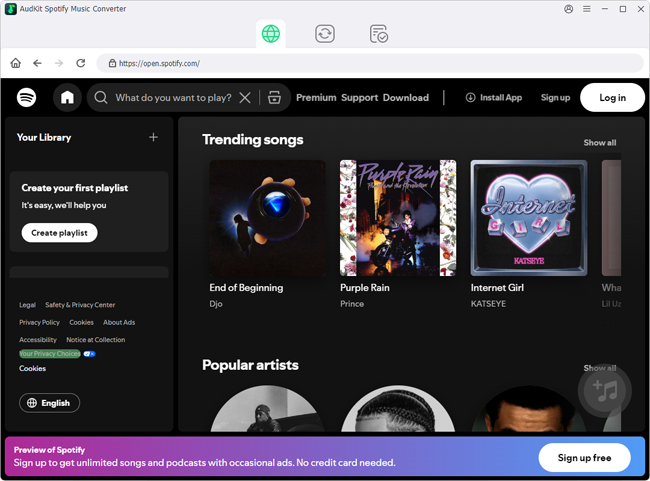
Download, install, and open AudKit Spotify Music Converter on your Mac or Windows computer. The software launches with an integrated Spotify interface. Log in with your Free or Premium account.
Step 2. Add Spotify Tracks and Playlists
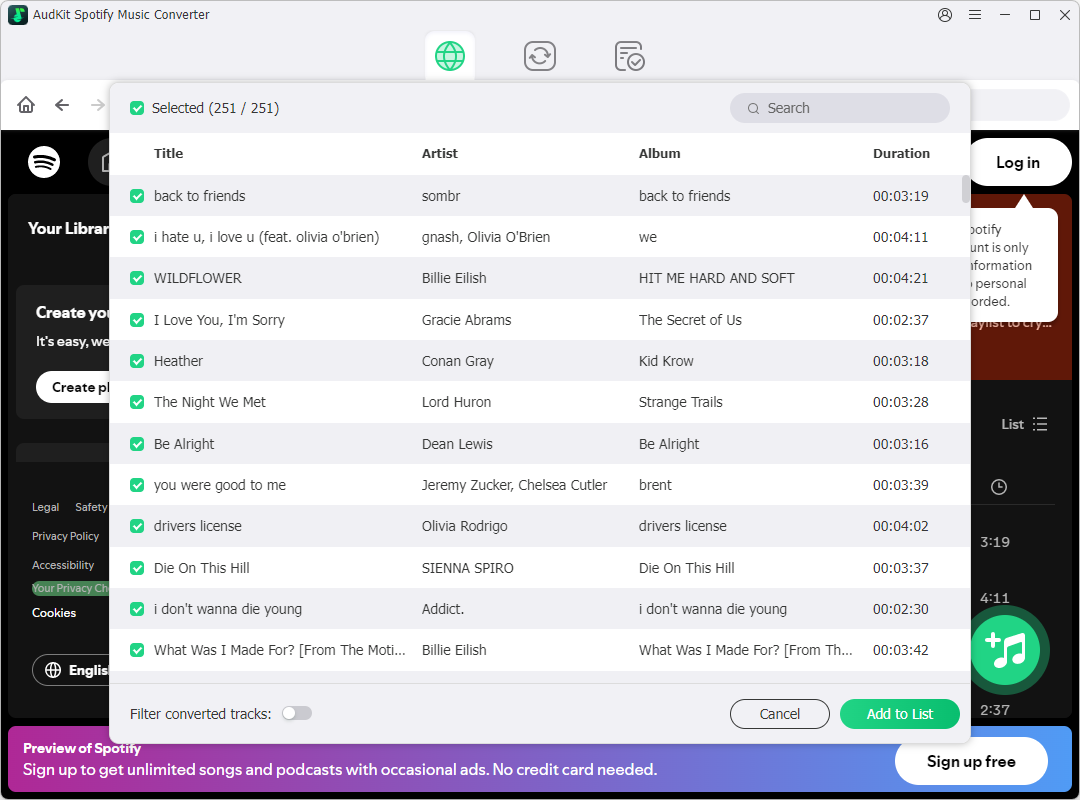
Browse your library for the playlists or albums you want to play on your HomePod. Open the target collection and click the + button in the lower corner, or copy the Spotify playlist link and paste it into the search bar to import your songs.
Step 3. Configure Output Parameters for Apple Hardware
Go to Menu > Preferences and open the Convert tab. Set your output format to AAC or MP3, as both formats integrate smoothly with Apple Music. Set the bit rate to 320 kbps and the sample rate to 44.1 kHz to maintain clean sound quality.

Step 4. Convert and Sync to HomePod
Click Convert to process your queue at up to 5X speed. When the conversion finishes, open the Apple Music app on your computer and drag the output folder into your library. Turn on Sync Library (or enable Home Sharing in macOS System Settings), then ask Siri on your HomePod to play your imported songs directly.

Comparing Wireless AirPlay Streaming and Local Apple Music Syncing
While AirPlay 2 offers quick casting from your iPhone, syncing converted files provides interruption-free, standalone playback. Here is how both methods compare across key performance factors:
| Feature / Aspect | AirPlay 2 Streaming | Local Apple Music / Home Sharing Sync | |
|---|---|---|---|
| Streaming Architecture | Tethered relay via iPhone (lacks direct MediaKit cloud stream) | Standalone direct playback from local or synced library | |
| Audio Quality & Latency | Transcoded to 256 kbps AAC with ~2-second buffer delay | Original quality (AAC/ALAC/MP3) without real-time recompression | |
| Host Device Dependency | Requires active iPhone on the same network | Completely untethered; plays even if iPhone is offline or away | |
| Battery Consumption | Continuous battery drain on your iPhone | Zero battery impact on mobile devices | |
| Playback Stability | Pauses on incoming calls, alarms, and social media videos | Uninterrupted background playback unaffected by phone activity | |
| Network Discovery | Prone to mDNS discovery drops across 2.4 GHz and 5 GHz bands | Stable playback unaffected by mobile router band switching | |
| Siri Voice Control | Background voice relay routed through a nearby iPhone | Native voice control executed directly on HomePod hardware |
Frequently Asked Questions About HomePod and Spotify Playback
How to Play Spotify on HomePod Without an iPhone or Internet?
HomePod cannot stream directly from Spotify servers because Spotify never adopted Apple’s MediaKit API. To play tracks offline without an iPhone nearby, export your playlists as local audio files using AudKit Spotify Music Converter, then import them into your Apple Music or Home Sharing library.
Why Does Spotify Playback Stop When Your iPhone Receives a Call?
AirPlay functions as a real-time audio relay from your phone. When a call, alarm, or background video triggers an audio alert, iOS assigns it system priority, which immediately pauses the active AirPlay stream.
Why Doesn’t HomePod Appear in the Device List?
HomePod uses AirPlay rather than Spotify Connect. If the speaker goes missing, mDNS network discovery has likely stalled. This often happens on dual-band routers when an iPhone on 5 GHz cannot locate a HomePod connected to the 2.4 GHz band.
Does Spotify Stream in Lossless Quality Over AirPlay 2?
No. AirPlay 2 transcodes third-party streams to lossy 256 kbps AAC. Even if Spotify adds higher-resolution audio in the future, the standard AirPlay pipeline compresses the stream, preventing bit-perfect output on your speaker.
Conclusion
Playing Spotify on HomePod comes down to choosing between quick convenience and uninterrupted playback. While AirPlay 2 and Siri voice relays offer fast casting from your iPhone for casual listening, keeping playback tethered leaves your stream vulnerable to buffer latency, network drops, and call interruptions.
To overcome these constraints, AudKit Spotify Music Converter lets you export your playlists into standard audio files and sync them directly to Apple Music or Home Sharing. Use AirPlay for quick, everyday casting, and turn to local syncing whenever you want stable, standalone playback that runs completely on its own.

Andrew Rowley
 Staff Editor
Andrew Rowley has over 10 years of writing experience and is good at writing in audio technology and audio converter software. He can provide high-quality articles to help streaming music lovers explore music better.