





In the competitive landscape of music streaming, Tidal has long held the crown for audio fidelity. With its recent pivot from the controversial MQA format to the universally acclaimed HiRes FLAC, the platform has cemented itself as the ultimate choice for audiophiles.
However, users often face a significant hurdle: while you can stream Hi-Res audio easily, downloading it permanently—especially on a PC or Mac—is a challenge. The official Tidal app allows offline listening on mobile, but it effectively “locks” the files inside the app. You cannot move them, edit them, or play them on your vintage Hi-Fi system.
This guide will explain exactly what Tidal Hi-Res music is and introduce a powerful tool, AudKit Tidal Music Converter, that allows you to break free from these restrictions and download true Hi-Res FLAC files to your computer.
- Part 1. What is Tidal Hi-Res Music?
- Part 2. Why You Can’t Just “Download” from Tidal
- Part 3. How to Download Tidal Hi-Res Music with AudKit
- Part 4. Hardware You Need to Hear Hi-Res Music
- Part 5. FAQs About Tidal Hi-Res Music
Part 1. What is Tidal Hi-Res Music?
To understand why you should bother downloading these massive files, you first need to understand what you are listening to.
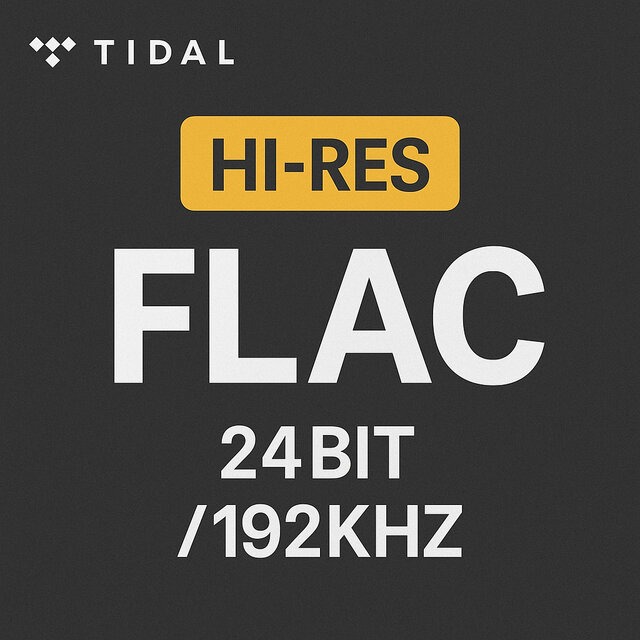
Tidal’s “Max” quality tier now utilizes HiRes FLAC (Free Lossless Audio Codec). Unlike MP3s or AACs, which delete “less important” audio data to save space, FLAC compresses the audio like a ZIP file, preserving 100% of the original data.
- Standard Lossless (High): 16-bit / 44.1 kHz. (CD Quality).
- Hi-Res Lossless (Max): Up to 24-bit / 192 kHz. (Studio Quality).
The difference lies in dynamic range and detail. Hi-Res files capture the subtle decay of a cymbal crash, the breath of a vocalist, and the distinct separation of instruments that compressed formats mush together.
Part 2. Why You Can’t Just “Download” from Tidal
If you are a mobile user, Tidal allows you to toggle a switch and save songs for offline playback within the app. But for desktop users (Windows and macOS), this feature is frustratingly absent or limited.
Even if you use the “Offline Mode” on a mobile device, you do not own those files. They are encrypted cache files (DRM-protected) that:
- Cannot be played on other music players (like Foobar2000 or VLC).
- Cannot be transferred to a USB drive for your car.
- Will vanish the moment your subscription expires.
To truly “own” your Hi-Res library and listen offline on any device, you need a specialized tool.
Part 3. How to Download Tidal Hi-Res Music with AudKit
This is where AudKit Tidal Music Converter (also known as AudKit Tidizer) bridges the gap. It is a dedicated software tool designed to download and convert Tidal tracks from encrypted streams into open-source formats like FLAC, WAV, or MP3.
Main Features of AudKit Tidizer Music Converter
- Download music from Tidal on the computer for offline listening
- Convert all Tidal files to Lossless, MP3, FLAC, WAV, and more formats
- Export Tidal music in lossless quality along with all ID3 information
- Let you offline play Tidal music on any device without Premium
Step-by-Step Guide: Downloading HiRes FLAC
Follow these steps to download your favorite playlists in 24-bit quality.
Step 1: Install and Launch AudKit Tidal Music Converter
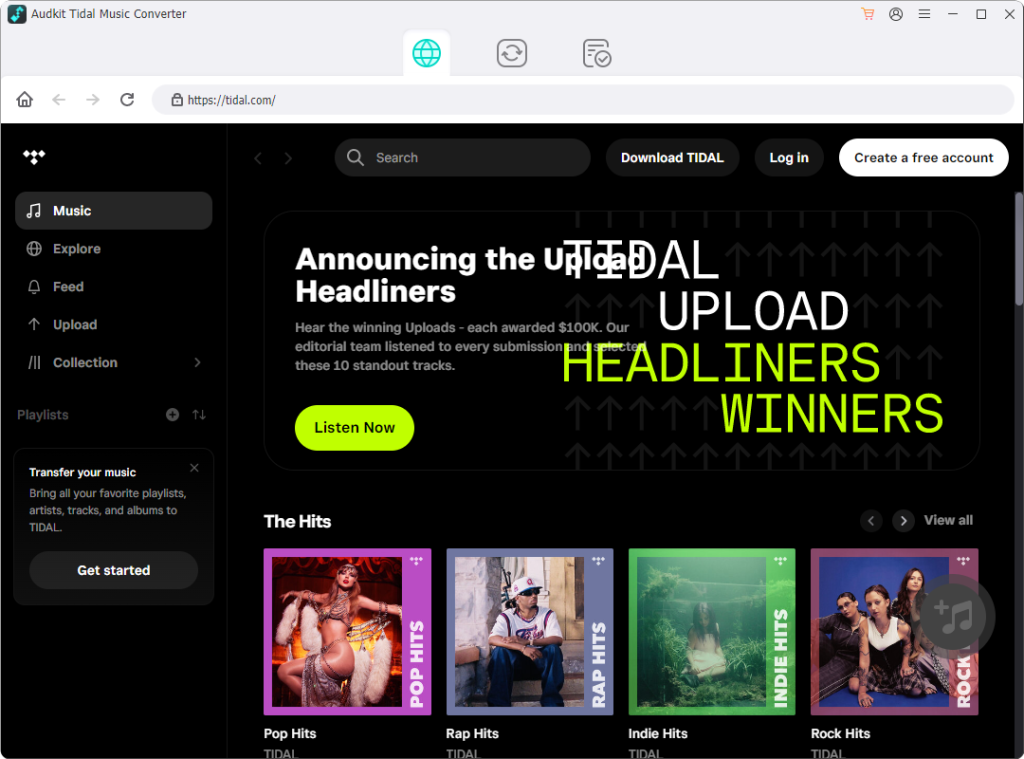
Download the AudKit Tidal Music Converter from the official website. When you launch the program, you will be asked to log into your Tidal account. Just log into your Tidal account. (Your personal data is safe!)
Step 2: Configure Output for Hi-Res
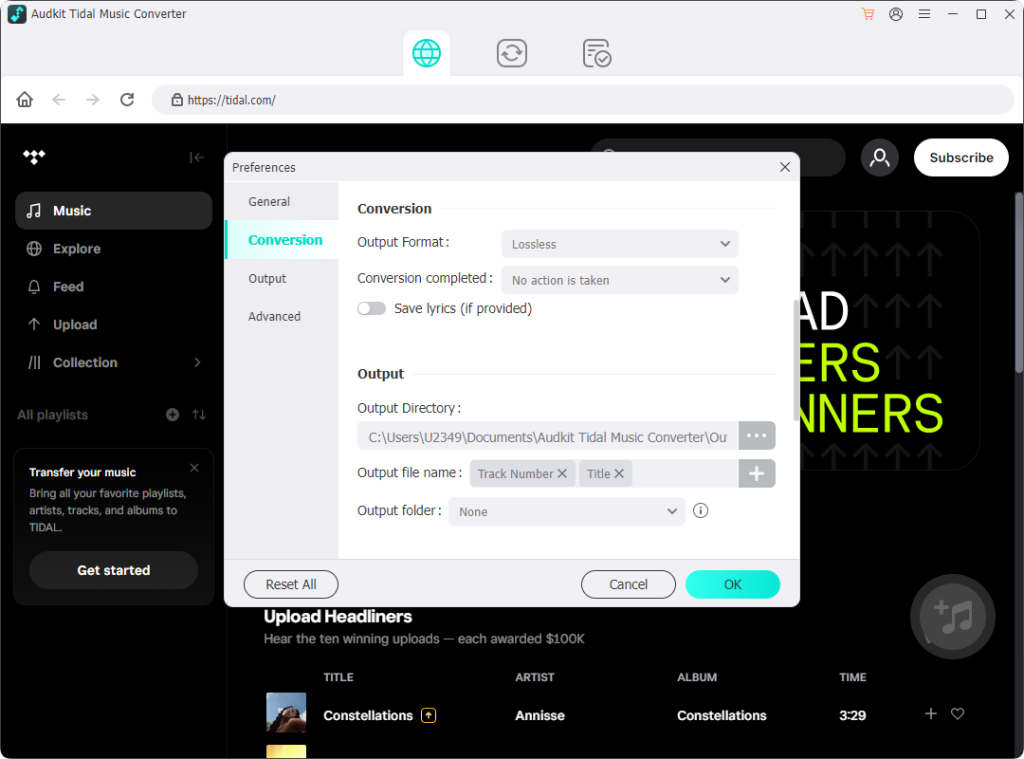
Before adding music, you must tell AudKit to download the highest quality possible.
- Click the Menu icon (three lines) in the top-right corner of AudKit.
- Select Preferences and switch to the Conversion tab.
- Crucial Setting: Change the “Format” to FLAC or Lossless.
- Click OK to save.
Step 3: Import Tidal Tracks
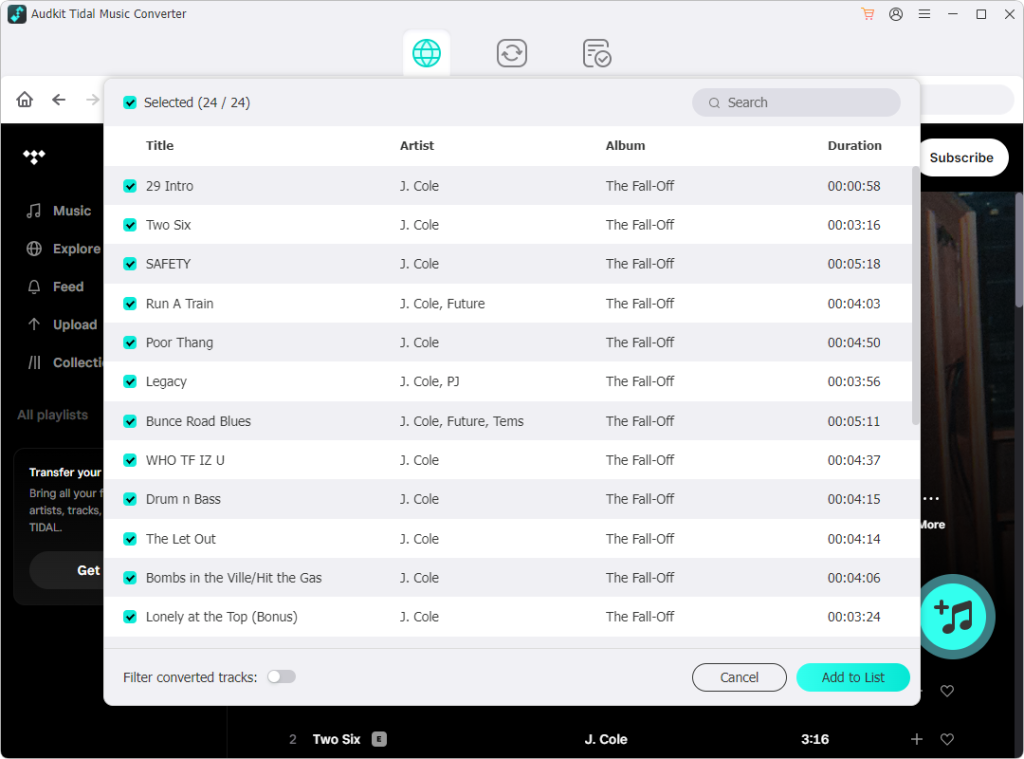
Search the songs you want to download in AudKit Tidal Music Converter’s Tidal web player. Click on the + button at the bottom-right corner to add songs or tracks to the download list. Hit the Add to List button.
Step 4: Convert and Download
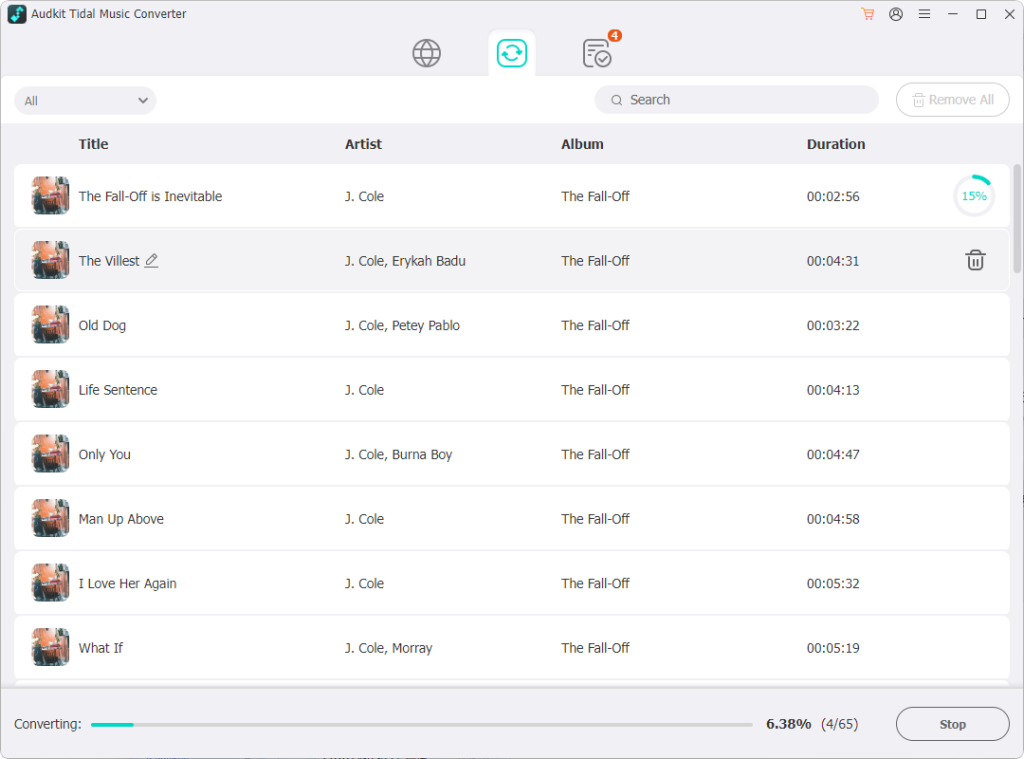
Once your list is populated in AudKit, click the huge Convert button at the bottom right.
- The software will begin cycling through the list, downloading the tracks to your local computer.
- Once finished, click the Folder icon to locate your actual
.flacfiles on your hard drive.
You now have permanent, unencrypted Hi-Res files that you can move to your phone, dedicated digital audio player (DAP), or keep on your PC forever.
Part 4. Hardware Check: Are You Actually Hearing Hi-Res?
Now that you have successfully used AudKit to secure 24-bit FLAC files, you need the right gear to hear the difference. Playing a 24-bit file through a standard laptop headphone jack is like putting Ferrari fuel in a lawnmower.
1. The DAC (Digital-to-Analog Converter)
Your computer’s built-in sound card is likely noisy and capped at lower resolutions.
- Desktop Recommendation: Use a dedicated USB DAC/Amp like the FiiO K5 Pro or iFi Zen DAC. These devices bypass your computer’s audio processing and decode the FLAC file purely.
- Portable Recommendation: If you transfer these files to your phone, use a “dongle DAC” like the AudioQuest DragonFly.
Don’t know which DAC is the best for you? Here are the top 10 DACs for Streaming Tidal Music!
2. Wired Headphones vs. Bluetooth
Do not listen to your downloaded Hi-Res files via Bluetooth. Even the best Bluetooth codecs (LDAC, aptX Lossless) involve some compression. To hear the 24-bit depth you just downloaded, you must use a wired connection to your headphones or speakers.
Part 5. FAQs About Tidal Hi-Res Music
Q: Is it legal to use AudKit?
A: AudKit is intended for personal, private use. Downloading music you have subscribed to for personal offline backup is generally a gray area, but distributing or selling those files is strictly illegal. Always respect copyright laws.
Q: Why are the files so big?
A: You chose quality! A single 24-bit/192kHz FLAC song can be 150MB to 300MB. If you are running low on space, go back to AudKit Preferences and lower the Sample Rate to 44100Hz (CD Quality).
Q: Will the downloaded files work if I cancel Tidal?
A: Yes. Since AudKit converts the files to local FLACs on your hard drive, they are yours to keep. They are no longer tied to the Tidal server or your subscription status.
Conclusion
Tidal’s shift to HiRes FLAC has revolutionized streaming quality, but for true collectors and audiophiles, streaming isn’t enough. By combining Tidal’s massive library with the utility of AudKit Tidal Music Converter, you get the best of both worlds: the discovery power of a streaming service and the permanence of a local library.
Whether you are archiving your favorite albums or preparing a USB drive for a high-end car stereo, this method ensures that the music you love is always available in the highest fidelity possible—exactly as the artist intended.

Elle Johnson
 Staff Editor
Elle Johnson has been working in the technology and music software field for over 5 years. She is dedicated to providing easy-to-use guides and effective tips to play music anywhere.