



Quick Answer
- Browser Accessibility: You can stream Tidal directly on any modern browser (Chrome, Edge, Firefox, Safari) by visiting
listen.tidal.comwithout installing extra software. - Audio Limitations: The web player tops out at standard CD quality (16-bit, 44.1 kHz HiFi). To experience Tidal Max (Hi-Res FLAC up to 24-bit, 192 kHz) and Dolby Atmos, you need the desktop or mobile client.
- Offline Playback: Tidal does not provide a direct download option inside the web browser.
- Workaround for Offline Listening: If you need to keep your playlists offline or play them on non-Tidal devices, you can extract your music into universal audio formats like MP3 or FLAC using a dedicated music converter as outlined below.
Tidal Web Player provides immediate access to a catalog of over 100 million tracks, podcasts, and more than 650,000 high-definition videos without requiring any desktop software installation. Renowned for its artist-first royalties and sound quality, Tidal gives audiophiles and everyday music fans a direct portal to their favorite music right from modern web browsers.
However, while the browser player offers unmatched convenience on work laptops, school computers, and shared devices, it comes with clear trade-offs. Browser streaming architectures cannot unlock Tidal’s highest resolution audio tiers, and the web interface completely lacks a native offline listening feature.
This guide examines the core capabilities of the Tidal Web Player, how it compares to the dedicated desktop application, how to log in seamlessly, and how to get past offline playback barriers.
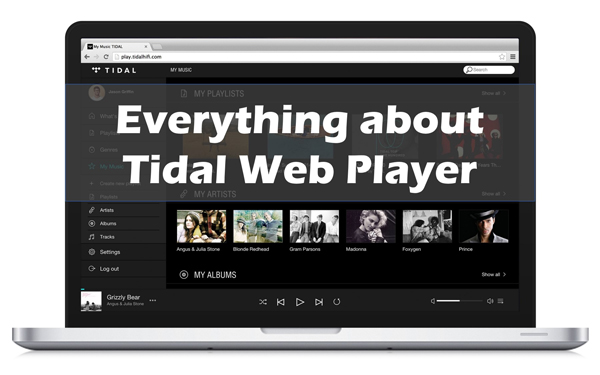
Part 1. Tidal Web Player vs Tidal Desktop App
Tidal music web player and Tidal Desktop App? Here, we will be discussing the difference between the two apps.
What Is Tidal Web Player?
Launched as part of Tidal’s broader high-fidelity initiative, the Tidal Web Player lets subscribers log in and play music from any supported desktop web browser. It retains the dark, sleek UI of Tidal’s software apps, organizing music through Home, Explore, and My Collection tabs.
Users can browse curated playlists, discover editorial recommendations, watch live concert streams, and build personal libraries without using up local storage space on installation packages.
Tidal Web Player at a Glance: – URL: listen.tidal.com – Supported Browsers: Google Chrome, Mozilla Firefox, Microsoft Edge, Safari, Brave – Core Function: Instant streaming, playlist management, video playback
Audio Quality – Tidal Web Player vs Tidal Desktop App
If you truly want to enjoy the high-quality, Tidal Web Player offered through the streaming service, then you must go for the Tidal Desktop app.
About Tidal HiFi vs Tidal Master, Tidal HiFi provides uncompressed lossless sound quality streaming at 1411 kbps or 16 bit/44.1 kHz. Whereas Tidal Master Quality audio reflects the original quality of the music and streams up to 9216 kbps or 24-bit/192 kHz.
This ensures members enjoy the high-quality sound with more clarity and depth. To achieve the highest level of resolution and an impressive sound, Tidal partnered with MQA (Master Quality Authenticated). This affiliation ensures that master recordings directly reach Tidal members from the master source. The master quality tracks have an M icon next to them.
But the Tidal online player only offers Tidal Master Quality on the Tidal Desktop app. Whereas the Tidal Web Player and mobile app are limited to the Tidal Hi-Fi plans.
| Feature / Specification | Tidal Web Player | Tidal Desktop App |
|---|---|---|
| Maximum Audio Quality | HiFi (16-bit / 44.1 kHz FLAC) | Max / Hi-Res (Up to 24-bit / 192 kHz FLAC) |
| Exclusive Audio Mode | No | Yes (Direct DAC control) |
| Spatial Audio (Dolby Atmos) | No | Yes (Supported hardware) |
| Offline Downloading | No native support | Limited caching (Mobile & select Desktop builds) |
| System Resource Usage | Low (Runs inside browser tab) | Moderate (Independent application) |
| Installation Required | None | Yes |
If you are listening casually through basic laptop speakers or regular Bluetooth earbuds, the web player delivers crisp, reliable sound. If you own high-end wired headphones and an external DAC, the desktop application remains essential.
Part 2. How to Login Tidal Web Player
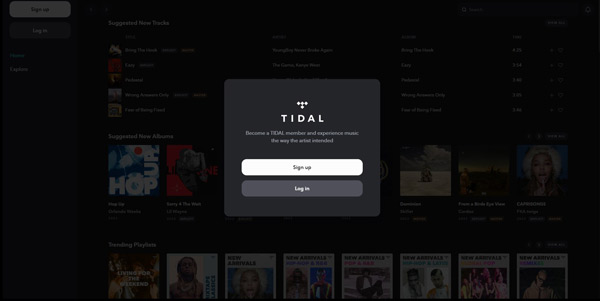
Tidal Web Player login is an extremely easy process. Whether you are using Tidal online music player or the web player, must go to the official website of Tidal and follow the given steps.
Step 1. Go to the official website by going to https://my.tidal.com/login.
Step 2. Click on the “login” option.
Step 3. Write your email address or username.
Step 4. Then, give in your password.
Step 5. After logging in the Home page will appear on the user interface.
Part 3. How to Download Music from Tidal Web Player
Tidal does allow its subscribers to download music for offline listening and save the downloaded songs under the My Collection area. But you can only reach these files through the Tidal app. Once your subscription plan ends, you won’t be able to access these audios offline anymore.
AudKit Tidal Music Converter is the best Hi-Fi music converter that supports both Windows and Mac operating systems. The converter downloads and saves HiFi songs from the Tidal Web Player directly to the computer as local files. The converter is designed with advanced features and specifications that make sure the playlists are converted into common file formats such as MP3, AAC, M4A, WAV, FLAC, and M4B. The technology behind the software ensures to maintenance Free and HiFi quality of the Tidal tracks.
With this converter, you can easily download and listen to Tidal HiFi playlists even after your subscription plan expires.
Main Features of AudKit Tidizer Music Converter
- Download Tidal songs onto the computer from the Tidal Web Player
- Convert multiple Tidal tracks or playlists at 5X faster speed
- Keep ID3 tags that include all the information about the track
- Allow users to customize the output format of Tidal audio files
How to Convert Tidal Music from Tidal Web Player
The AudKit Tidizer Music Converter has a simple user interface. After downloading the software, follow these three simple steps to get all your favorite songs from Tidal.
Step 1 Customize Tidal output format
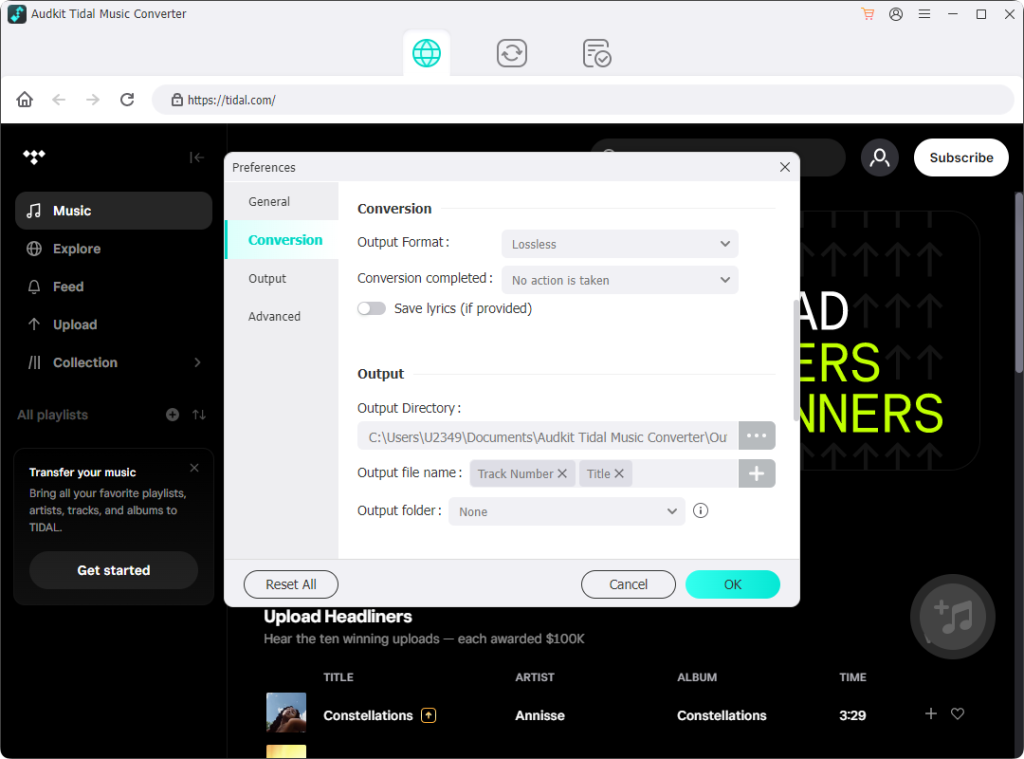
Open the Menu icon at the top of the interface. Then select Preferences and go to Conversion. In the pop-up window, customize the output format for your audio files. You can adjust the output format, bit rate, sample rate, and archive way for your audio files.
Step 2 Import Tidal songs from Tidal Web Player
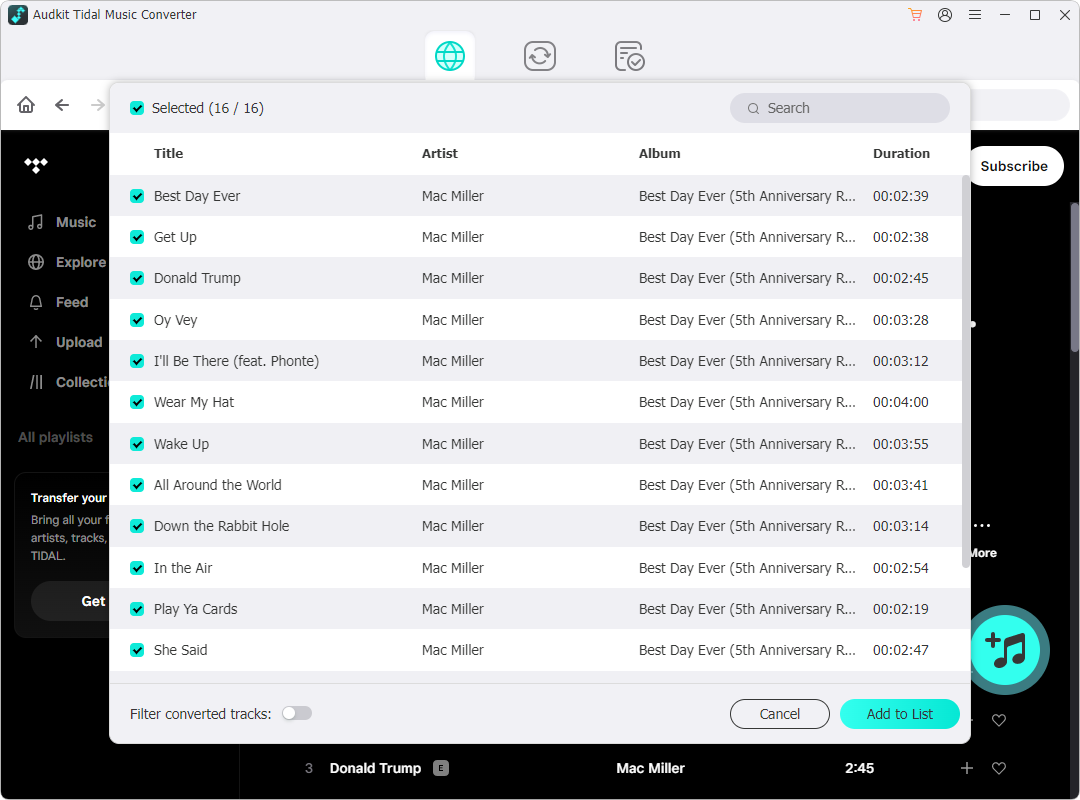
In the built-in Tidal app in the Tidizer converter. Open the playlists and tracks you want to convert. Then, select the Add Music icon at the bottom left corner of the app. Click on the icon and start adding songs and playlists to the music converter to download Tidal MQA or HiFi playlists.
Step 3 Initial the conversion process of Tidal songs
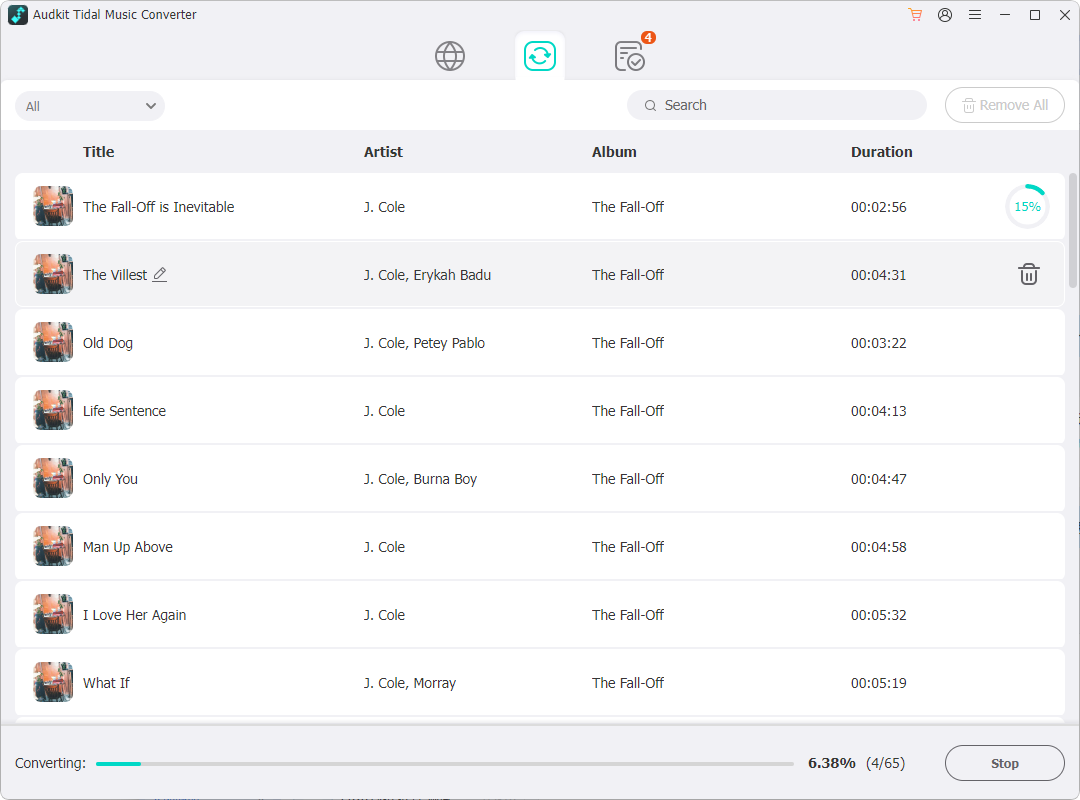
Then, finally, click on the “Convert” option at the bottom. The converter will download and convert music files in a short period. Now, you can easily play Tidal on your desktop or transfer it to your smart devices for offline listening.
Frequently Asked Questions (FAQ)
Can I listen to Tidal Web Player for free?
Tidal offers free trials in select regions, but ongoing access generally requires an active monthly subscription. You can log into the web player with your credentials during any trial or paid period to enjoy full catalog streaming.
Why won’t Tidal Web Player play music in Chrome or Firefox?
Playback issues are typically caused by outdated browser builds, strict ad-blocking extensions, or disabled media permissions. Ensure your browser is up to date, disable aggressive script blockers on listen.tidal.com, and verify that Protected Content playback is allowed in your browser’s site settings.
Can I get 24-bit/192 kHz audio on the Tidal Web Player?
No. Web browsers do not support bit-perfect exclusive mode or the necessary decoding overhead for Tidal’s highest-tier audio. The web player caps playback at standard HiFi (16-bit / 44.1 kHz). For full-resolution 24-bit streams, use the native desktop application or extract your playlists using AudKit Tidal Music Converter.
Does the Tidal Web Player use a lot of data?
Yes, especially if you stream using the HiFi preset. Lossless CD-quality streaming consumes approximately 5.5 MB to 10 MB of data per minute (around 300–600 MB per hour). If you are on a metered internet connection, you can adjust streaming quality to “High” or “Normal” in the web player settings.
Part 4. Conclusion
The Tidal Web Player is an excellent, friction-free way to stream millions of tracks and curated videos directly from your browser without taking up system storage. While audiophiles seeking 24-bit/192 kHz audio and bit-perfect DAC transmission will still prefer the desktop software, the web version handles everyday listening remarkably well.
If you want to overcome the web player’s primary shortcoming—the total lack of offline downloads—pairing your library with AudKit Tidal Music Converter gives you a dependable way to archive your favorite albums locally and enjoy high-fidelity music anywhere, anytime.

Elle Johnson
 Staff Editor
Elle Johnson has been working in the technology and music software field for over 5 years. She is dedicated to providing easy-to-use guides and effective tips to play music anywhere.