





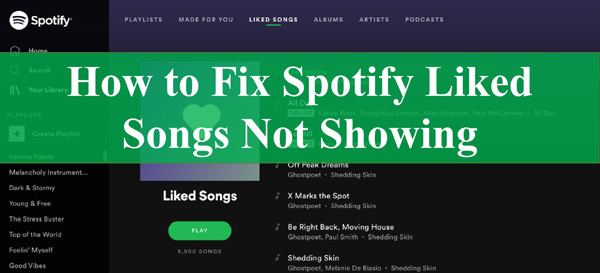
The tracks from the Liked Songs list seem to be suddenly completely missing after an upgrade to Spotify, according to many people. However, if visitors attempt to reload the page in this situation, they are presented with an empty playlist. There seems to be an empty playlist with the phrase “Your liked songs will appear here” if you select your favorite music in the collection. If you are currently wondering, “Why are my liked songs not showing on Spotify?” we can help!
While there are numerous sites where the Spotify liked songs not showing problem has been mentioned, we’d rather keep the various platforms or systems apart in this article. We will include reasons behind the problem, working methods, and obtain Spotify-liked music to computer locally that is gone. Read on.
Part 1. Why Are My Spotify Liked Songs Not Showing
Your favorite music may not appear on Spotify for a variety of factors. Here are a couple of these explanations:
1. Virus Attacks
Virus attacks are among the most frequent causes of the issue of “liked songs not showing up on Spotify”. The root problem of Spotify not displaying liked songs might be a malware attack on the system. Your Spotify records could easily be corrupted by malware or a virus, leading to this issue.
2. Expired Membership
The Spotify app may have removed the song after the paid premium service had run out. You cannot continue to see the Spotify tracks you’ve liked when your Spotify paid version has expired. You will need to reactivate your subscriptions to see your favorite tracks again on Spotify.
3. Network Accessibility
This Spotify issue might be caused by the inconsistent connection to the Internet that you are using because a poor Internet connection might affect the way Spotify synchronizes your data. You may find it shocking, but usually, it’s the primary cause of Spotify missing liked songs.
4. Accidental Removal
Another potential explanation for the disappearance of your favorite songs on Spotify is mistaken removal. You should save all the tracks from Spotify in the appropriate location, such as the media library. It is indeed probable that somebody would unintentionally remove a piece of music you liked on Spotify.
5. Active Genre/Mood Filters
When you have more than 30 liked songs, Spotify adds a filter bar at the top of the playlist. Tapping a genre or mood tag hides everything that doesn’t match — making your entire library look empty. On mobile, look for highlighted filter chips and tap the “X” to clear them; on desktop, click “All” from the filter dropdown.
6. Outdated App Version
Running an old Spotify version can trigger sync bugs that hide liked songs. Update the app via the Google Play Store, App Store, or Microsoft Store, or download the latest desktop installer. After updating, log out and back in to force a fresh library sync.
Part 2. How to Solve Spotify Liked Songs Missing – Common Solutions
If you have a situation of liked songs not showing up on Spotify desktop or mobile, don’t freak out. You can get support using the following solutions to resolve it quickly.
Fix 1 Reinstall the Spotify Application on Your Device
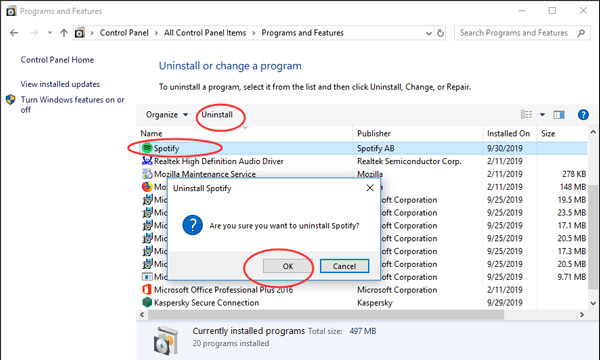
Uninstalling and then reinstalling the Spotify app on your device is the primary step if the issue is related to the app itself. To delete the Spotify app from any Windows and Mac system, follow these directions.
On a Windows
Step 1. Click the “Apps” option under System Settings.
Step 2. Next, select the “Spotify” application, tap on it, and then choose “Uninstall“. Then, select “Agree” from the confirmation window’s buttons.
Step 3. Pause for the uninstall to be finished.
Step 4. Reboot the computer.
Step 5. Download Spotify music to computer from the Windows app stores, then run it.
On a Mac
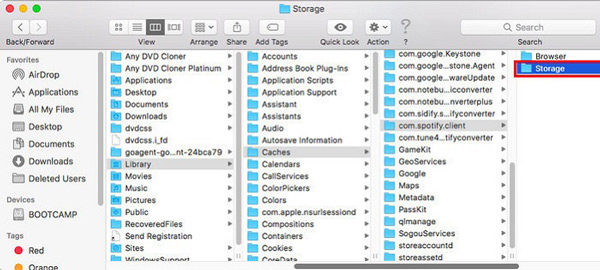
Step 1. Enter “Finder” and select “Go” from the Menu.
Step 2. Next, choose “Library” from the drop-down.
Step 3. Select “Caches” and remove the “com.spotify.client” and “com.spotify.client.helper” directories from your computer.
Step 4. Access the “Application Support” after clicking the back arrow, and remove the Spotify folder.
Step 5. Reinstall the “Spotify” software to complete the process.
Fix 2 Check the Network
A poor internet connection may be one of the causes of your favorite tracks not appearing. So, you really should make sure that your internet is functioning correctly.
When connected over Wi-Fi, consider rebooting the router to see if it resolves the issue. Ensure that you have sufficient data left in case of mobile internet.
Fix 3 Membership Renewal
Moreover, if your Spotify Premium subscription has run out, your liked songs won’t play. Users will need to reactivate their membership to solve this issue. Launch the Spotify app, then select the “Account” tab. After that, select “renew my subscription” to fix the such songs not showing error.
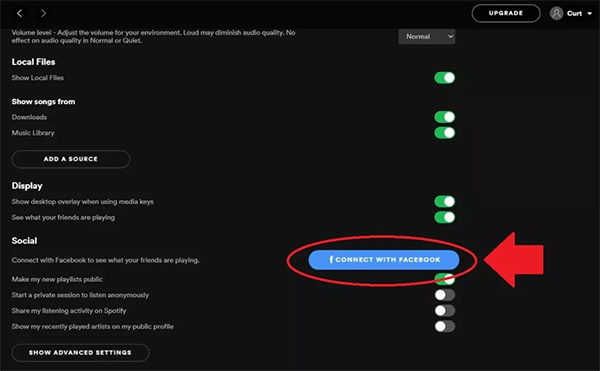
Fix 4 Make Sure You’re Logged into the Correct Account
Just double-check that you are using the correct Spotify account. When you’ve connected Spotify to Facebook, log in by choosing “LOG IN WITH FACEBOOK”. Confirm that the email you entered into Spotify is accurate in case it’s not linked to your Facebook account.
Fix 5 Use a Different Device
Spotify liked songs disappeared on phones could be due to a breakdown or malware assault on a device. Use a different device in this situation to check whether you can still get all those songs to show successfully.
Fix 6 Clear Spotify Cache Without Reinstalling
A cluttered cache can cause display errors. On Android/ iOS, go to Settings > Storage and tap “Delete cache” (don’t clear app data unless you’re prepared to re‑download). On desktop, navigate to your OS‑specific Spotify cache folder and manually delete its contents, then restart the app.
Part 3. How to Fix Spotify Liked Songs Not Showing – Permanent Solution
While the free tier allows adding tracks, offline playback is restricted and your library remains tied to the app. Any sync glitch or app update can make your liked songs disappear, but a dedicated Spotify music converter creates a permanent local backup that’s immune to these issues.
A reliable tool like AudKit Spotify Music Converter downloads your whole Liked Songs playlist as standard audio files — MP3, AAC, FLAC, WAV, and more — without requiring a Premium subscription. 100% lossless quality is preserved, and all metadata (artist, album, artwork) is retained. Once your tracks are saved as local files, you can transfer them to any phone, tablet, car stereo, or media player. Even if Spotify’s sync fails and the app shows an empty list, your offline copies stay intact, playable anytime, and completely ad‑free.

Main Features of AudKit Spotify Music Downloader
- It enables you to listen to Spotify songs offline without Premium anytime
- It removes the ads, so the converted Spotify files are ad-free
- You can play your Spotify liked songs on multiple devices
- It is accessible to Spotify users without a premium account
How to Download Liked Songs from Spotify by AudKit Spotify Music Converter
Step 1 Download and install AudKit Spotify Music Converter
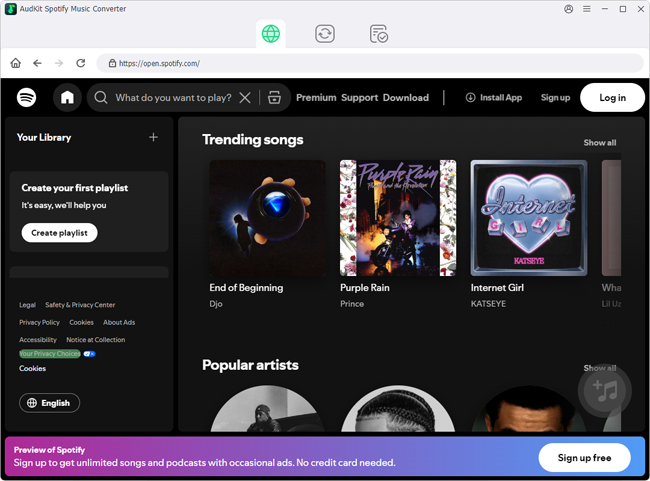
Select the Download button on the website to get the AudKit software and install it onto your computer. Start AudKit Spotify Music Converter after that, and the Spotify app will start immediately. Pick Menu > Register from the upper taskbar to access all of AudKit’s features.
Step 2 Add Spotify liked songs to the AudKit converter

Whether you are a paid or unpaid user of Spotify, you can explore and choose any songs, albums, or playlists through the Spotify app. Right-click one Spotify liked song you want to download and choose Copy Song Link under the Share option. Next, in the AudKit UI, put the URL into the search box. To import it, select the “+” button. Or, you could simply drag and drop tracks from Spotify into the converter.
Step 3 Change Spotify liked songs audio settings

Select Preferences in the top menu. You could then adjust the output format by selecting the Convert option. Here’re the format, channel, bitrate, conversion speed, etc. 5X is the standard running rate. Change the rate to 1X if you want a steady Spotify conversion.
Step 4 Download liked songs from Spotify on desktop
In the lower right corner, click the Convert option. AudKit Spotify Music Converter will start downloading your liked songs from Spotify. Once done, all downloaded music files from Spotify will be stored in the local directory on your computer. You then will not have the problem of all likes songs missing Spotify.
FAQs About Spotify Liked Songs Not Showing
Q: Why did my liked songs disappear after updating Spotify?
App updates can reset cached data or introduce sync bugs. Logging out and back in usually forces a fresh library sync. Clear the cache or reinstall if the problem persists.
Q: Will reinstalling Spotify delete my liked songs?
No — liked songs are stored in the cloud, not just on your device. Reinstalling removes only local data; your full list syncs again when you log into the same account.
Q: Can I recover liked songs if I accidentally un‑liked them?
Spotify has no native undo, but you can manually re‑like the track via search or recently played. For extra safety, back up liked songs locally with AudKit Spotify Music Converter.
Q: Why does my liked songs list show only certain songs?
Active genre/mood filters (or the “Downloaded” filter on mobile) are usually the cause. Tap the “X” on the highlighted filter or select “All” to see your entire library again.
Q: Are my liked songs stored locally on my device?
Only cached streaming copies exist locally; your actual liked songs list lives on Spotify’s servers. To own a true local copy, export the songs as MP3 or FLAC.
Q: How can I permanently back up my liked songs so they never disappear again?
Use AudKit Spotify Music Converter to download all liked tracks as standard audio files — no Premium needed. Once saved locally, they play offline on any device, immune to app glitches or accidental un‑likes.
Final Words
The trouble with your Spotify liked songs not showing is a normal issue and can be fixed easily. This article has provided instructions on fixing the problem according to different causes so you can keep grooving to your favorite Spotify tracks. And to avoid the Spotify missing issue, it’s better to keep your liked songs offline with AudKit Spotify Music Converter which can solve it once and for all.

Andrew Rowley
 Staff Editor
Andrew Rowley has over 10 years of writing experience and is good at writing in audio technology and audio converter software. He can provide high-quality articles to help streaming music lovers explore music better.