




Quick Answer: How to Reorder Songs on Spotify
You can rearrange your Spotify playlists in a few seconds across different devices:
- On Desktop (PC & Mac): Open your playlist, click the Sort drop-down menu in the top-right corner to ensure it is set to Custom order, and simply click and drag any track up or down. You can also click column headers like Title, Artist, or Date added to sort automatically.
- On Mobile (iOS & Android): Open your custom playlist, tap the three-dot menu icon > Edit (or Edit playlist), press and hold the three-line hamburger icon next to a song to drag it into position, and tap Save.
- For Offline & Free-Tier Playback: If you want to bypass Spotify Free’s forced shuffle on mobile and permanently lock in your track order across any media player, you can export the playlist as local audio files using a dedicated third-party music converter discussed below.
If you are a music lover, you must be using Spotify on a daily basis. Through this famous music streaming platform, you can discover tons of songs belonging to different genres. Moreover, you can create a playlist of your favorite songs on Spotify to relax your mind without interruption. The biggest benefit of Spotify playlists is it keeps playing your desired songs in a preferred order without disruption.
Therefore, creating an organized Spotify playlist is essential if you want to improve your listening experience. However, many Spotify users don’t know how to change order of songs on Spotify. In this article, we will guide you through multiple solutions to change the order of the songs in your Spotify playlist within a few minutes. Thus, keep reading this well-structured article.
Part 1. How to Change the Playlist Order on Spotify Desktop
There are two easy ways that allow you to change the song order on the Spotify playlist efficiently. You can either select the “ Sort” option or “ drag and drop” to change the playlist order. This section will guide you on how to change song order on Spotify playlist with simple instructions.
Way 1. Sort Songs Automatically by Criteria
Step 1. Open the desktop app of Spotify on your PC or MacBook. After opening its main interface, proceed to the “ Playlists” section from its left panel. Following this, select the playlist in which you want to change the song order.
Step 2. Now, you can see the columns through which you can sort out the artist, album, added date, and custom order. If you cannot see all the columns, you have to adjust the screen’s size accordingly. Note that if you want to rearrange tracks manually later, you must first click the Sort drop-down menu in the top-right corner of the playlist and switch it back to Custom order.
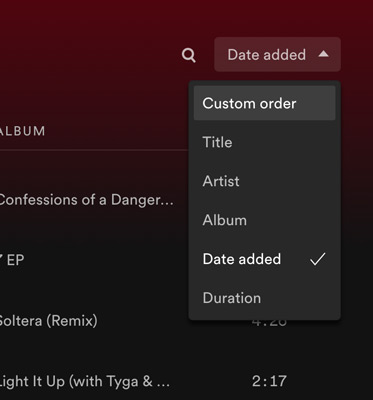
Way 2. Manually Drag and Drop Tracks (Custom Order)
Another way to reorder the songs on the playlist is through drag and drop. Just hold on to the song that you want to move and drop it to the desired place. You can also use the “ Search” icon to locate a particular song. Keep dragging and dropping the songs until your playlist gets reordered. This method also works seamlessly on the Spotify Web Player. To speed up the process, you can move multiple songs at once: hold down Ctrl (Windows) or Command (Mac) to select non-adjacent tracks, or hold Shift to highlight a continuous range of songs, then drag the entire selection to a new position.

Part 2. How to Reorganize Order of Songs on Spotify Mobile Playlists
If you are a mobile user of Spotify, you can still make Spotify change playlist order on mobile. In this regard, we have jotted down the instructions for changing the order of songs in Spotify’s playlist on your smartphone.
Way 1. Rearrange Tracks Manually via Edit Playlist
Note: Customizing track order manually and playing songs in exact sequence on mobile is primarily a Spotify Premium feature. Spotify Free users are restricted to Shuffle mode on most mobile playlists.
Step 1. Open the Spotify app on your phone and head to the “ Your Library” tab. Afterward, select the playlist of your choice and choose the “ Edit” option from the “ Three-Dots” menu.

Step 2. Now, you can see all the details of your playlist’s songs, such as the artist’s name and track title. The three horizontal lines display the “ Action” option. To change the song’s order, press and hold the song and place it in the desired place.
Step 3. Keep pressing and dragging the songs until you are done reorganizing your playlist. Afterward, tap on the “ Save” button to save all the changes.

Way 2. Filter and Sort Songs on iOS & Android
Step 1. First, head to your Spotify app on Android or iPhone and select one playlist from Your Library.
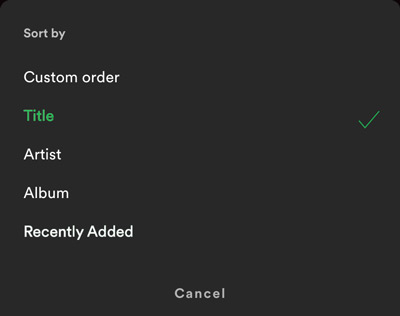
Step 2. Pull down slightly from the top of the playlist screen to reveal the search bar, then tap the Sort button next to it and choose to sort by Title, Artist, Album, or Recently added.
Part 3. More Information on Customizing the Order on Spotify
Spotify gives you various options to customize your songs and playlists. Moreover, by reorganizing the playlist order on your Spotify, you can listen to your favorite music tracks at the right moment. In this section, we will provide you with more information about how to change the order of songs on Spotify.
1. How to Change Order of Playlists on Spotify Profile
Spotify allows you to create multiple playlists so that you can effectively manage your favorite songs. The playlists you created can be as public on your profile, if you don’t want to show them, you can make Spotify playlists private. But if you want to reorder them, check out and learn how to change order of public playlists on Spotify.
Instruction: Open your Spotify app and navigate to the left side of the window to locate your playlists. Now, tap on the playlist you want to move and drop it to your preferred place. Make sure to repeat this step until you have reordered your playlists in the desired manner.

2. How to Rearrange the Order of Liked Songs on Spotify
Do you want to rearrange the order of your liked songs? The steps here to change the song order in Liked songs are the same as rearranging other playlists. You can follow the steps to know how to change order of Liked Songs on Spotify in Part 1 or Part 2.
3. How to Change Queue Order on Spotify
If you want to know how to change the playlist order on Spotify queue, we will offer detailed steps. By doing so, you can instantly remove unwanted songs from the queue on Spotify.
For Mobile
Step 1: Open your Spotify app and access the “Now Playing” bar. From there, you can locate and select the “Queue” icon. You can find your queued songs under the section “Next From“. Now, press and drag the three-dot icon to the right side of a song title to reorder your queue.

Step 2: To remove any song from the queue, tap on the circle of a particular song and select the “Remove” option. You can also add songs to the queue using the “Add to Queue” option.

For Desktop
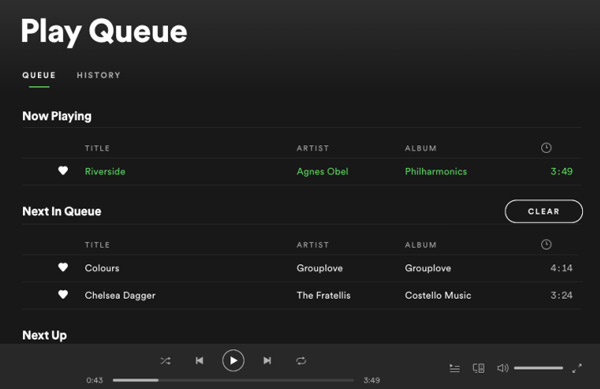
Step 1: Open your Spotify app and start playing the desired song. From the Playing Bar, you can locate and select the “Queue” icon. You can find your queued songs under the section “Next Up“. By dragging and dropping them, you can reorder the queue, preferably.

Step 2: To delete a queued song, right-click on the song and tap on “Remove from Queue“. Similarly, you can add a new song by right-clicking on it and selecting “Add to Queue“.
Part 4. How to Save Spotify Playlists Offline to Edit Songs
Do you want to edit Spotify playlists and information on your own? To do so, you have to download Spotify playlists on your PC/Mac. For this, the best available tool is AudKit Spotify Music Converter, which has various powerful features. This tool allows you to download Spotify playlists at 5X, the fastest speed compared to other audio recorders.
Moreover, it does not record system sounds, such as mouse clicks or notification sounds. With the best audio quality, you can effortlessly record your Spotify playlists without complications. Furthermore, you can also download ID3 tags, artist names, album covers, and other information while downloading the Spotify playlists.
It also supports batch processing that lets you download multiple Spotify playlists simultaneously. Moreover, if you are annoyed by the constant ads interrupting your user experience on Spotify, this tool can help immensely. With the Spotify songs downloaded, you can put them into other media players like Groove Music and Windows Media Player, and edit Spotify album covers, playlist orders and info, etc.
Main Features of AudKit Spotify Music Downloader
- Maintain the high sound quality and metadata of Spotify tracks
- Support converting songs from Spotify to MP3, WAV, AAC, M4A, and more
- Download Spotify music offline without premium and ads
- Change the titles, artists, etc. with the build-in editor
Straightforward Step-by-Step Instructions to Download Spotify Playlists
To operate AudKit Spotify Music Converter, the whole process is relatively easy. In this section, you can learn how to download Spotify playlists with this tool efficiently.
Step 1 Set up and launch AudKit Spotify Music Converter
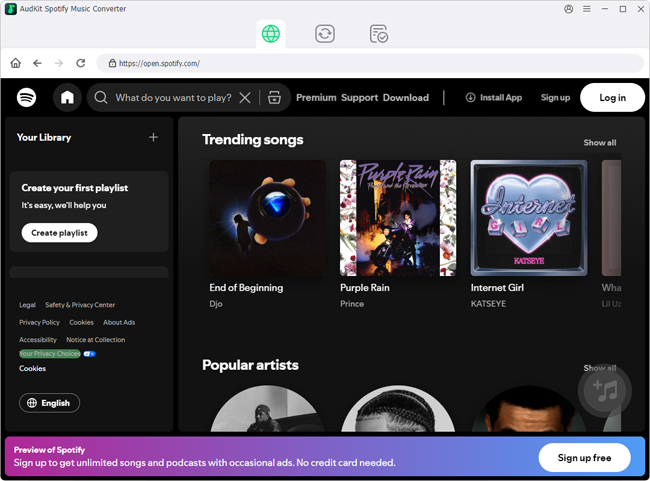
To use AudKit Spotify Music Converter, you have to install and register this tool. You can get help from on-screen instructions on the official website of AudKit. Once done with the installation, launch the AudKit tool and head to the menu, and select “Register” to activate the full version.
Step 2 Add songs from Spotify to AudKit software
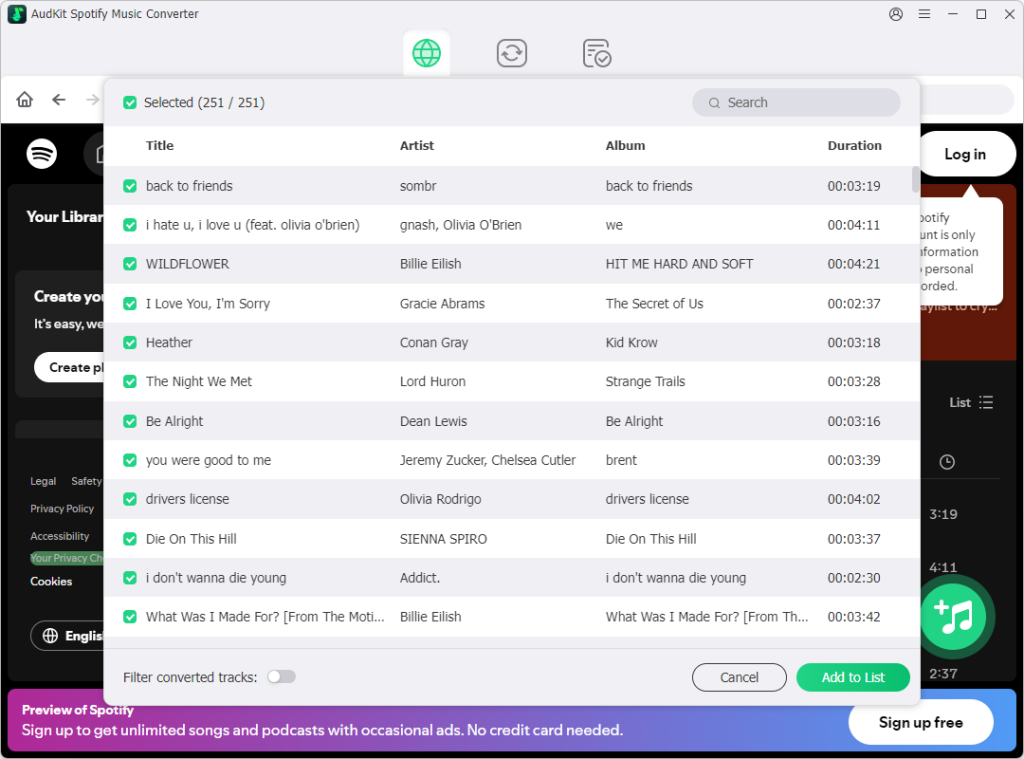
Head to your Spotify app and navigate to the desired playlist you want to download. Afterward, tap and hold onto the playlist by right-clicking on it. Select “Share” and “Copy Song Link” from the showing dropdown. Once done, paste the copied URL into the search box of AudKit Spotify Music Converter. Then, click and use the “Plus” icon to complete the import process of the Spotify playlist.
Step 3 Adjust the audio preferences for Spotify playlists
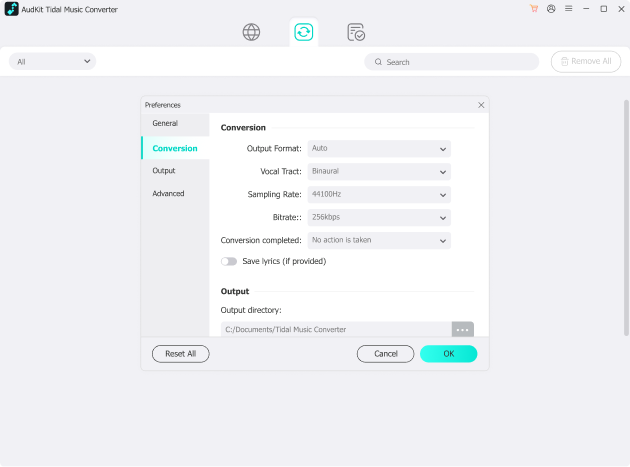
Now, select “Menu” from the above taskbar and click “Preferences“. It will show a small menu through which you can choose the audio file format, sample rate, channel, and other settings. Also, ensure to specify the conversion speed if you don’t want the AudKit app to run the conversion at 5X. After customizing the settings for the Spotify playlist, click on the “OK” button.
Step 4 Convert Spotify playlists offline
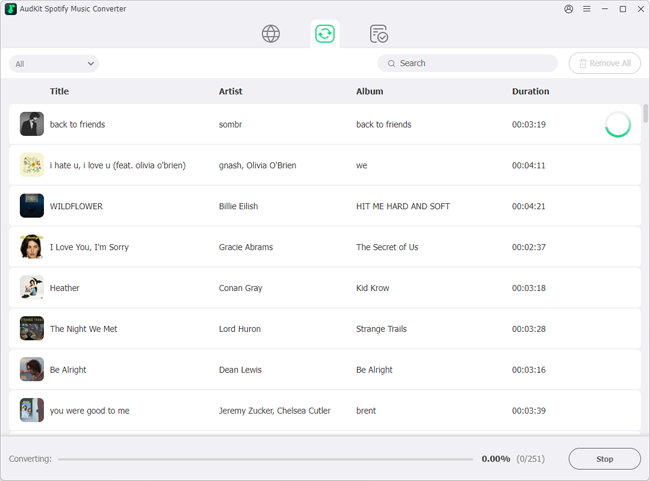
To start the Spotify playlists download process, press the “Convert” button. As soon as the conversion process concludes, the desired Spotify playlist will be downloaded to your computer. To find the downloaded playlist, tap on the “Folder” icon. After downloading the Spotify playlist, you can edit it with any editing software on your system. Also, you can share Spotify playlists on any device and platform.
FAQs About Changing Spotify Playlist Order
Can you change song order on Spotify without Premium?
Yes. Both Free and Premium users have full access to Spotify’s “Sort” and manual drag-and-drop features. Because basic playlist management occurs within the app interface rather than involving server-side streaming restrictions, you can freely reorganize tracks regardless of your subscription status.
How do I put newly added songs at the top of my Spotify playlist?
Use the “Sort” feature on desktop or mobile—often represented by a three-line icon or the “Date Added” text at the top of your list. Select it to sort by “Date Added.” If the newest tracks appear at the bottom, click or tap the option again to reverse the order and bring recent additions to the top.
Why won’t Spotify let me drag and drop songs on PC?
Manual drag-and-drop only works when a playlist is set to “Custom Order.” Clicking column headers like “Title,” “Artist,” or “Date Added” locks the list into that specific view and disables manual rearrangement. To fix this, scroll to the top of your playlist, open the sort menu, and select “Custom Order.”
How can I permanently lock my playlist order for MP3 players?
Because Spotify playlists are cloud-based and protected by DRM restrictions, they cannot maintain a custom order on generic MP3 players. To permanently lock your sequence, use the AudKit Spotify Music Converter to download your playlists as local MP3 or FLAC files. This preserves your custom order and lets you transfer tracks to any portable device without playback restrictions.
Part 5. Final Words
Managing your Spotify playlists is efficient with just a few steps. Remember, on the desktop app, you must set the filter to ‘Custom order’ to enable drag-and-drop, while mobile users should tap the three-dot menu to enter ‘Edit’ mode. If you wish to permanently preserve your curated order or enjoy music offline without limitations, AudKit Spotify Music Converter is a powerful tool to download and save your tracks easily.

Andrew Rowley
 Staff Editor
Andrew Rowley has over 10 years of writing experience and is good at writing in audio technology and audio converter software. He can provide high-quality articles to help streaming music lovers explore music better.