





Quick Answer
If Spotify keeps skipping songs — or randomly jumps every 10 seconds — start with these fixes:
- Check your internet and restart the app. An unstable connection or temporary glitch is the most common cause; restarting clears minor software hiccups.
- Clear Spotify’s cache and disable battery saver. Cached data can become corrupted, and battery‑saving modes often restrict background playback, triggering skips.
- Play offline with AudKit Spotify Music Converter. For a permanent, skip‑free solution, use AudKit Spotify Music Converter to convert Spotify tracks to plain MP3 files — then play them on any device without needing the Spotify app or an internet connection.
Spotify is a popular provider of audio streaming and media services. Currently, Spotify has about 198 million+ free users worldwide. Despite this popularity, many users have reported that they have encountered problems such as Spotify staying paused, Spotify stops playing the current song, Spotify keeps skipping songs, etc.
Some users say that Spotify skips songs on its own when they are listening to their tunes, which makes them uneasy. But, relax! This doesn’t mean you can’t enjoy the privileges of Spotify’s great audio streaming service. There are many solutions to help you use Spotify.
In this article, we will focus on how to fix Spotify skipping songs. You will get 9 solutions and get the Spotify app on your device working smoothly again. Let’s zoom in and see!

- Part 1. Why Does Spotify Keep Skipping Songs
- Part 2. How to Fix Spotify Skipping Songs
- FAQ
- Part 3. Conclusion
Part 1. The Reason Why Spotify Keeps Skipping Songs
“Why does my Spotify keep skipping songs?” There are many different reasons that will cause the Spotify skipping songs issue. If your internet connection is unstable, you may experience Spotify randomly skipping songs issue. If there are server issues, Spotify will skip songs automatically. Also, the same issue exists if your Spotify takes up too much cache.
The Spotify skipping issue can happen for these various reasons. In fact, instead of finding out what’s causing the issue, it is best to know how to fix it. Read on to find out the best 9 solutions.
Part 2. How to Fix Spotify Skipping Songs – 9 Solutions
What to do when Spotify keeps skipping songs? There are 9 solutions you can take when you have problems with Spotify skipping songs. The first 8 solutions are common solutions and you can try them one by one. If they still don’t work, the last solution will solve your problem 100%. Now let’s get started.
Quick check – Allow explicit content
If your account or app filters explicit tracks, songs labeled “E” may be skipped automatically.
- Mobile: Tap your profile icon → Settings → Content Preferences → turn on Allow explicit content.
- Desktop: Click your profile → Settings → Explicit Content → switch Allow playback of explicit-rated content on.
Solution 1: Check Internet Connection
Your Spotify auto-skipping issue is most likely related to your network environment in some way. Therefore, you need to double-check the network cables as well as the router. Make sure that all the internet cables are properly connected and also in the right place. If you are using Wi-Fi, disconnect the internet connection and then restart the router again.
- Run a quick internet speed test (Spotify recommends at least 1 Mbps for stable streaming).
- Restart your router and modem, then reconnect your device.
- If you’re on Wi‑Fi, try switching to mobile data temporarily to rule out a home‑network problem.
- Disable VPN or proxy services – they can confuse Spotify’s servers and cause playback interruptions.
Solution 2: Restart Your Device
This is the easiest way to fix the “Spotify skipping through songs” problem. Anything incorrect can happen to Spotify on your gadget, so restarting your device, may fix your app.
- How to restart correctly: Press and hold the power button, then choose Restart (or slide to power off and turn it back on).
- A fresh boot clears temporary errors and often stops songs from skipping without any other changes.
Solution 3: Log out and then Log in Again
When your Spotify Premium subscription has just expired, you may encounter a “Spotify skipping songs” error. That is because the program asks for a refresh to migrate your subscription back to standard.
In this case, you will need a new Premium subscription package to bring your application back to the previous standard. If you don’t want to continue the Premium subscription, you just need to log out and then log in to your Spotify account again. Please follow the steps below to get the solution.
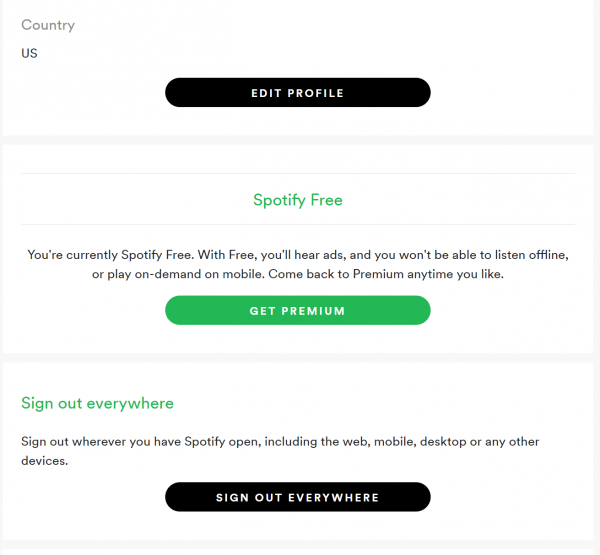
Step 1. Open the Spotify app.
Step 2. Click on your “profile” to go to the “Account Overview” page. Scroll down to the bottom and click on the “Sign Out Everywhere” tab. This will sign out Spotify from all devices where you have previously signed in to Spotify.
Step 3. Open Spotify again and log in to your Spotify account.
Solution 4: Reinstall the Spotify App
If the “Spotify skipping songs by itself” problem persists, you can try reinstalling Spotify. To cleanly reinstall Spotify on your PC, you can follow these steps.
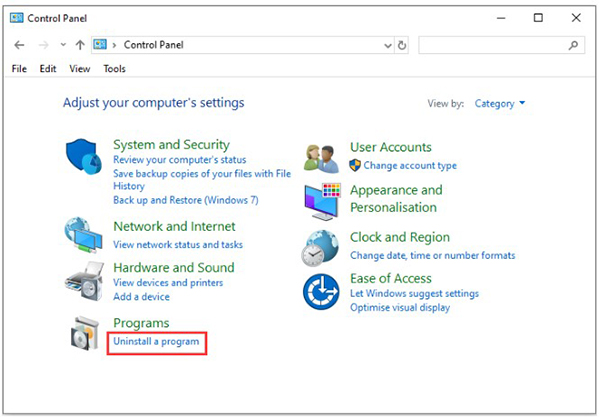
Step 1. Go to the “Control Panel” on your computer.
Step 2. Select “Uninstall a program” in the “Programs” section.
Step 3. Find Spotify and right-click on it to select “Uninstall“.
Step 4. After uninstalling Spotify, you can cleanly delete the Spotify folder from your roaming folder
C:UsersYOURUSERNAMEAppDataRoamingSpotify
Step 5. Download and install the latest Spotify app from its official website.
After reinstalling the game, check if “Spotify keeps skipping songs” is resolved. If not, try the next solution.
Solution 5: Lower Spotify Streaming Quality
If you are playing Spotify songs with high-quality streaming, the songs may pause or skip when the network environment is not good enough. Therefore, this problem can be easily solved by reducing the streaming quality.
Desktop Spotify:
If you are using Spotify on your desktop, to fix the Spotify skipping songs issue, click on your “profile” in the upper right corner and go to “Settings“. Then click on the “High Quality Streaming” (Premium users only) close tab under the “Music Quality” option.
Mobile Spotify:
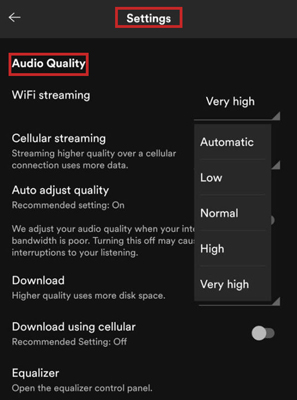
Why does Spotify keep skipping songs iPhone/Android? To lower the streaming quality of Spotify on the mobile app, go to the “Settings” > Audio Quality. Then tap on other music quality options except “Very high“.
Solution 6: Clear Spotify Cache
If your Spotify takes up too much cache, there will be a “Spotify keeps skipping” issue. If this is the case, you need to clear the Spotify cache to solve it. Detailed steps you can see: How to clear Spotify cache on desktop/mobile.
- Desktop: Click your profile → Settings → scroll to Cache → click Clear cache. Confirm the action.
- Mobile (iPhone/Android): Tap your profile → Settings → Storage → tap Clear cache (or Delete cache).
Solution 7: Free up Storage on Your Device
Similarly, if your device has not had enough storage, Spotify won’t play music normally. This will cause a “Spotify skipping songs” issue. In this case, you can check and free up the storage space on your device.
- Check storage:
- Windows: Settings → System → Storage.
- Mac: Apple menu → About This Mac → Storage.
- iPhone/Android: Settings → General → iPhone Storage (iOS) or Settings → Storage (Android).
- Free up space: Delete unused apps, move photos/videos to a cloud service, or offload large files. Keeping at least 1 GB free usually prevents playback problems.
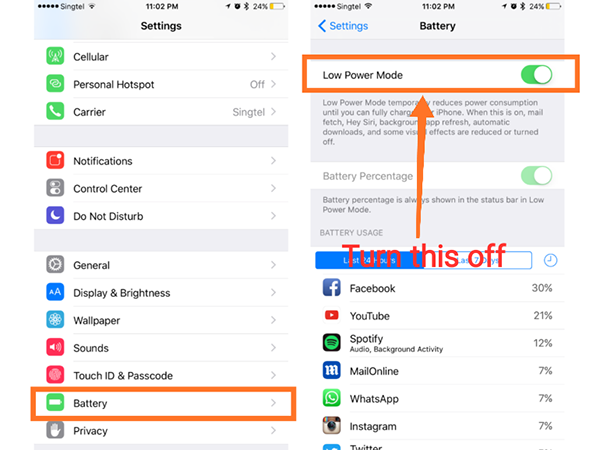
Solution 8: Turn Off the “Battery Saver” Mode
“Why is my Spotify skipping songs?” If you turn on the “battery save” on your iPhone or Android phone, your Spotify songs can be automatically skipped. Thus, you can turn off the Battery Saver on your phone to solve it.
Android phones: Navigate to the “Settings” > “Battery & performance“. Turn off the “Battery saver” button.
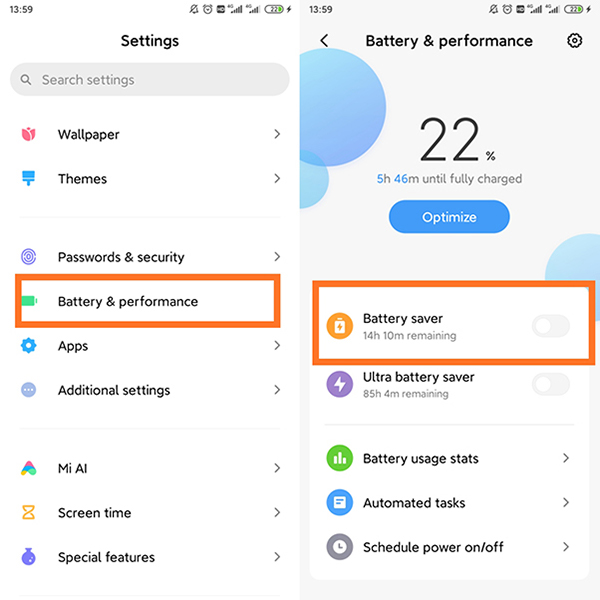
iPhone: Go to “Settings” >”Battery“. Turn off the “Lower Power Mode“.
Solution 9: Play Spotify Offline
You can get rid of the “Spotify skipping songs” problem by looking for an alternative for the Spotify app. Try to download Spotify music as your own and then listen to them on any other music player. The AudKit SpotiLab Music Converter is the best method to use Spotify on other music players.
This program helps you to download Spotify tracks to MP3, M4A, AAC, etc. keeping original quality and ID3 tags. You can listen to Spotify songs in offline mode without Spotify Premium by using this app. Choose the AudKit Spotify Music Converter application to download your playlists for listening without limits.

Main Features of AudKit Spotify Music Converter
- Quick audio track conversion at 5X faster speed
- Download Spotify playlists for offline listening
- Stores 100% metadata of Spotify audios for future use
- Lossless data conversion takes place without Spotify ads
The stepwise process to download Spotify songs and listen to Spotify offline on other media players using the AudKit Spotify Music Converter tool:
Step 1 Download the AudKit application
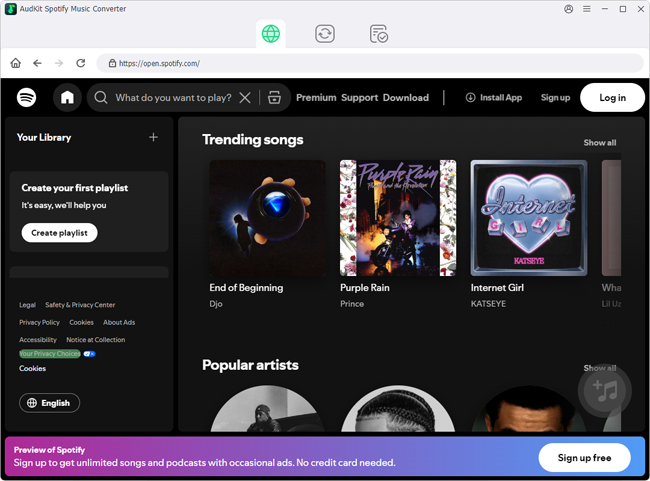
The AudKit Spotify Music Converter’s official website has the download option. Also, you can directly download it from the above “Download” button. It varies with your system OS. You can choose between the Windows or Mac version and make a quick download. After the successful download, install the app.
Step 2 Add the music files in bulk

You can batch add Spotify music files to this converter. You can directly drag and drop the music files from Spotify to AudKit Spotify Downloader. You can also copy and paste the music’s link into the address bar of AudKit Spotify Downloader and then click nearby the ‘+‘ icon.
Step 3 Choose output format as MP3

Change the attributes for conversion by hitting the “Menu” > “Preferences” > “Convert” icon. The conversion parameters are output file format, channel, bit rate, and sample rate. To listen to Spotify on other music players, you can select the MP3 output format.
Step 4 Trigger the conversion

Finally, trigger the conversion process by hitting the “Convert” button. The Spotify soundtracks download and get converted based on the output file settings. You can access the downloaded songs on the “History” menu on this app. You can also find the soundtracks in the storage space of the output file path.
Step 4 Listen to Spotify offline on other music players
After downloading Spotify music tracks as your local files, you can listen to them via any music player on your device. In this way, you don’t need to worry about Spotify skipping songs issue.
FAQs About Spotify Skips Songs
Why does my Spotify skip songs every 10 seconds?
If Spotify keeps skipping songs every 10 seconds, the issue is usually a buffering or network timeout — the app starts playback but can’t fetch enough data in time, so it jumps to the next track. Other common triggers include corrupted cache, low device storage, battery optimization killing Spotify’s background activity, or conflicts from AutoMix/Crossfade. On some accounts, explicit content filtering also causes skips when a song with an ‘E’ tag plays. Run through the fixes in this guide: check your internet stability, clear the cache, turn off power‑saving modes for Spotify, and make sure explicit content is allowed.
Will downloading songs stop skipping?
Yes, downloading songs for offline playback can fix skipping caused by poor connectivity or server lag. With a Spotify Premium subscription, you can download tracks and play them without an internet connection. However, if the skipping is due to app bugs, corrupted cache, storage issues, or device conflicts, even downloaded songs might still skip. For a completely dependable offline experience — especially when Spotify randomly skipping songs on Android, iPhone, or desktop — you can convert Spotify songs to universal audio files like MP3 with AudKit Spotify Music Converter. This removes your reliance on the Spotify app’s live processes and gives you playback that works on any device, every time.
What should I do if Spotify keeps skipping songs after trying all solutions?
Re‑check Spotify’s service status on Downdetector or Spotify’s official Twitter account — a server‑side outage can cause repeated skipping regardless of your local fixes. Also confirm your Premium subscription hasn’t expired, because free‑tier accounts only allow shuffle play and can behave as if songs are skipping. If the problem persists, reach out to Spotify Support with details of your device, app version, and the steps you’ve already tried.
Part 3. Conclusion
These are all the ways to solve the “Spotify skipping songs” problem. You can try the first 8 common methods one by one, and if they still don’t work, go through the last solution to solve the problem. The last solution can help you 100% avoid the problem of Spotify keeps skipping songs. Use AudKit Spotify Downloader to download Spotify music as your own. Then you can listen to Spotify music offline on other music players.

Elle Johnson
 Staff Editor
Elle Johnson has been working in the technology and music software field for over 5 years. She is dedicated to providing easy-to-use guides and effective tips to play music anywhere.