





Quick Answer
- Direct App Availability: The official Tidal app is not available in the Amazon Appstore on Kindle Fire (Amazon Fire) tablets.
- The Workaround: Download and convert your favorite Tidal tracks, playlists, or albums into standard audio files (such as MP3 or FLAC) using a dedicated desktop converter.
- Offline Playback: Transfer the converted audio files to your Kindle Fire tablet via a USB cable and play them anytime using the built-in Music app or any compatible media player.
Tidal is a music streaming app that offers high-quality audio files. It’s similar to other popular streaming apps like Spotify and Pandora, but it has one key difference: it offers lossless, CD-quality audio files for a higher price point.
Tidal is worth considering if you’re an audiophile who wants the best possible sound quality from your music streaming app. However, it’s not available on all devices. One device it isn’t available on is the Kindle Fire.
Kindle Fire is an excellent device for reading, but it doesn’t support Tidal out of the box. However, there’s a way to play Tidal on Kindle Fire. If you have a Kindle Fire and are looking for ways to listen to Tidal, a few options are available. This article will show you how to listen to Tidal music on Kindle Fire.
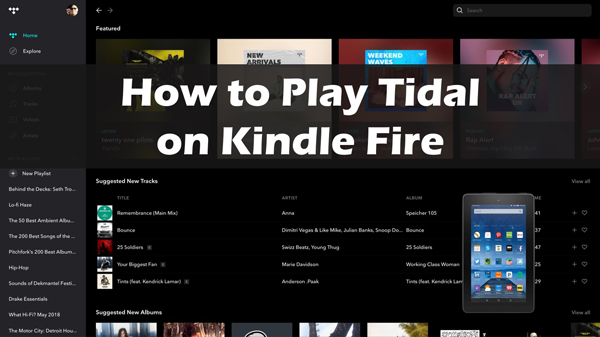
Part 1. Is Tidal Available on Kindle Fire?
The short answer is no. You cannot find or install the Tidal app directly from the Amazon Appstore on a Kindle Fire tablet.
Amazon Fire tablets run on Fire OS—Amazon’s customized Android-based operating system. Because Fire OS relies exclusively on the Amazon Appstore rather than the Google Play Store, many popular third-party streaming apps, including Tidal, are absent from the platform.
Furthermore, cached songs downloaded through a Tidal subscription are protected audio files designed to play only within the official Tidal application. Because the app cannot be installed natively on Fire OS, those cache files cannot be accessed or recognized by Amazon’s default media players.
To overcome this limitation, the most reliable and stable method is to download your Tidal playlists as local audio files (such as MP3 or FLAC) on your computer, and then transfer them directly to your Kindle Fire storage.
Part 2. How to Play Tidal on Kindle Fire – Tool Required
Because Tidal music has digital protection that enables users to play Tidal only on the Tidal app. You cannot directly play the downloaded Tidal songs on Kindle Fire. Hence, to play Tidal on Kindle Fire, you need a professional Tidal downloader – AudKit Tidal Music Converter.
It is a tool that allows you to download and convert Tidal music to MP3 format. Once the Tidal music is in MP3 format, you can transfer the files to your Kindle Fire and play them using any music player app. Not only MP3, but AudKit Tidizer Converter also supports other kinds of common-used formats including FLAC, WAV, AAC, M4A, etc. So, you can use the converted audio files on multiple devices which are not compatible with Tidal.
Besides, original ID3 tags and lossless quality will be preserved after conversion. AudKit Tidizer Music Converter is available for both Windows and Mac. It is effortless to use and has a clean, user-friendly interface.
Main Features of AudKit Tidal Music Converter
- Convert Tidal to MP3/AAC/WAV/FLAC, etc.
- Keep lossless audio quality
- Preserve ID3 tags & meta Info
- Convert Tidal at 5X faster speed
Part 3. How to Download Tidal Music for Kindle Fire
Download and install AudKit Tidizer Music Converter on your computer according to your OS. Then we’ll show you how to use AudKit Tidizer Music Converter to download and convert Tidal to MP3 format.
Step 1 Add Tidal music for Kindle Fire
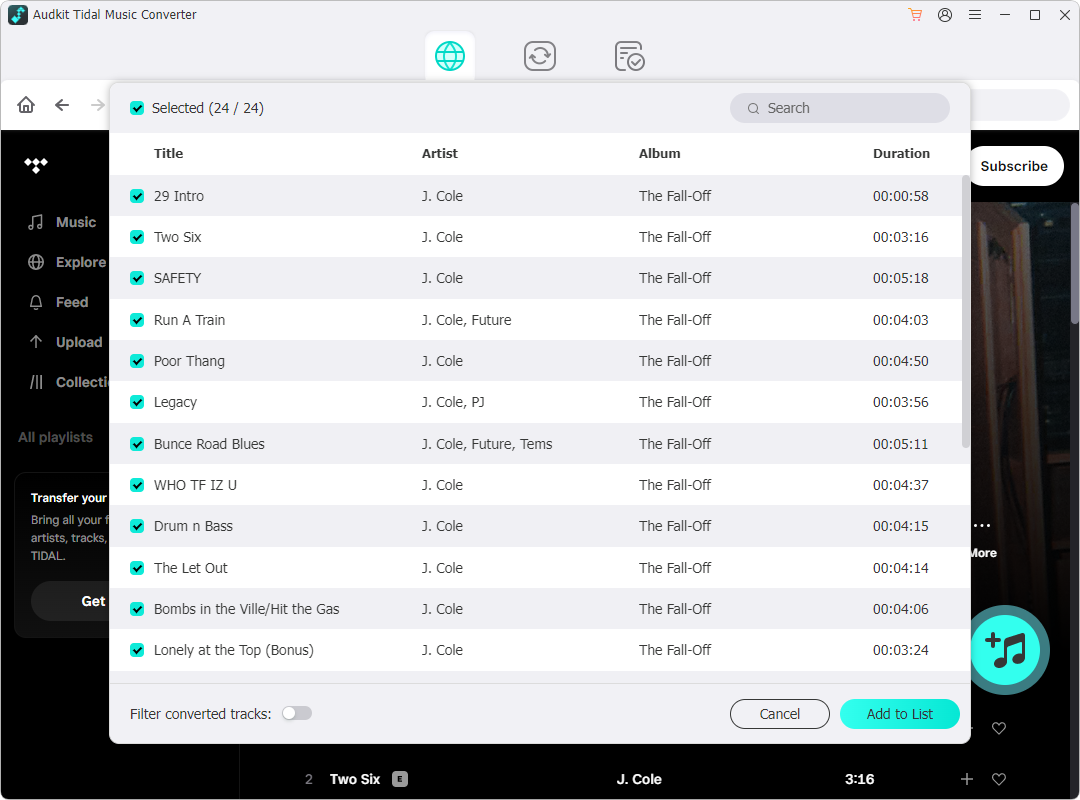
Open AudKit Tidizer and the Tidal app will launch automatically. From Tidal, drag and drop the songs you want to play on Kindle Fire to AudKit Tidizer. Or you can copy and paste the songs’ links into AudKit’s search bar and click on + to load them.
Step 2 Select Spotify output format for Kindle Fire
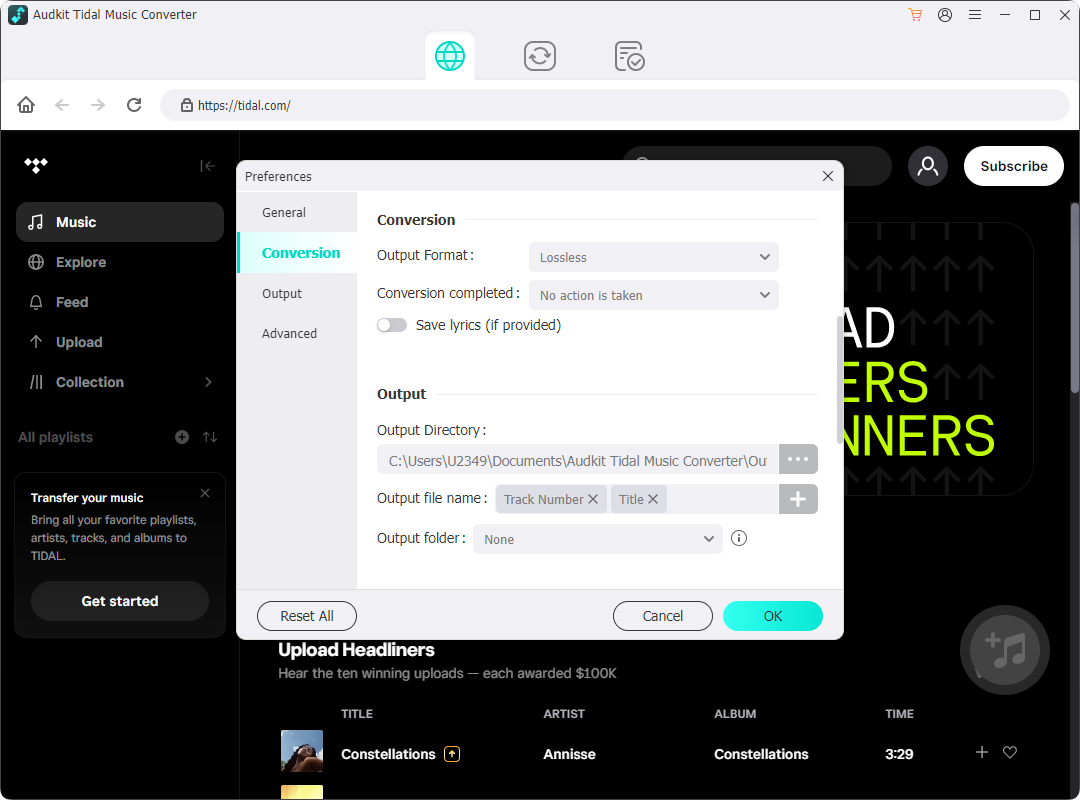
Click on menu > Preferences > Convert to open the output settings window. To play Tidal on Kindle Fire, you are supposed to reset the output format as MP3. You can also change other output parameters like bit rate, sample rate, and so on.
Step 3 Download Tidal music to MP3 for Kindle Fire
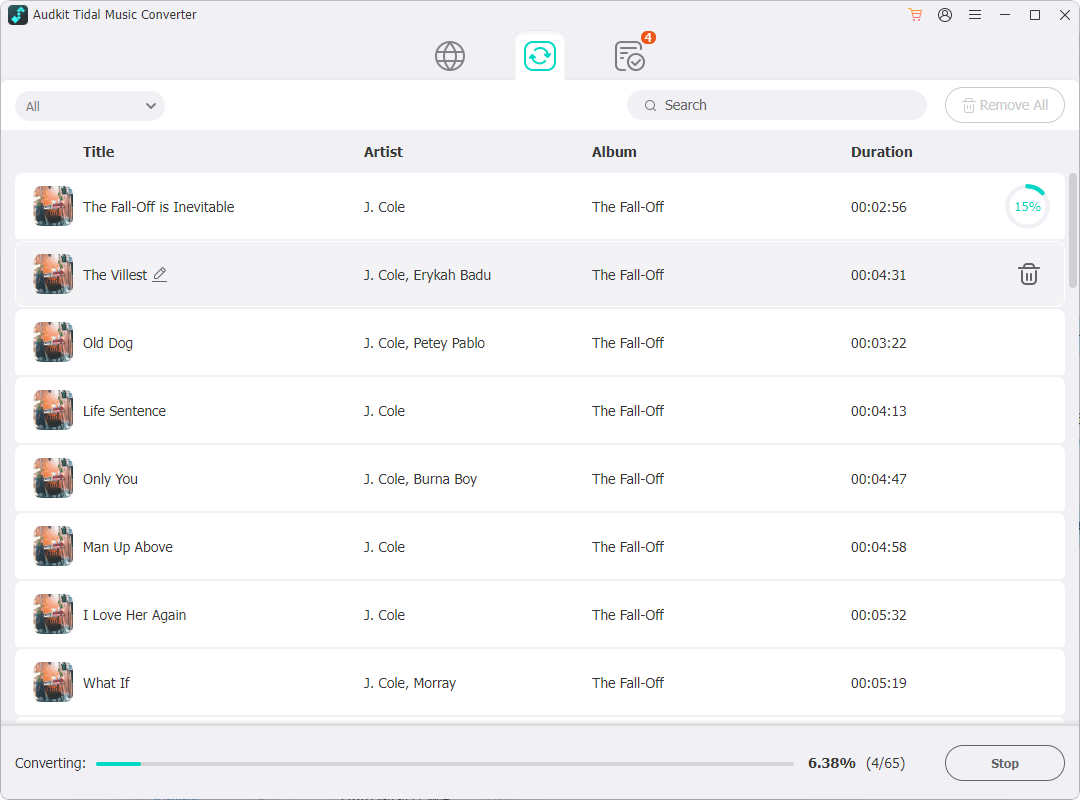
Once you have selected the output format, click on the “Convert” button to begin the process to download Tidal music without premium. The downloaded Tidal music will be saved to your computer in the selected output format. You can also find them by clicking the “Converted” icon. After converting, you are able to play Tidal on Kindle Fire with ease.
Part 4. How to Play Tidal on Kindle Fire
You can get Tidal on Kindle Fire by transferring the files to your device and using a music player app. To transfer tidal music to Kindle Fire, pay attention to the following steps.
Step 1. Connect your Kindle Fire to your computer using a USB cable.
Step 2. Open the Kindle Fire drive on your computer and create a new “Music” folder.
Step 3. Copy the downloaded Tidal songs to the “Music” folder on your Kindle Fire.
Step 4. Disconnect your Kindle Fire from your computer.
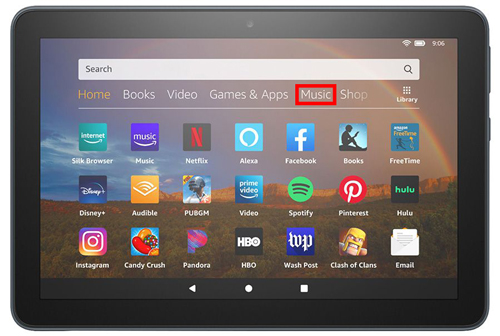
Step 5. On your Kindle Fire, go to the “Apps” page and launch the “Music” app.
Step 6. The Tidal songs you copied to your Kindle Fire should now be visible in the “Music” app. You can now play the songs from your Kindle Fire.
Step 7. If you want to play the Tidal songs on a different music player app, you can install the app from the Amazon Appstore.
Frequently Asked Questions
Can I sideload the Tidal APK onto my Kindle Fire?
Yes, advanced users can enable “Apps from Unknown Sources” in the Fire OS Settings to install the Tidal Android APK or install Google Play Services. However, sideloaded apps may suffer from compatibility issues, missing playback features, or instability during Fire OS system updates.
What audio formats does the Kindle Fire default music player support?
The built-in Amazon Music / local player app on Fire OS supports standard audio file types, including MP3, AAC (.m4a), WAV, and non-protected formats. Converting Tidal tracks to MP3 provides the widest compatibility across all Fire OS versions.
Will converting Tidal tracks reduce the audio quality?
If you convert Tidal tracks to MP3 at 320 kbps or to lossless formats such as FLAC or WAV using AudKit Tidal Music Converter, the original audio fidelity and metadata will be fully retained for high-quality listening.
Part 5. Conclusion
So, there you have it! You can now play Tidal on Kindle Fire by using AudKit Tidal Converter. Although Amazon doesn’t currently have an app for Tidal, AudKit Tidal enables you to listen to Tidal music on Kindle Fire with ease. Enjoy your music streaming experience with the best Tidal downloader, AudKit Tidal Converter!

Elle Johnson
 Staff Editor
Elle Johnson has been working in the technology and music software field for over 5 years. She is dedicated to providing easy-to-use guides and effective tips to play music anywhere.